Tickets
Tickets are requests to Golova support. With a ticket you can ask a question, report a malfunction, suggest an idea or ask about the balance and documents. The whole conversation on a request is kept in one place.
Where tickets are
Open the section with the "Tickets" icon in the top bar on the right. If the icon shows a number, there are new answers in your tickets.
Knowledge Base first
Next to the "Create" button there is the "Knowledge Base" button. It opens Golova Help in a new tab. Before writing to support, look for the answer there: many questions are already explained step by step, with screenshots.
You can also open Help from anywhere in the system: the "Help" icon in the top bar → "Knowledge Base".
How to create a ticket
Click "Create".
In the "Topic" field, choose what the request is about: "question", "idea", "balance", "malfunction", "document constructor" or "legal questions".
In the "Project number" field, enter the project number if the question concerns a specific project. If not, enter a dash.
Describe the situation in the "Message text" field. The field is required.
If needed, attach a file in the "Screenshot/video, etc." field.
Click "Create".
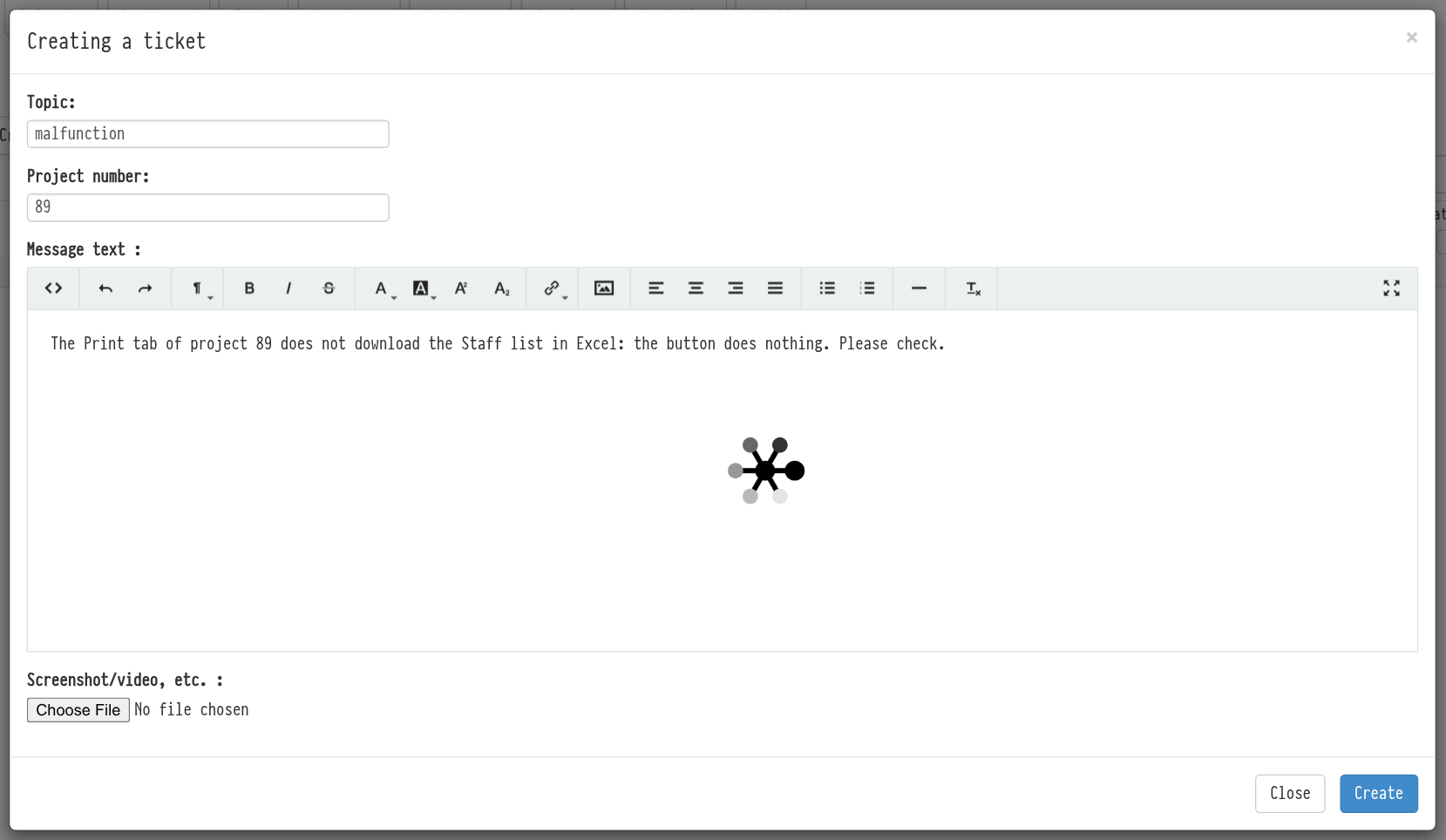
The more precise the description, the faster the answer. Write what you did, what you expected to see and what happened. A screenshot of the error helps a lot.
List of tickets
The table shows all requests: "ID", "Name", "Category", "Status", "Discussions", "Creating", "Author" and "Update". Above the columns there are filters, for example by category or status.
A ticket has three statuses:
"in progress": the request is waiting for an answer from support;
"answered": support has answered;
"closed": the question is solved.
Conversation and closing
Click a ticket row to open the conversation. To answer support, write the text in the "Leave a comment" field and click "Reply".
You can attach a file to your answer: a screenshot, a video or a document. Choose it with the file button under the "Comment text" field and click "Reply". In the conversation your messages are marked "You wrote", support answers "Golova wrote". The attached file opens with the link under the message.
When the question is solved, click "The issue has been resolved." to the right of the status. The ticket gets the "closed" status.
Who sees tickets
Access to tickets is set in the employee's access template: the "System" tab, the "Tickets" row.
"full access": the employee sees all tickets of the company;
"only mine": only the tickets they created themselves;
"hide": the section is hidden.
More about templates: Creating a new template.