Adding positions
The window of the "Estimate" tab is divided into two parts. On the left there is the catalog tree, and on the right there are the sheets with lists of entries already used in the project.
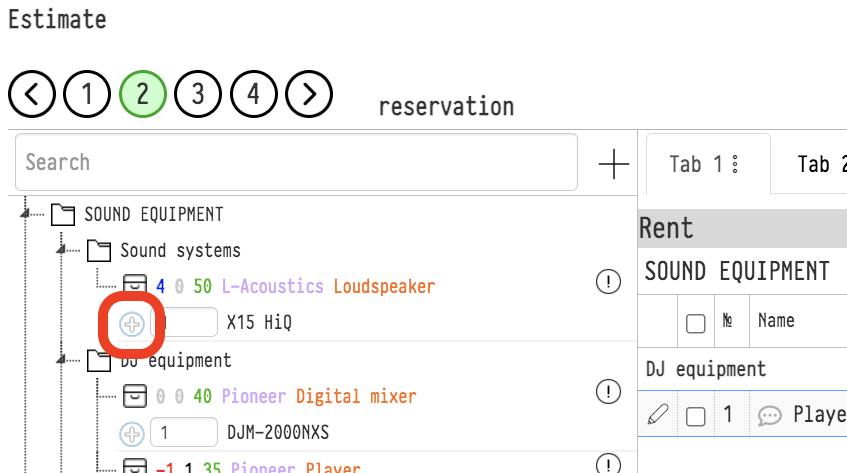
To add an entry to the project, find it in the catalog and click the plus sign next to its name.
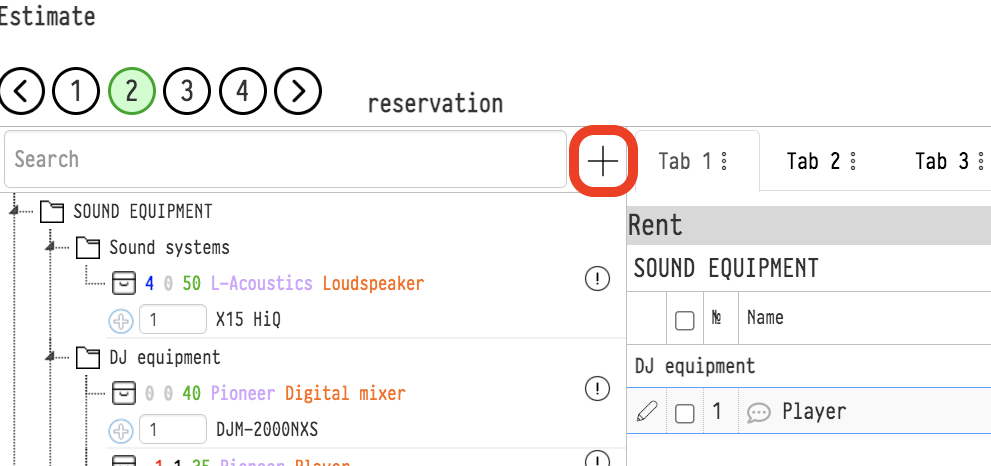
Under the status circles, to the right of the "Search" field, there is another plus sign. Click it to create a new entry in the project without going to the catalog.
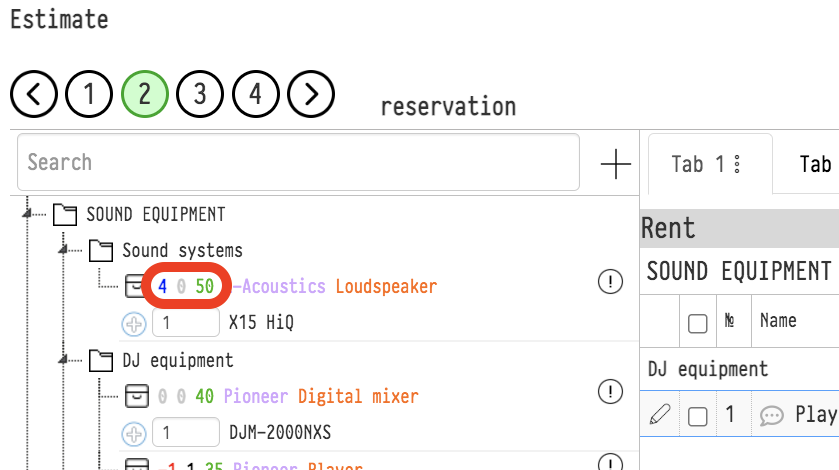
The three numbers next to the entry name in the project show: the stock balance; the number of units added to this estimate; the current catalog price.
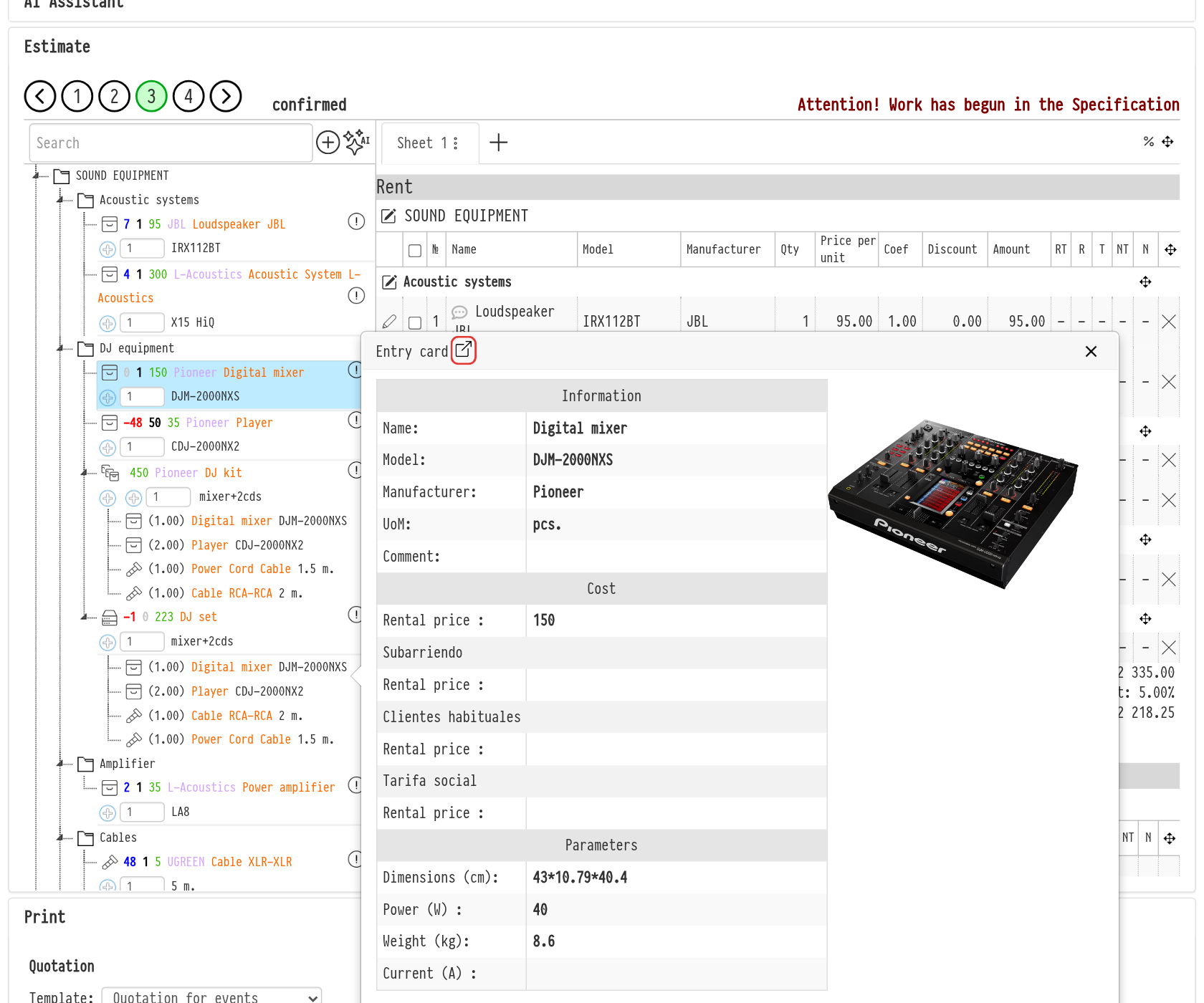
Entry card and jump to the catalog
To the right of an entry in the catalog tree there is a card icon. Click it to open the "Entry card" window with the main catalog data: "Name", "Model", "Manufacturer", "UoM", "Comment", "Cost", "Rental price" and "Parameters" (dimensions, power, weight, current). This way you can check the catalog without leaving the estimate.
To open the entry in the catalog itself, for example to correct the price or look at the SKUs, click the arrow icon in the window title ("Open in Catalog"). The catalog opens in a new tab right on this entry. The icon is visible if the "Catalog" section is open to you.
The same icon is in the catalog tree on the "Specification" tab.
If the entry is not in the catalog, you can add it to the estimate as an empty row: the "Add empty line" button. In the "Adding an empty line" window, enter the section, name, model, type, the "Add as" option, price, quantity, number of lines and specifications. More: see Specification.
The green price next to an entry in the estimate tree is taken from the project price type; for kits and sets it is calculated from the contents. It is visible to employees whose access template has "full access" in the "Prices" row for the estimate.