Actions with the estimate sheet
These 4 points are necessary for the convenience of working with loops. For example, you can use them to edit a copy of the list, creating two similar versions of it.
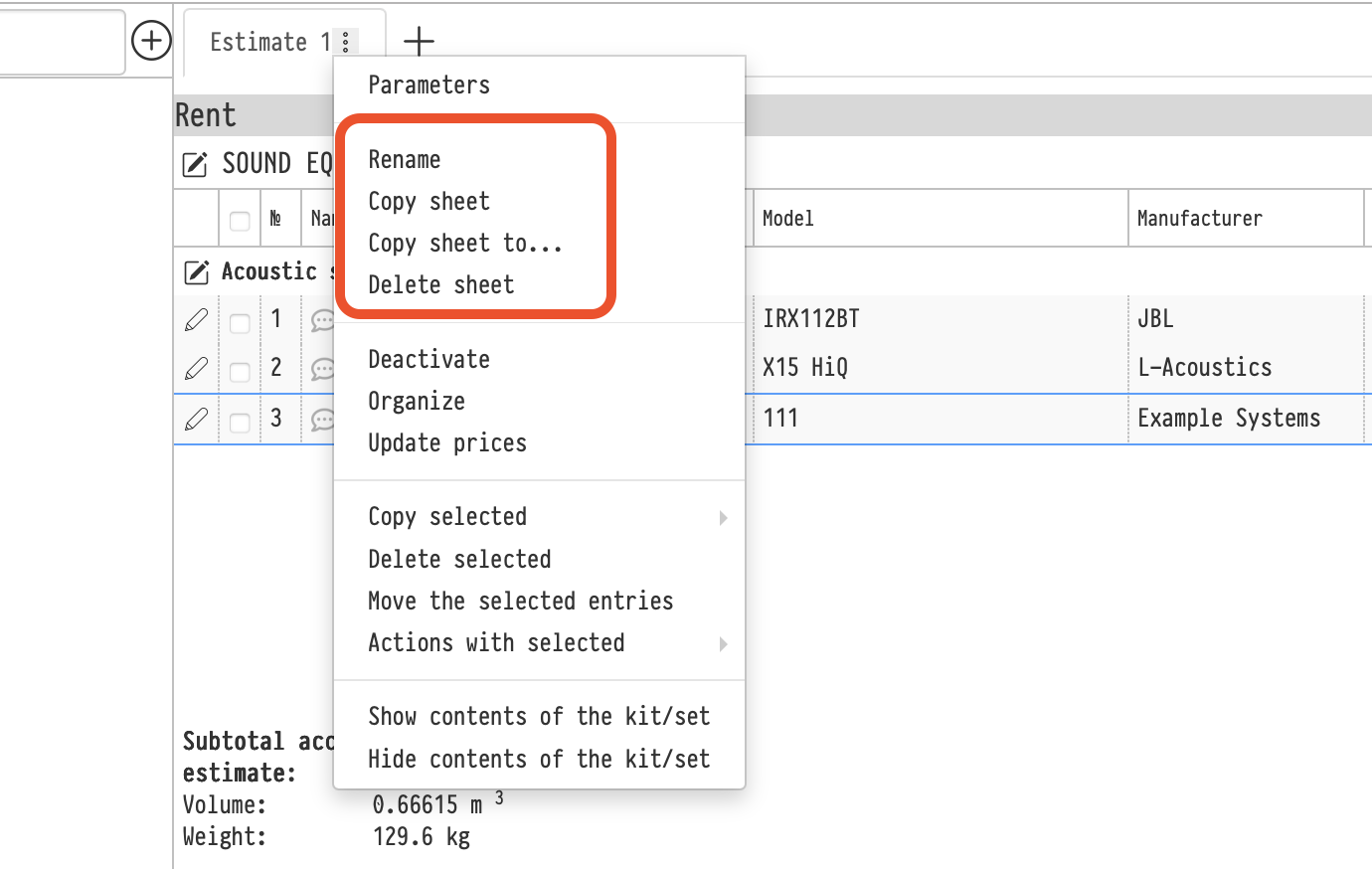
The "Copy to..." item allows you to copy the sheet you are currently working with to another project.
How the estimate sheet is linked to the specification
An estimate sheet can have a paired specification sheet with the same name. While the specification is in a status before disconnection, the pair is created automatically: a new estimate sheet appears in the specification right away.
Once the specification reaches a status with Disconnection enabled, the automatic link stops — the warehouse works with its own version of the composition. A warning appears at the top of the estimate: “Attention! Work has begun in the Specification”, and new sheets have to be transferred to the specification manually.
That is why the sheet menu shows one of two items:
a sheet without a pair — Copy to specification;
a sheet with a pair — Update from specification.
Copy to specification
The action creates a sheet in the specification with the same name and the same entries.
After copying, the sheets become a pair and the menu item changes to “Update from specification”.
Update from specification
The action pulls the composition of the paired specification sheet into the estimate sheet. In the window that opens, choose one of two modes.
Add missing entries. Quantities are matched to the specification, missing entries are added. Rows that are not in the specification remain in the estimate.
Overwrite completely. The estimate sheet is made to match the specification exactly. Rows that are not in the specification will be deleted along with their prices and discounts.
Please note: “Overwrite completely” deletes rows irreversibly, together with the prices and discounts set for them. To keep what was added to the estimate on top of the specification, choose “Add missing entries”.
Key concepts:
estimate sheet, sheet context menu, paired sheets, disconnection, copy sheet, update from specification