Inventory audit
An inventory audit checks that the equipment listed in the catalog is really in the warehouse. Your warehouse staff carry it out, and the results are kept in the "Inventory" section: you can come back to them at any time and export them to Excel.
To open the section, click "Inventory" in the row of links above the catalog table.
Creating an inventory audit
Fill in the "Basic parameters" block:
Warehouse: a particular warehouse, "All warehouses" or "Without warehouse" (SKUs with no warehouse set);
Responsible: the employee who carries out the check. You cannot create an audit without a responsible person;
Equipment: "full inventory audit" covers the whole catalog; "selective inventory audit" lets you tick the sections and entries you need in the catalog tree. Use the "search" field to find them in the tree.
Click "Create". If none of the selected entries are in the chosen warehouse, or they are all being checked in another unfinished audit, the system tells you that a new audit cannot be created.
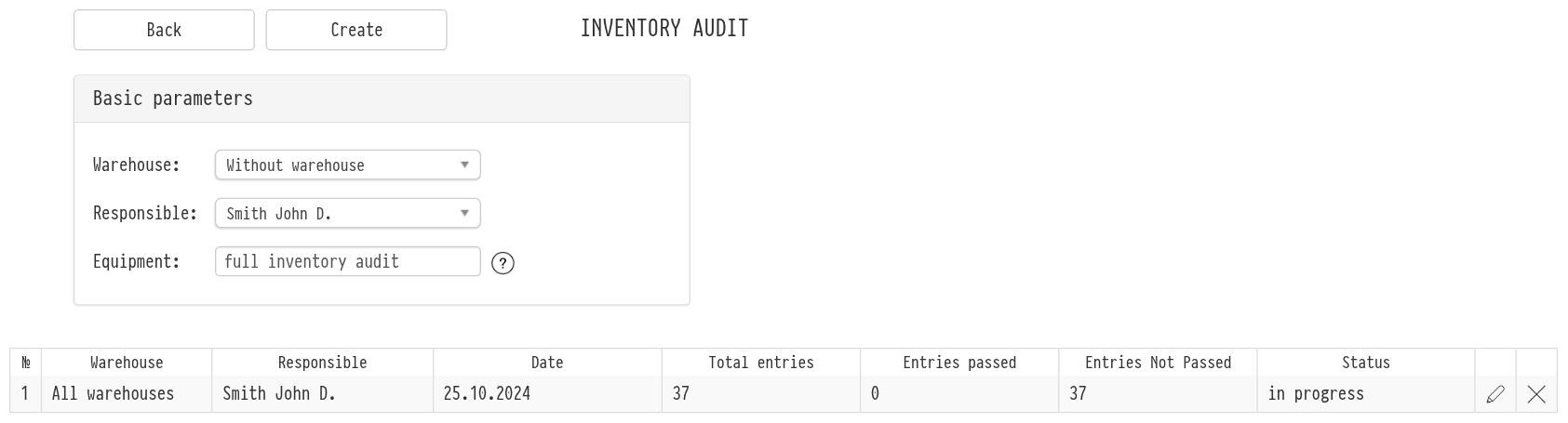
List of inventory audits
Below on the same page you see all audits: warehouse, responsible person, date, total entries, entries passed, entries not passed and status. The pencil icon opens an audit, the cross deletes it.
Carrying out the audit
The audit page is split into blocks: "Not processed", "Available", "Deferred", "For Write-off" and "For Deletion". Each block shows the name, model, SKU number, RFID, location, quantity, serial number and comment. At the start, all entries are in "Not processed".
You can move entries in three ways:
With a scanner or by hand. Type the SKU number in the "enter SKU" field or scan the barcode: the SKU found goes straight to "Available". A log above the field shows which codes were found and which were not.
With buttons. Tick the rows and click "Available", "On hold" (moves rows to "Deferred"), "For Write-off" or "For Deletion". You can return a row from any block with the "In unprocessed" button.
By RFID. If your SKUs have RFID tags, turn on the RFID icon: tags that are read are marked automatically. The RFID poll button next to the buttons asks the warehouse inventory antennas to read all tags in their zone once. The log then shows how many tags were read, how many SKUs were marked and how many tags do not belong to this audit. The button is active only if the RFID settings have receivers with an inventory antenna, see RFID.
To correct the details of an entry (warehouse, row/bin, current location or comment), click the pencil icon in its row, make the changes in the "Editing" window and click "Save".
The "Download (xls)" button at the top of the page exports the current results to Excel.
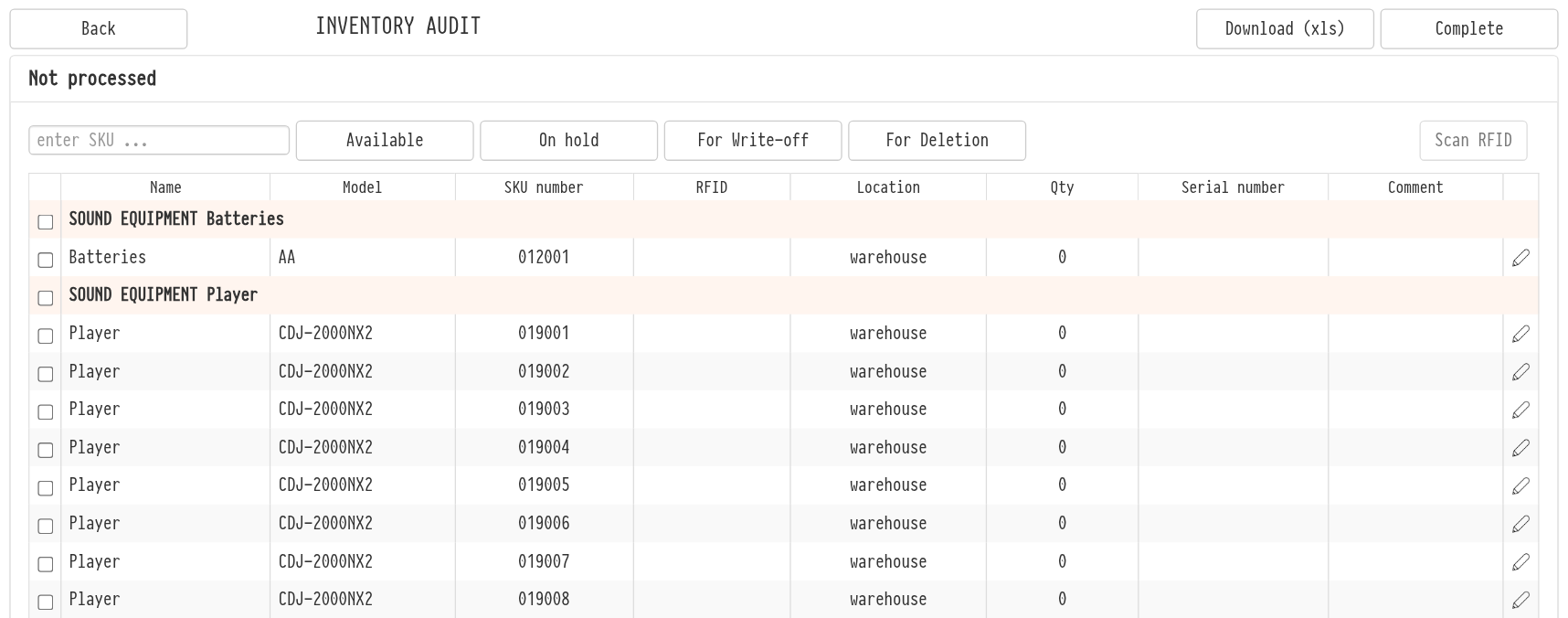
Completing the audit
The "For Write-off" and "For Deletion" blocks have the checkboxes "Write off from the catalog upon completion" and "Delete from the catalog upon completion". If you tick them, these SKUs are written off or deleted from the catalog when you complete the audit, and the SKU log gets a record that it was written off through the inventory audit, with the comment from the row.
When the check is finished, click "Complete" at the top of the page. After that, entries can no longer be moved, and the blocks show whether entries were written off or deleted.
Please note. Deleting an SKU from the catalog frees its number and erases its history. If an SKU is simply broken or lost, choose write-off.
Rows of accessories and consumables have a quantity field. When you move such a row to another block, the "Check the quantity" window opens: enter how many units to move and click "Confirm". The rest stays in the original block, so you can spread one batch across several blocks.
Group header rows show the catalog path of the entry and its model. You can run several audits for different parts of the catalog at the same time: entries already being checked in another audit are marked by the system.