Specification statuses
The specification status shows how the technical director’s preparation of the project is going. It is set on the “Specification” tab, and in the calendar, projects are colored by it for staff who have no access to the estimate.
The list is set up in “Settings” → “System” → “Statuses”, block “Specification statuses”. Each status has two flags: “Disconnection” and “Warehouse”.
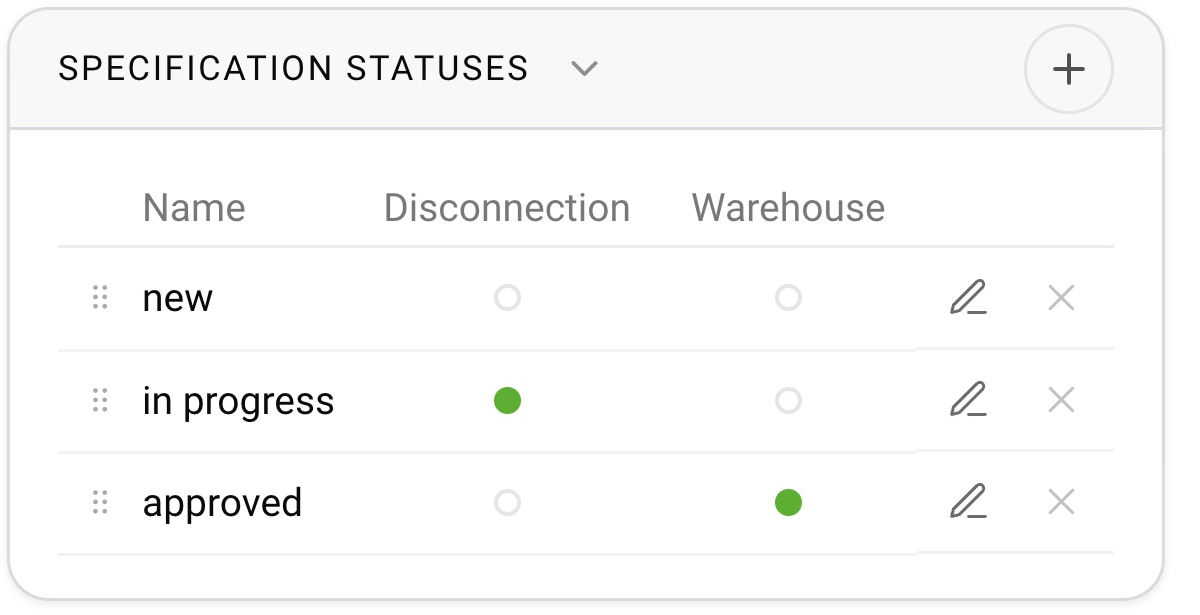
The “Warehouse” flag
When the specification status reaches a status with this flag, the “Warehouse” tab becomes available in the project: warehouse staff see the project and start picking it. The flag can be set on only one status. If the specification status is rolled back below this status, the warehouse in the project is deactivated again. Both events are recorded in the project history: the warehouse is activated, and the warehouse is deactivated.

The “Disconnection” flag: how the estimate and the specification stop being one whole
The specification is the technical version of the estimate: the same items, but for the warehouse and the technicians. While the project is not “disconnected”, the two are linked:
if you add, delete or copy a sheet or an estimate item, the same happens automatically in the specification.
When the specification status reaches a status with the “Disconnection” flag, the link is broken. After that:
changes to the estimate no longer reach the specification: the technical director works calmly on their own version;
everything the manager changes in the estimate is written to the specification log, so the technical director can see the changes and decide what to carry over;
the project history records that the specification was disconnected from the estimate.
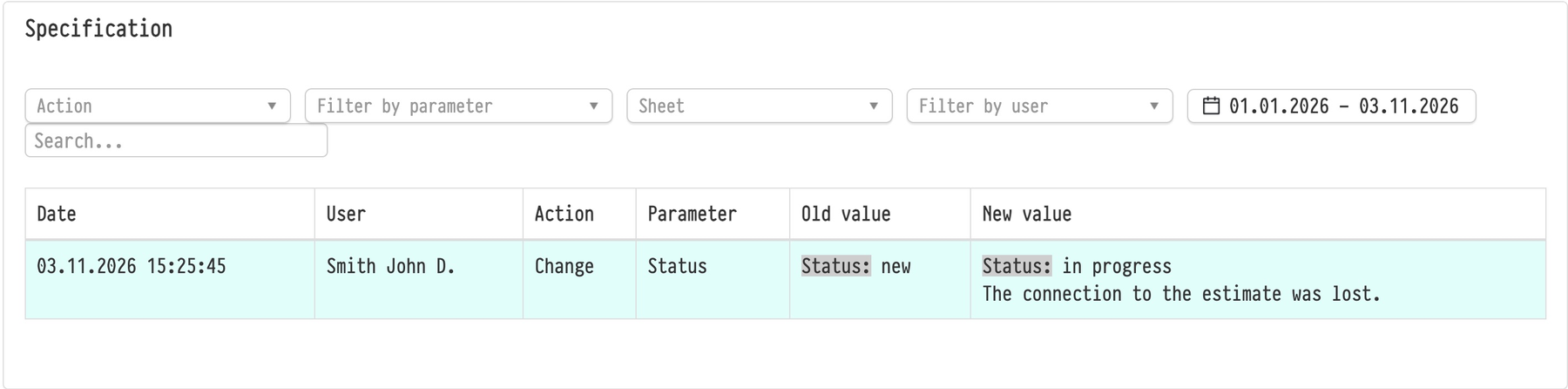
You can bring the estimate and the specification into line manually with the “Copy to specification” and “Update from specification” buttons on the “Estimate” tab. They are available while the estimate status has the “Editing the Quotation” flag on and the employee has full access to the project.
“Update from specification” aligns the quantities of matching items in the estimate and adds items that are missing from the estimate. Extra estimate items are not deleted; prices, coefficients and discounts do not change.
“Copy to specification” transfers the selected part of the estimate to the specification.
Please note. If the project is already disconnected, the specification status cannot be rolled back: the system shows a message saying that the specification status cannot be rolled back. So set the flag on the status after which you are sure you will not want to go back to synchronization, for example “approved”.
The flag can be set on only one status. If it is not set on any, the estimate and the specification always stay linked.