Notifications
Notifications tell an employee about changes in projects: a new project has been created, the dates have changed, the employee has been assigned to a shift, a payment has arrived. A notification can come to Golova itself, to e-mail and to Telegram.
The setup has two steps:
in the access template, the administrator decides which events employees with this template can be notified about at all;
in the personal account, the employee chooses which of the allowed events to be notified about and where.
Step 1. Access template
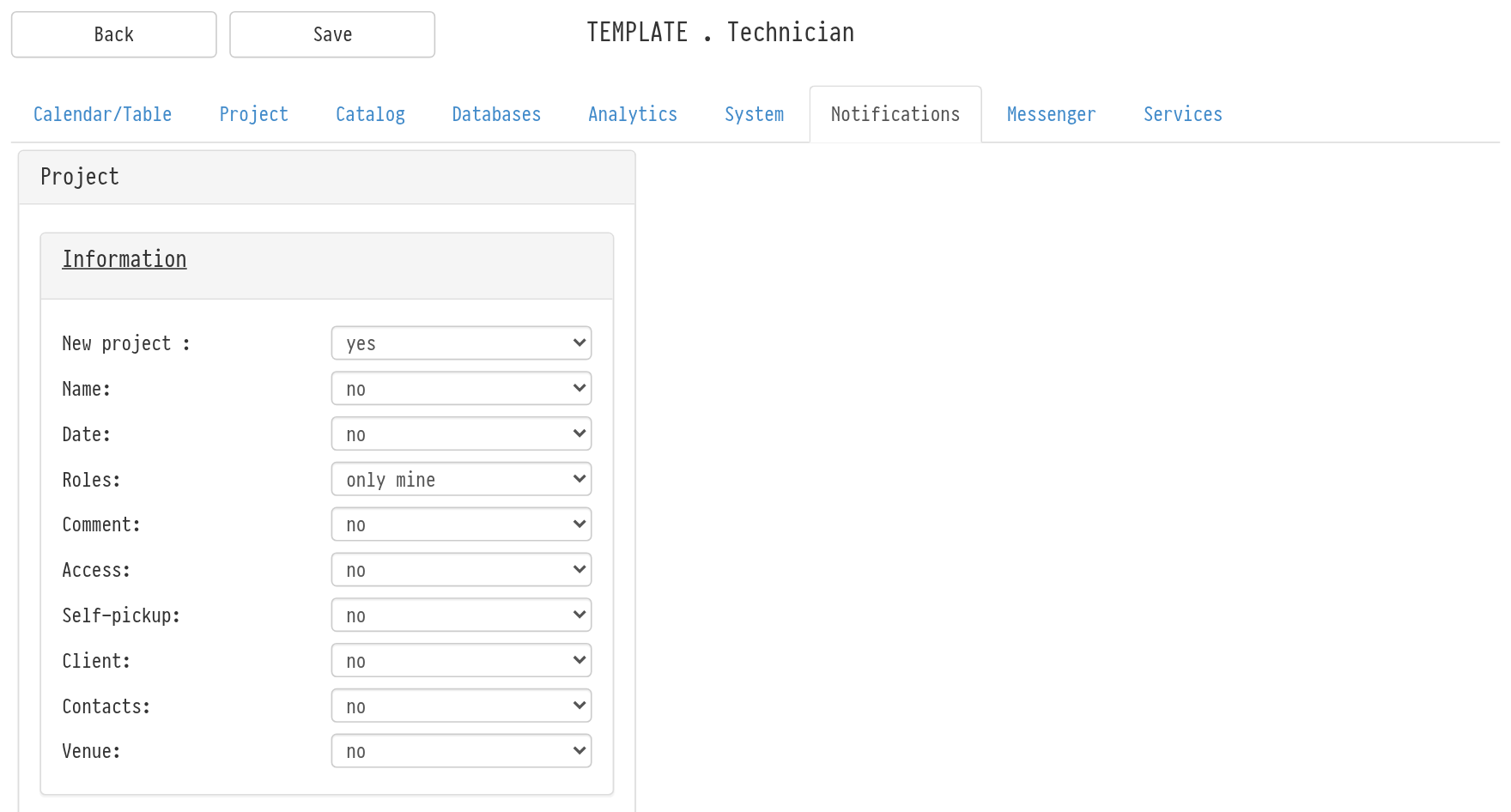
Open the access template and go to the "Notifications" tab. How to find templates: Access patterns.
The tab has the "Project" block with sections as in the project itself. Each section expands with a click on its name:
"Information": "New project", "Name", "Date", "Roles", "Comment", "Access", "Self-pickup", "Client", "Contacts", "Venue";
"Planning": "Timeline", "Staff", "Managers", "Contacts", "Tasks", "Freelancers", "Vehicles";
"Estimate": "Status";
"Specification": "Status";
"Finance": "Income", "Expense", "Sublease", "Staff", "Vehicles", "Managers", "Fines".
For each event, choose a value:
"yes": notifications about this event are allowed;
"no": they are not allowed;
some events have two options instead of "yes": "all" (notify about any such change) and "only mine" (only when the change concerns the employee). For example, for "Staff" in "Planning" with "only mine", the employee is notified only if they themselves have been assigned to a shift or removed from it. For "Vehicles", if the change concerns their vehicle.
By default all events are off. Save the template.
Step 2. The employee's personal account
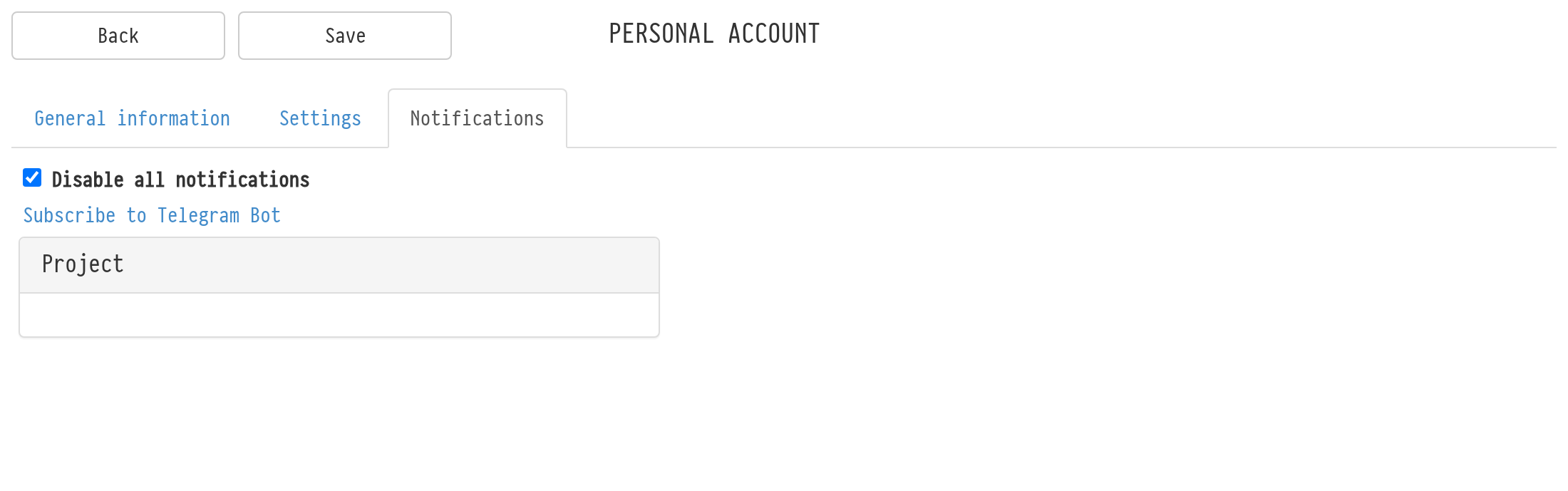
Each employee sets up notifications themselves. Open the personal account (the "Personal account" icon in the top bar) and go to the "Notifications" tab. Only the events allowed in the access template are shown here.
Next to each event, choose one or more channels:
"System": the notification appears in Golova, under the bell icon in the top bar;
"E-mail": an email to your address;
"Telegram": a message from the Golova bot.
If no channels are selected, the field says "disabled": you get nothing about this event. Click "Save" at the top of the page.
Emails are sent to the address marked "For notifications". Addresses are set on the "General information" tab of the personal account, in the "E-mail" block. See Adding employees.
Telegram
To get notifications in Telegram, click the "Subscribe to Telegram Bot" link on the "Notifications" tab. The Golova bot opens: start it. After that the "Telegram" channel starts working.
How to turn everything off for a while
Select the "Disable all notifications" checkbox and save. The selected channels are not reset: clear the checkbox, and notifications come again as before.
Where to see notifications in the system
Click the bell icon in the top bar. The number on it shows how many new notifications have arrived. The list keeps notifications for the last month.