Tasks outside projects
Tasks outside projects are assignments not related to a specific event: renew the insurance, order consumables, check the equipment after a return. They are created in the calendar, and the list of all such tasks is in the "Tasks" table, see Tasks table. Tasks created inside a project on the "Planning" tab work separately (see Planning).
This article describes Calendar 2.0. How to switch it on: Calendar interface.
How to create a task
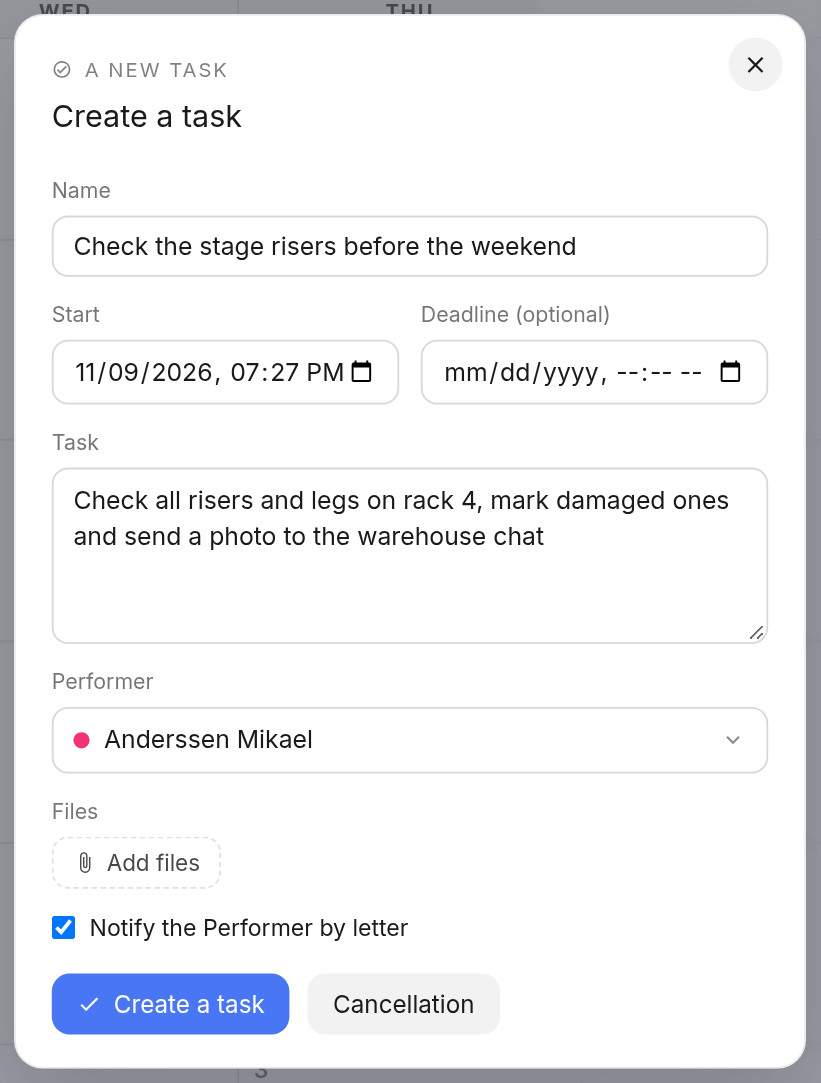
Click an empty space in the day you need in the calendar and choose "Task". In the window, fill in:
"Name": briefly, what needs to be done;
"Start" and "Deadline (optional)": the date and time;
"Task": the details of what to do;
"Performer": who the task is assigned to. If nobody is selected, the task is yours.
Task files
You can attach files to a task: a wiring diagram, photos, a bill, a manual. In the task window, click "Add files" and select one or several files. Each file has a "Comment" field: briefly describe what the file is. Remove an extra file with the cross on the right.
You can attach up to 20 files at a time, each up to 50 MB. Files of any format are accepted, except executable programs.
Email to the performer
Select the "Notify the Performer by letter" checkbox, and when the task is created the performer gets an email: who created the task, the task number, the deadline and the description, a link to the tasks in the system and the list of attached files with download links. The performer does not need to log in to open the files.
The email is sent to the address marked "For notifications" in the employee card in the "Employees" database (see Adding employees). If there is no such address, the task is still created, but the message "The email has not been sent to the performer — check his email address." appears.
Files in an existing task
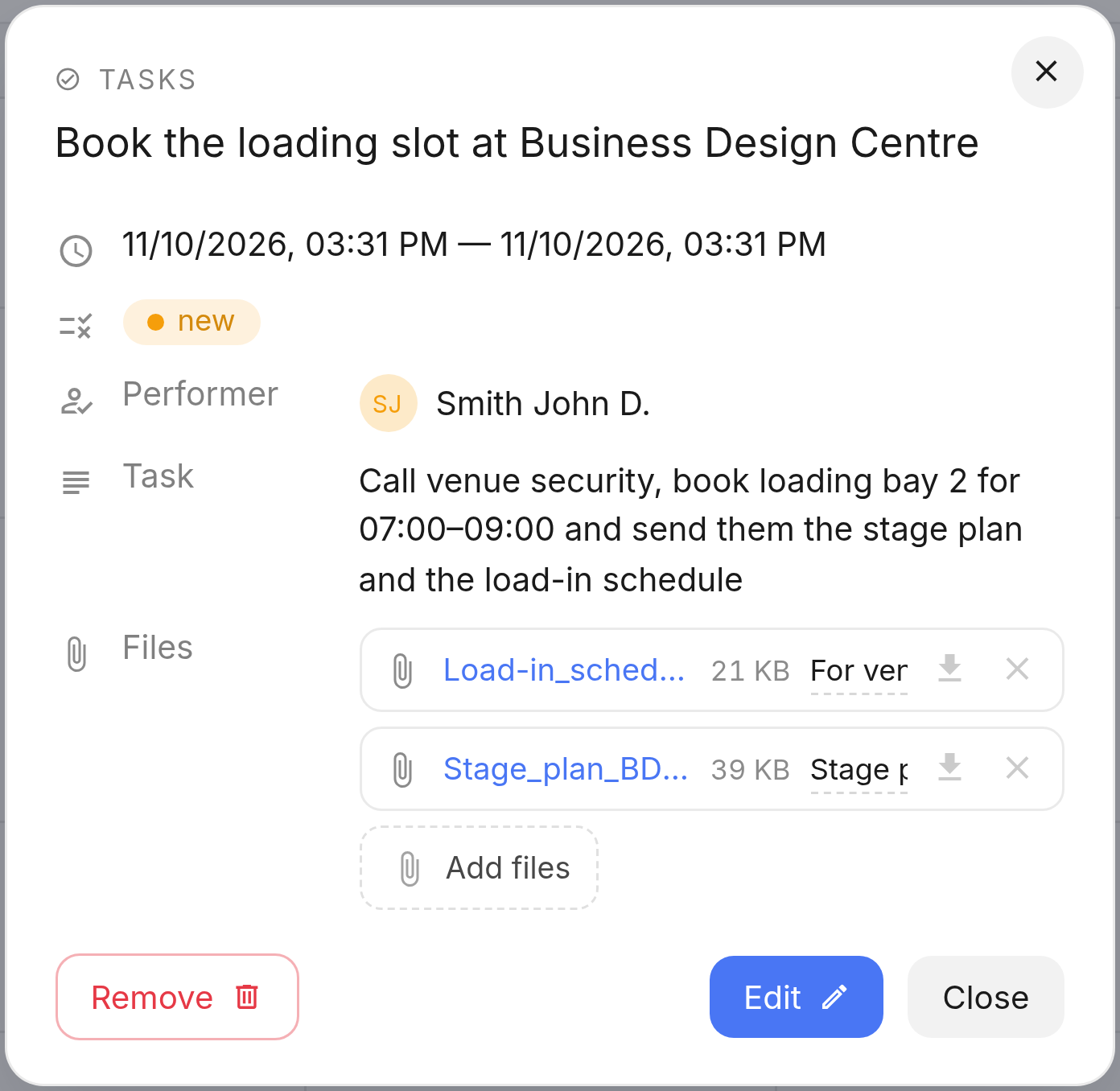
Click the task in the calendar to open its card. The "Files" row lists all attached files with their size. Here you can:
open a file: click its name;
download a file: the "Download file" icon;
correct a comment: edit the text in the field next to the file;
delete a file: the "Delete a file" icon;
add more files: "Add files".
Task files are also visible in the "Tasks" table: if there are any, a folder icon appears in the task row. It opens a window with the list of files, where you can upload, describe and delete them.
Please note. If you delete a task, all its files are deleted with it.