Saving documents to Storage
Storage does not just keep uploaded files: you can also put there the documents that Golova generates in a project. Quotations, warehouse pick lists, document packages and the documents of the "Print" tab are saved to the folder of their project, and the latest versions are always kept there.
Please note. The save buttons appear only after "show" is selected for Storage on the "Services" tab of the access template. How to do this: see Storage.
Quick access to the project folder
In the project card header, on the right, there is the "Project folder in Storage" icon. It opens this project's folder in Storage in a new tab, without going through the system folders.

Quotation
Open the "Estimate" tab and scroll down to the "Print" block at the bottom of the page. In the quotation section, choose a template and click "Save to Storage", next to the "Download (pdf)", "Download (xls)" and "Preview" buttons.
One click saves the quotation in two versions at once, with prices and without prices, in PDF and in XLS. The files go to the project folder:
"System" → "Projects" → project folder → "Commercial proposal"
Inside there are two folders:
Folder | Who sees it |
|---|---|
"With prices" | Employees with access to prices |
"Without prices" | Employees who cannot see prices |
Each save creates a new version with the date and time of generation in its name. You changed the estimate and clicked again: a fresh version appears next to the previous one, and the previous one stays. This way you can compare what you sent the client a week ago and what you are sending now.
Autosave
So that you do not have to click the button every time, turn on the "Save to Storage" switch in the print form ("Settings" → "System" → "Printed forms", "Document" tab). Then every time you click "Download (pdf)" or "Download (xls)" for this form, the quotation is saved to Storage automatically, just like with the button. See Document.
Warehouse pick list
The "Specification" tab, the "Print" block at the bottom of the page. Buttons: "Download (pdf)", "Download (xlsx)" and "Save to Storage". The "Show print options" link opens the output settings: the pick list is saved with the settings that are selected at the moment you click. Change the settings and save again, and you get a second version.
One click saves the pick list in PDF and in XLSX at once. The files go to the project's "Warehouse list" folder, with a preview right in Storage.
Document package
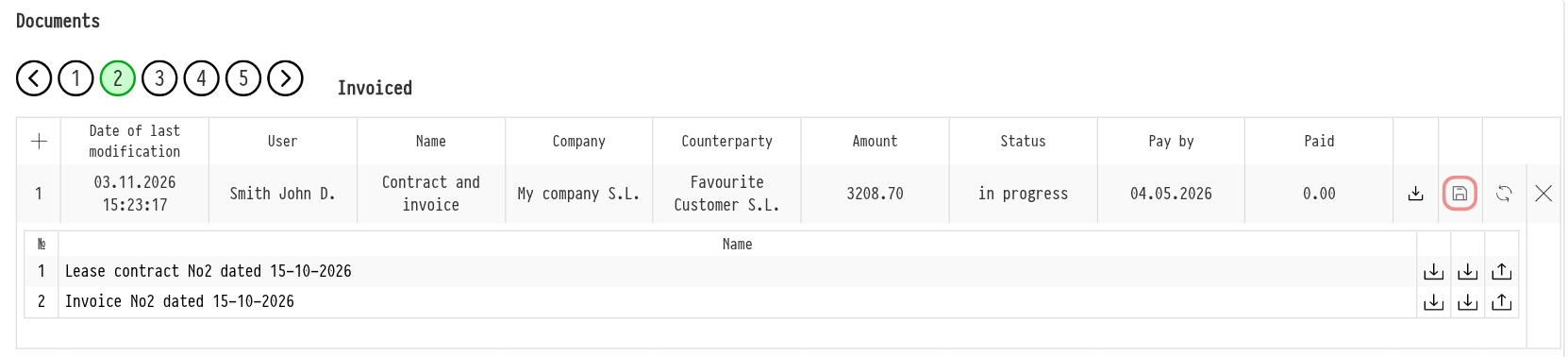
On the "Documents" tab, in the row of a generated package, there is the "Save to Drive" icon, next to the "download all" icon. When you click it, the whole package goes to the project's "Documents" folder, into a subfolder named after the package, with the creation time and all the files inside.
Saved documents become ordinary files in Storage: you can download them, view them without downloading and share them.
Documents of the "Print" tab
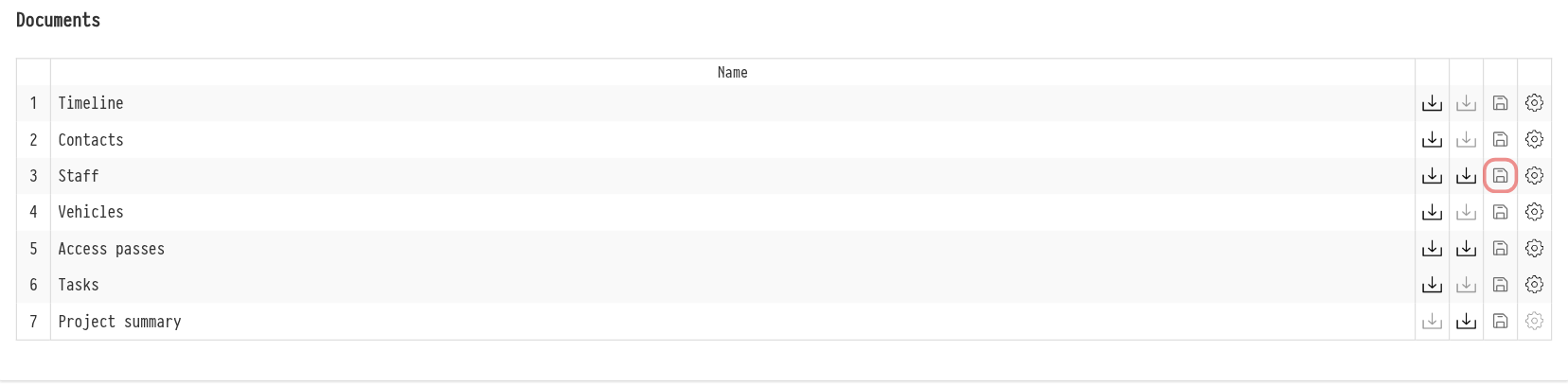
On the project's "Print" tab, in the documents block, the row of each document ("Timeline", "Contacts", "Staff", "Vehicles", "Access passes", "Tasks", "Project summary") has a "Save to Storage" icon. It saves the document with the current settings from the row's "parameters":
"Timeline", "Contacts", "Vehicles", "Tasks": in PDF;
"Staff" and "Access passes": in PDF and Excel;
"Project summary": in Excel.
The files go to the project's "Other" folder, into a subfolder named after the document.
How many versions are kept
Each folder that Golova fills ("With prices", "Without prices", "Warehouse list", the subfolders of "Other" and of the document packages) keeps the 10 most recent files. Older ones are deleted automatically. If you need to keep a version for a long time, copy it to your own folder in Storage or download it.
The "Files/Links" tab
The "Files" block on the project's "Files/Links" tab is a Storage window built right into the project: it shows this project's "Files" folder. Here you can also create folders, upload files, drag them with the mouse, move and delete them.
Synchronization is strict and works both ways:
you upload a file in the project, and it appears in Storage in the "Files" folder;
you upload it in Storage, and it appears in the project;
you delete it in one place, and it disappears in the other.
You do not need to click "save" here: it is the same storage with two interfaces. See Files/Links.
Why you need it
The main scenario is external participants. Share the project's "Documents" or "Commercial proposal" folder with the client: they open it by link, download everything they need and see new versions as you save them. See How to share a file.
Related articles: Storage · How to share a file