Trip
A trip records who took which company vehicle and when. The employee marks the start and the end of the trip, and the system records the time, the vehicle and the comment. This way you can see who has the vehicle now and how long it has been on the road.
Where to find it
Click the truck icon in the header on the right, next to the timer icon. The tooltip of the icon is "creating a trip". On a narrow screen and in the mobile version, "Start A Trip" is in the "⋮" menu.
The icon is visible to employees whose access template allows it: "Calendar/Table" tab, "Vehicles" row, the second list set to "yes" ("enable the ability to create new trips").
How to start a trip
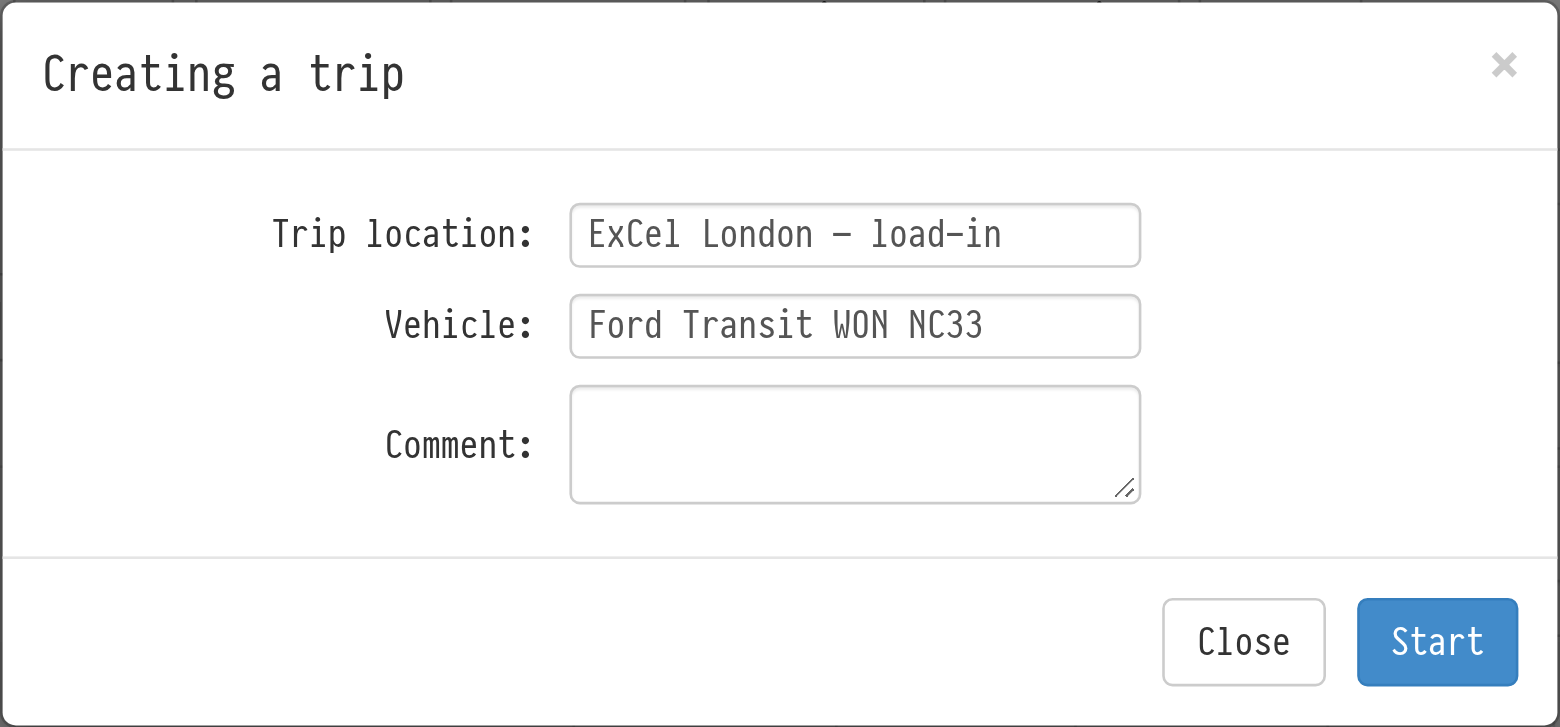
Click the truck icon. The "Start a trip" window opens.
In the "Trip location" field, write where you are going, for example "IFEMA Madrid, assembly".
In the "Vehicle" field, select a vehicle from the "Vehicles" database.
Fill in the "Comment" if needed.
Click "Start".
The "Trip location" and "Vehicle" fields are required: while they are empty, the button is inactive. If the list says "There are no cars", first add a vehicle to the "Vehicles" database.
While the trip is in progress, the truck icon blinks, and its tooltip shows how much time has passed.
How to finish a trip
Click the blinking icon. The "The trip is already underway" window opens with the start time and a counter at the top. Here you can:
"Complete": finish the trip. The end time is recorded automatically;
"Save": correct the location, the vehicle or the comment without finishing the trip;
"Remove": delete the whole trip. The system asks again: "Delete a trip?".
Until the trip is finished, the icon opens this trip, and you cannot start a new one.
Where to see the trips
Table. "Table" → "Vehicles" tab: the log of all trips: employee, start and end time, duration, comments. More: Transport table.
Calendar. Trips are shown in the calendar together with projects and tasks.
Which trips an employee sees in the table and the calendar is also set in the access template: "Calendar/Table" tab, "Vehicles" row, the first list set to "all", "only mine" or "no".