Parameters
The "Parameters" item changes data for all entries of the estimate sheet you are working with at once. The "Parameters" window has five tabs: "Taxes", "Discount", "Coefficient", "Daily discount" and "Price adjustment".
Taxes
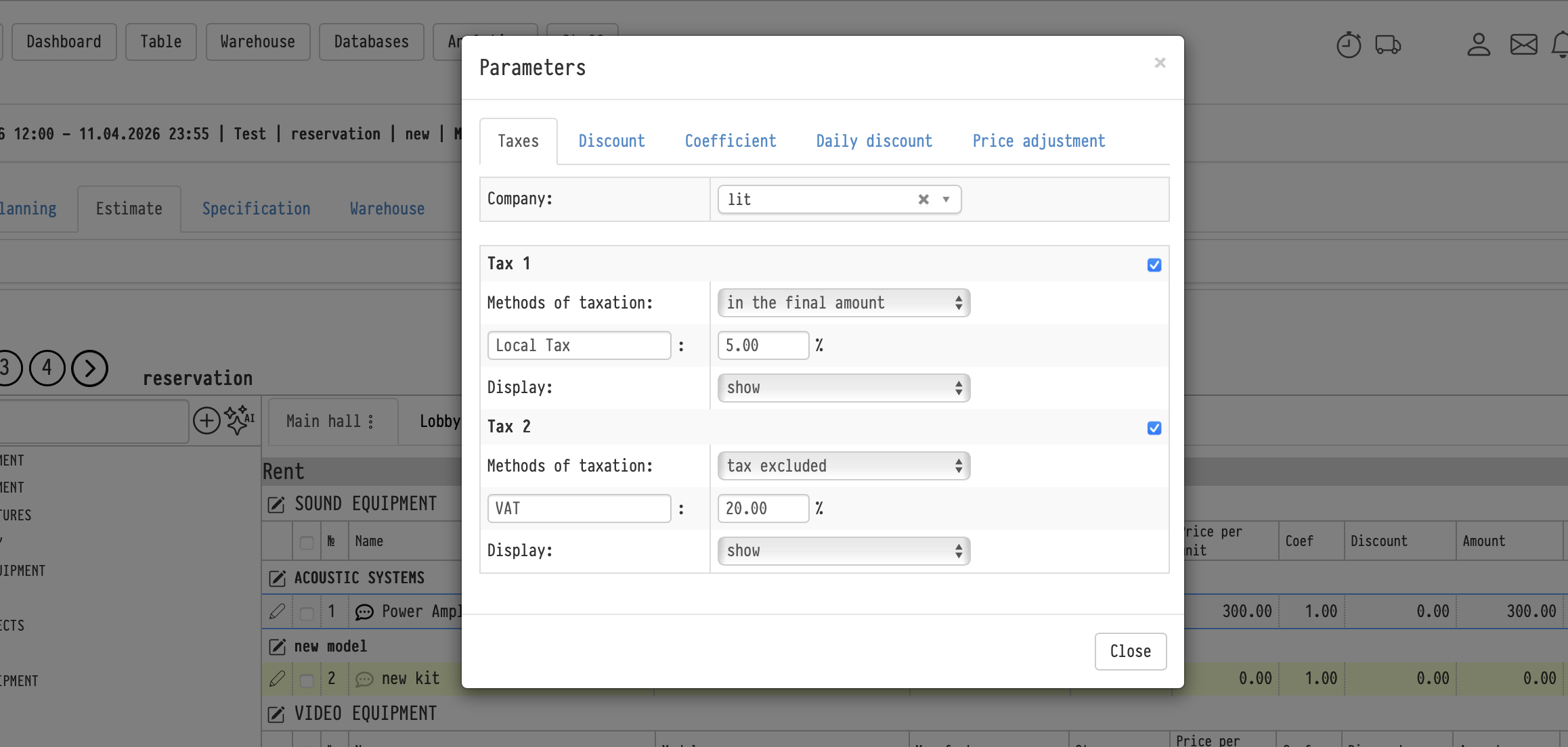
At the top of the tab, select the "Company". When you select a company, the sheet gets the taxes set in its card in the "My companies" database (see Establishment of a company). Below, you can change them for this sheet only.
A sheet can have up to two taxes: "Tax 1" and "Tax 2". Each one is turned on with its own checkbox to the right of the title. For a tax that is turned on, fill in:
"Methods of taxation": "tax included", "tax excluded", "in the price" or "in the final amount" (described below);
the tax name and the rate in percent;
"Display": "show" or "hide".
How the second tax is calculated
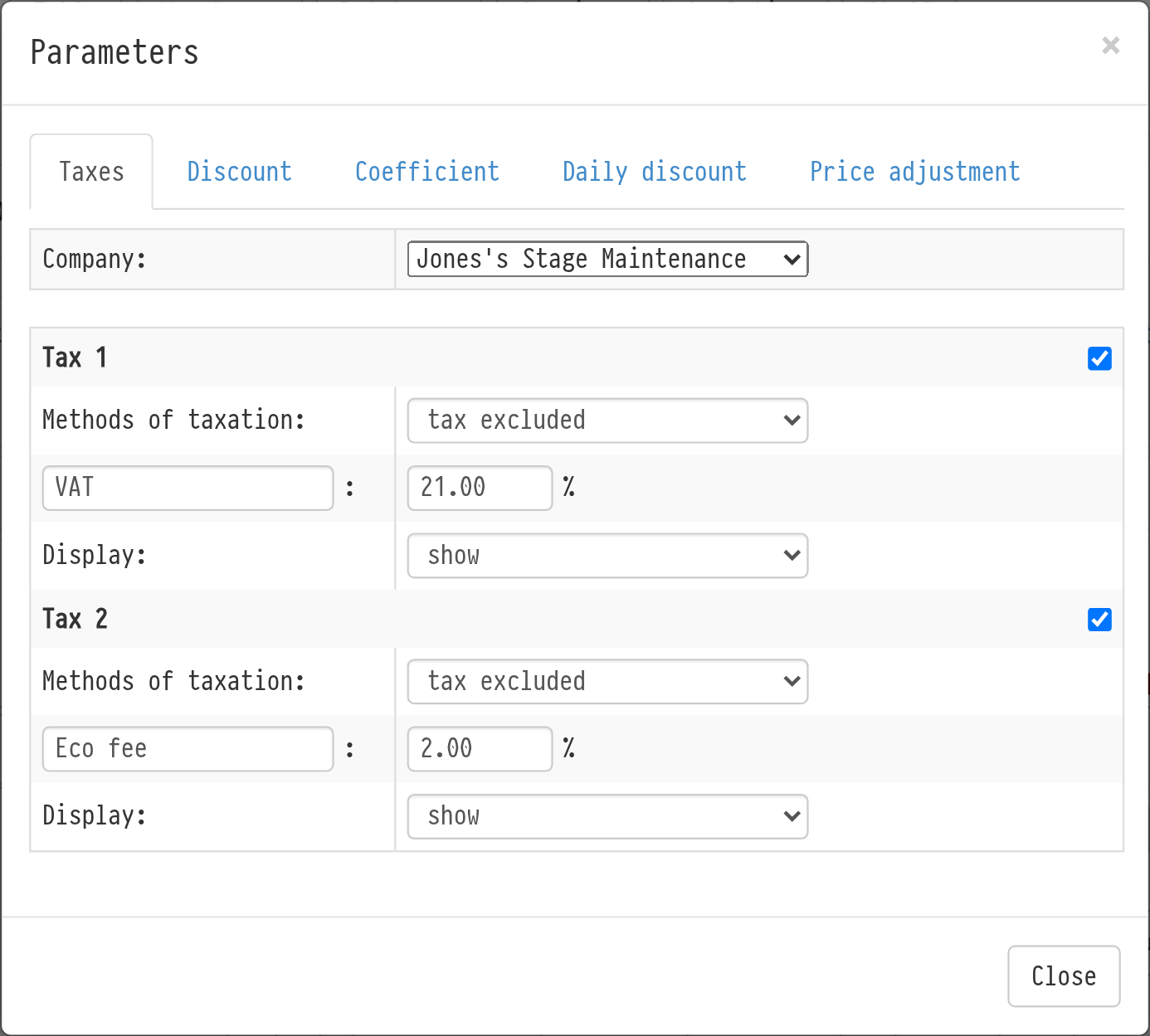
The second tax is calculated after the first one: its base is the sheet amount including the first tax. If the first tax is "tax excluded" or "in the final amount", the second tax is calculated from the increased amount. If the first tax is "tax included" or "in the price", the amount does not grow, and the base of the second tax is equal to the "Subtotal".
Example. "Subtotal" is €10,000. "Tax 1" is 21% tax excluded: the tax is €2,100, the amount with the first tax is €12,100. "Tax 2" is 5% tax excluded: the tax is €605 from €12,100. "Total amount due" is €12,705.
This is useful when one tax is part of the entry prices and the other one is added on top. You can show the amount with the first tax but before the second one in documents: see Establishment of a company.
Methods of taxation
First, two estimate terms.
"Subtotal" is the amount of the estimate sheet. It already includes discounts, coefficients and manual price changes of entries (you can change a price right in the estimate by clicking it).
"Total amount due" is the amount the client actually pays. Depending on the method of taxation, it can be equal to the "Subtotal" or higher.
Tax included
Use it when your prices already include VAT. The client pays the estimate amount, and the tax is the part of it calculated with the standard VAT formula.
Tax = Tax rate × "Subtotal" / (Tax rate + 100)
"Subtotal" = "Total amount due".
Example: "Total amount due" (which is also the "Subtotal") is €10,000, including 10% tax of €909.09.
Tax excluded
Use it when your prices do not include VAT. The tax is added to the estimate amount.
Tax = Tax rate × "Subtotal" / 100
"Total amount due" = "Subtotal" + Tax.
Example: "Subtotal" is €10,000, 10% tax is €1,000, the client pays €11,000.
In the final amount
As with "tax excluded", the tax is added to the estimate amount, but it is calculated with a different formula: the tax becomes the set share of the final amount (used for some local taxes and simplified schemes).
Tax = "Subtotal" / ((100 / Tax rate) – 1)
"Total amount due" = "Subtotal" + Tax.
Example: "Subtotal" is €10,000, 10% tax is €1,111.11, "Total amount due" is €11,111.11.
In the price
The client pays the estimate amount, and you calculate the tax from it at your rate (tax on revenue).
Tax = Tax rate × "Subtotal" / 100
"Total amount due" = "Subtotal".
Example: the client pays €10,000, 10% tax is €1,000.
Please note. If you select "tax excluded" and set "Display" to "hide", the tax amount disappears only from the estimate on your screen. The tax is still shown in the quotation.
Discount and Coefficient
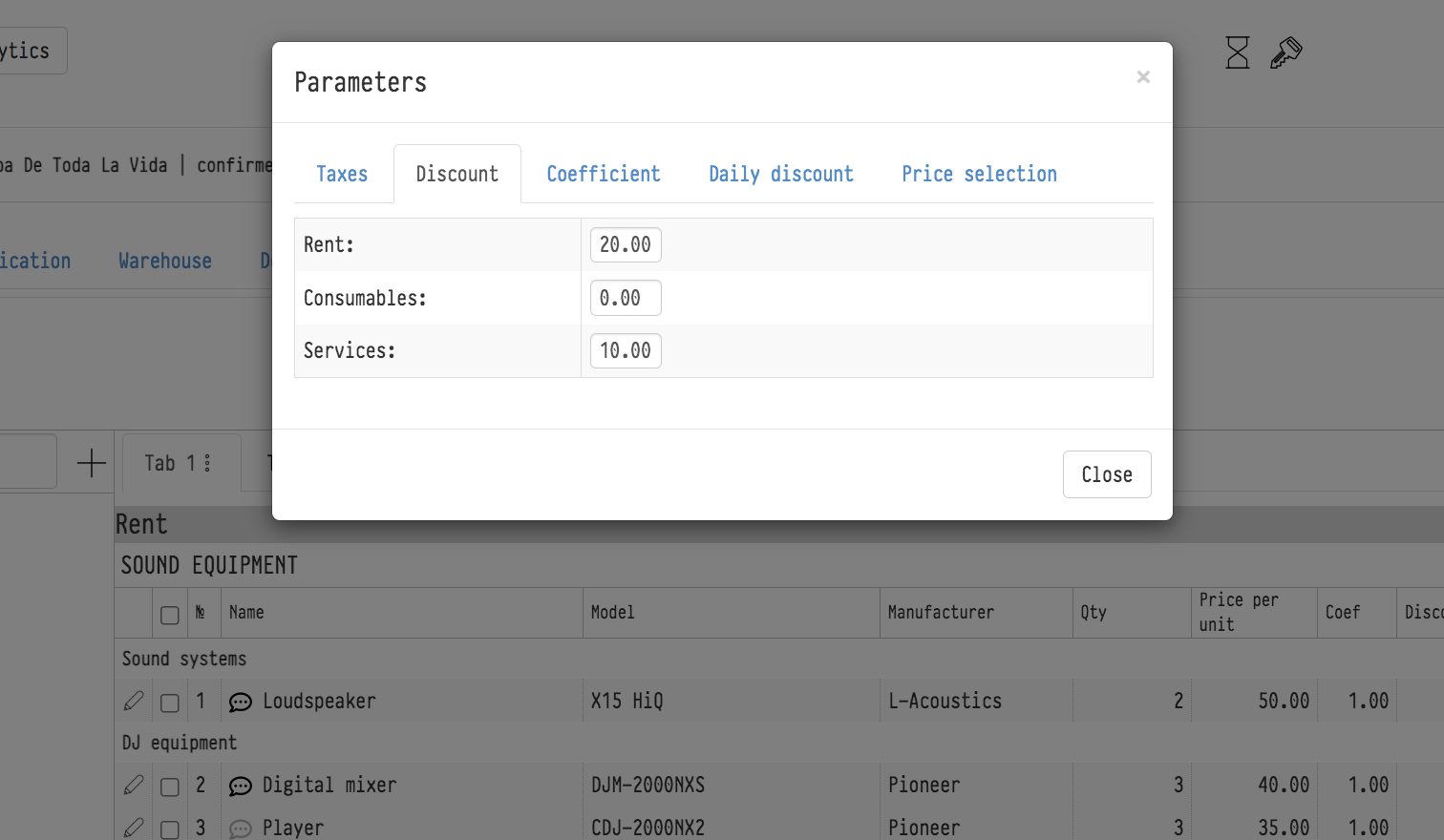
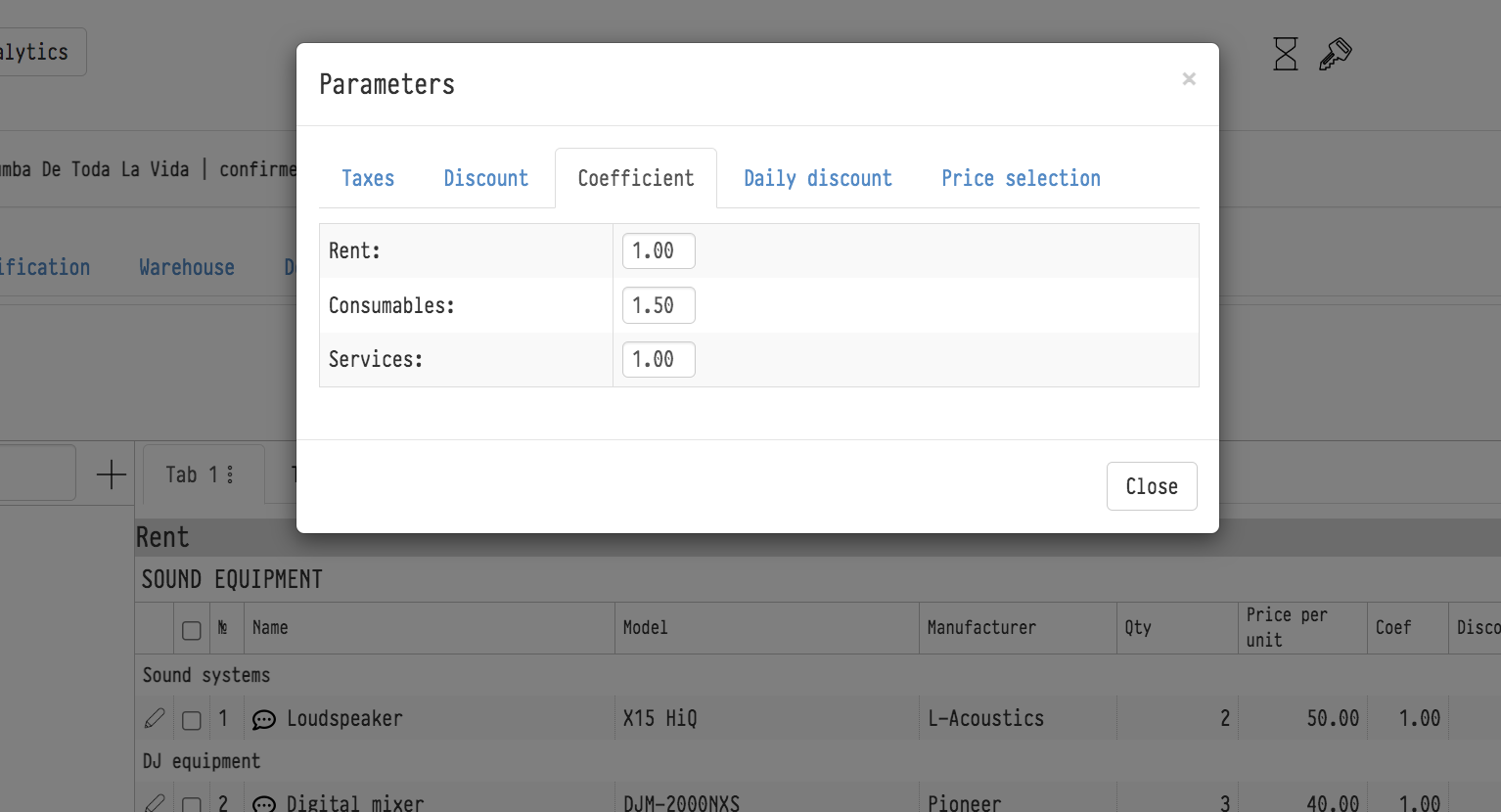
The "Discount" and "Coefficient" tabs set the general discount and the general coefficient of the sheet separately for rent, consumables and services. These are the same values as at the bottom right of each estimate sheet: see Coefficient and Discount.
Daily discount
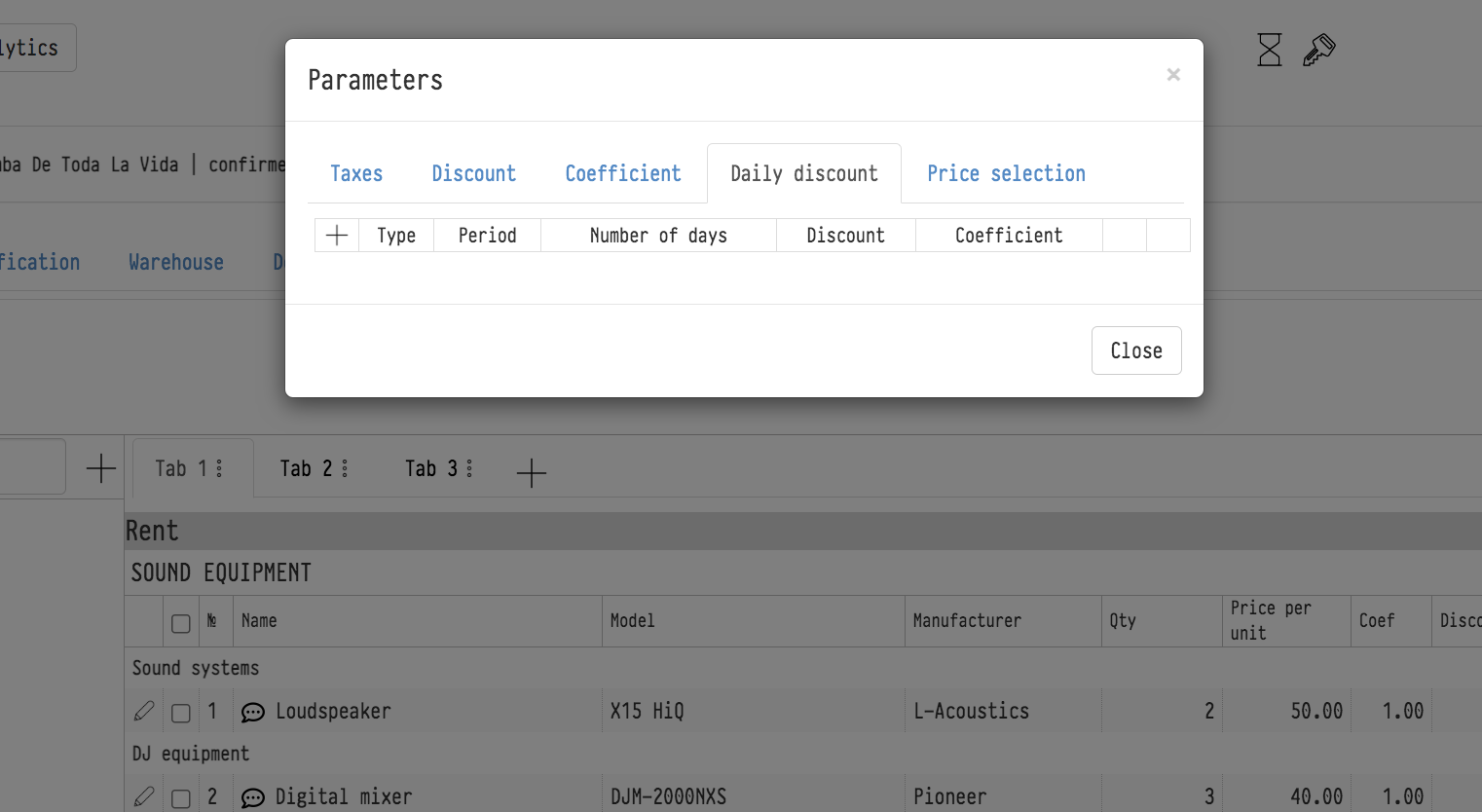
A daily discount works only on the selected dates. To add it:
Click "+" on the tab.
Select what the discount applies to: equipment or service.
Select the dates when the discount works.
Enter the discount percentage or the cost increase coefficient.
Price adjustment
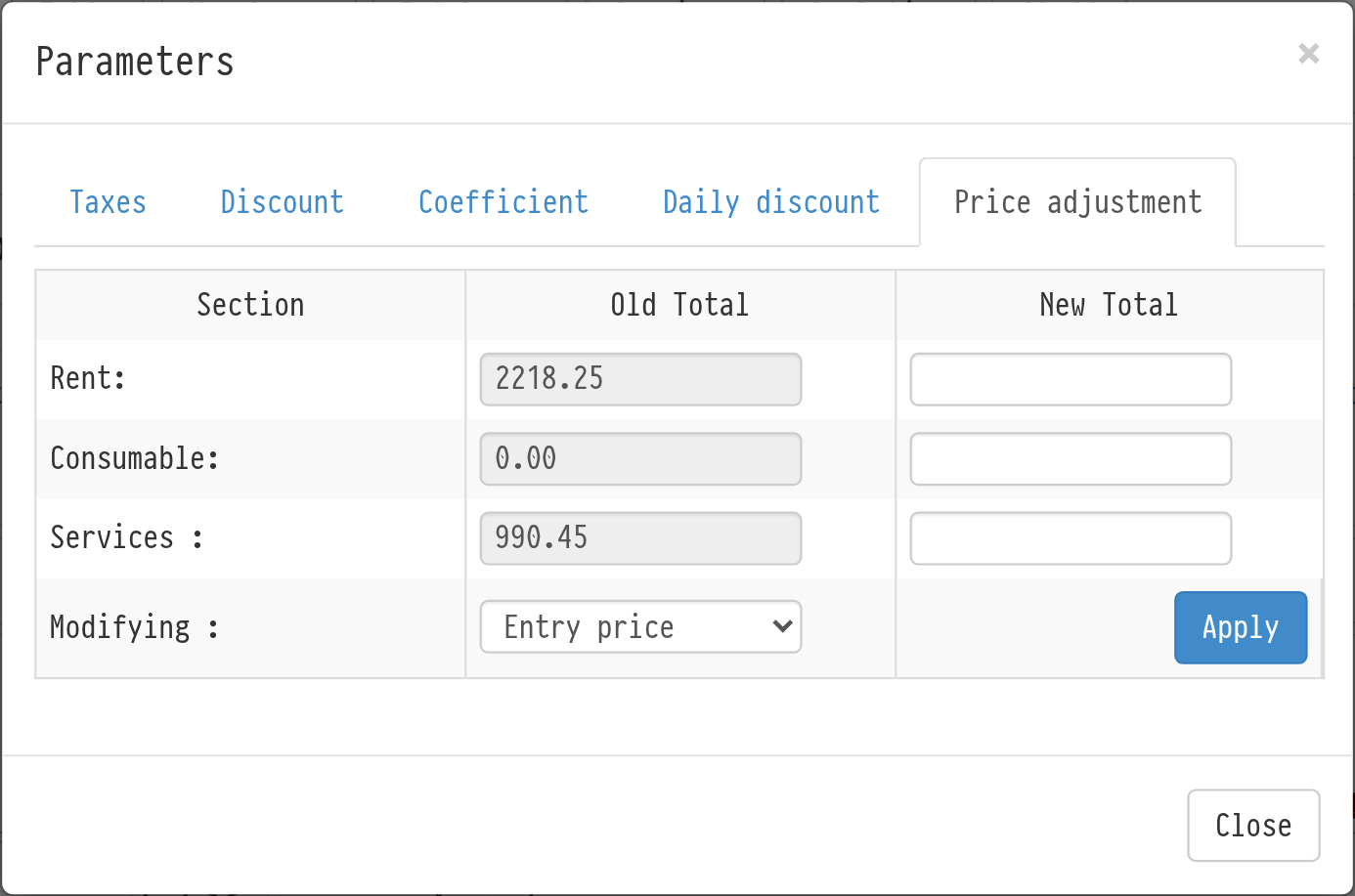
The "Price adjustment" tab fits the sheet amount to the number you need. For "Rent", "Consumable" and "Services" you see the "Old Total"; in the "New Total" field, enter the amount you want to get. In the "Modifying" list, select how to change the amount: "Entry price", "Entry coefficient" or "Section coefficient". Click "Apply".