Import
The counterparty database can be uploaded to Golova from Excel files.
The “Import” button is at the top of the “Counterparties” section, in the row “Back”, “Add”, “Import”, “Export”. It opens the “Uploading the counterparty” page.
What to upload. “Excel file” or “ZIP archive (several Excel files)”. An archive is convenient when you move counterparties from another account: the “Export” button in the “Counterparties” section downloads all counterparties exactly this way, one file per country and type.
Country and type. Each country of registration and counterparty type has its own set of columns, so you need to import with the same template that was downloaded for that country and type. Choose “Detect from file” if you upload a Golova template, or “Select manually” and set the country and type yourself. The template becomes available for download after you choose “Select manually” and the country and type. The first two rows of the template (country and type, column names) are not filled in.
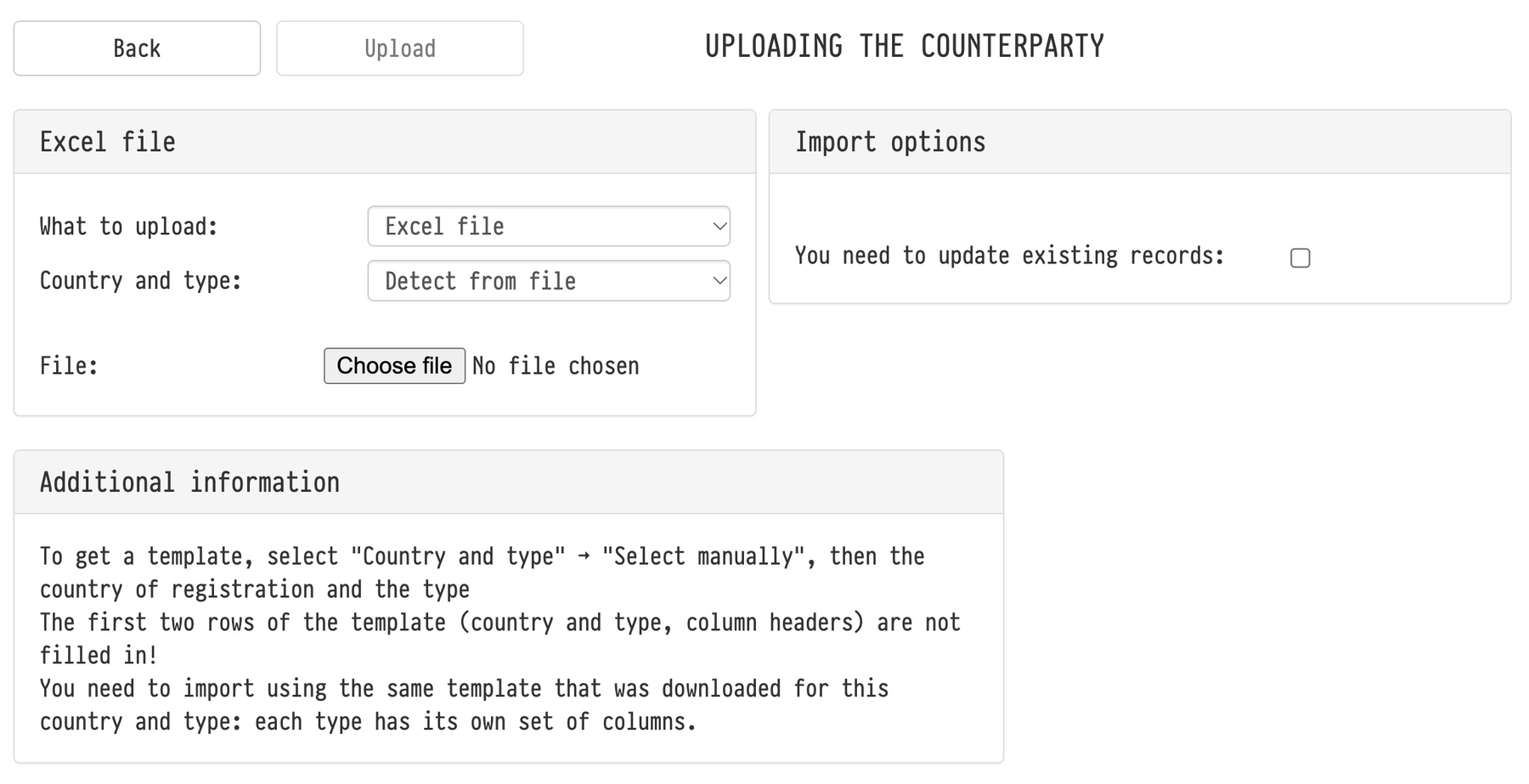
Please note. The import file adds to the database, it does not replace it. A counterparty whose name and jurisdiction match an existing one is skipped and listed in the report as not added. To update such records from the file, tick “You need to update existing records” in the “Import options” block: the record will be overwritten completely, an empty cell in the file will clear the field, and the contacts will be replaced with the contacts from the file.
After choosing the file, click “Upload”. The report shows how many records were added, how many were updated, and which rows were not added and why.