Specification and warehouse
All projects of your company have tabs related to the warehouse: "Specification", "Warehouse" and the warehouse pick list. On this subtab of the global settings you define how they look and work by default in all projects.
Where to find it: gear "Settings" → "System" → "Specification and warehouse". The subtab is available on the extended service plan. Changes are saved at once; you do not need to click "Save".
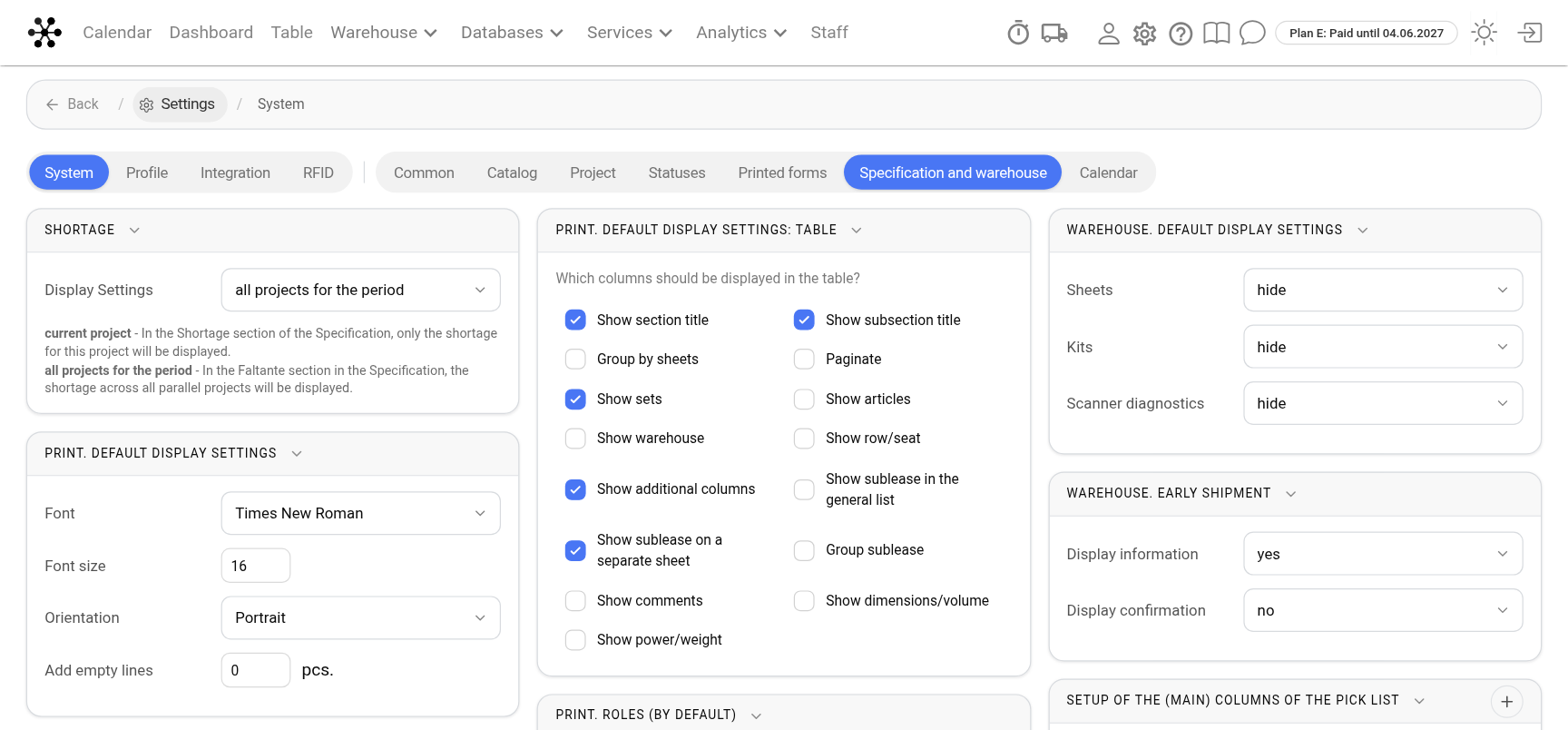
What is set up here
The blocks go in this order:
"Shortage": whether the "Shortage" section of the specification shows the shortage only for the current project or for all parallel projects. More: Deficit.
"Print. Default display settings" and the "…: Header" and "…: Table" cards: font, font size, orientation, empty lines and the contents of the pick list. "Print. Roles (by default)": which project roles to show in the pick list header. More: Print. Default Display Setting.
"Warehouse. Default display settings": how to group entries in the project warehouse and whether to show scanner diagnostics. More: Warehouse. Default Display Setting.
"Warehouse. Early shipment": whether to show the "!" icon for equipment that other projects may lack if it is shipped early, and whether to ask for confirmation before such a shipment.
"Setup of the (main) columns of the pick list": which columns describe the equipment in the pick list. More: Setting up the (main) columns of the inventory list.
"Setup (additional) columns of the pick list": empty columns for warehouse notes. More: Setting up (additional) columns of the inventory list.
"Signature fields setup of the pick list": lines for the signatures of responsible persons. More: Setting up signature fields in the inventory list.
Specification and warehouse statuses (at which status the specification is turned on, when it is disconnected from the estimate and which statuses the equipment goes through) are set up not here but on the "Statuses" subtab. More: Statuses: how they work.