Appearance settings
The look of the calendar comes from three places: the employee personal settings, their card in the database, and the global settings of the company.
Personal account
Personal account → the Settings tab → the Calendar - projects block. Everything chosen here applies to you only — each employee has their own settings.
Calendar version — the old or the new view.
What to show on the tile — project number, name, price, client, venue, estimate, specification and warehouse statuses. Each item is switched on or off separately.
Roles — which responsible persons to put on the tile.
Colour scheme — by estimate, specification or warehouse statuses. This is what you get on the Project tab.
Completed projects — normal or semi-transparent, so they are not confused with the active ones.
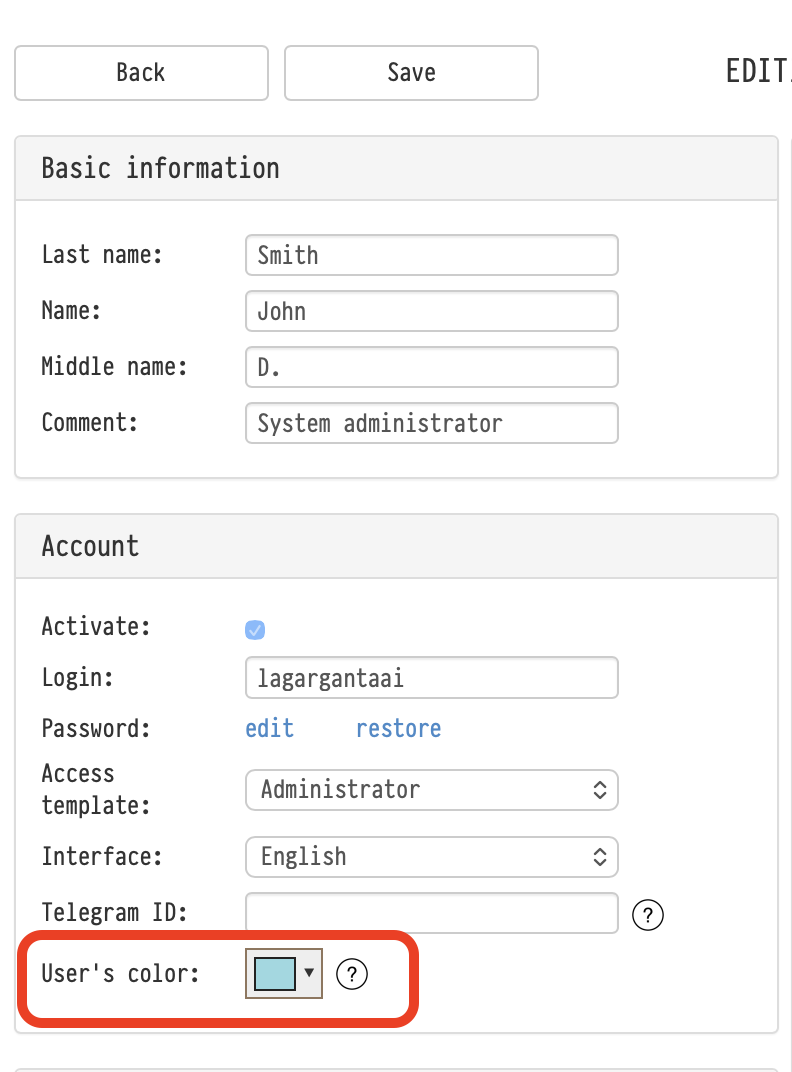
Employee colour
Every employee has their own colour. It is set in their card: Databases → Employees, the User’s color field. Their projects are painted in this colour in the “Responsible” mode.
By status or by responsible person
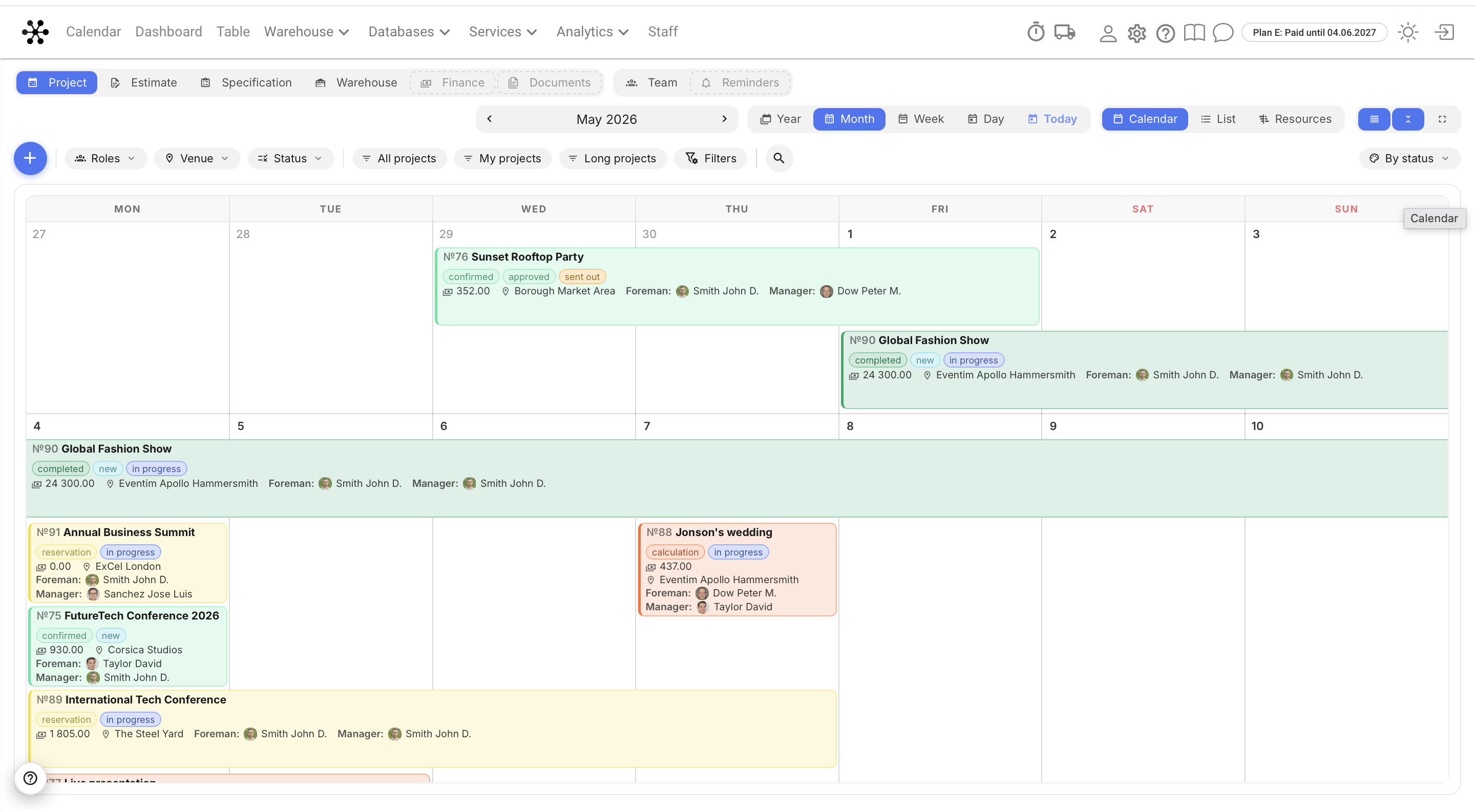
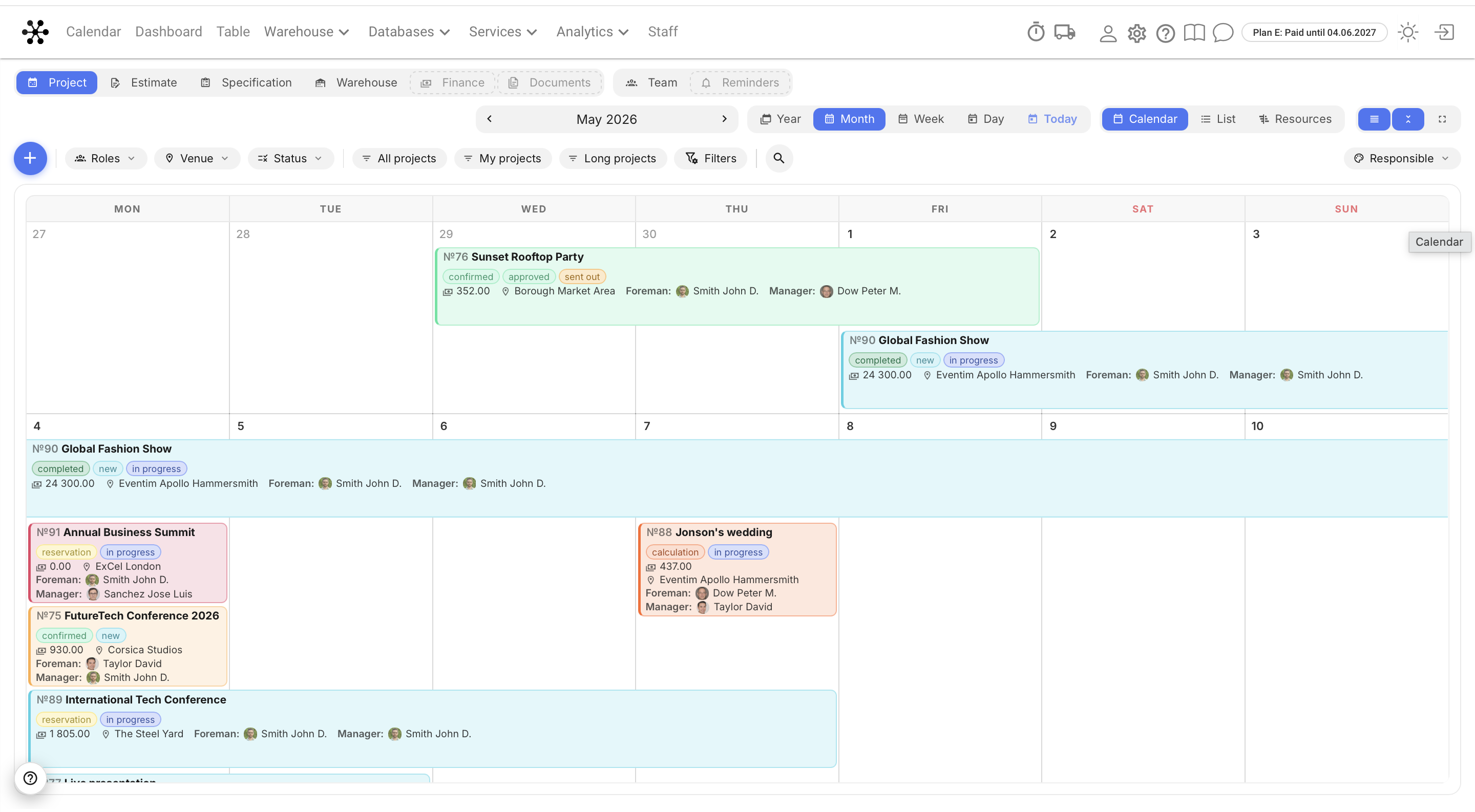
In the top right corner of the calendar there is a switch with two modes.
By status — the usual colouring by the state of the project.
Responsible — each project takes the colour of the employee assigned to it.
A project usually has several responsible persons, so you have to say whose colour to take. On the Information tab of the project, in the Responsible persons block, there is a Color in the calendar column with a radio button next to each role. Tick the role this project should be coloured by.
Please note: if no radio button is selected, the project keeps its status colour even in the “Responsible” mode.
Global settings
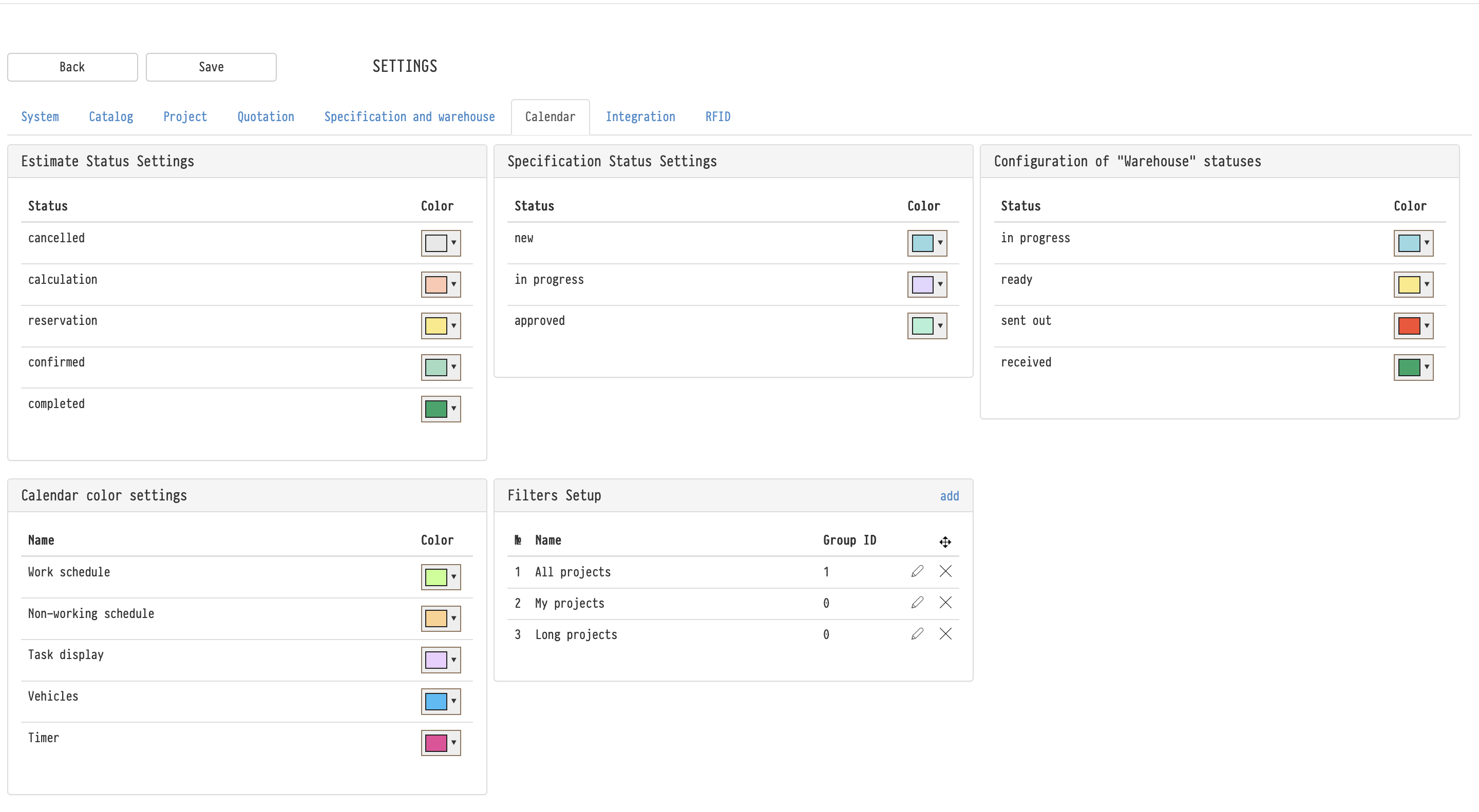
Settings → the Calendar tab — the settings shared by the whole company.
Status settings — the colour of every estimate, specification and warehouse status, in three separate lists.
Calendar color settings — the colours of the Team tab events: working schedule, non-working schedule, tasks, vehicles and timer.
Filters setup — the global filters of the company with their access group.