Establishment of a company
To create a company, click "Add" next to the "My companies" heading.
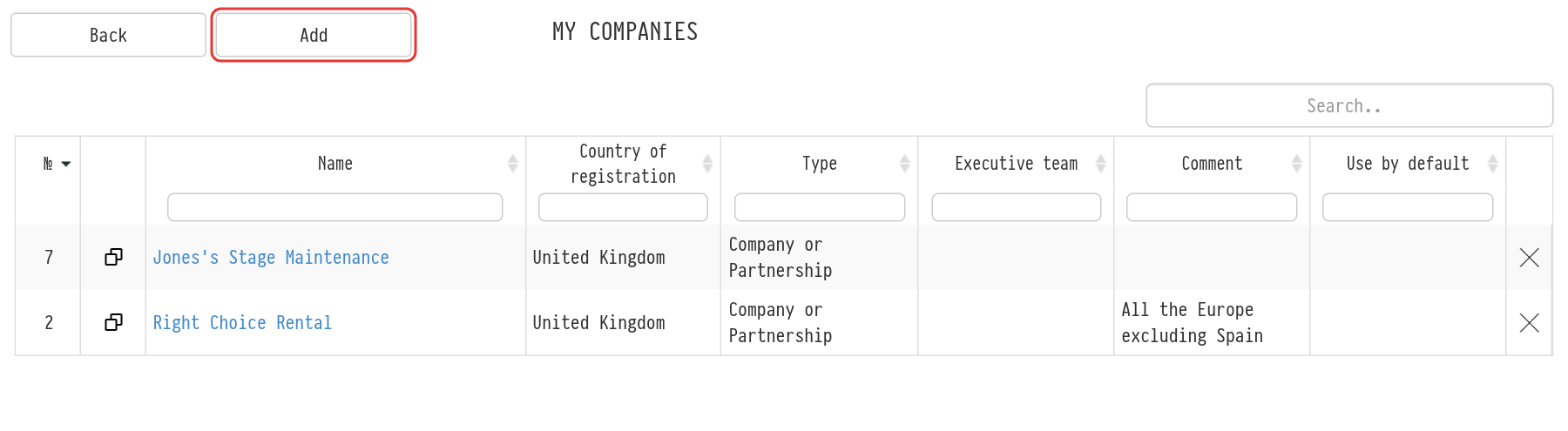
Enter the name. If needed, mark that this company is assigned to new projects automatically (the "Use by default" checkbox). You can also leave a comment here.
After you click "Add" again, the full company form opens. Here you upload the logo and the stamp ("Logo" and "Print"), set the taxes (method of taxation, name, percentage, whether the tax is shown in the estimate), choose the "Country of registration" and the "Type" (for example sole trader or company), and fill in the related fields: registration number, VAT number, address, bank details. The "Executive team" block is for the company's managers.
When the fields are filled in, click "Save". The new company appears in the list.
Two taxes
In the company card, taxes are set in two blocks: "Tax 1" and "Tax 2". Each block is turned on with the checkbox to the right of its heading. For a tax that is on, fill in "Methods of taxation" ("tax included", "tax excluded" (added on top), "in the price" or "in the final amount"), "Name/Percent" and "Display" ("show" or "hide"). The hint next to the method of taxation explains the formulas; they are also described in the article Parameters.
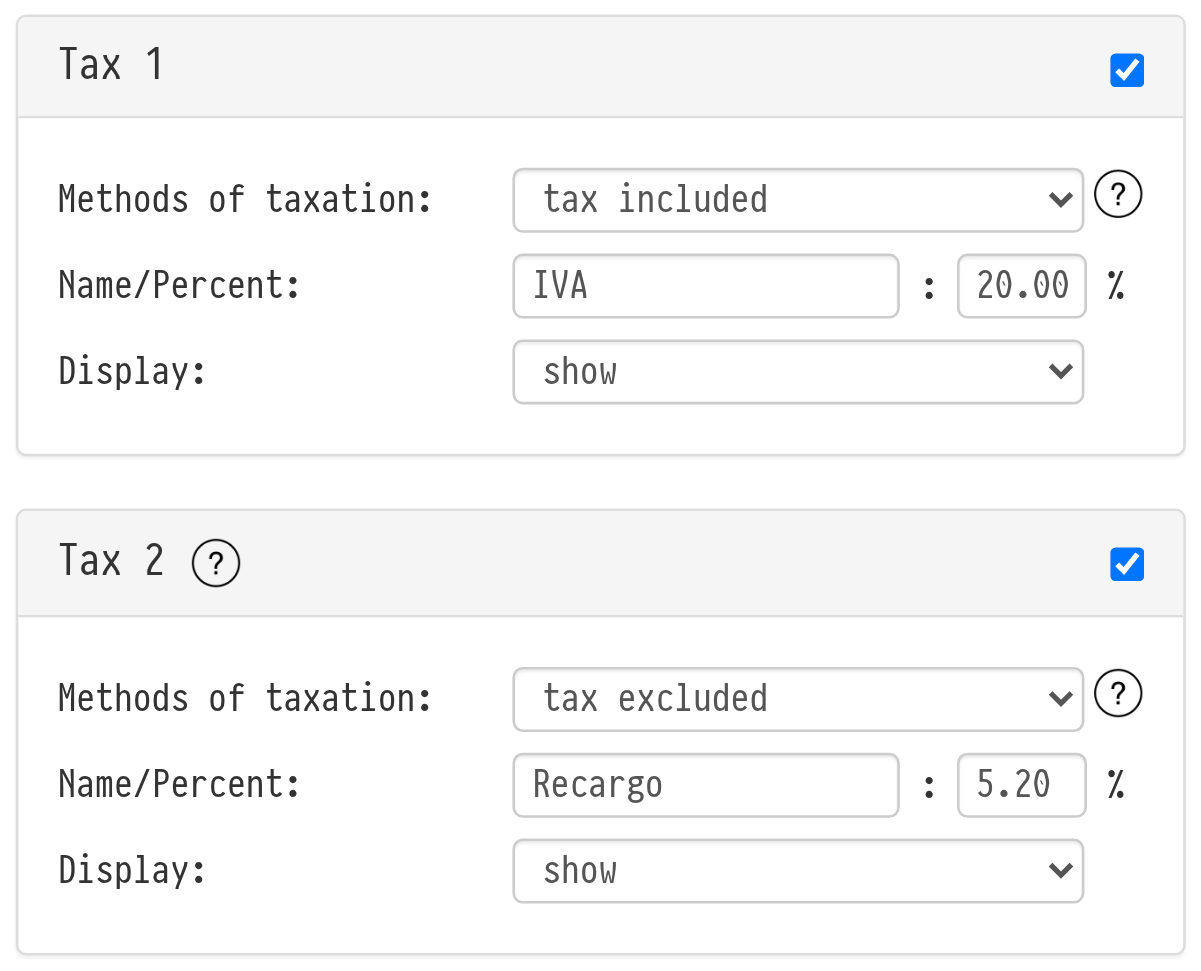
Two taxes are needed when one tax is part of the price and the other is charged on top.
How it is calculated
The second tax is calculated after the first one, from the amount that already includes the first tax. The order matters: "Tax 2" always comes after "Tax 1".
If the first tax is "tax excluded" or "in the final amount", the amount grows, and the second tax is calculated from the new amount.
If the first tax is "tax included" or "in the price", the amount does not change, and the base of the second tax is the "Subtotal" of the sheet.
Example. The "Subtotal" of the sheet is 10,000 € (with discounts and coefficients already applied). "Tax 1" is 20 % on top: 2,000 €, the amount is 12,000 €. "Tax 2" is 5 % on top: 600 €. The "Total Amount Due" is 12,600 €.
Where the company taxes apply
The taxes in the company card are default values. New estimate sheets of the company marked "Use by default" get them, and so does a sheet where you choose this company in "Parameters" → "Taxes". There you can also change the taxes for one sheet; the company card stays the same. Taxes are calculated separately for each estimate sheet.
Changes in the company card do not recalculate sheets that already exist.
Display in documents
Word document templates have separate variables for the two taxes. The full list is on the "Templates" page, menu "Variables" → "System", group "Project". The ones you need for taxes:
${s_total_without_nalog}: the amount due without tax;
${s_total_nalog}, ${nalog_name}, ${nalog_percent}, ${nalog_type}: the amount, name, percentage and type of the first tax;
${s_total_nalog2}, ${nalog2_name}, ${nalog2_percent}, ${nalog2_type}: the same for the second tax;
${s_total_with_nalog1}: the amount due with the first tax but without the second;
${s_total_with_nalog}: the amount due with all taxes.
The amounts also have a version in words, ending in _text, for example ${s_total_with_nalog1_text}.
For bills and invoices there is the "Table listing equipment/services with a price modifier" (variables ${table_all_position_with_vat_1_2_…}). In it, the price of each entry is recalculated so that the row amounts add up to the total. If both taxes are on in the sheet, the first tax is included in the entry price, and the second is shown in the tax column (variables …_price_vat and …_price_total_with_vat). If only one tax is on, it is shown in the tax column.
For more about templates and variables, see the article Templates.
Please note. If you turned on the second tax, check your document templates: older templates may show only the first tax.
You can send your company details to a partner with one link: the "Company profile" link in the company card.