Service Card
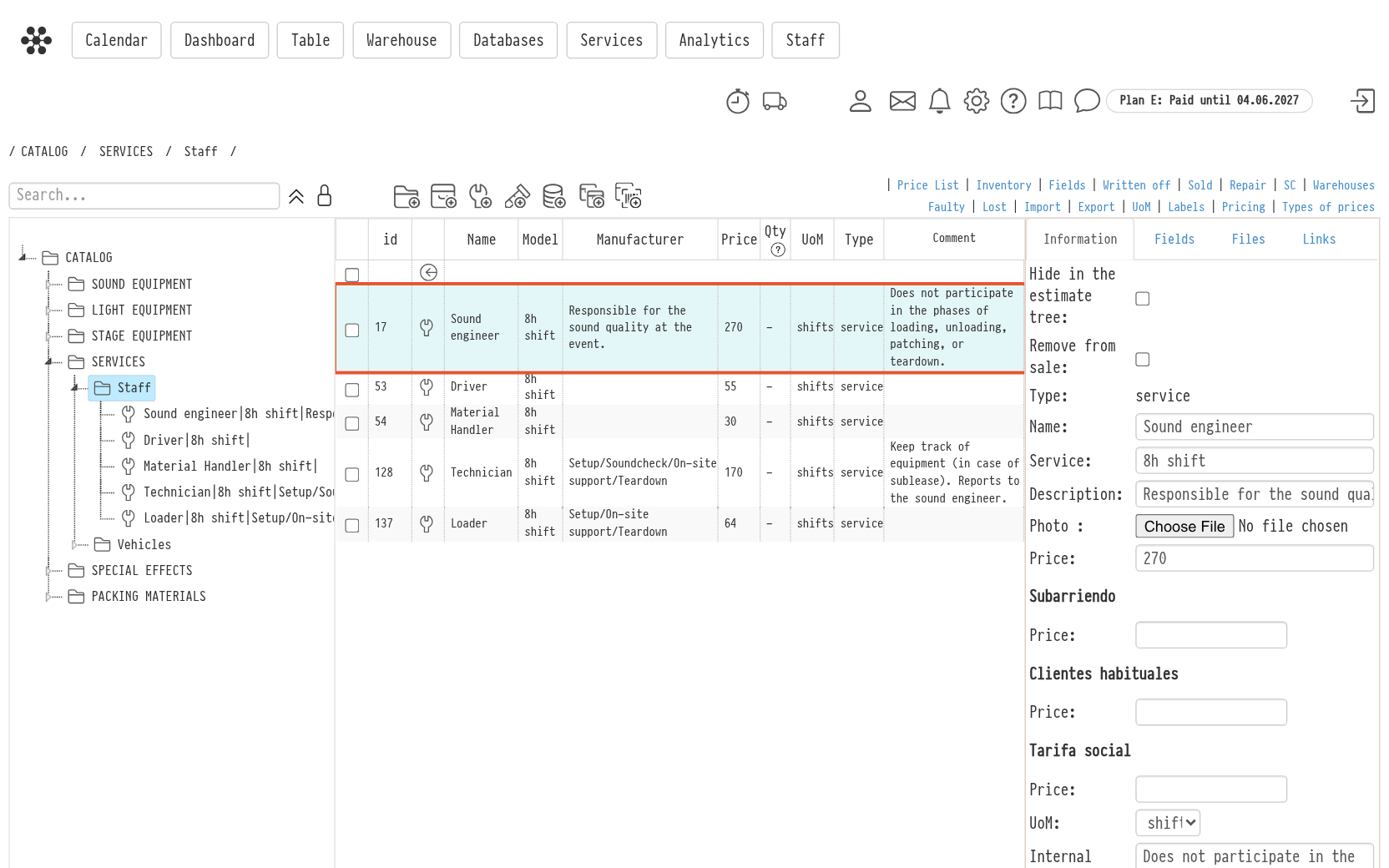
To open the card of a service, select the service in the central part of the Catalog. The card opens on the right and has four tabs: “Information”, “Fields”, “Files” and “Links”.
Information tab
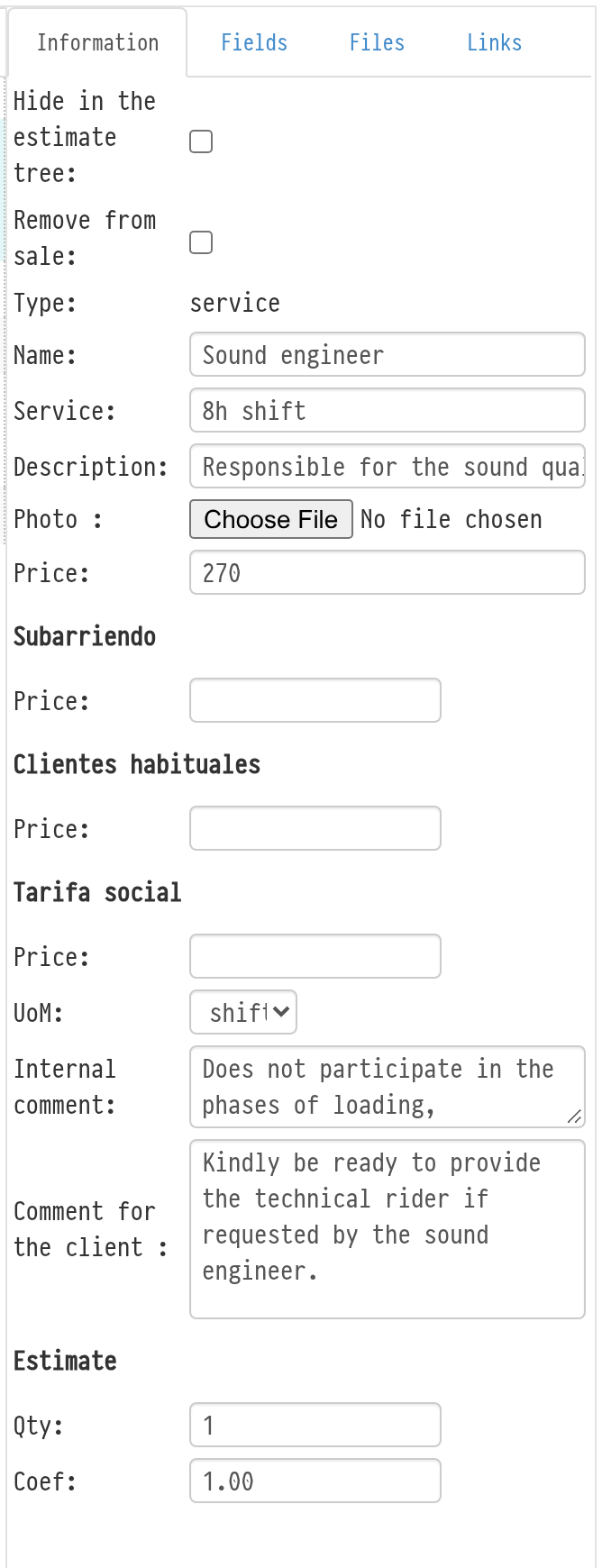
The “Information” tab holds the main details of the service:
Hide in the estimate tree — the service stays in the Catalog, but it is not offered when you add entries to an estimate.
Remove from sale — the service can no longer be added to an estimate as a separate row; it stays in the Catalog and inside kits.
Type — “service”, set when the entry is created.
Name and Service — the name of the service and its scope, for example “Sound engineer” and “8h shift”.
Description — a short description of the service.
Photo — a service, like equipment, can have a photo. It is shown in the quotation instead of a placeholder. Photos can be uploaded by employees with full access to the Catalog.
Price — the main price. Below it there is a separate “Price” field for each price type created in “Types of prices” above the Catalog.
UoM — the unit of measurement, for example “shifts” or “hrs”.
Internal comment — a note for your colleagues; it is seen by everyone with access to the Catalog.
Comment for the client — when the service is added to an estimate, this text is copied to the client comment of the estimate row and goes to the quotation.
In the “Estimate” block you can fill in “Qty” and “Coef”. These values are used automatically when the service is added to an estimate.
Fields tab
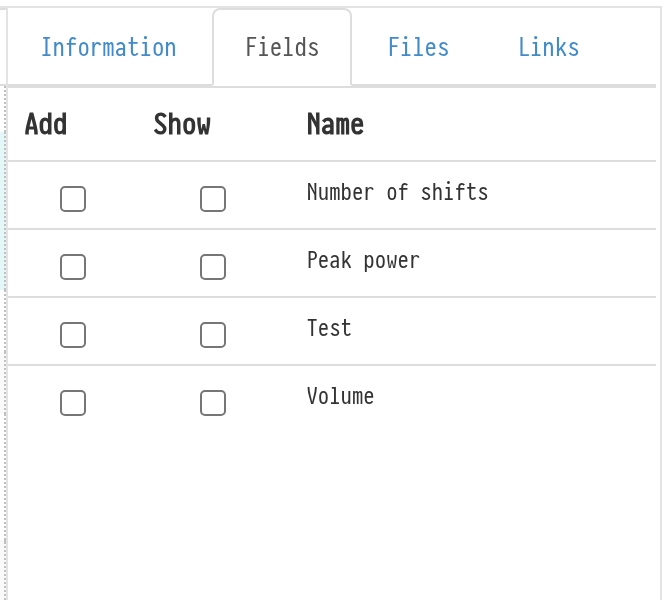
On the “Fields” tab you choose which custom fields the service has (“Add”) and which of them are shown in the Catalog table (“Show”). Custom fields are created in “Fields” above the Catalog.
Files and Links tabs
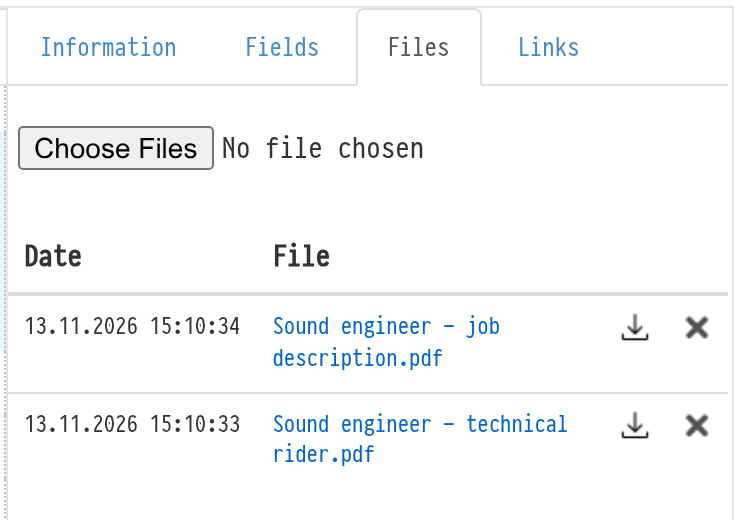
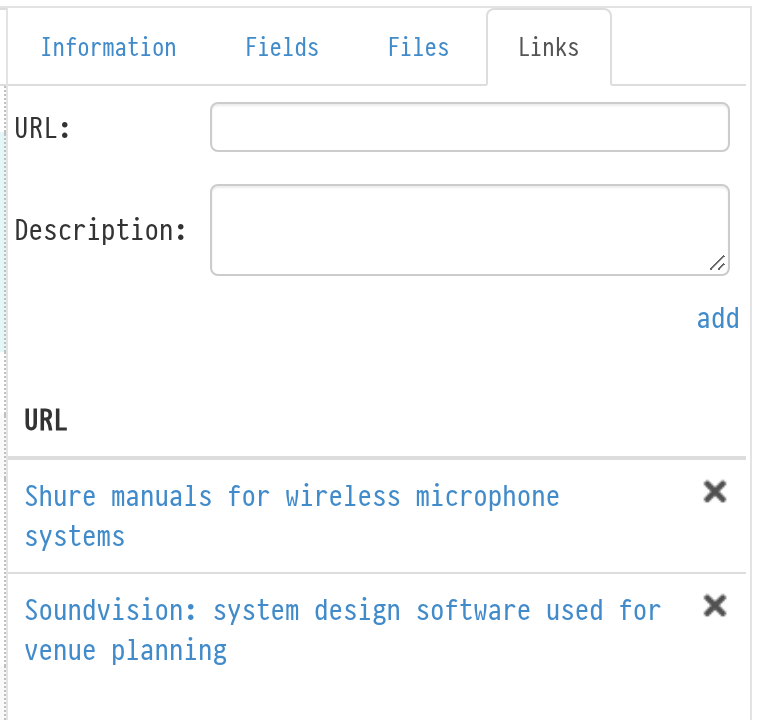
On the “Files” tab you can upload documents related to the service, for example a technical rider or a job description. On the “Links” tab you can add useful web addresses with a description. Both tabs work the same way as in the Equipment card.