Moving equipment to another project
Sometimes equipment goes from one event straight to the next one without returning to the warehouse. To keep the records right, move it to the other project directly from the project warehouse: the equipment goes to the new project in a venue status, and in the old project it is marked as moved.
Where it is
Open the warehouse of the project you are moving the equipment from: in the project, the "Warehouse" tab → the "New warehouse" button, or the "Warehouse" menu → "Projects" → the project card. See the Warehouse section.
You can move to another project only equipment that is at the venue now, that is, in a warehouse status with the location "Venue". How statuses work: Warehouse statuses.
How to move
Click "▶" on the panel of the "Movement" block.
In the column of the venue status, select the SKUs you need with checkboxes.
In the column title, click the "Actions for selected SKUs" icon.
In the "Action with selected SKUs" window, choose "Move to another project" in the "Action" field.
For accessories and consumables in the list of selected items, specify the quantity if you are not moving all of it.
Fill in the fields below and click "Confirm".
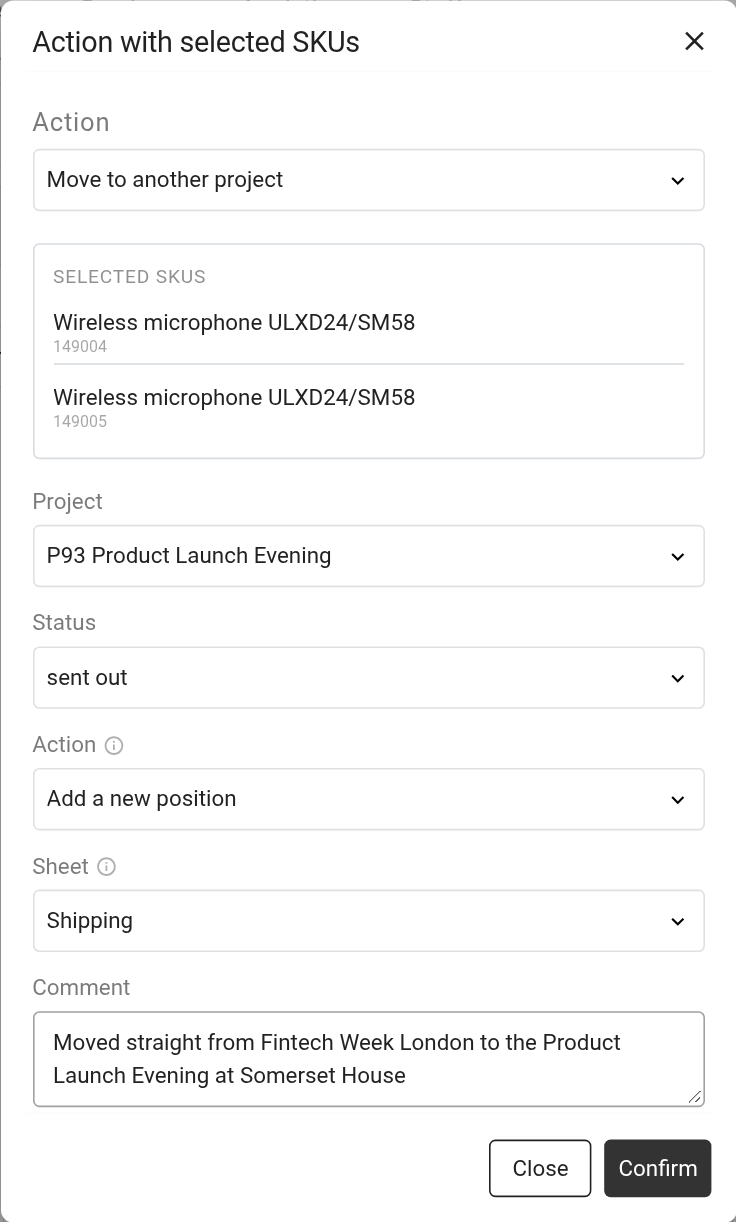
Window fields
"Project": where the equipment goes. The list shows other projects that have not ended yet and already have the warehouse available. If there are none, the window shows "You have no other projects".
"Status": the warehouse status the equipment gets in the new project. You can choose only statuses with the location "Venue".
"Action": how the equipment appears in the specification of the new project (see below).
"Sheet": which sheet of the new project to add it to.
"Comment": for example, where the equipment came from and why. The comment is visible in both projects.
The "Action" field
The field helps you avoid extra entries in the receiving project.
"Add a new position": a new entry is created in the new project for each SKU. In the "Sheet" field, choose "Shipping" (the entries appear on the "Shipping" sheet) or a specific sheet.
"Tie to the existing ones": the system looks for the same entries in the new project that have no SKUs assigned yet, and attaches the SKUs to them. In the "Sheet" field, choose "Any sheet" (search through all sheets in order, except "Shipping") or a specific sheet. If there are more SKUs than free entries, new entries are created for the rest on the "Shipping" sheet.
"Tie to the existing ones" is useful when the equipment for the next project is already in its estimate: the SKUs simply take their places, and no duplicates appear in the specification.
What happens after the move
In the source project, an arrow appears next to the SKU. Click it to see "Moved to the project No. …", the comment and the quantity. These SKUs can no longer be selected and moved in this project.
In the new project, the SKU appears in the selected venue status with the arrow "Moved from the project No. …". From there you can return it to the warehouse as usual or move it further, to a third project.
The "Log" block of the source project warehouse gets a "movement" record with the quantity, the number of the new project and the comment. See Log.
Please note. Consumables at the venue are moved through a separate window ("Consumable actions").