Document
The Document tab controls the title of the document and the name of the file, the engine used to build the PDF, and whether the finished document is saved to Storage. This is also where you set the tags and the comment of the form.
Tags
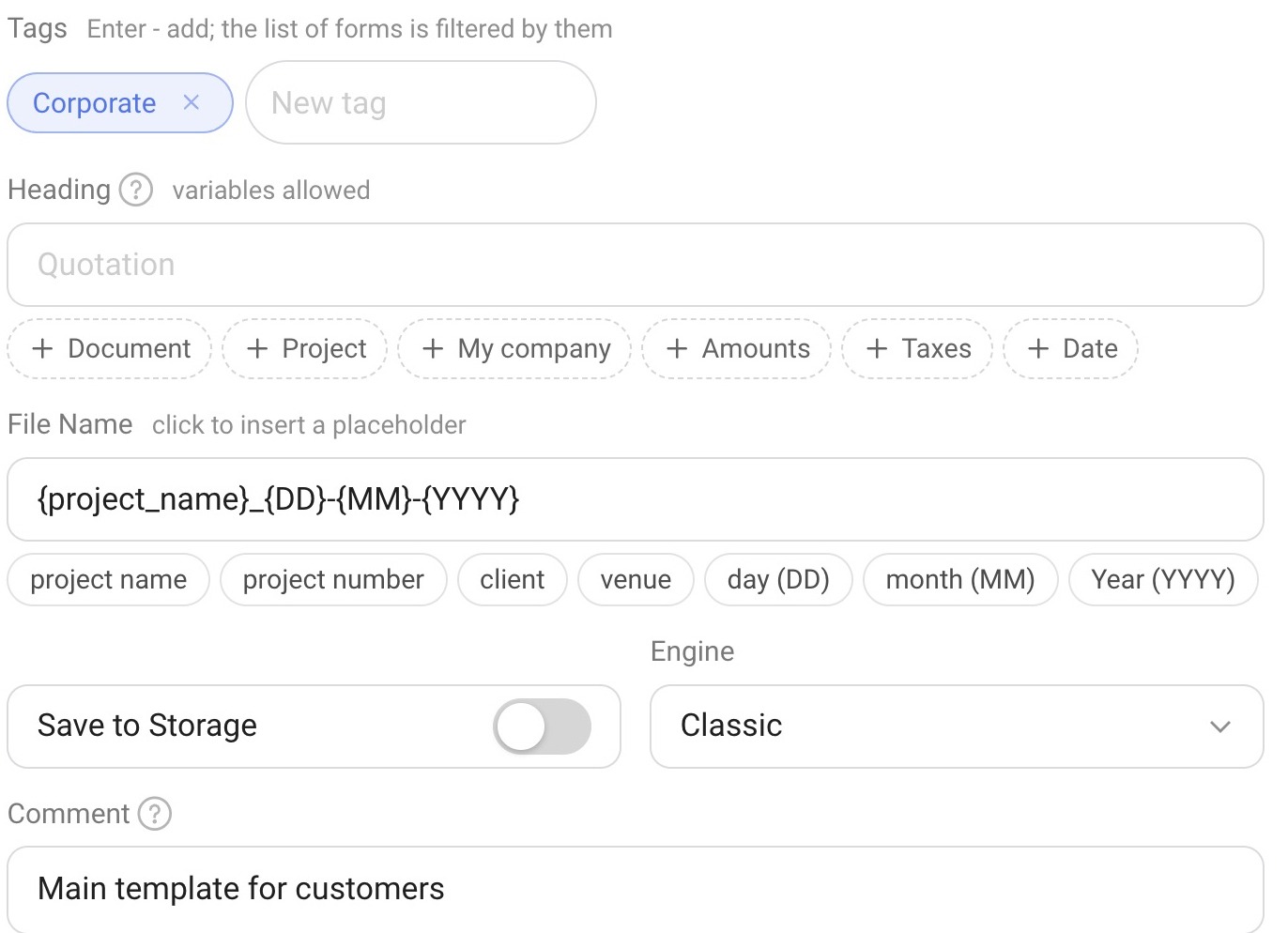
Tags are for sorting the forms themselves: when you have many forms, tags help you sort the gallery. Tags have nothing to do with the content of the printed document.
To add a tag, type a name in the “New tag” field and press Enter (or click the “+” button). The hint in the field says: “Enter - add; the list of forms is filtered by them”.
Tags already created for other forms can be picked from the “Tags of other forms” hint.
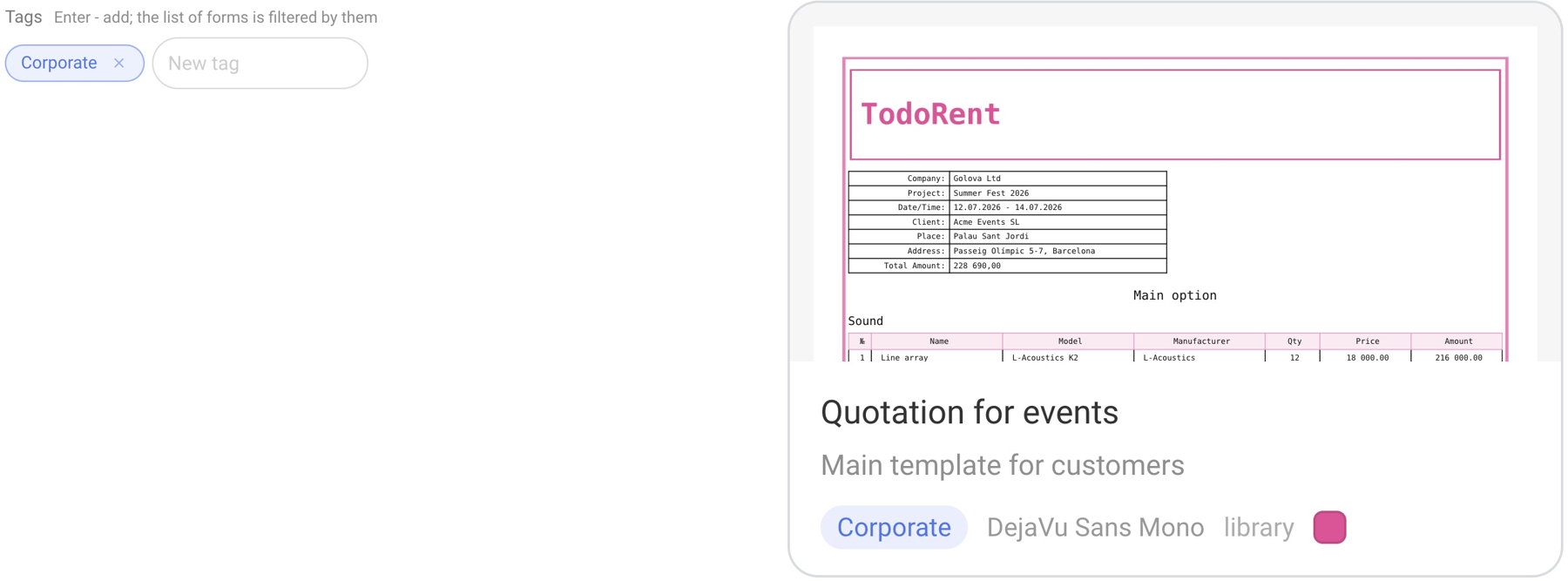
A tag is shown as a label on the form card, and a filter with this tag and the number of forms appears above the gallery.
Document heading
In the “Heading” field you can enter the title of the document — for example, “Quotation” or “Quotation and payment details”. You can insert variables into the heading: click the button of the group you need under the field (“Document”, “Project”, “My company”, “Amounts”, “Taxes”, “Date”) and choose a variable from the list — when the document is generated, it is replaced with the value from the project.
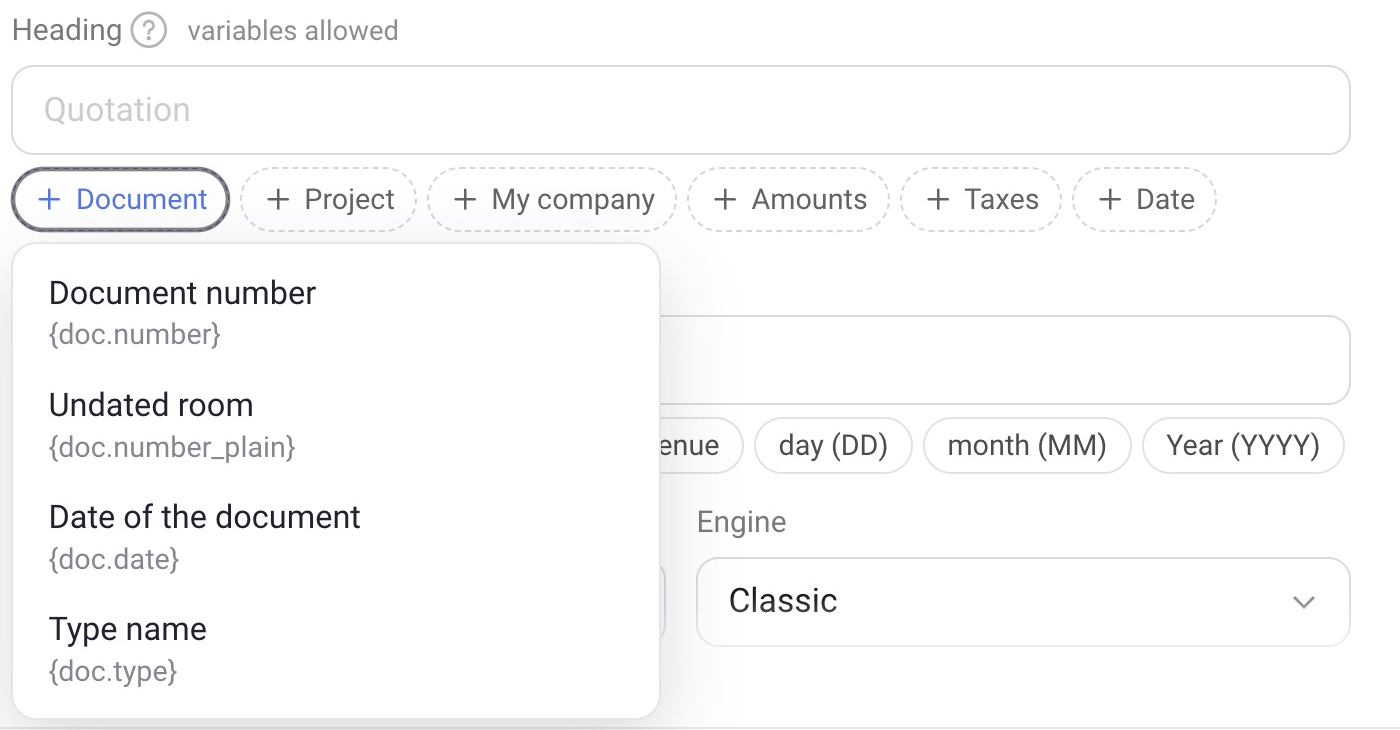
Document: Document number, Number without date, Document date, Type name.
Project: Project number, Project Name, Start date, End date, Venue, Venue address, Project client, Project comment, Project Dates.
My company: the set depends on the country. At the top of the list, choose the country: Spain, Germany, France, United Kingdom, Indonesia, Canada, Hungary, Brazil, UAE, Argentina, Lithuania, Romania, Mexico, Bulgaria, or “All countries”. For example, for Spain the list contains: company name, registered address, tax ID (NIF/CIF), bank account number or IBAN, representative, phone, email, business address, commercial register, bank name and SWIFT or BIC code. The names of the company details are shown in the language of the chosen country.
Amounts: Total without tax, Tax Amount, Tax amount 1, Tax amount 2, Total with tax, Total in words, Equipment summary, Summary of services, Total for consumables.
Taxes: Name of the tax, Tax rate %, Tax Name 2, Tax rate 2 %.
Date: Today, Current year.
File name
The file name is also built from placeholders. Click the placeholder you need under the field to insert it into the name: project name {project_name}, project number {project_num}, client {client}, venue {venue}, day {DD}, month {MM}, year {YYYY}. For example, the template {project_name}_{DD}-{MM}-{YYYY} gives a file named after the project plus the date the document was generated. This way all project documents get clear and consistent names, and they are easy to find.

Save to Storage
If you turn on the “Save to Storage” switch, every document generated with this form is saved to Storage automatically.
Engine
The engine defines how the document is turned into a PDF:
Classic — as it was always printed;
Modern — browser render: thinner lines and halftones.
If you are happy with the usual look of the document, leave “Classic”.
Comment
The comment is a note for yourself. It is not printed in the document; on the form card in the gallery the comment appears under the name.