Storage
Storage is the cloud file storage built into Golova. The files you see in Storage and the files inside projects are the same files: synchronization works both ways.
Why you need it: project documents, such as quotations, warehouse pick lists, bills and contracts, are no longer scattered across email and local folders. Everything is in one place, available from any device, and you can share it with a client with one link.
How to open it
In the system header, click "Services" → "Storage".
Storage opens in a separate browser tab, at its own address. You do not need to log in again: if you are already working in Golova, you are logged in to Storage too.
Turning it on and access rights
Like all new modules, Storage is hidden by default: an administrator gives access.
Open "Databases" → "Employees" → "Options" → "Access templates", edit the template you need and go to the "Services" tab. The Storage settings are in the "Storage" block.
The switch in the block header is "show" or "hide".
"show": the employee gets the "Services" → "Storage" menu item, the "Project folder in Storage" icon in the project card and the "Save to Storage" buttons.
"hide": all of this disappears. The employee still sees the files on the project tab "Files/Links", according to their rights to "Files" in the access template.
The "Access" list: "public access" or "only mine". When you switch the block header to "show", "Access" becomes "public access" by itself; change it manually if needed.
Level | What the employee sees |
|---|---|
"public access" | All company files and folders, both system and user ones. Can edit, delete and share them. System folders cannot be deleted. Sees the storage statistics |
"only mine" | Their own files and folders, the system folders and what has been shared with them. The storage statistics are hidden |
Please note. Despite its name, "public access" in this list does not make files public: it means access to all of the company's files inside Golova. Files are visible outside the company only through a public link (see How to share a file).
Rights to files in the system folders come from the rights to the project. If an employee has no access to a project, they will not see this project's folder in Storage either. When an employee is dismissed, access to Storage is removed completely.
Sections
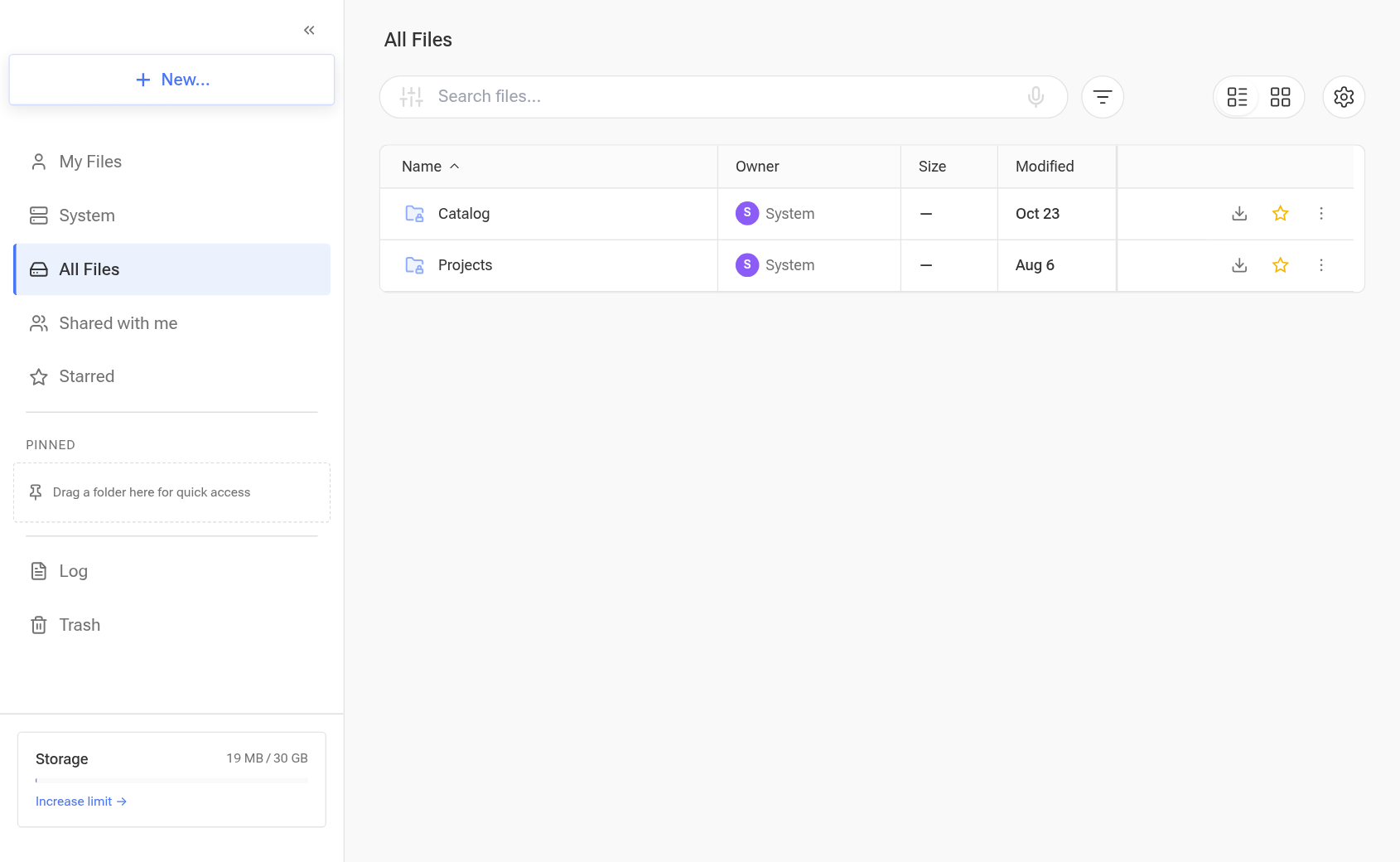
The menu is on the left.
"My Files": files and folders you have uploaded or created yourself.
"System": folders that come from Golova: "Projects" and "Catalog". Any file uploaded to the matching module of the system automatically appears in its system folder in Storage.
"All Files": a combined list: system files, your own files and the files available to you.
"Shared with me": files your colleagues have shared with you.
"Starred": what you have marked with a star.
"Pinned": folders for quick access. Drag here the ones you work with most often.
"Log": the history of actions with files.
"Trash": deleted files, with a counter.
Project folder structure
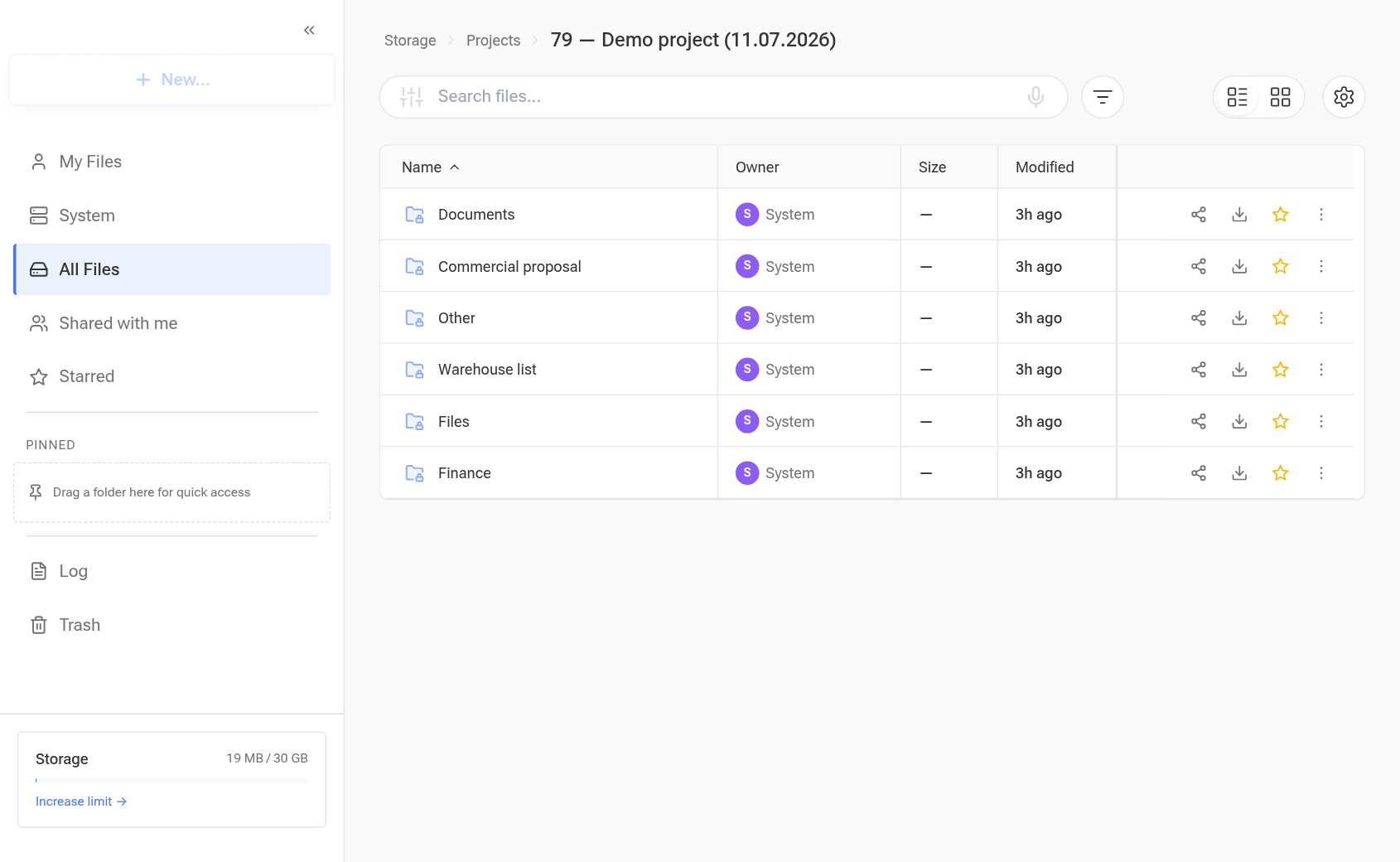
"System" → "Projects" contains the folders of all your projects. Each one is named "ID — Name (start date)", so you can easily find a project by searching for its number. If you rename a project or move it to other dates, the folder is renamed automatically.
Inside a project folder there are six system subfolders:
Folder | What is inside |
|---|---|
"Commercial proposal" | Saved quotations, in the "With prices" and "Without prices" subfolders |
"Warehouse list" | Saved warehouse pick lists |
"Documents" | Saved document packages: each package has its own subfolder |
"Other" | Documents saved from the project's "Print" tab |
"Files" | The same as the "Files" block on the project's "Files/Links" tab: synchronized both ways |
"Finance" | Files from the "Expense registry": documents attached to expense rows and bills to pay |
Inside "Other" there are subfolders for the documents of the "Print" tab: "Timeline", "Contacts", "Staff", "Transport", "Passes", "Tasks", "Project summary". A document gets there when you click the Storage icon in the row of this document on the "Print" tab.
In the folders that Golova fills ("Commercial proposal", "Warehouse list", "Other" and the package subfolders in "Documents"), each subfolder keeps the 10 most recent files; older ones are deleted automatically. You cannot add your own files to these folders: Golova fills them. The "Finance" folder is visible to employees who have access to the "Expense registry".
How documents get into these folders: see Saving documents to Storage.
Dashboard
At the bottom of the menu you see the volume: how much space is used and how much your plan allows. There is also an "Increase limit" link.
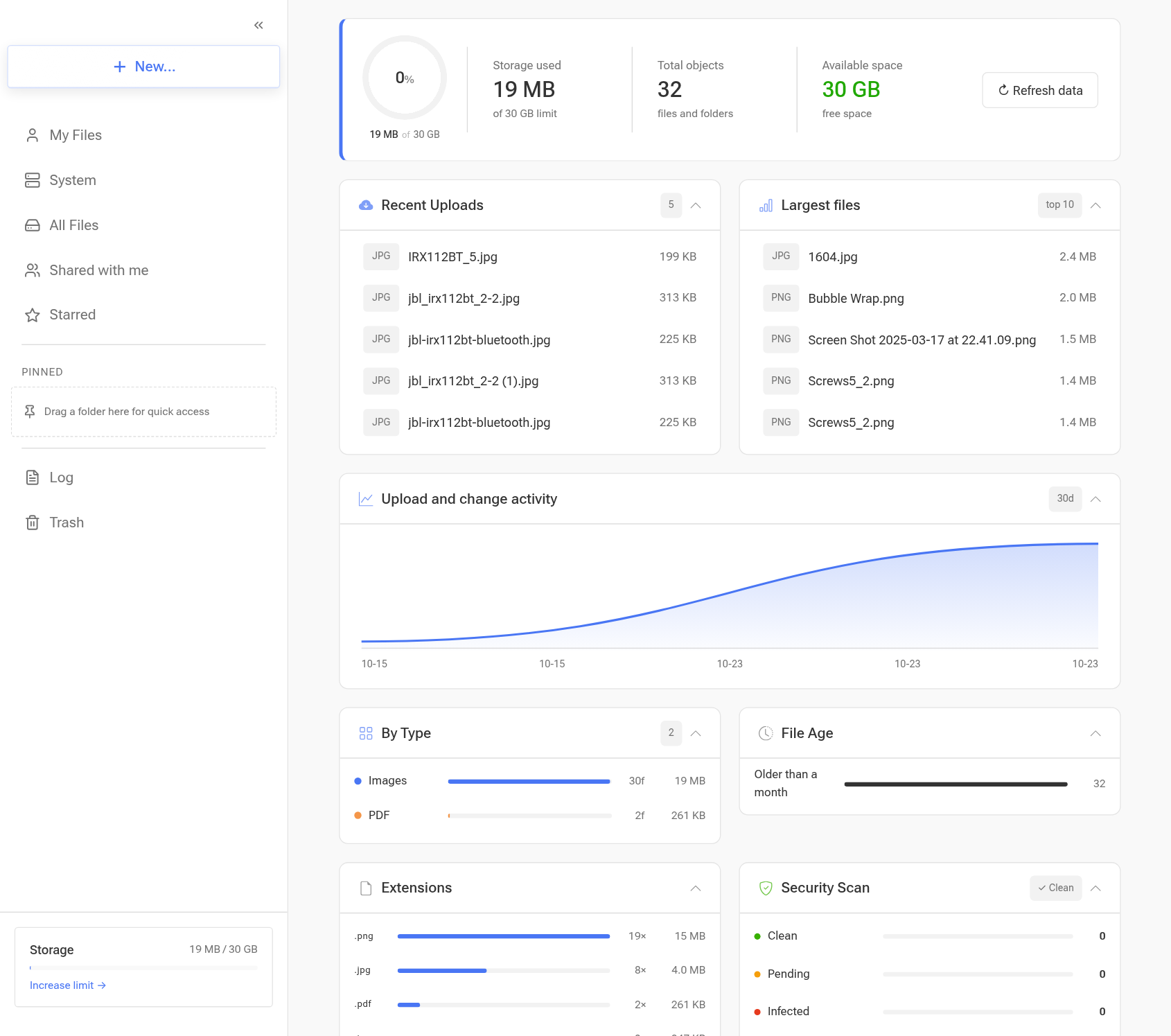
Click the volume to open the storage dashboard: a detailed picture of what takes up the space. The dashboard is available to employees with the "public access" level.
summary: how full the storage is, used space out of the limit, the total number of files and folders, free space;
"Largest files" and the latest uploads: with type, name and size;
"Upload and change activity": a chart for the last 30 days;
"By Type": videos, images, PDF, archives, documents and other: how many files of each kind and how much space they take;
"File Age": what was uploaded this month and what has been there longer;
"Extensions": which formats take up the most space.
The dashboard answers a practical question: why the space is running out. Usually the reason is a dozen video files, and you see this at once in "Largest files".
Articles in this section
How to share a file: four ways and what an external recipient sees
Saving documents to Storage: quotations, warehouse pick lists, document packages and the documents of the "Print" tab