Table view
In the table view, the warehouse statuses go one under another, and each has a table of entries. The table shows more data than the list: weight, volume, power, storage place, path in the catalog.
To switch to the table, click the rightmost round button on the "Movement" block panel. Click it again to go back to the list. The table is not available on a phone: there the warehouse always opens as a list.
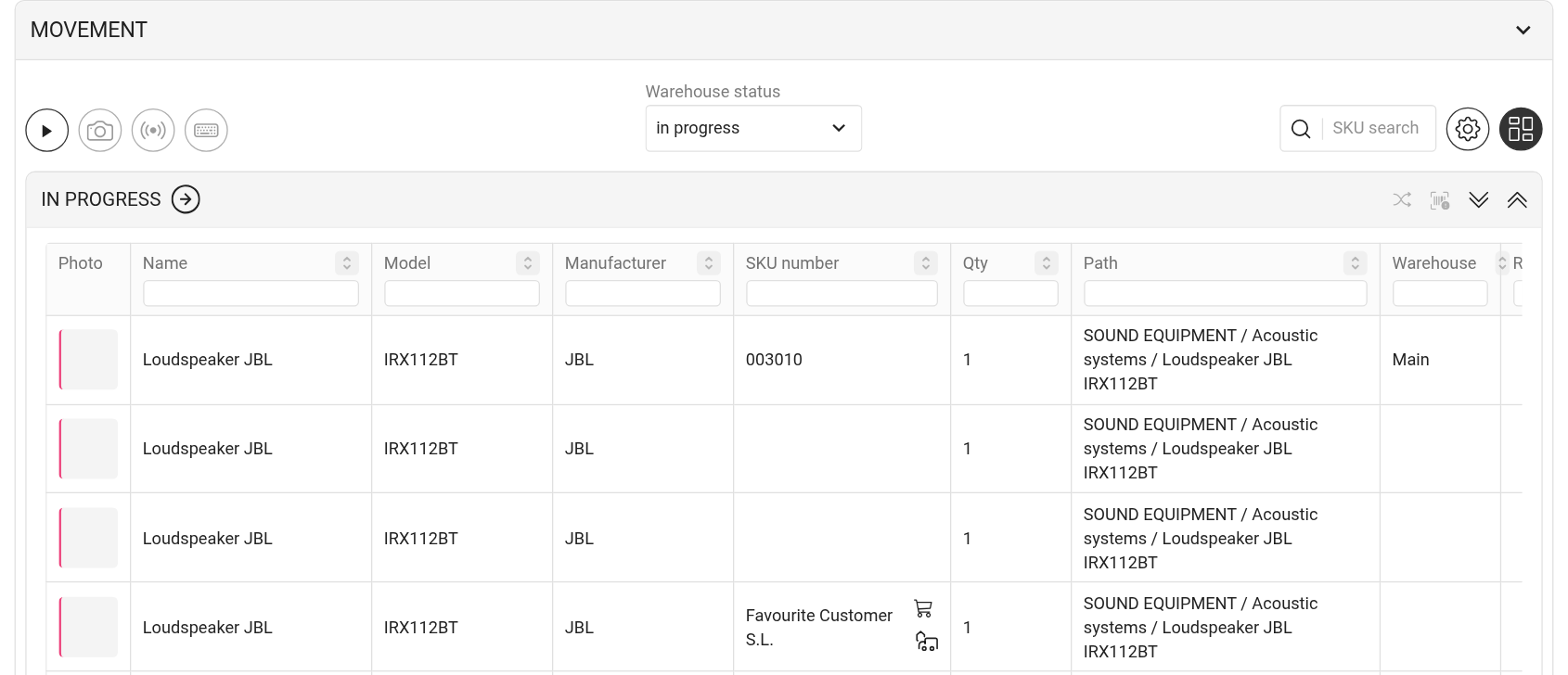
Columns
Click the gear on the block panel to open the "Setup" window. In the "Table display settings" section, tick what to show:
"Show filters": filter fields under the column titles;
"Photo", "Name", "Model", "Manufacturer";
"Path": where the entry is in the catalog;
"Warehouse" and "Row/Bin": where the SKU is stored;
"Weight", "Volume", "Power";
"Comment".
The SKU and "Qty" columns are always shown. The "Sheet" and "Kit" columns appear if "Sheets" and "Kits" are turned on in the "Warehouse Display Settings" section of the same window. Click "Save".
Please note. The set of table columns is remembered in the browser: on another computer or in another browser you need to choose it again.
Photo and entry type colour
The "Photo" column shows a thumbnail: the photo of the SKU or, if there is none, the photo of the entry from the catalog. Click the thumbnail to open a window with information about the SKU or the entry.
The coloured stripe to the left of the thumbnail shows the entry type:
pink: equipment;
yellow: kit;
blue: accessories;
green: consumable;
orange: set;
purple: service.
Filters and search
If "Show filters" is on, each column has a field under its title. Type some text, and only the matching rows stay in the table. For example, to show the equipment of one kit only, type its name in the field under the "Kit" title. In the same way you can filter by estimate sheet, warehouse, manufacturer or SKU.
The "SKU search" field on the block panel searches all statuses at once.
Working with rows
Shipping and moving work in the table in the same way as in the list: click "▶" on the block panel, select rows with checkboxes (the checkbox in the header selects all rows of the status) and click the arrow in the status header. The icons in the status header are the same as in the list, see "Kanban mode".
At the bottom of each table there are page navigation and the number of rows per page.