Blocks and note
The Blocks tab lets you add free text to the document: terms, payment details, guarantees, notes. A block can be placed in different parts of the document — from the header to the footer. The number of blocks is shown next to the tab name.
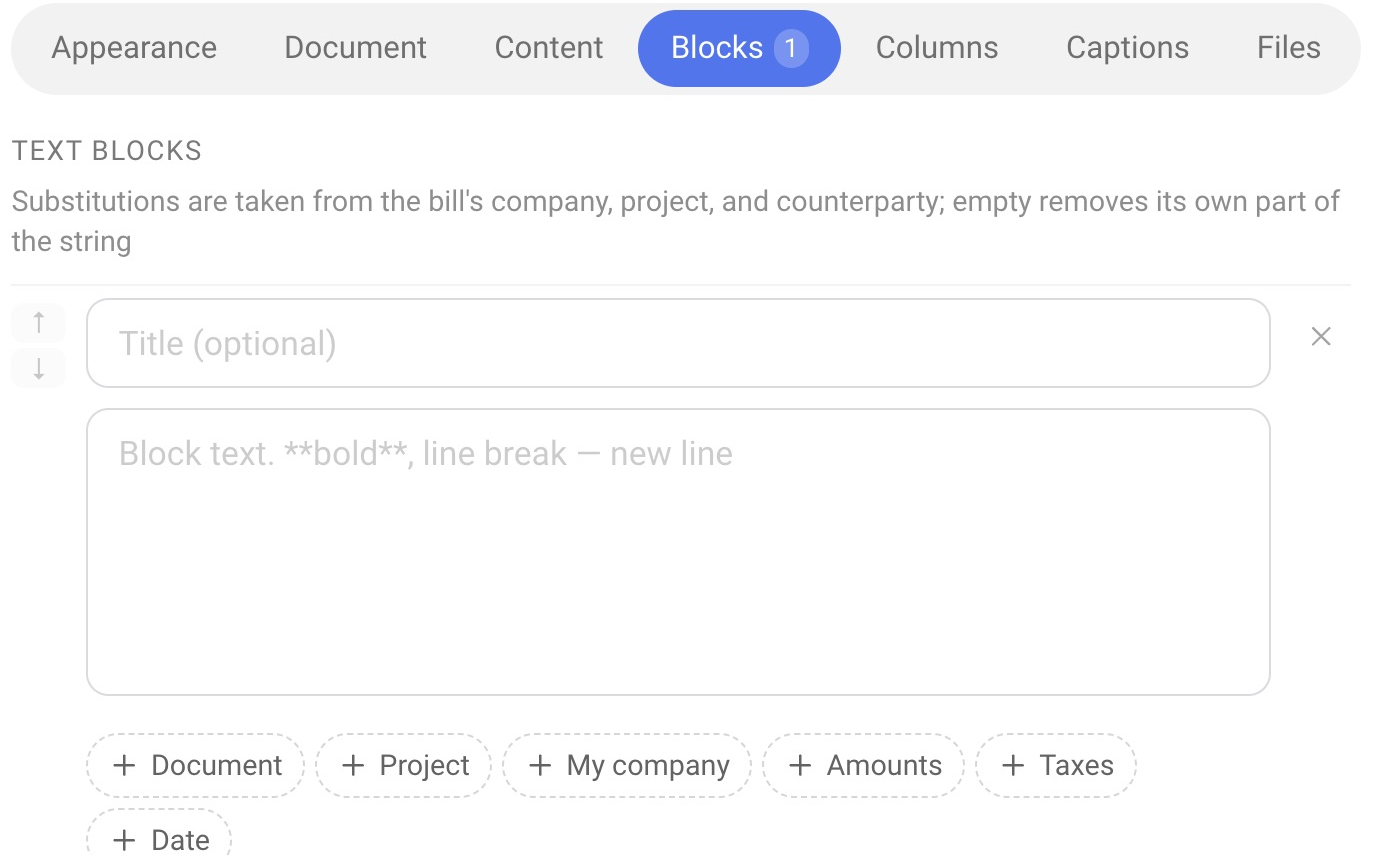
How a block works
A block is a paragraph of text with an optional title. Above the list of blocks there is a hint: placeholders take their values from the company, the project and the counterparty, and an empty one removes its own part of the line. In other words, if the company or project card does not have the field you need, an empty value is used, and the matching part of the line disappears with it.
Title (optional) — the name of the block above the text.
Block text — the text itself. To make text bold, put two asterisks on each side: **bold**. A line break is just a new line.
Placeholders. Under the text there are buttons of the groups “Document”, “Project”, “My company”, “Amounts”, “Taxes” and “Date”. Choose a variable from the list, and when the document is generated it is replaced with the value from the project and the company. The list of variables is the same as in the document heading — see the article “Document”.
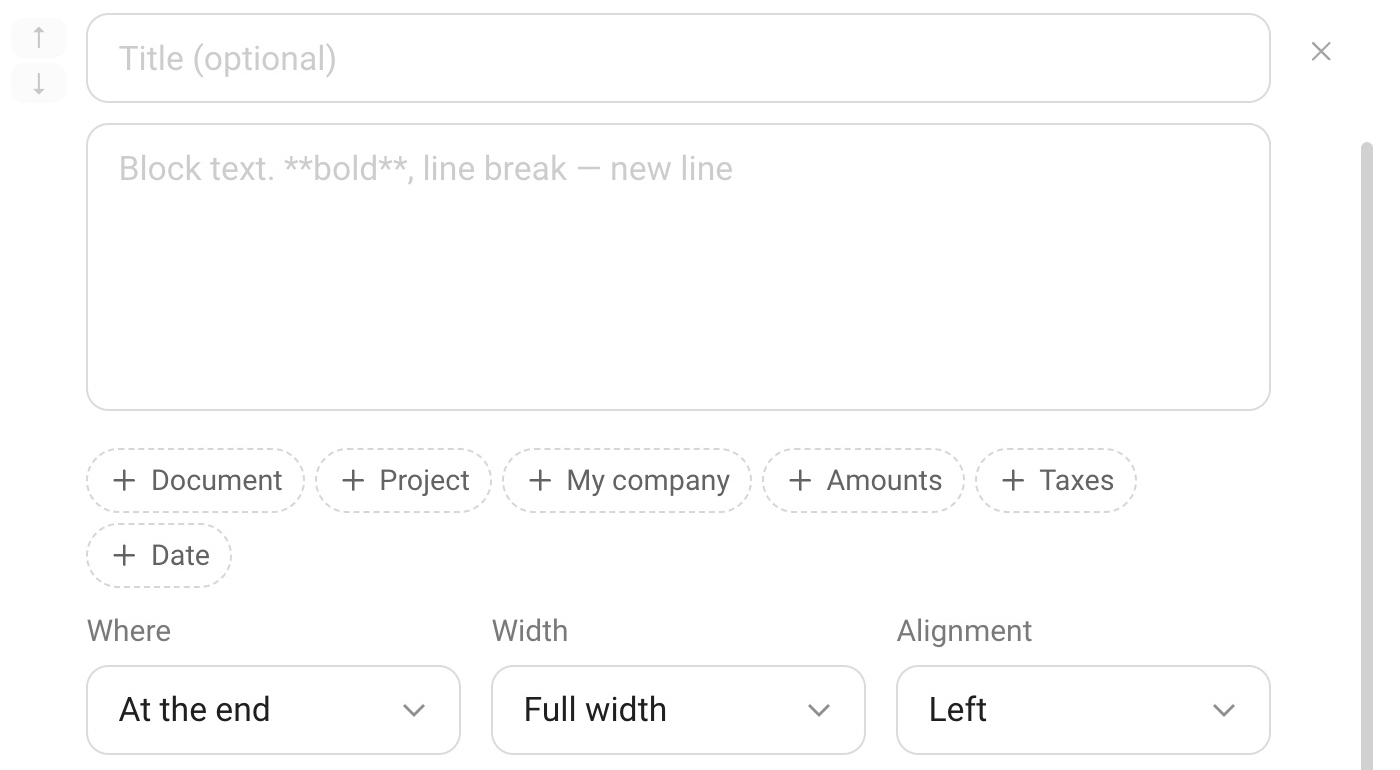
Where — the place of the block in the document:
“Below the header” — once, on the first page;
“Before the table” — after the project fields, before the items;
“After the totals” — below the totals and notes of the last sheet;
“At the end” — once, after the totals, before the stamp and signature;
“In the footer” — on each page, briefly: 1–2 lines.
Width — full width or half width.
Alignment — “Left”, “Centered” or “On the right”.
The “↑” and “↓” buttons change the order of the blocks.
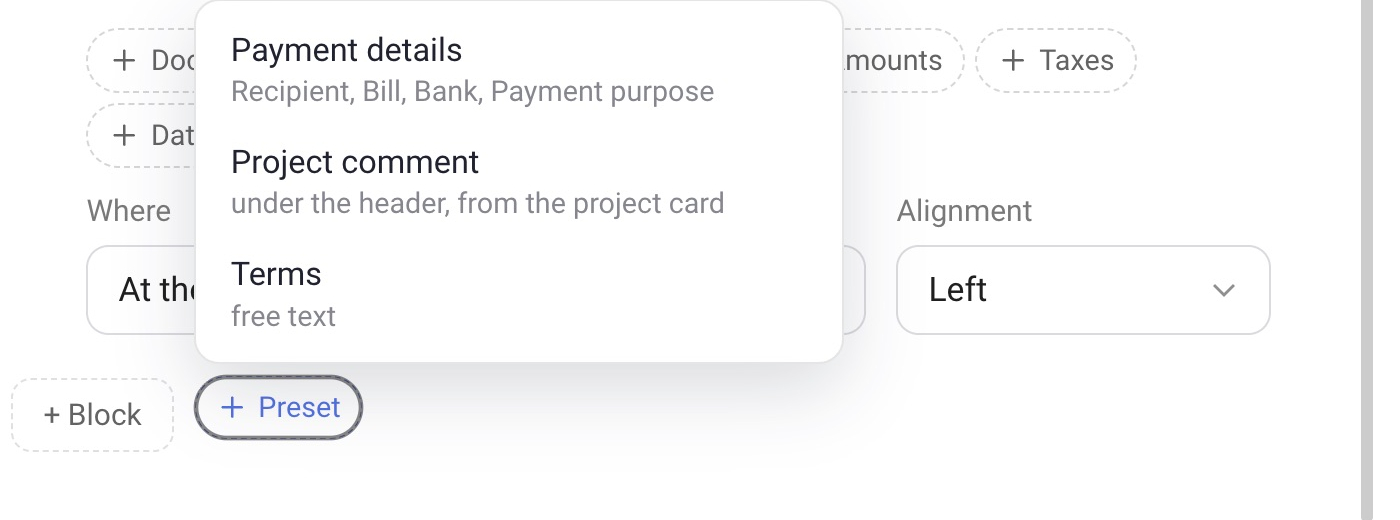
The “+ Block” and “Preset” buttons
“+ Block” adds an empty block. “Preset” adds a ready block with the needed placeholders already in place:
Payment details — recipient, account, bank, payment purpose;
Project comment — below the header, from the project card;
Terms — free text.
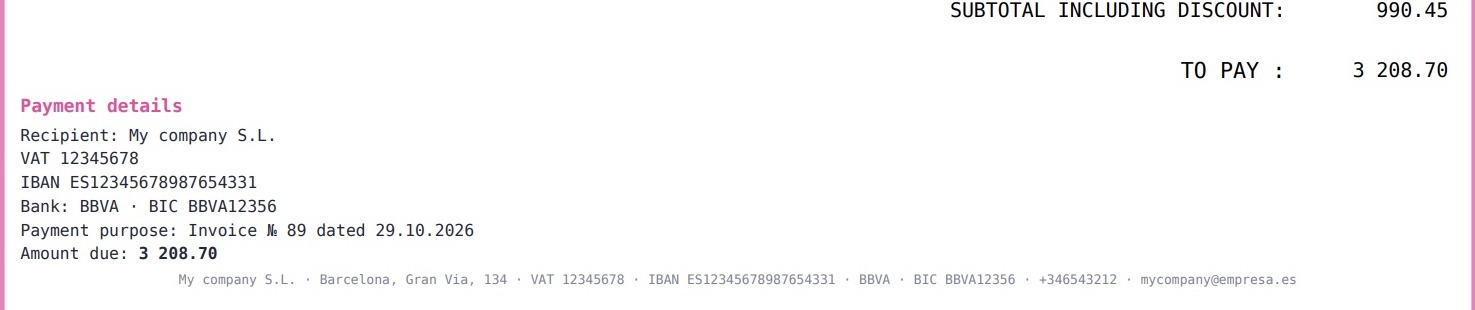
Example: payment details
To add payment details to the document, click “Preset” and choose “Payment details”. The block pulls in the data of your company. Set its position to “After the totals” — and the quotation turns into a pre-contract with payment details.
Blocks and “Note”
In the previous interface, the “Note” section was used instead of blocks. It is still on the Content tab and does something similar: it adds lines under the totals. The difference is that a note is a single line, while a block is a paragraph. A block is more flexible: it has presets (for example, payment details with the right placeholders already in place), and you can choose its position and width. A block is the same note built as a paragraph, so for new forms it is more convenient to use blocks.