Messenger
Messenger is the built-in chat of Golova. You can message colleagues one to one, keep shared rooms, for example for a department or the warehouse, and discuss projects in project chats. All messages are stored in the system, so you do not need an outside messenger for work.
How to open it
Click the "Messenger" icon (speech bubble) in the top bar, next to the other main menu icons. Messenger opens on a separate page. A red badge on the icon shows the number of unread messages.
In the Golova mobile app, Messenger opens from the app menu, item "Messenger".
Employees see the icon if Messenger is open to them in their access template (see "Access rights" below).
Chat list
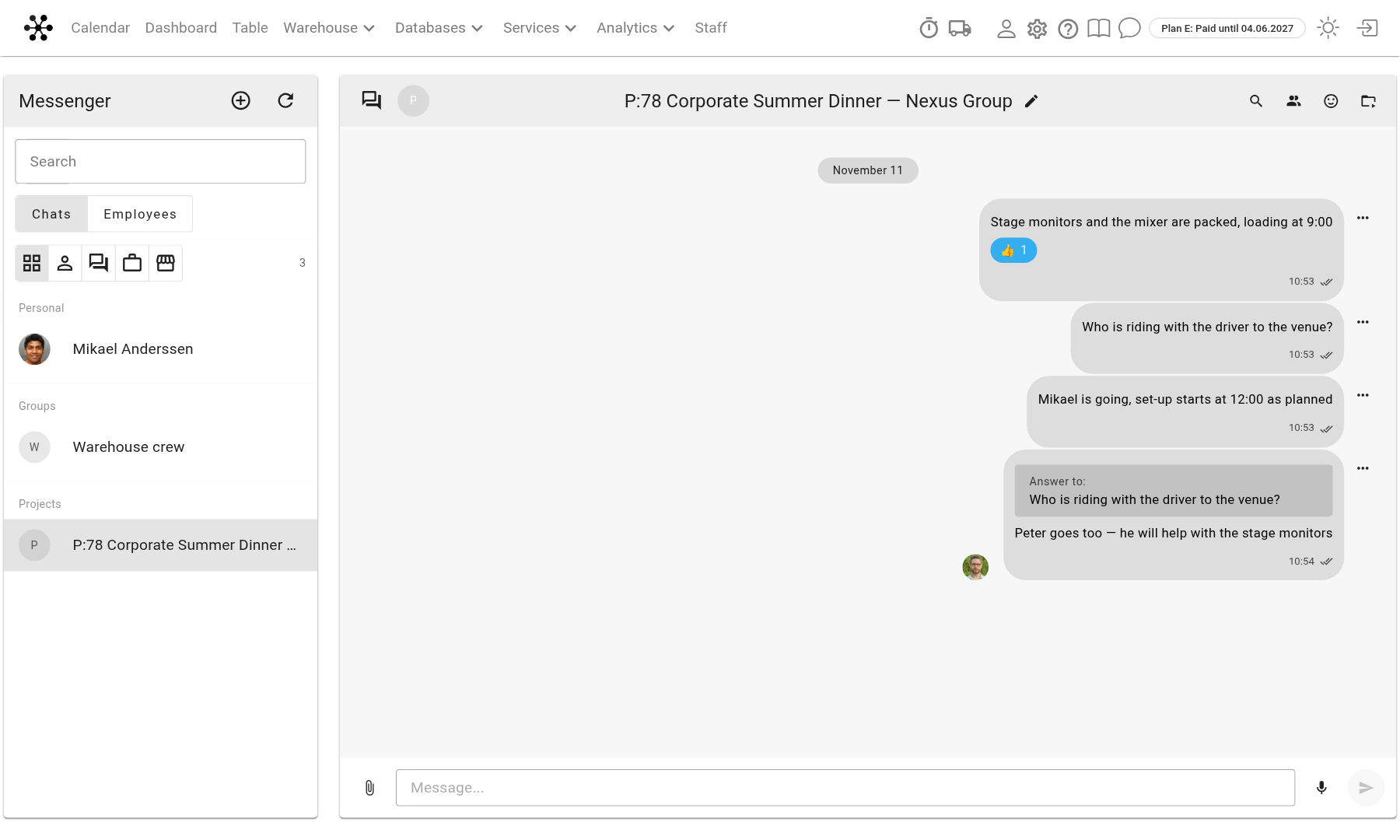
On the left is the "Messenger" panel with the list of chats. Chats are grouped: "Personal", "Groups" and "Projects". The icons above the list filter it by type: all chats, personal chats, groups, project teams. The "Search" field finds a chat by its name. The number in a red circle next to a chat is the number of unread messages.
The "Chats" / "Employees" switch at the top of the panel opens the list of colleagues. Click an employee to open a personal chat with them: if you have not written to each other yet, the chat is created.
Rooms
A room is a shared chat for several people: a department, the warehouse, a crew.
Click "⊕" ("Create a room") above the chat list.
Enter the "Room name".
Tick "Add all employees" or choose people in the "Employees" field.
Click "Create". The selected employees are in the room straight away; they do not need to accept an invitation.
To rename a room, click the pencil next to its name. The room creator and participants with extended rights can rename it.
Room participants are listed on the "Participants" tab of the right panel. There you also find "Add a user": start typing a name and choose the employee. The button next to a participant removes them from the room, and "@" inserts a mention. You cannot add participants to a personal chat.
Messages
Enter sends a message, Shift+Enter starts a new line.
The paperclip attaches "Photo/Video" or a file, several at once if needed. The microphone button records a voice message.
The "…" menu of a message has "Reply" and "Reaction", and for your own messages also edit and delete.
To mention a colleague, click "@" next to them in the participant list. Clicking a mention opens a personal chat with that person.
The magnifier in the chat header is "Search messages". The "Media" tab of the right panel collects the photos, videos, audio and files of the chat.
Please note. The ticks next to a message show that it has been sent, not that it has been read.
Project chat
Each project can have its own chat, so all messages about the project are kept in one place.
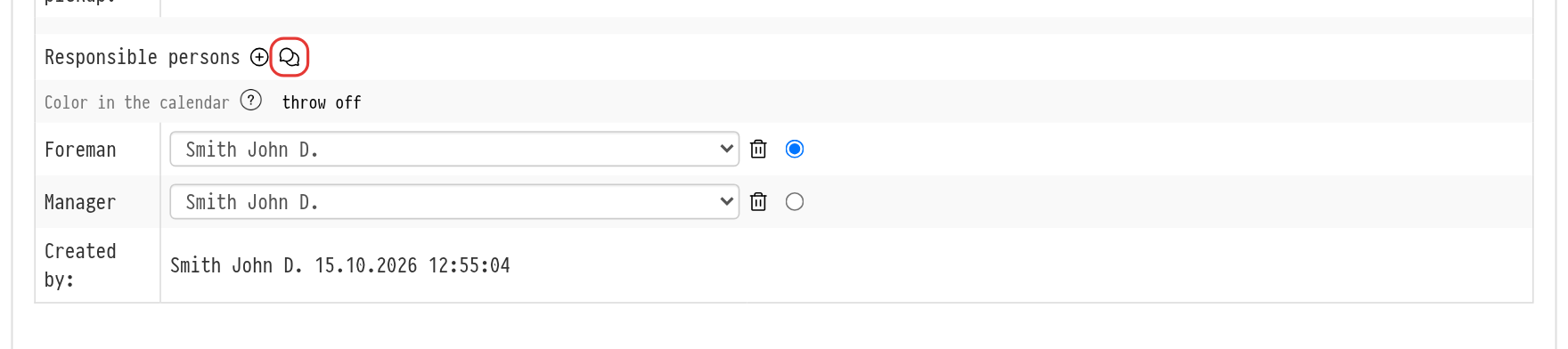
You create the chat on the "Information" tab of the project: the chat icon next to the "Responsible persons" heading. If there is no chat yet, the icon hint says "Create a chat"; if there is one, it says "Open chat". The chat opens in a new browser tab, and in Messenger it appears in the "Projects" group with the project number and name, for example "P:78 Corporate Summer Dinner — Nexus Group".
Each time the chat is opened with this icon, the following people are added to it:
employees from the project's "Access" field;
the project creator and the "Responsible persons";
the staff and managers of the project from the "Planning" tab;
the employee who opened the chat.
Please note. Employees assigned to the project later join the chat when it is opened again with the icon on the "Information" tab. If you remove an employee from the project or from the "Access" field, they stay in the chat; remove them by hand on the "Participants" tab if needed.
An employee with the right to create chat rooms can create a project chat. Anyone who can see Messenger and the project itself can open an existing one.
Access rights
Access to Messenger is set in the access template: "Databases" → "Employees" → "Options" → "Access templates", "Messenger" tab. For more about templates, see the article Creating a new template.
"Messenger": "show" or "hide" the module for the employee.
"Creating chat rooms": "allow" or "prohibit".
An employee without the right to create rooms only takes part in the chats they were added to. They cannot create rooms and project chats, cannot start a personal chat from the "Employees" list and do not see the "Participants" tab.
Guests
Guest users, for example subcontractors and outside participants, can also use Messenger. The guest template has only the "Messenger" setting: "show" or "hide". A guest cannot create rooms, but writes in all chats they were added to, including the project chat if they are a responsible person or are on the project staff.
Notifications
Messenger tells you about new messages with push notifications.
In the browser, Golova asks for permission to show notifications. Allow them, and you get notifications about messages even when the Messenger tab is closed. Clicking a notification opens the chat.
In the Golova mobile app on Android, a notification shows the sender, the chat and the beginning of the message. Tapping it opens the chat in the app.
You can turn notifications off in the browser or phone settings; there is no separate setting in Golova.