Catalog Entries
An entry is anything you can put on an estimate: a speaker, a technician's shift, a roll of tape. Entries live inside the sections of your catalog, and each one has a type that decides how it behaves in projects and in the warehouse.
The catalog has three levels: sections (folders) → entries → SKUs, the individual physical units behind an entry.
The six types
Icon | Type | What it is | Examples |
|---|---|---|---|
box | Physical items tracked one by one. Every unit has its own SKU. | JBL SRX112 speaker, L-Acoustics LA8 amplifier, RED V-RAPTOR 8K camera | |
wrench | Something intangible you charge for. No SKUs — only quantity. | Loading/unloading, installation, delivery, 8-hour videographer shift | |
screw | Physical items you do not track individually. One SKU covers the whole quantity. | XLR-XLR 5 m cable, Layher O-bolt, cable ramp | |
stacked disks | Physical items that are used up and do not come back from the project. | AA batteries, gaffer tape, smoke fluid, zip ties | |
stacked boxes | A bundle of other entries, added to an estimate as one line. Has no SKU of its own. | "Small party", "DJ kit" | |
set | A bundle that also exists physically as one object in the warehouse, with its own SKU. | A pre-rigged rack, a flightcase packed as a unit |
Hover over any of the + icons above the catalog table to see which type it creates.

How the types behave
Own SKUs | Tracked individually | Returns to the warehouse | |
|---|---|---|---|
Equipment | yes | yes, one SKU per unit | yes |
Service | no | — | — |
Accessories | yes | no, by quantity | yes |
Consumable | yes | no, by quantity | no, written off |
Kit | no — its contents are tracked instead | through its contents | through its contents |
Set | yes, the set itself | yes, as one object | yes, as one object |
Kit or Set?
This is the pair people mix up most often, so it is worth being precise.
A Kit is a convenience for the estimate. It is a saved bundle — put it on an estimate and the system expands it into its parts. In the warehouse there is no such thing as a kit: each item inside it is picked, shipped and returned separately.
A Set is a real object. It is assembled once, it has its own SKU, and the warehouse handles it as a single unit — one scan ships the whole thing. Use a set for gear that physically lives together and is never broken apart: a pre-wired amp rack, a packed flightcase.
A note on translations. In the Spanish interface the names are the reverse of what you might expect: a Kit is called Conjunto, and a Set is called Kit. Go by the icon and the behaviour, not by the word.
If you built something as a kit and later decide it should be a set, open its card and click create set next to the Type field.
What can go inside a Kit
All six types, including other kits and sets:
Equipment
Services
Accessories
Consumables
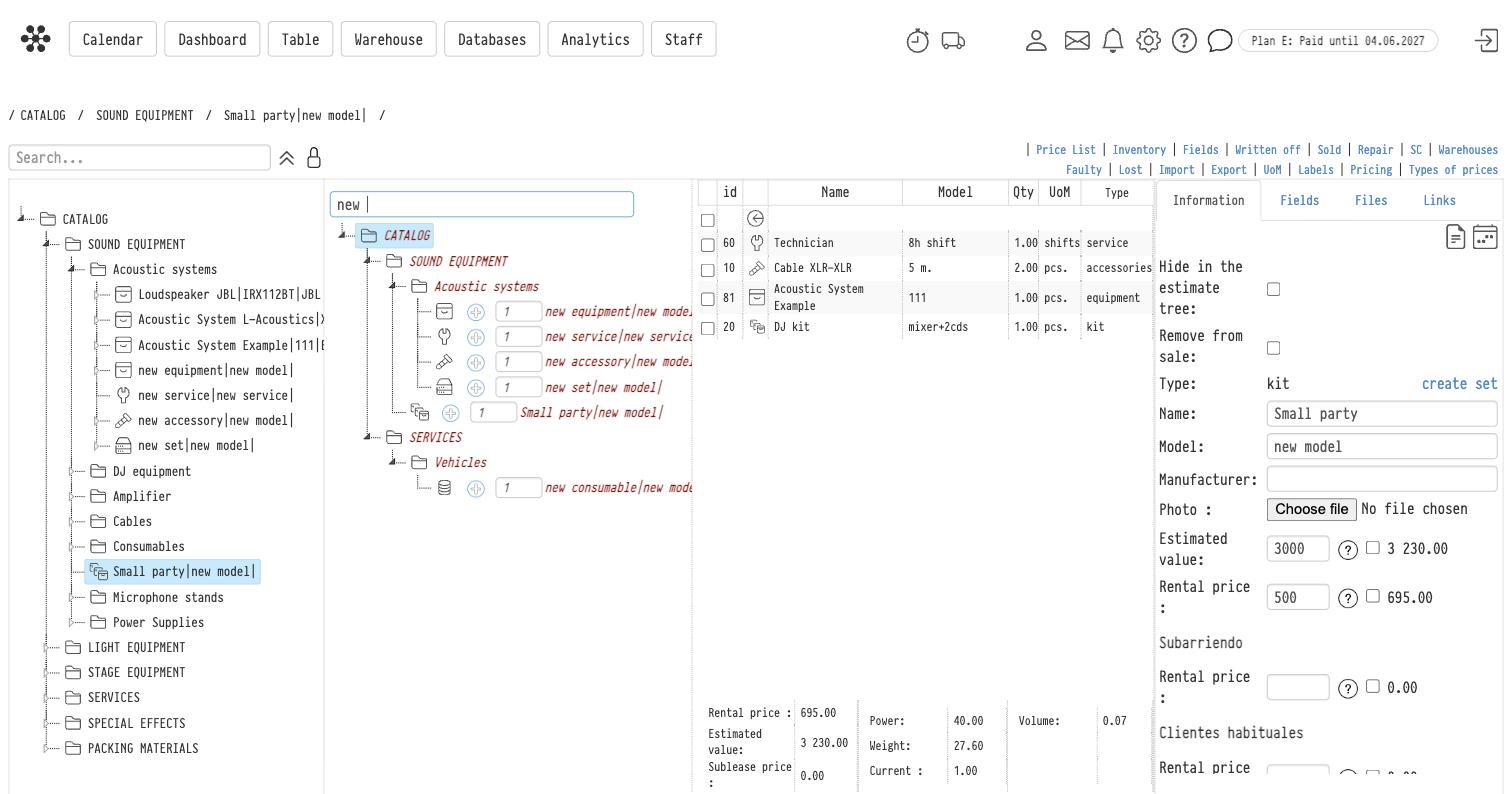
Other kits (nesting is allowed)
Sets
Open a kit and the middle panel becomes a catalog picker: find the entry, set the quantity, click +.
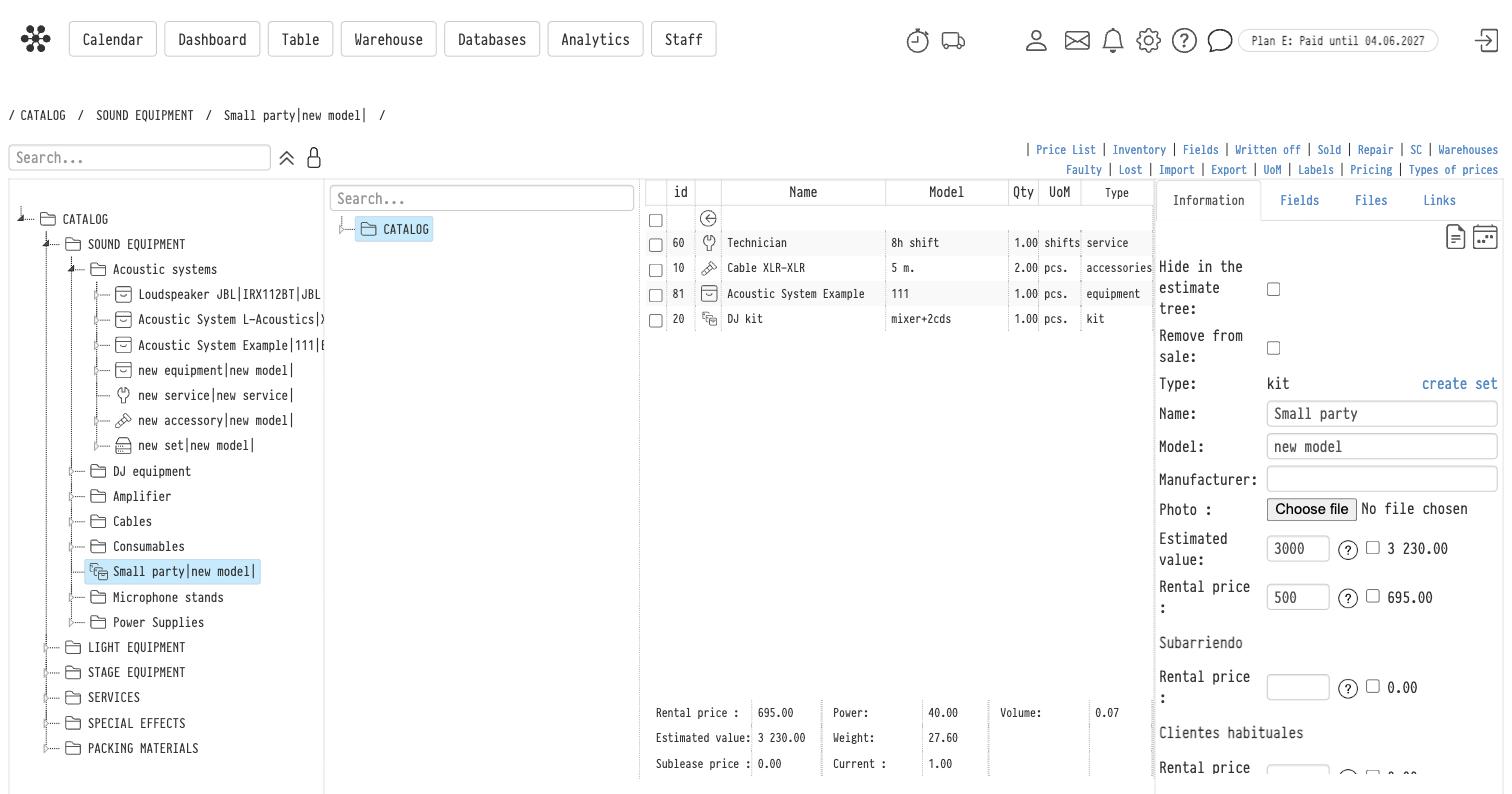
The panel underneath the contents adds everything up for you — rental price, estimated value, sublease price, and the physical totals: power, weight, volume and current.
Creating an entry
Open the section the entry belongs in, then click the + icon for the type you need. The entry appears at the bottom of the list and its card opens on the right.
The card has four tabs — Information, Fields, Files and Links — and two icons in the top right corner that open the entry's change log and its calendar.
Fields worth knowing about on the Information tab:
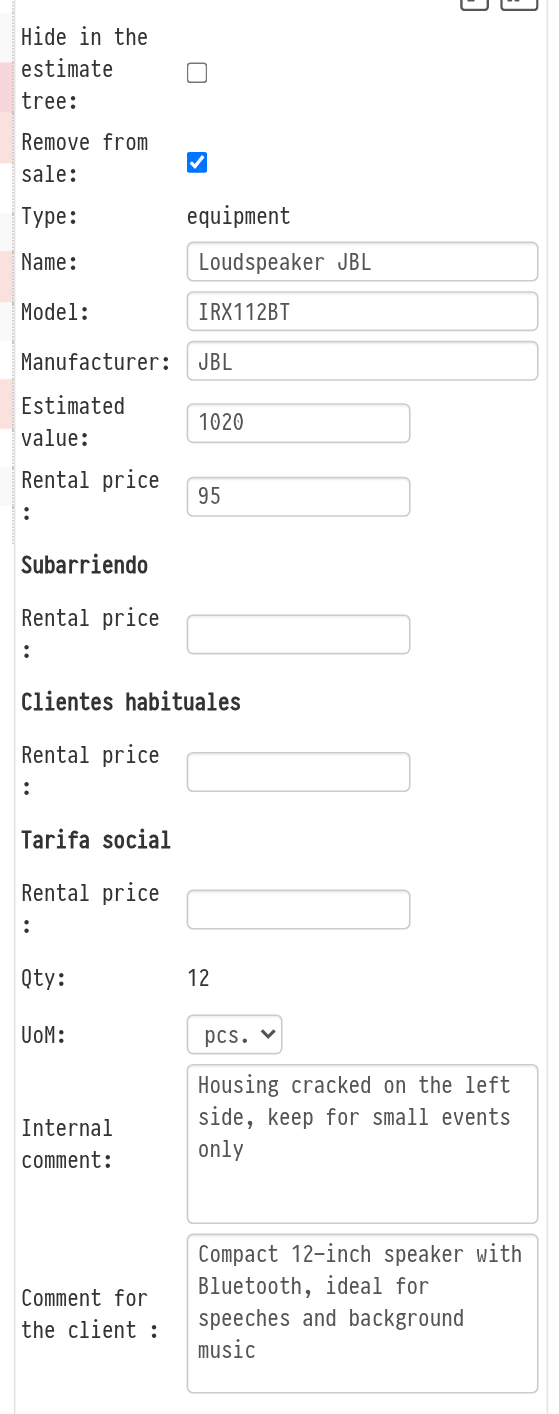
Name, Model, Manufacturer, Photo — what your clients see in a quotation.
Estimated value — the replacement cost, used for insurance and for damage claims.
Rental price — the price for one rental period. If your account uses price types, each of them gets its own price field below.
Hide in the estimate tree — the entry stays in the catalog but is not offered when adding items to an estimate.
Remove from sale — the entry can no longer be added to an estimate as a separate line, but it stays in the catalog and in the contents of kits. In the catalog tree of the estimate such an entry is shown pale and without the "+" button; in the catalog table its row is highlighted too. For example, select the checkbox for an accessory you rent out only together with a device: it gets into an estimate only as part of a kit. The checkbox also suits equipment you no longer rent out but do not want to delete from the catalog.
Internal comment — a note for colleagues inside the company. The client does not see it.
Comment for the client — text that is filled in automatically as the client comment when the entry is added to an estimate. From there it goes to the quotation, to the comment column. You can correct the comment in the estimate: the comment icon in the entry row opens a window with the "Comment for the client" and "Internal comment" fields.
Custom fields of your own are set up under Fields.
The "Qty" column of the catalog shows three numbers: quantity, available and in stock. See Quantity and availability.
Discounts in the estimate
Equipment, services and consumables each form their own block in the estimate, and each block takes its own discount and coefficient.