Project
The "Project" subtab sets how new projects are created and how the estimate behaves. Where to find it: the gear "Settings" → "System" → "Project". There is no "Save" button: changes are saved automatically.
The estimate, specification and warehouse statuses are set on the neighbouring "Statuses" subtab: see Statuses: how they work.
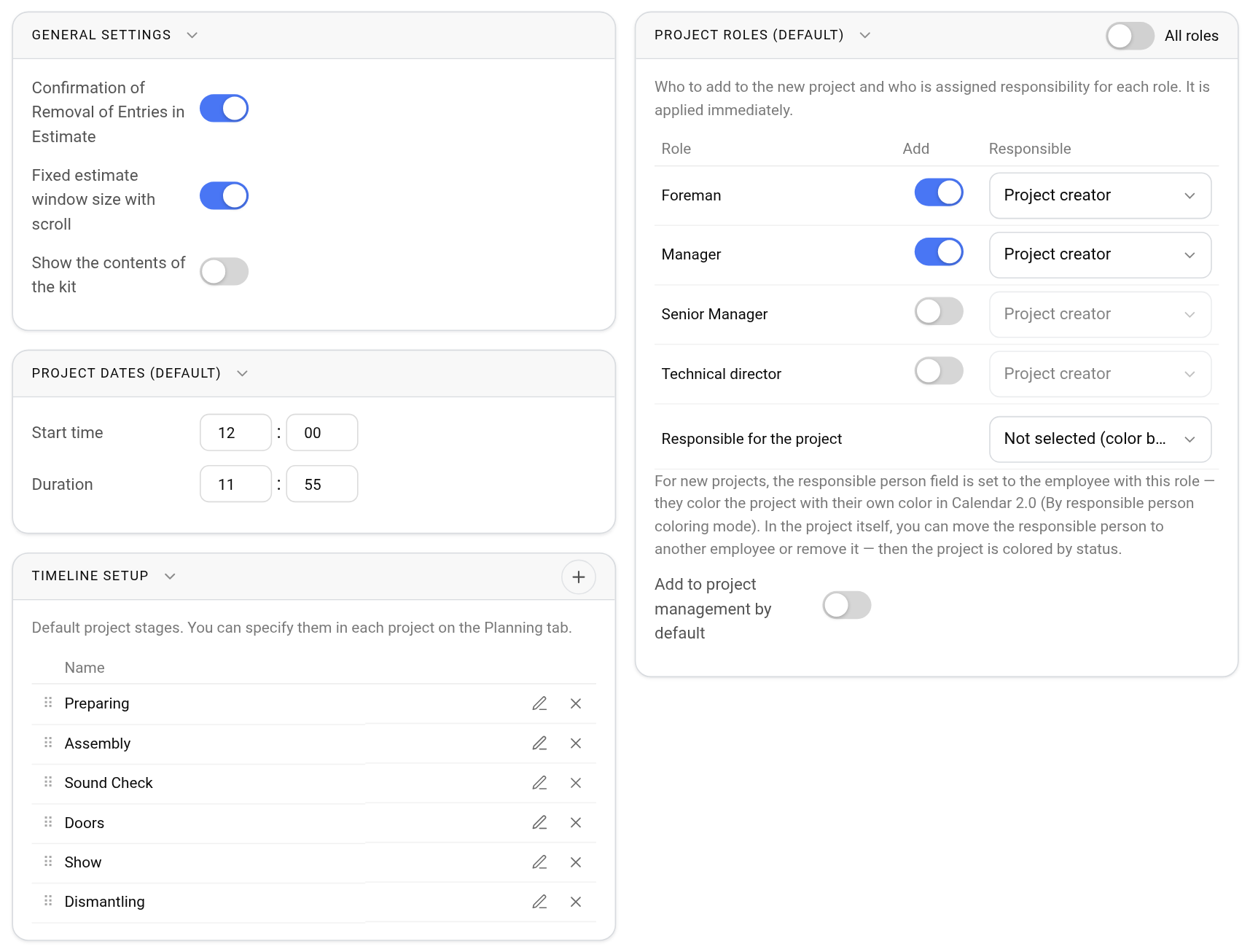
Project dates (default)
The "Project dates (default)" card sets when a new project starts and how long it lasts:
Start time: hours and minutes, for example 09:00;
Duration: hours and minutes, for example 14:00. It can be more than 24 hours if your projects usually last several days.
A new project gets this time straight away, so you do not need to set it by hand each time. In the project itself you can change the dates and time as usual.
Please note. The duration cannot be zero: the system shows an error and does not save it.
General settings
Confirmation of Removal of Entries in Estimate: when you delete an entry from the estimate, the system asks you to confirm. This protects against accidental changes.
Fixed estimate window size with scroll: when you scroll the estimate, the part of the screen with the catalog stays in place.
Show the contents of the kit: kits are shown in the estimate with their contents straight away.
For you these settings work at once, for other employees after they log in again.
Timeline setup
The default project phases are the typical phases of an event, for example "Preparing", "Assembly", "Sound Check", "Show", "Dismantling". They appear on the "Planning" tab of every new project, where you can adjust them.
To add a phase, click "+" in the card header. You can change or delete a phase with the icons in its row, and change the order by dragging the row by the handle on the left.
Project roles
The "Project roles (default)" card sets which roles are added to a new project and who is made responsible for each of them. For details, see the article Default roles in projects.