Document and finance statuses
Document and finance statuses are project marks that you set manually. They help an accountant, a document specialist and a manager see at a glance which step a project is at: whether the bill has been issued, whether the documents are signed, whether payment has been received.
Next to the familiar estimate, specification and warehouse statuses there are now two more rows: “Documents” and “Finance”. You set up the lists of statuses yourself: you can rename the ready-made ones, change their order and add your own.
Please note. There is no automation behind these statuses: the system never changes them by itself, and they do not affect amounts, documents or payment reports. You set the status. This is convenient if you keep documents or payments in external services but want to see and filter projects by them in Golova.
How to set up the list of statuses
Open “Settings” → “System” → “Statuses”. There are two blocks here: “Document statuses” and “Finance statuses”.
Document statuses by default: “Not invoiced”, “Invoiced”, “Documents sent to client”, “Documents signed”, “Original documents received”.
Finance statuses by default: “Unpaid”, “Partially paid”, “Fully paid”.
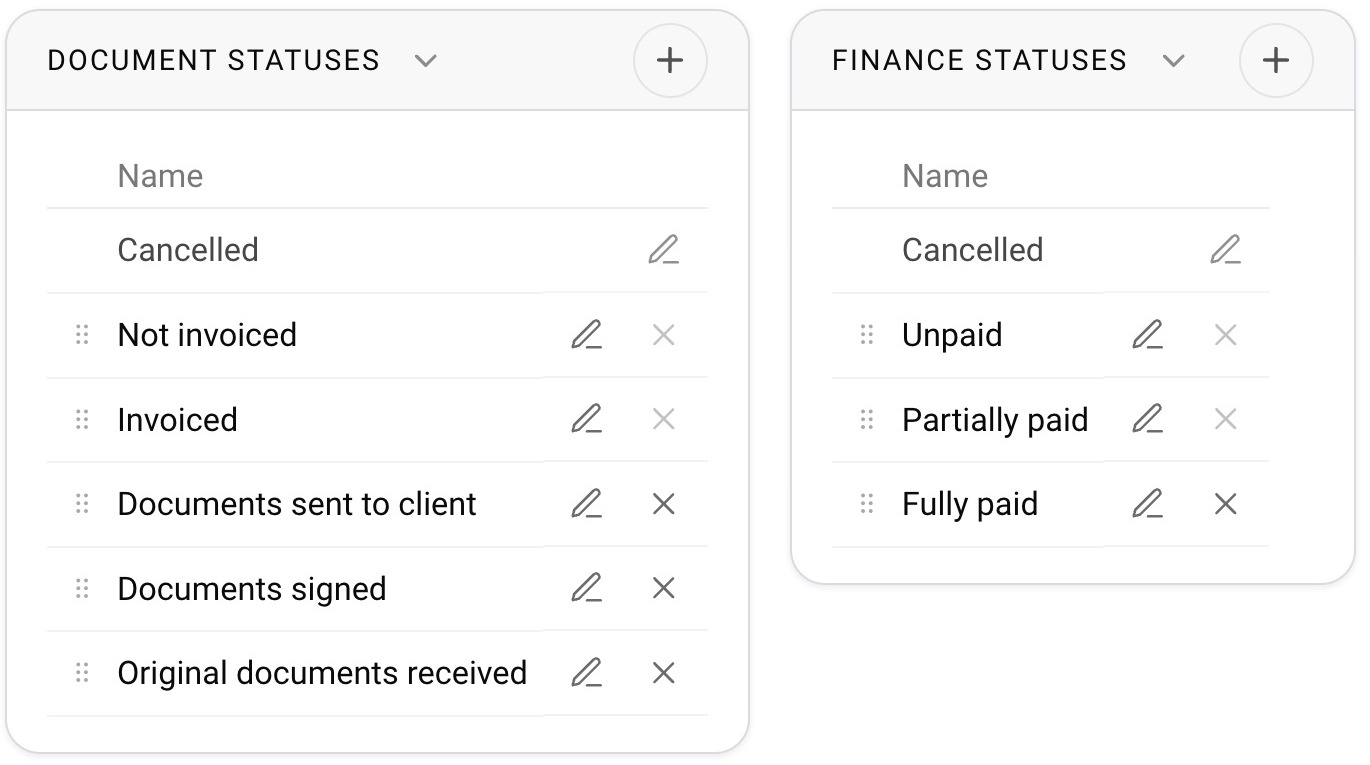
In each block:
the “+” button adds a new status;
the pencil changes the name of a status (the name only);
dragging changes the order: statuses will go in this order in the project;
the cross deletes a status.
The “Cancelled” status exists in every block. You can rename it, but you cannot delete or move it. The first status in the list cannot be deleted while it still has projects: first move those projects to another status. The system reminds you of this with a message saying that you cannot delete the status until all projects are moved out of it.
How to set a status in a project
In a project, open the “Documents” or “Finance” tab. At the top you will see a row of numbered circles and arrows, and below them the name of the current status. Click a circle and the status changes immediately, without confirmation. To step through the statuses one by one, use the arrows.
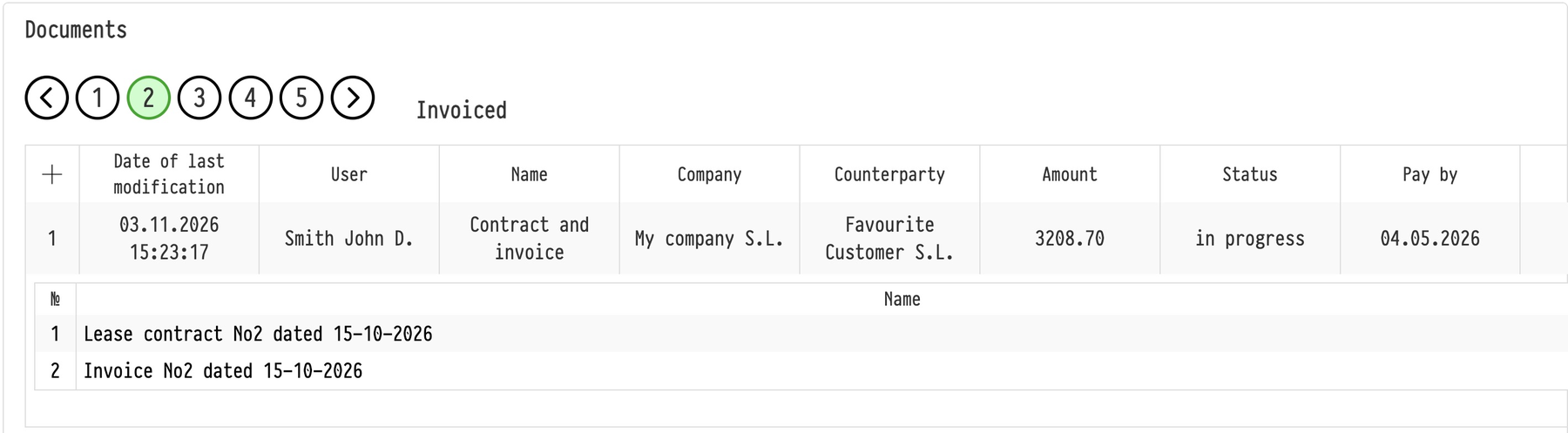

An employee with full access to the “Documents” section can change the document status; an employee with full access to income or expenses can change the finance status. Every change is recorded in the project history.
New projects start with the first status in the list. Projects created before statuses appeared show “not specified”. When you cancel a project, both statuses automatically change to “Cancelled”.
Where statuses are visible
Calendar. Colored status marks appear on the project card. Above the calendar there are “Documents” and “Finance” buttons: click one of them and the calendar colors projects by that status. This shows problem spots, for example projects whose original documents have not been received.
Financial report. The filters include the document status and the finance status.
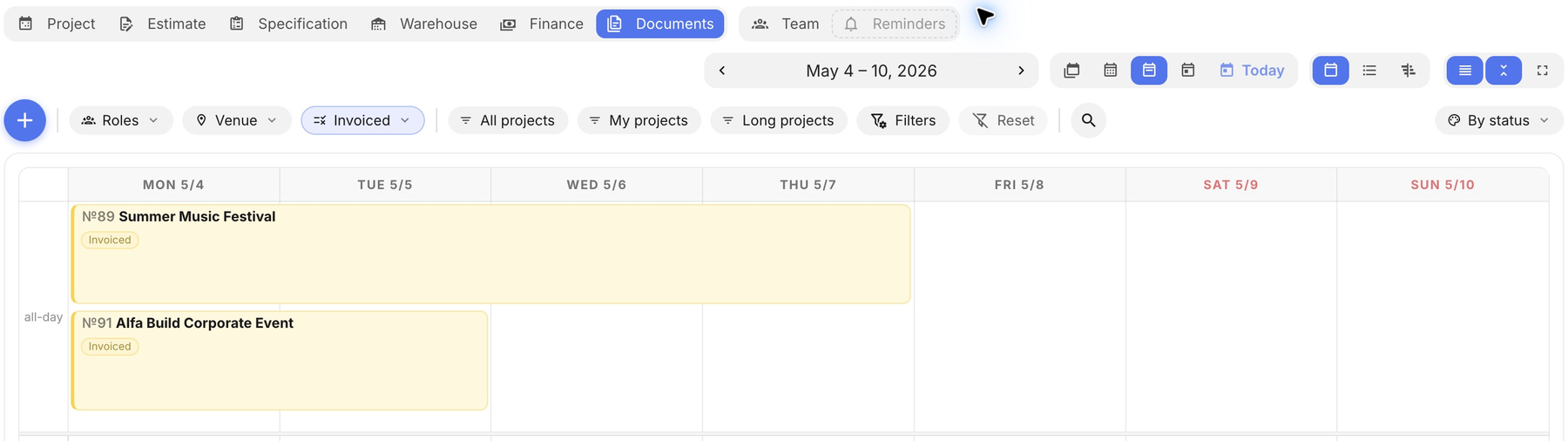
Colors of statuses in the calendar
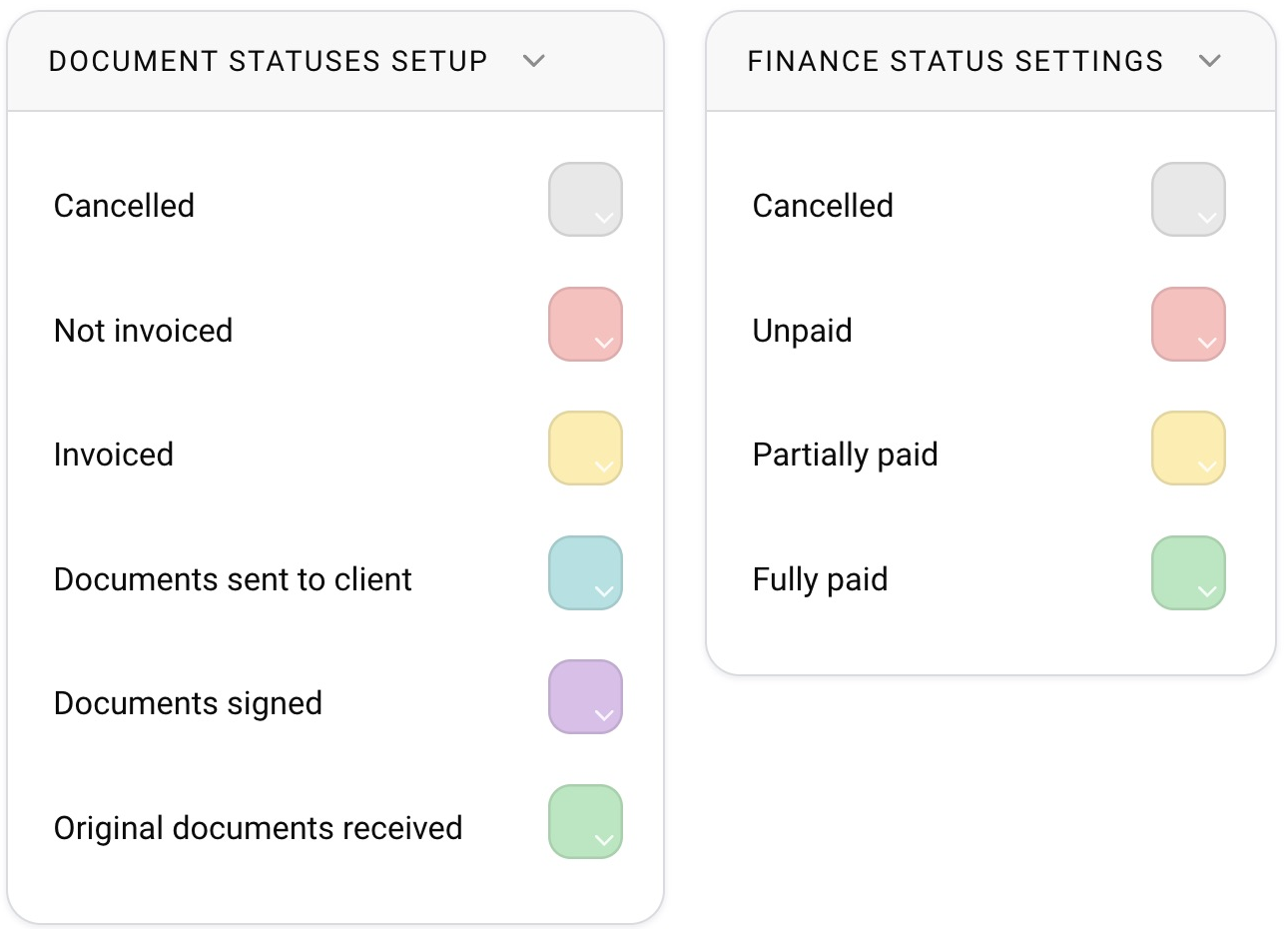
The color of each status is chosen on the “Calendar” tab of the same global settings, in the “Document statuses setup” and “Finance status settings” blocks. The principle is the same as for estimate and specification statuses: see the “Estimate status settings” block.
How this differs from “Paid” and “Unpaid”
Golova has long had an automatic payment calculation. If on the “Finance” tab you enter an income for an issued bill from a document package, the system recalculates the payment of that bill itself: “paid” or “partially paid”. The result is visible in the accounting table and in analytics, in the “Paid” and “Unpaid” fields.
This calculation works as before and is not connected to the new statuses. The two features exist in parallel:
you can use only the automatic calculation from incomes;
you can use only the new statuses, if you keep documents and payments outside Golova;
you can use both at once, but then remember: the finance status will not change by itself when a payment arrives, you have to set it manually.
The automatic payment calculation is also used in estimate statuses: if a status has the “Bill payment” flag on, the project cannot be moved to it until all documents of the project are paid. See “Estimate statuses” for details.