Columns
The Columns tab defines which columns are in the tables of the document and which item data is printed in each column. The tables of equipment and services are set up separately.
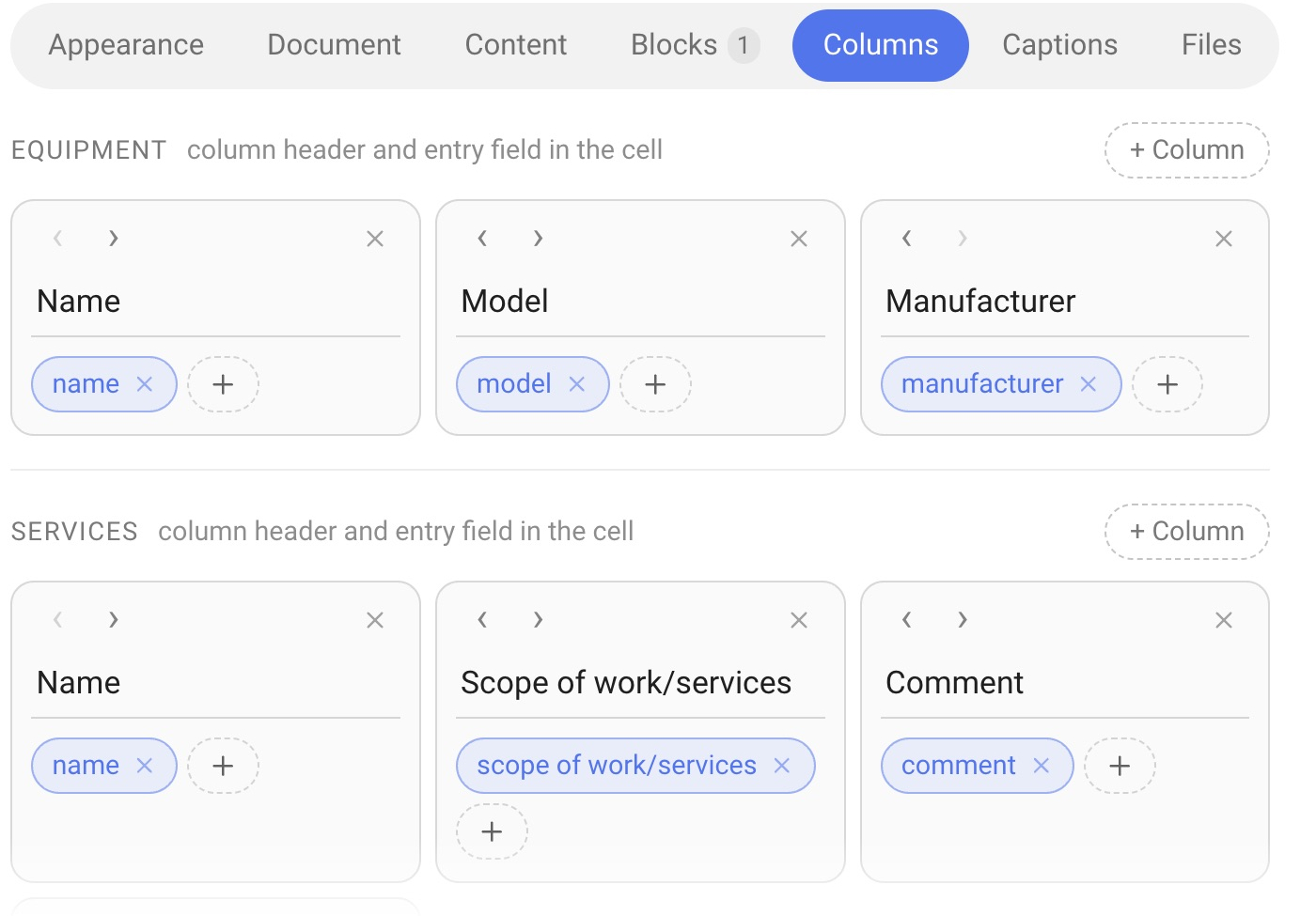
How a column works
In each of the blocks — “Equipment” and “Services” — columns are shown as cards. The block has a hint: “column header and entry field in the cell”. This means that a column card has two elements:
Column header — the name that will be in the header of the table column;
Item fields — the data printed in the cell of this column. They are shown as “pills”: “×” removes a field from the cell, “+” adds one. If a cell has several fields, the number in the pill shows the order in which they are printed.
The “‹” and “›” buttons at the top of a card move the column left and right, and “×” deletes the column. The “+ Column” button adds a new column. Next to it there is a hint: more than three columns is too crowded.
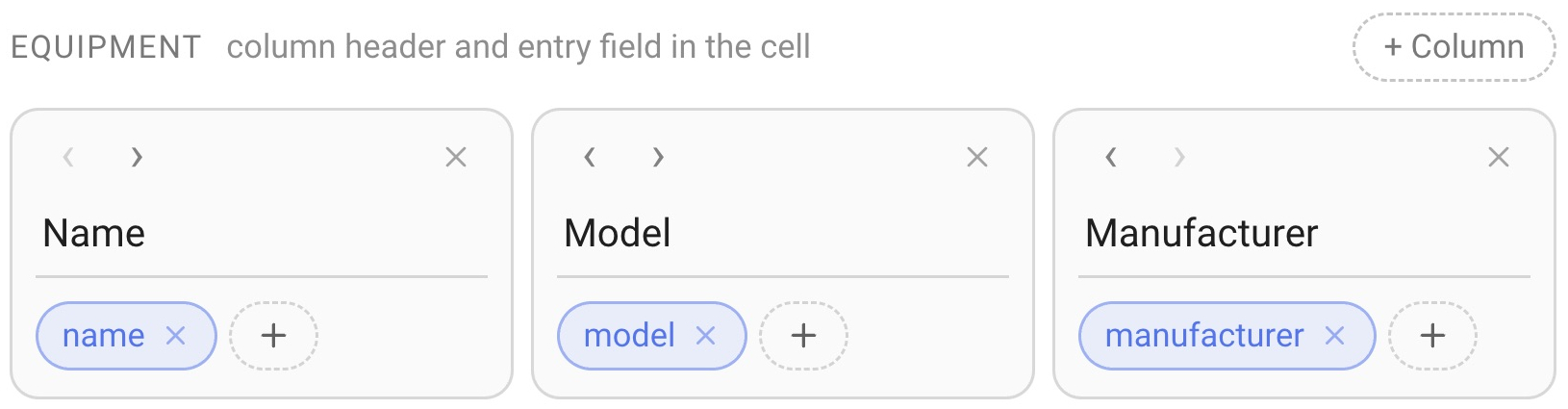
Equipment
For equipment, you can print these fields in the cells:
name — the name from the catalog;
model — the model from the catalog;
manufacturer;
comment — the comment for the client from the estimate.
For example, a “Name” column can contain the name, the model and the manufacturer at once, and a separate “Comment” column can contain the comment for the client.
Services
For services, the fields “name”, “scope of work/services” and “description” are available. Columns can be set up the same way as for equipment.

What is not set here
The item number, the photo, the quantity, the price and the amount are printed as separate table columns. Their display is switched on on the Content tab (the “Positions” group), and their names can be changed on the Captions tab.
Please note. The set of columns belongs to the form. To change which header fields and totals are printed in a particular project, use the “options” link in the Print block of the Estimate tab — see the article “Content”.