Setting up signature fields in the pick list
When there are many projects, it is useful for the people responsible for the warehouse to sign the pick list: who picked, who received, who drove away. For this, signature fields are added to the pick list: lines like "Foreman: ____________".
Where to find it: gear "Settings" → "System" → "Specification and warehouse", the "Signature fields setup of the pick list" block. The block is available on the extended service plan.
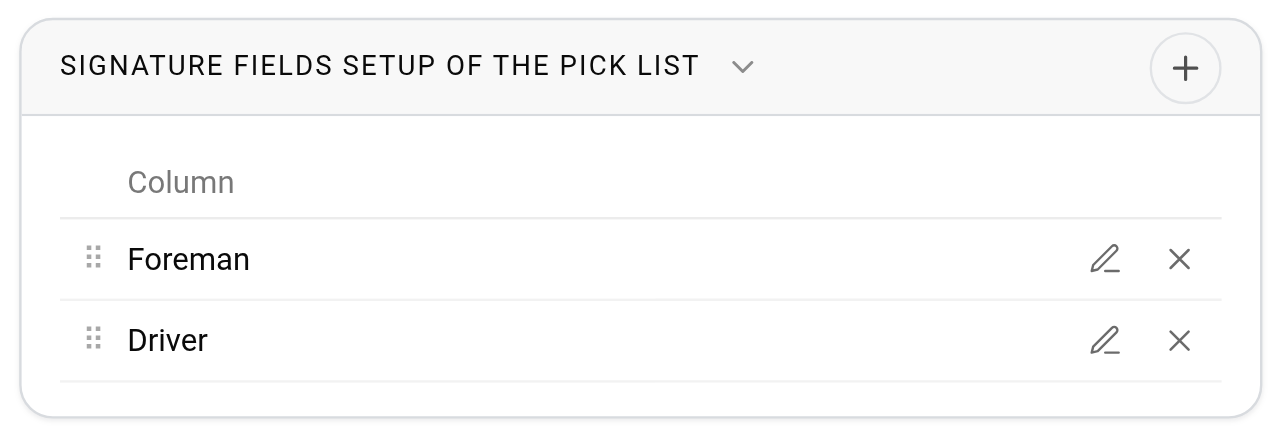
How to add a field
Click the "+" icon in the block header. In the "Adding a signature" window, enter the "Name", for example "Foreman", "Driver" or "Warehouse manager, Carlos Ruiz", and click "Save". You can add as many fields as you need.
How to change, delete or reorder
The pencil in a row opens the "Editing the signature" window, the cross deletes the field. The order is changed by dragging by the "⠿" icon to the left of the name. The block has no "Save" button: changes are saved at once.
Where the fields appear in the pick list
Signature fields are printed in the upper part of the pick list: after the header with the project data, before the "Shipping list" title. Each field is a name with a colon and a line for the signature.
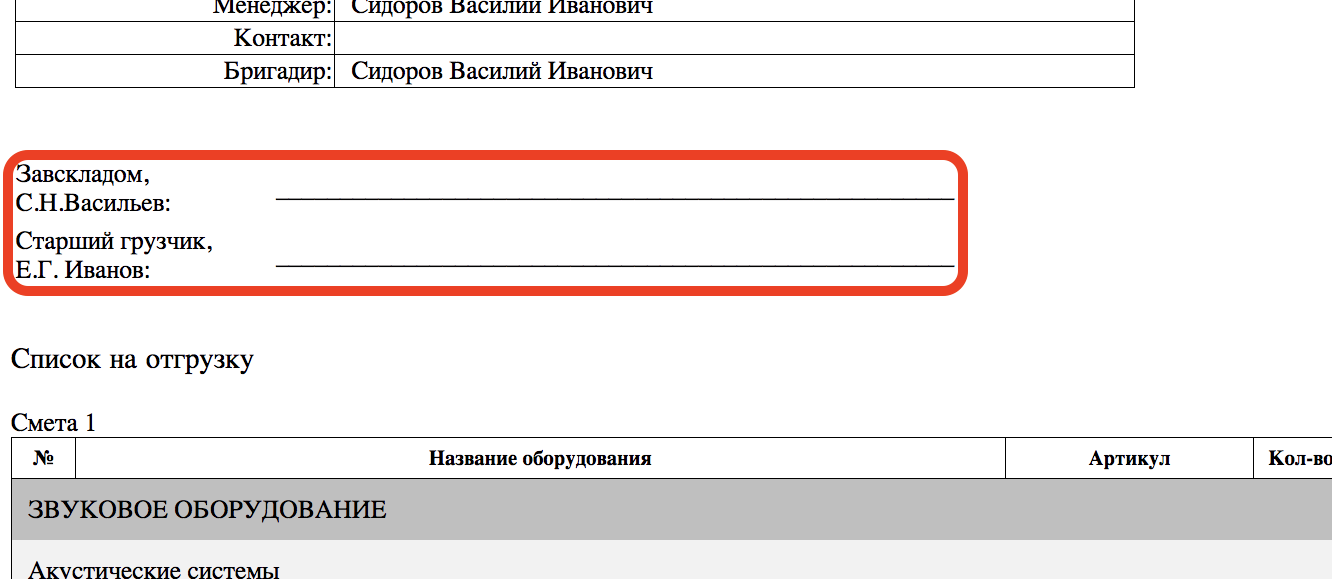
The fields are shown both in PDF and in XLSX, and there is no separate checkbox for them: if the settings have at least one field, it is in all pick lists. To remove signatures from the pick lists, delete the fields here.
Please note. The fields are common to the whole company and change at once in the pick lists of all projects.