State management for components
For accessories you can change the state of part of the quantity rather than all of it: for example, mark that 2 of 10 cables are not working and 1 is lost.
Basic logic
Accessories are kept as a total quantity in one SKU (for example, 10 cables). By default the whole quantity is in the "working" state.
Changing the state
To change the state of part of the accessories:
open the SKU card in the catalog;
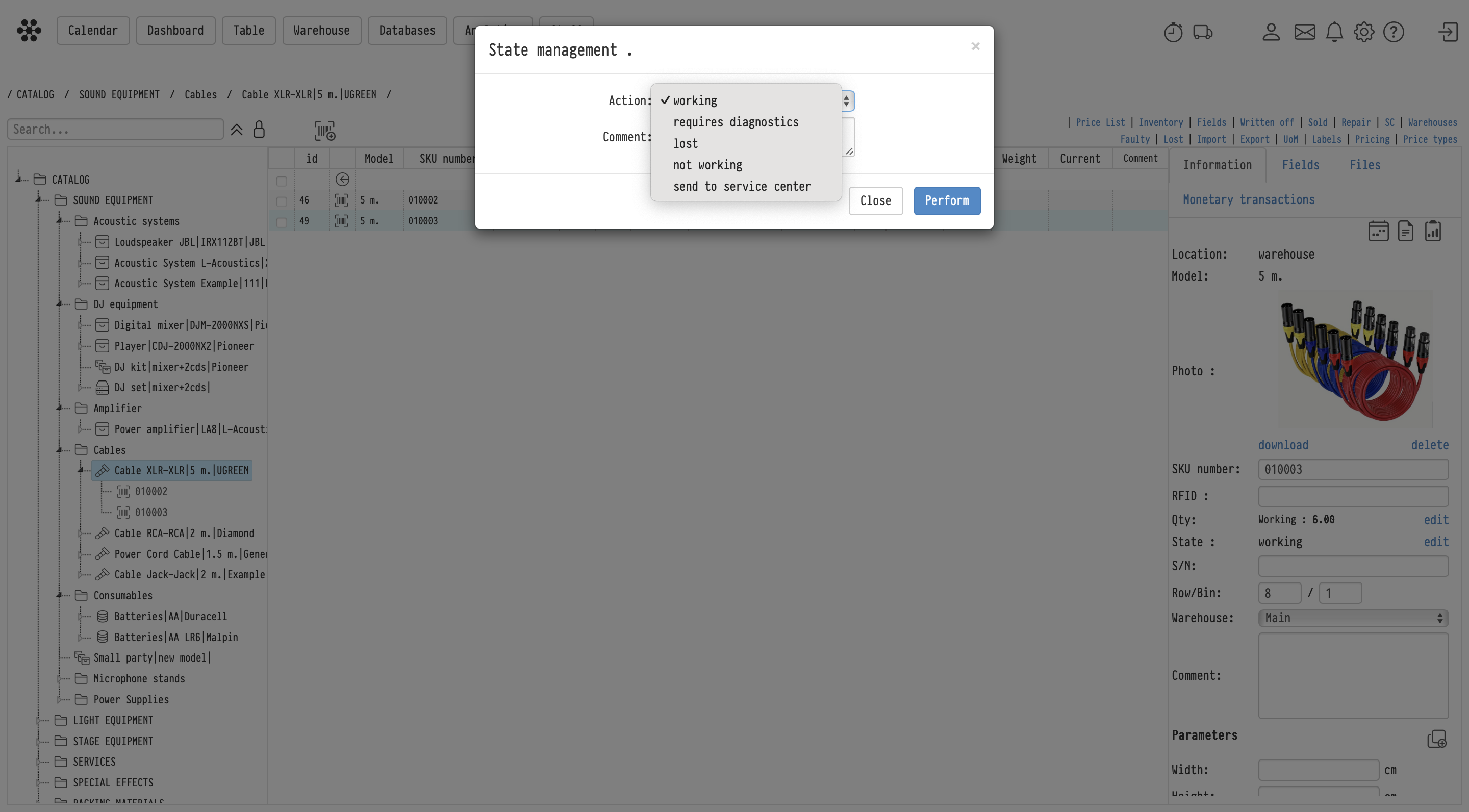
click "edit" in the "State" row: the "State management" window opens;
in the "Action" field, choose the new state: "requires diagnostics", "lost", "not working" or "send to service center";
in the "Qty" field, enter how many units to move to this state;
fill in the "Comment" if needed and click "Perform".
For "not working" and "send to service center" the window also shows "Repair priority" ("High", "Medium", "Low") and a "Files" block, for example for a photo of the damage. For "send to service center" you also choose the "Service center".
The "edit" link is visible to employees with full access to the catalog when the SKU has at least one working unit.
Please note. You can change the state only of units that are in the warehouse now. If part of the quantity is out at a venue, the system tells you how many units are available.
Extracted units
Units whose state you change are separated from the total quantity. Each becomes a separate unit with its own number: a sequence number is added to the SKU number, for example "0045-1", "0045-2". In the SKU card they are collected in the "Extracted units" block and grouped by state.
For example, you had 5 cables and marked 2 as "not working". The block shows 2 units in the "Not working" group, and the "Qty" row shows "Working: 3", "Not working: 2", "Total: 5".
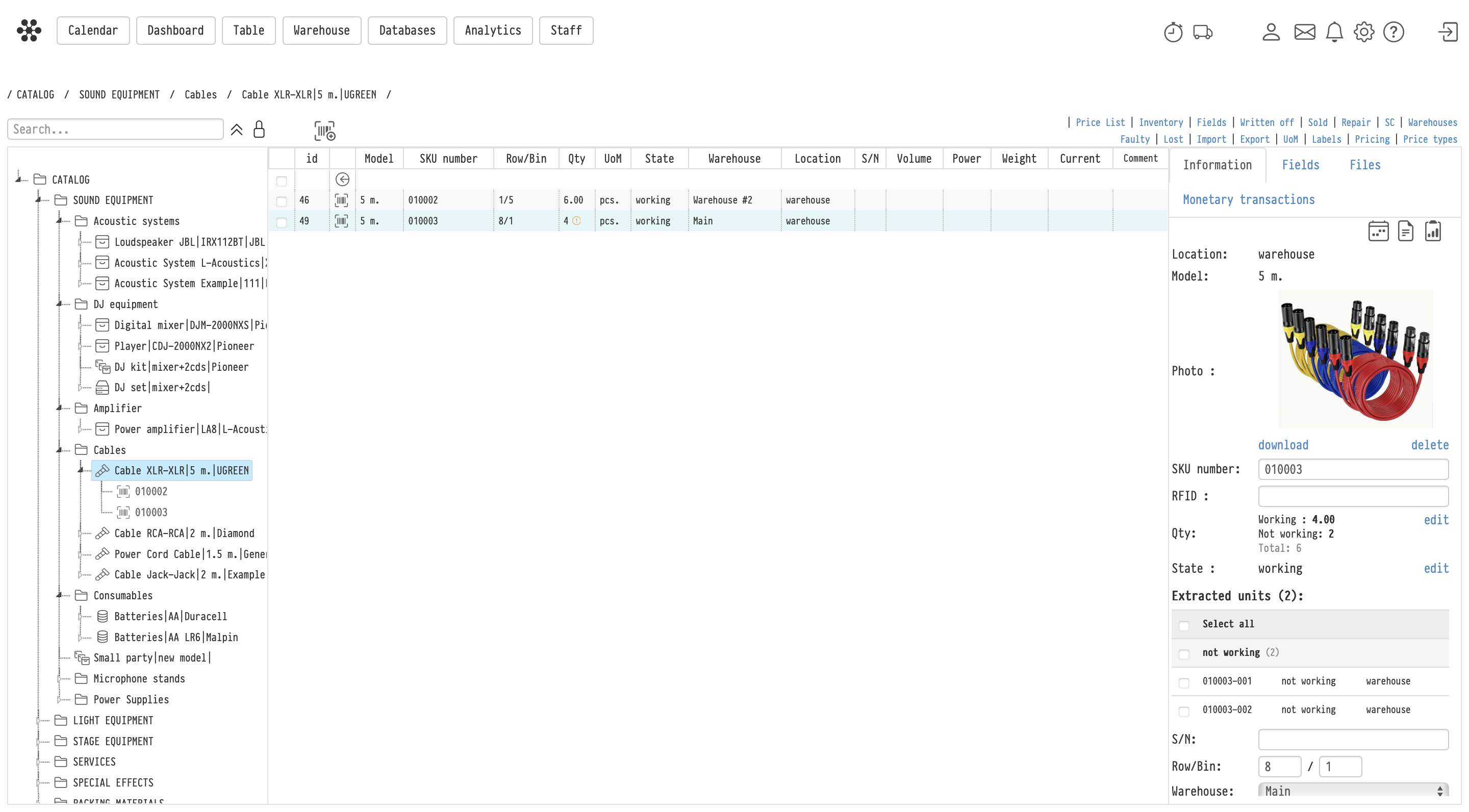
Click a unit row to open its card: each unit has its own history and its own actions.
To change the state of several units at once, tick them (you can tick a whole group or use "Select all") and click "Change status" in the block header.
Indicator in the catalog
If an SKU has extracted units, a "!" icon appears next to the quantity in the catalog table. The quantity column shows how many units can be booked. Hover over the icon to see a tooltip with "Total", the quantity in each state and "Total available for booking". Units that "require diagnostics" stay available for booking; "not working", "lost" and "repair" units do not.
Returning to the total quantity
When a unit works again, move it to the "working" state: open its card and change the state. The unit returns to the total quantity of the SKU automatically, as long as the SKU itself is in the "working" state. When no extracted units are left, the "!" icon disappears.
If a working unit that is in the warehouse has the "Merge it back" icon in the "Extracted units" block, you can also use it to return the unit to the total quantity.
Example
You have 10 XLR cables. After a project 7 are working, 2 are not working and 1 is lost.
You mark 2 cables as "not working" and 1 as "lost": 3 extracted units appear, and 7 stay in the total quantity.
After repair you move the 2 cables to "working": they return to the total quantity, and only 1 lost unit is left.
For consumables the mechanism is the same, but the only state available is "lost", see State management for consumables.