Setting up the "Warehouse" statuses
The colour of each warehouse status is chosen in the global settings: the "Settings" gear → "System" → "Calendar", the "Configuration of "Warehouse" statuses" block. The project takes this colour in the calendar when the calendar is shown by warehouse statuses.
The warehouse statuses themselves (their names, order and location "Warehouse" or "Venue") are set up on the neighbouring "Statuses" subtab. How they work: see Warehouse statuses.
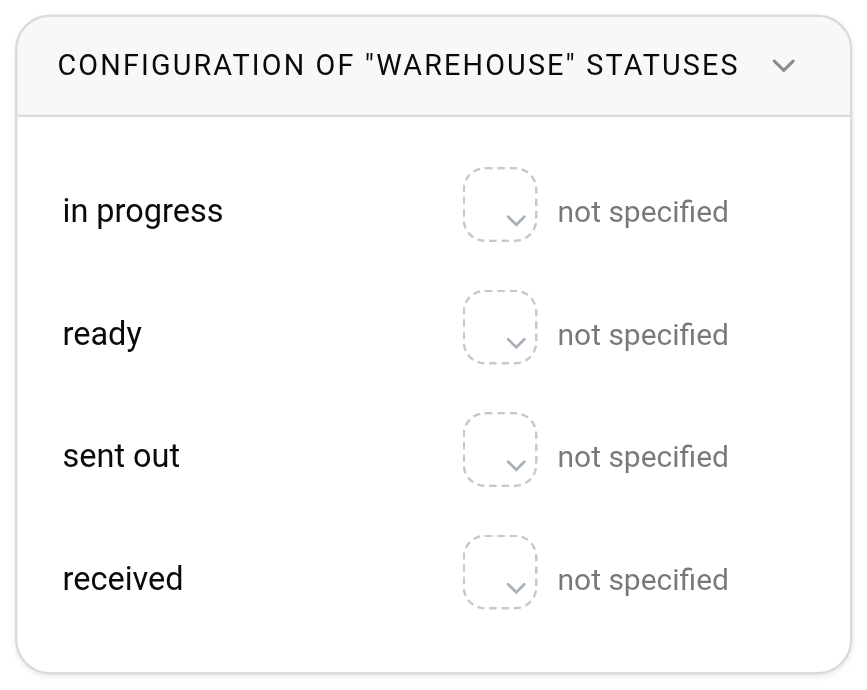
How to choose a colour
The block lists all warehouse statuses in the same order as on the "Statuses" tab. Click the coloured circle next to a status and choose a colour. There is no "Save" button: the colour is saved right away.
If a status has no colour yet, it says "not specified" next to it. This happens with statuses that were added on the "Statuses" tab and have not been coloured yet.
The "Specification status settings" and "Configuration of "Warehouse" statuses" blocks are visible only if the specification and the warehouse are included in your plan.
Where the warehouse status colours are visible
In the calendar on the "Warehouse" tab: it colours projects by warehouse status for all employees, regardless of their personal settings. See Calendar interface.
In the calendar on the "Project" tab: for employees who have chosen the warehouse status colour scheme (see below).
In the project header on the warehouse page: three coloured circles, the estimate, specification and warehouse statuses.
How to turn on the warehouse status in your calendar
Each employee sets this up personally: Personal account → the "Settings" tab → the "Calendar - projects" block.
"Warehouse status": show or hide the name of the warehouse status on the project tile.
"Color scheme": which row of statuses colours the projects: "Estimate status", "Specification status" or "Warehouse status".
Please note. In the new calendar, the warehouse status is shown on the tile until you hide it. In the old calendar (Calendar 1.0), it appears only if "show" is selected explicitly in this setting.
The other settings of the block are described in Appearance settings.
Filter by warehouse status
To leave only the projects in certain warehouse statuses in the calendar, create a filter with the "Warehouse status" condition. An employee creates a personal filter right in the calendar (see Filters and search), and an administrator creates a company-wide one in the "Filters setup" block on the same "Calendar" subtab.