External Calendar (.ical)
Golova can show your data in external calendars: Google Calendar, Apple Calendar and any other service that supports subscribing to a calendar by link.
A link exports not only projects, but also the work schedule, vacations and tasks. One employee can have several links: for example, one with confirmed projects only, another with cancelled projects only, and a third with the schedule only.
A calendar link is personal: it is created in the card of a specific employee. The common company link in the global settings ("Settings" → "Integration", the "Calendar (.ics)" block) no longer works and is marked "Disabled".
Where to find
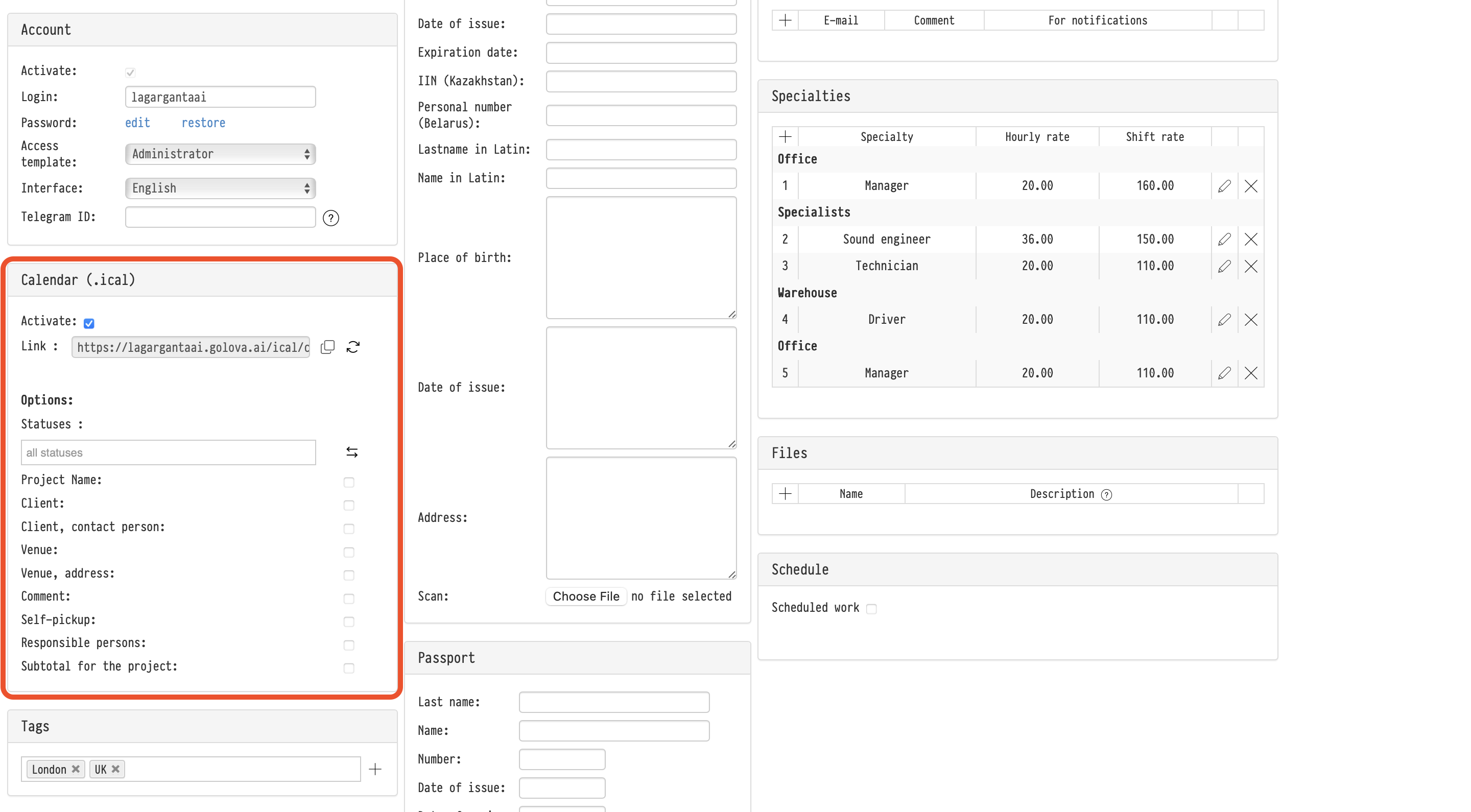
Open "Databases" → "Employees" and go to the employee card. The links are in the Calendar (.ical) block.
The block is visible if:
the employee has a system account: in the "Account" block, "Activate" is on and a login and password are set. If the employee exists only in the Employees database without an account, you cannot create a link for them;
in your access template, on the "Databases" tab, "Employees" is set to "full access";
your plan allows calendar links.
How to create a link
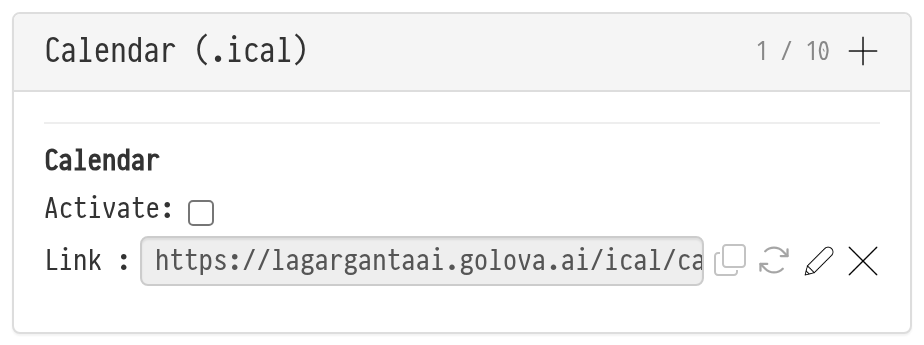
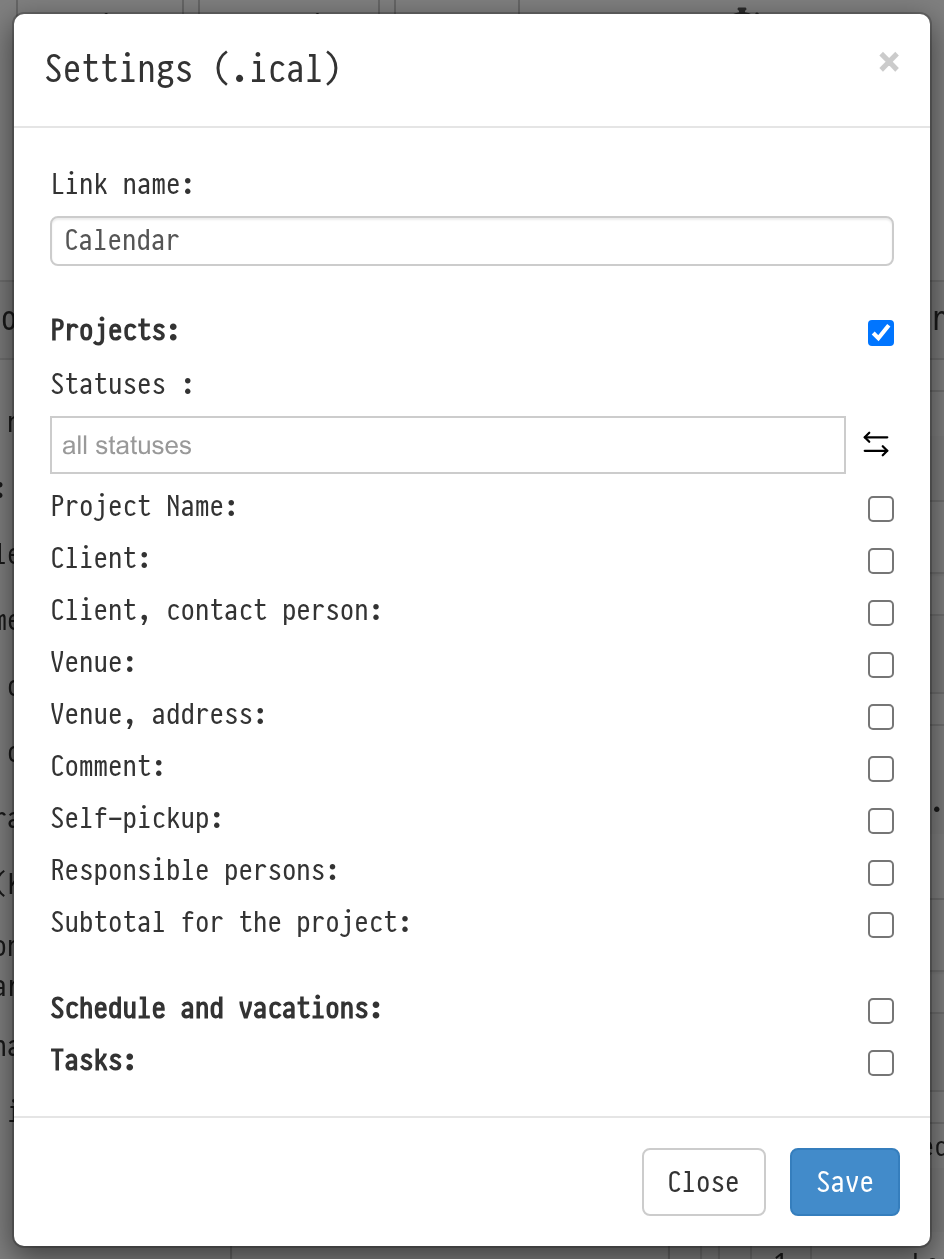
Click "+" ("Add a link") in the header of the "Calendar (.ical)" block. The "Settings (.ical)" window opens.
Fill in "Link name": this is how you tell the links apart, for example "Schedule only". If you leave the field empty, the link is called "Calendar".
Select what to export: "Projects", "Schedule and vacations", "Tasks". The checkboxes do not depend on each other, any combination works. These settings are described below.
Click "Save". At least one checkbox needs to be selected, otherwise the link is not saved.
Please note. A new link is created switched off. To make it work, select "Activate" for this link in the block.
How many links you can create for one employee depends on your plan. Next to "+" there is a counter: how many links have been created and how many are allowed; with no limit, it shows "∞". When the limit is reached, the "+" button becomes inactive.
How to connect a link in an external calendar
Each link in the block has:
the "Activate" checkbox: switches the link on and off without deleting it;
the "Link" field and the "Copy" icon: copies the link address;
"Change the token": creates a new address. The old address stops working, and you will need to replace it in the external calendar;
"Edit": opens the "Settings (.ical)" window for this link;
"Remove": deletes the link, and it stops working.
Copy the link and add it in the external service as a subscription calendar. In most services this item is called "From URL" or "Subscribe to calendar".
While a link is switched off, its address and the "Copy" and "Change the token" buttons are inactive.
What gets into the calendar
Projects
The "Projects" checkbox turns on the export of projects. When it is selected, the project settings appear below.
The external calendar receives the projects that the employee sees in Golova under their access template, taking into account project access and the display period. Assigning the employee to the project, their shifts and staff planning do not matter here: if the employee can see a project, the project will also be in their calendar, even if they are not assigned to work on it.
The Statuses field limits the export to projects with the selected statuses. You can select several statuses, for example, only confirmed projects. If you select nothing, projects in all statuses are exported.
The "Invert the selection" button to the right of the field reverses the logic, and the field label changes to "All statuses except". For example, select the "cancelled" status and click the invert button: the calendar will receive all projects except cancelled ones.
Below, checkboxes set which project data is shown in the event. Each one can be switched on and off separately:
Project Name
Client
Client, contact person
Venue
Venue, address
Comment
Self-pickup
Responsible persons
Subtotal for the project
The event title always contains the project number in the form "P:123", and, if "Project Name" is on, the name as well. If a project lasts several days, it appears in the external calendar as one event covering the whole period.
Schedule and vacations
If "Schedule and vacations" is selected for a link, the external calendar receives:
the work schedule: a "Work schedule — employee name" event for the time of each shift, with the schedule comment;
vacations: a "Vacation — employee name" event covering all vacation days.
Whose schedules get into the link depends on the employee's access template, the "Schedule" item on the "Calendar/Table" tab: with "all", the schedules and vacations of all employees; with "only mine", only their own. If there is no access to the schedule, these events are not exported.
Tasks
If "Tasks" is selected for a link, the external calendar receives tasks from the "Tasks" table, the ones set outside of projects. Tasks created inside projects in the "Planning" section are not included.
The event name is the task number, its name and the performer, for example "T:45 Pick up the access passes — Lucía Martín".
The event description contains the task status and its text.
If the task has a deadline, the event lasts from when the task was set until the deadline. If there is no deadline, the task is shown as an all-day event on the day it was set.
Which tasks get into the link depends on the access template, the "Tasks" item on the "Calendar/Table" tab: with "all", the tasks of all employees; with "only mine", the tasks the employee set themselves or in which they are the performer.
How synchronization works
This is a subscription calendar: external services contact Golova from time to time and refresh the events themselves. How often is decided by the service. Google Calendar, for example, may refresh data with a noticeable delay, and Apple Calendar has its own interval.
Golova updates the contents of a link every few minutes, so fresh changes do not appear in the external calendar instantly.
The link address does not change until you click "Change the token" yourself.
If you clear "Activate" or delete the link, it stops giving out data. The external service will remove previously loaded events over time.
If an employee is dismissed, deleted or their account is switched off, all their links stop working and are switched off. If you later bring the employee back, for example with the "Restore staff member" button, switch the links you need back on with "Activate".
Security
Each link has a unique address. Anyone who has the link will see the events exported through it. So treat the link as internal company information and do not publish it. If the link has reached outsiders, click "Change the token": the old address will stop working.
Key concepts
external calendar, iCal, .ical, subscription calendar, Google Calendar, Apple Calendar, employee card, Employees database, employee account, login, password, project access, project statuses, invert selection, calendar events, multi-day projects, calendar link, several links, change the token, work schedule, vacation, tasks, calendar synchronization