Files/Links
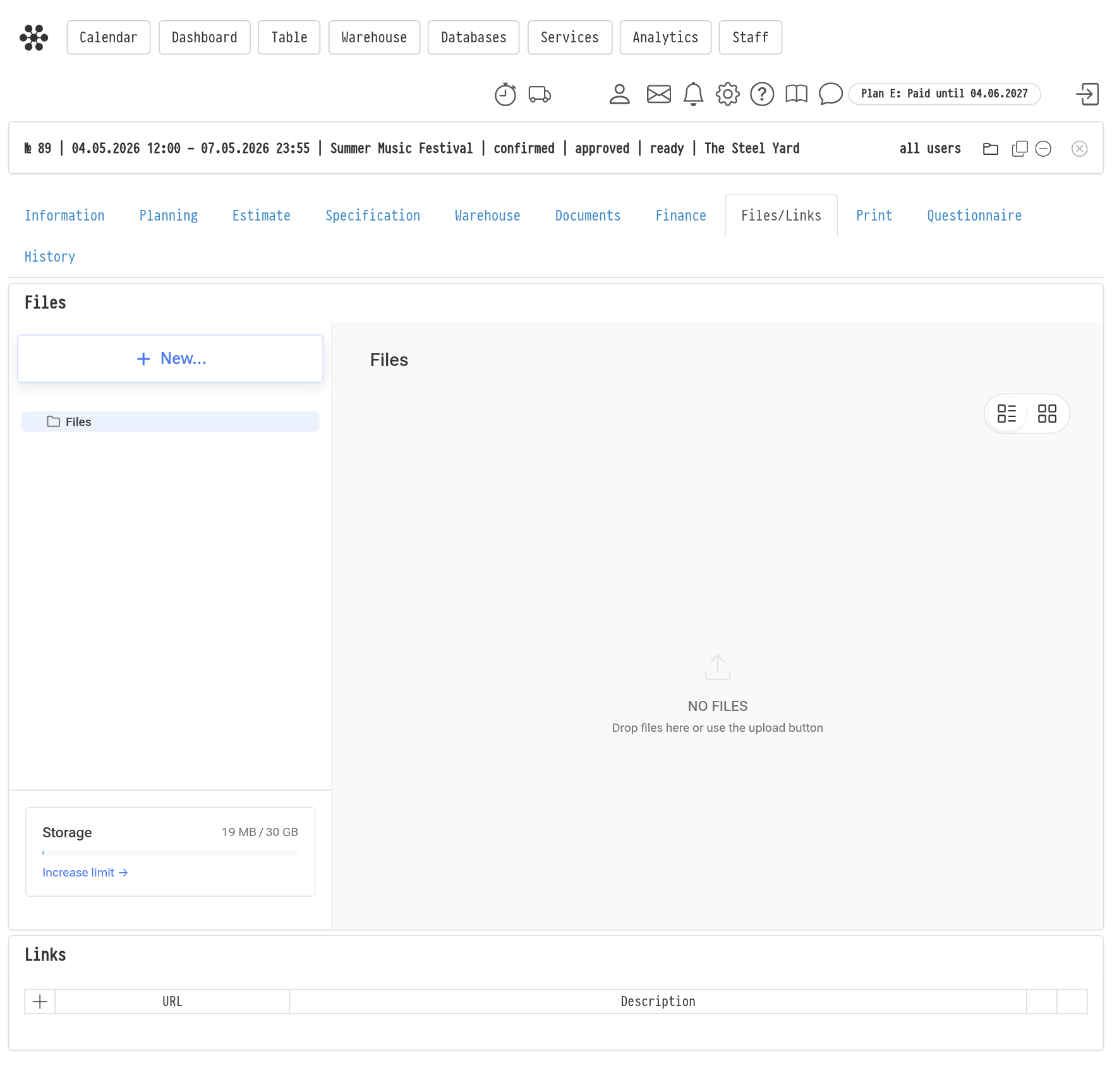
This project tab lets you keep additional files and links. You need it when important information about the project does not fit into any of its other sections. For example: files of additional agreements, intermediate calculations, photos of the venue and of the equipment condition, links to online resources related to the project.
The tab has two blocks: "Files" and "Links".
Files
The "Files" block is a Storage window built right into the project. It shows the "Files" folder of this project in Storage, and you work with it the same way as in Storage itself:
upload files with the "New..." button or by dragging them into the window;
create folders and sort files into them;
move and delete files.
The view buttons in the upper right corner switch between a list and tiles. The "Storage" card at the bottom left shows how much space is used.
Sync with Storage works both ways: a file uploaded here appears in Storage in the project's "Files" folder, and a file uploaded in Storage appears here. If you delete a file in one place, it disappears in the other too.
Please note. While the files of an older project are being moved to Storage, the block shows the previous file table with a message that adding is temporarily unavailable. During this time you can view and download files; you can add new ones once the move is finished.
Links
To add a link, click the plus icon in the header of the "Links" table. In the "Adding a link" window, paste the address into the "URL" field and fill in the "Description" if needed.
Access rights
In the access template, on the "Project" tab, in the "Files/Links" block:
the switch in the block header shows or hides the tab itself;
"Files": "full access", "read-only" or "hide";
"Links": the same three options.
The rights for "Files" also apply in Storage: if an employee has "hide", they do not see this project's "Files" folder in Storage either. For more about templates, see the article Creating a new template.