Company registration
After you sign up and log in to your personal account, you land on the My Companies page. This is where you create the company your work in Golova will be tied to.
A company is the workspace your Golova account is linked to. It is not the legal entity you invoice your clients from — legal entities are created separately inside the system, in the My Companies database.
One personal account can hold several companies, and they are fully independent of each other: separate catalogs, projects, employees and settings. For example, you can create a company AV Rental at avrental.golova.ai for your equipment rental business, and a company John Smith Productions at jsmith.golova.ai for freelance projects unrelated to the first one. All they share is the personal account you manage them from — subscriptions, service plans and billing.
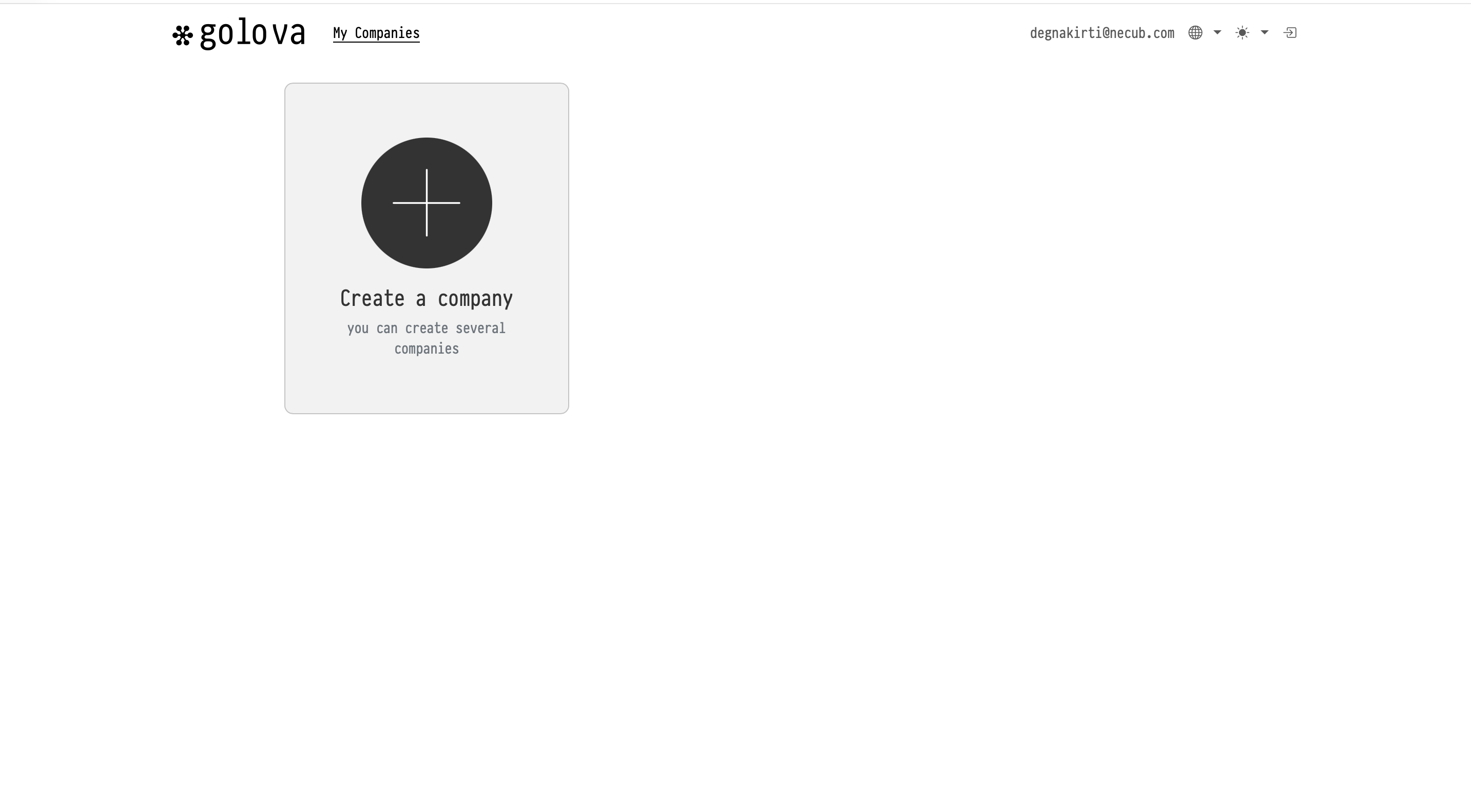
Creating a company
Click Create a company. The New company window opens.
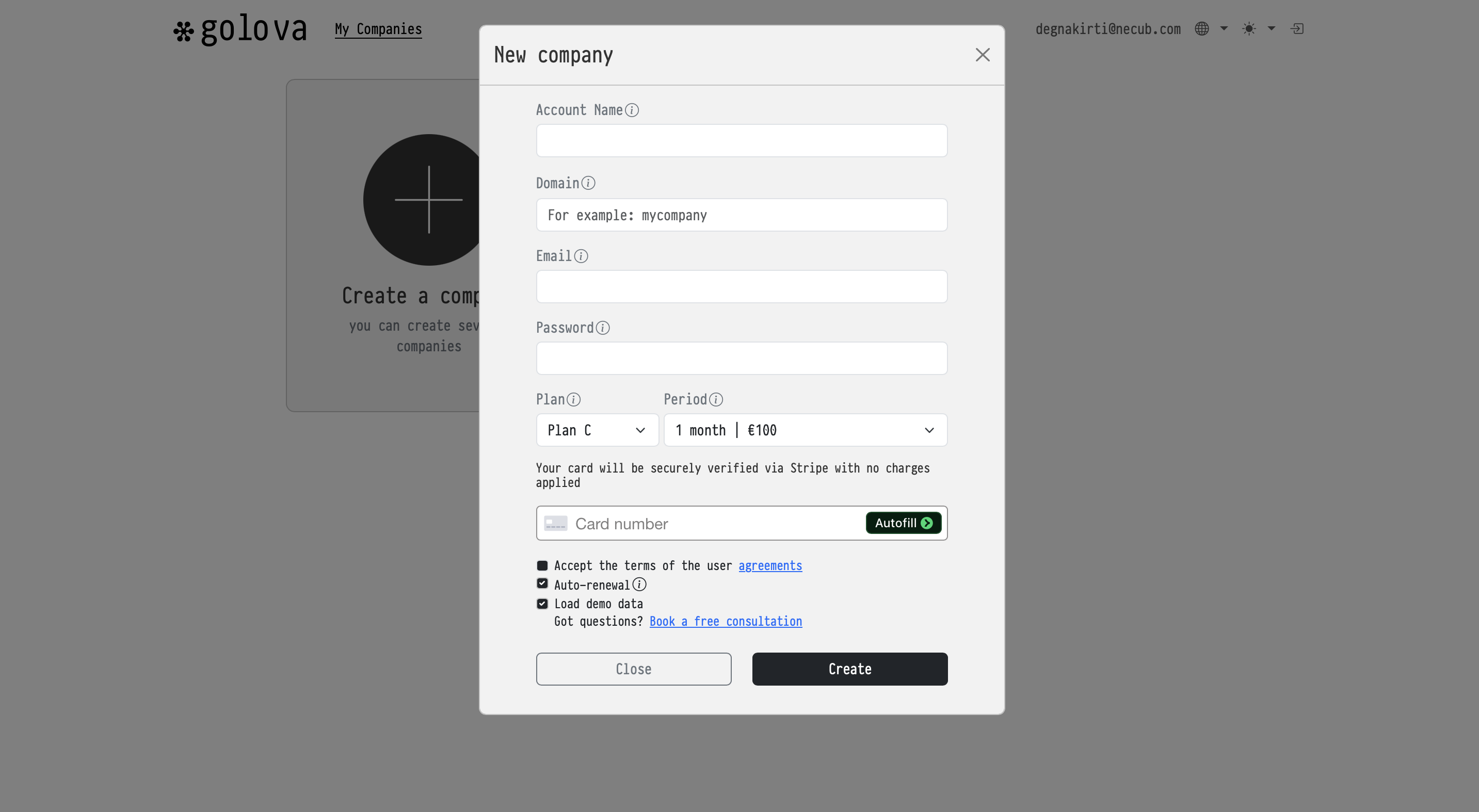
Fill in the fields:
Field | What to enter |
|---|---|
Account Name | The name this company is displayed under in your personal account. |
Domain | The address you and your employees will use to log in — for example, |
The email of the company administrator — the first user of the new company. | |
Password | The administrator's password for logging in to the company. |
Plan | The service plan. Plans differ in the number of users and the features available. |
Period | The billing period and its price. Longer periods cost less per month. |
Payment details
Enter your card number in the Card number field. The card is verified securely through Stripe and no charges are applied at this stage.
Options
Accept the terms of the user agreements — required. The company cannot be created until this box is ticked.
Auto-renewal — the subscription renews automatically at the end of each period. You can turn this off at any time in your personal account.
Load demo data — we recommend leaving this on if this is your first time in Golova. A demo equipment catalog will be added to your account, and the employee, venue and client databases will be filled with sample entries. All demo data can be edited or deleted later.
If anything is unclear, use the Book a free consultation link at the bottom of the window — we will walk you through the setup.
Click Create. The new company appears as a card on the My Companies page.
Two different sets of credentials
This is the point that confuses people most often, so it is worth stating plainly:
Personal account — the email and password you signed up with. Used to create companies, choose service plans and pay for subscriptions.
Company account — the Email and Password you entered in the New company window. Used to log in to the company itself at your domain, for example
avrental.golova.ai.
They are independent and may well be different.