Adding Users
To give an employee access to the system, open this employee's page and select the "Activate" checkbox in the "Account" block. Fields appear where you set the login and password for logging in. Here you can also choose an access template for this user to define what information in the system they can see and edit (see Creating a new template).
How to close access
To stop an employee from working in the system, clear the "Activate" checkbox in the "Account" block and save the card, or click "Dismiss staff member" at the top of the card. If the employee is working in the system at that moment, they are logged out at their next action (opening a page or saving), and the login window opens. Logging in again with this login will not work.
To give access back, select "Activate" again or click "Restore staff member".
You cannot view a saved password. In the password window you can set a "New password" or click "generate a password" and select "Send to E-mail" so that the employee gets it by email.
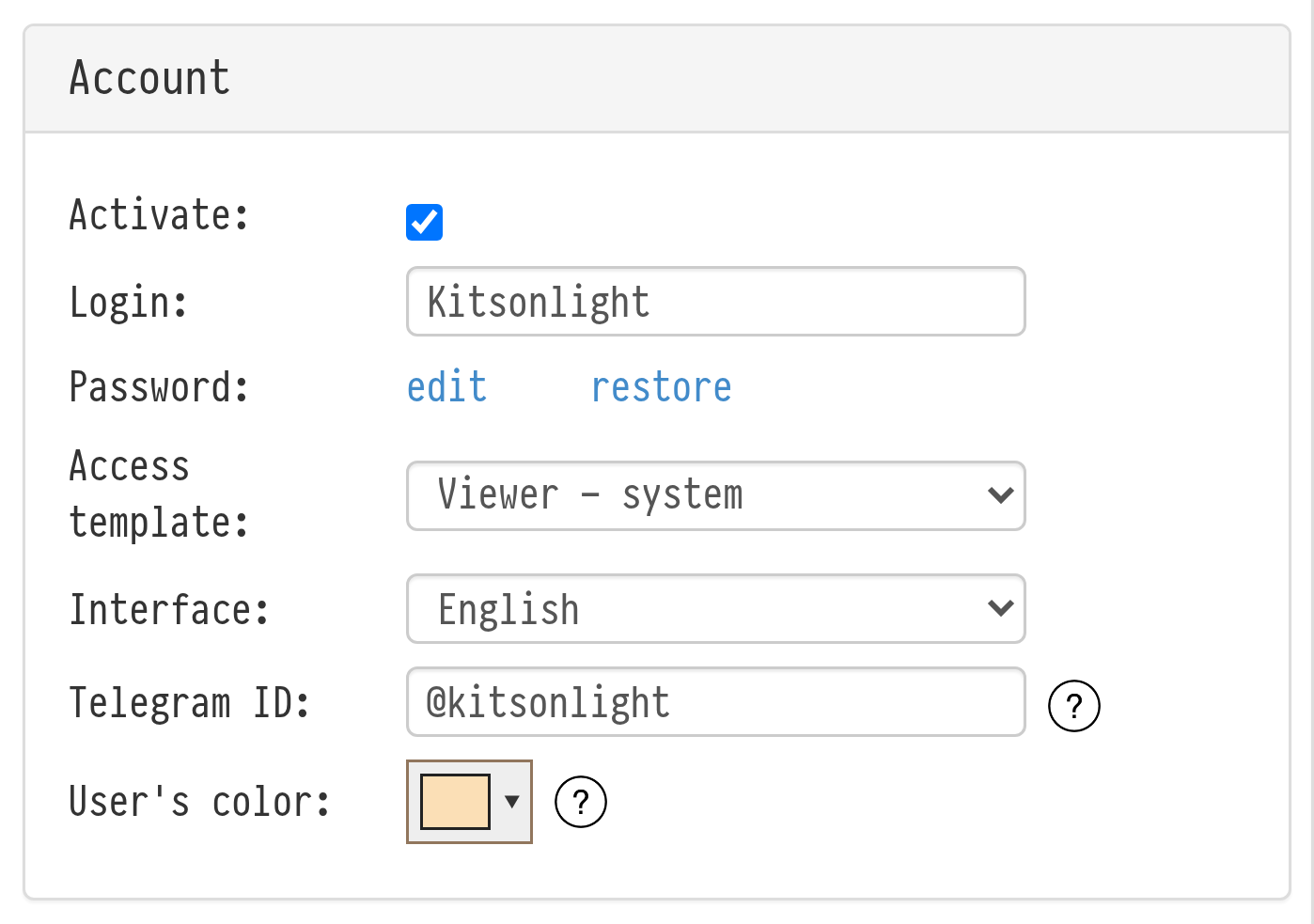
Telegram ID field and integration with Telegram
You can find out your Telegram ID by writing to the Telegram bot @getmyid_bot or a similar one. After that, join the @golovaio_bot chat. Everyone who has a Telegram ID set in the system will see messages from this chat and can write there. These messages are copied to the general chat in Golova.