Company registration
Right after you create your account, the company creation form opens. Fill it in, and you go straight into the Golova interface: the name of the company, the address of the system (for example avrental.golova.ai), the administrator login and password, the service plan and billing period, and the demo data switch. The fields work the same way as in the "New company" window described below.
Please note. A company is your workspace in Golova, with its own address, employees and data. It is not the legal entity you work with clients and counterparties from: legal entities are added later, in the My Companies database.
Adding another company
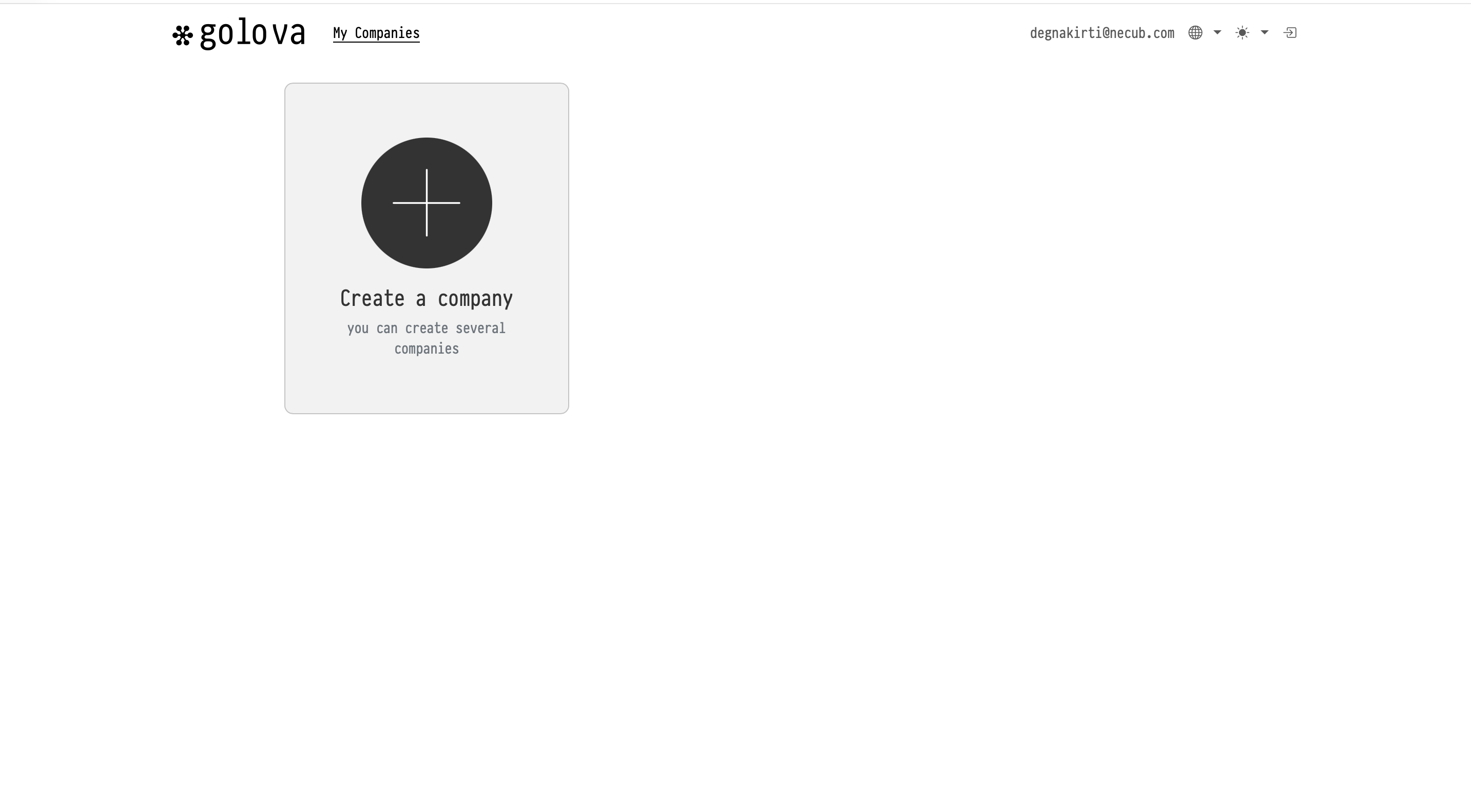
To add one more company later, log in to your personal account. On the My Companies page you see all your companies and can create a new one.
One personal account can hold several companies, and they are fully independent of each other: separate catalogs, projects, employees and settings. For example, you can create a company AV Rental at avrental.golova.ai for your equipment rental business, and a company John Smith Productions at jsmith.golova.ai for freelance projects unrelated to the first one. All they share is the personal account you manage them from — subscriptions, service plans and billing.
Creating a company
Click Create a company. The New company window opens.
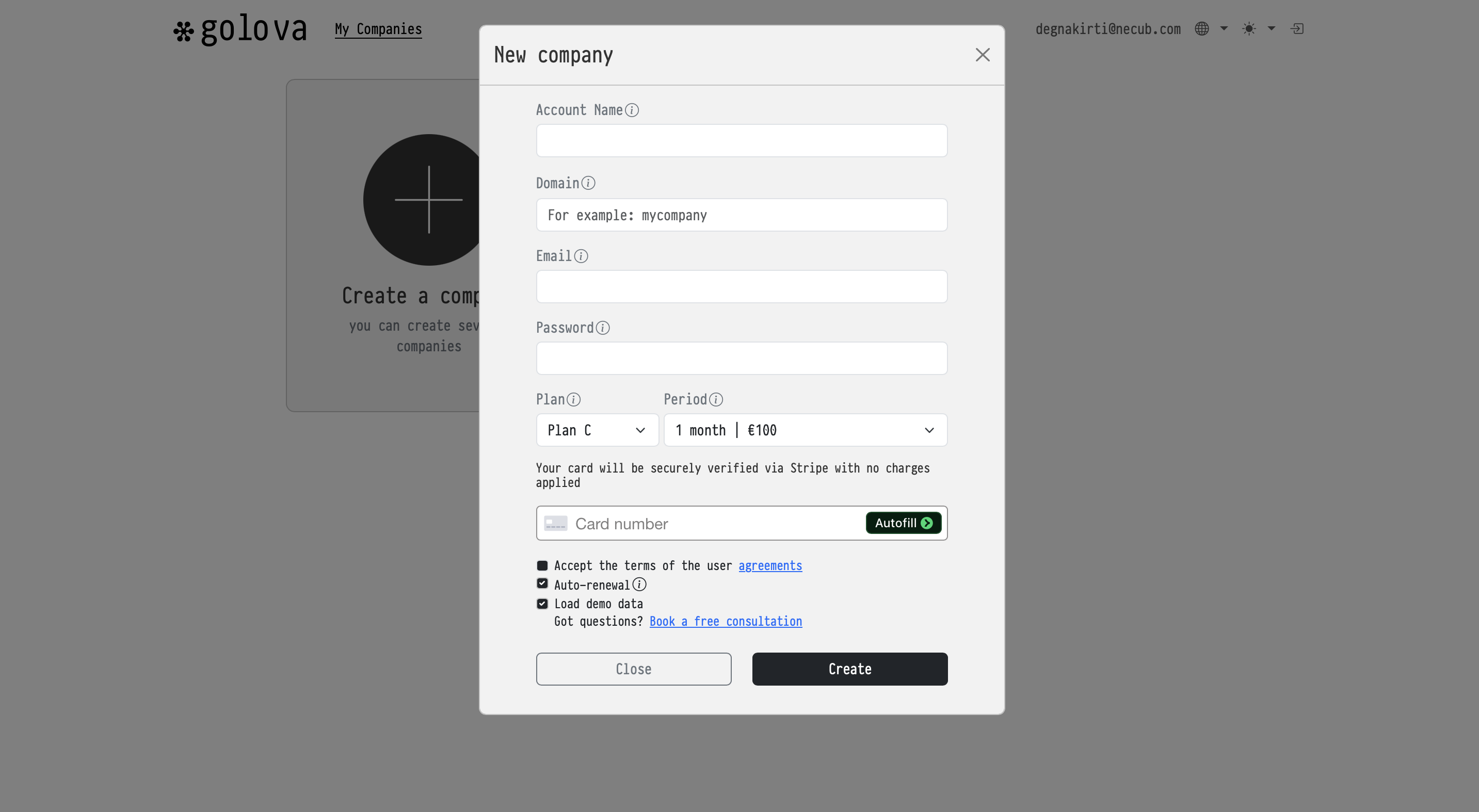
Fill in the fields:
Field | What to enter |
|---|---|
Account Name | The name this company is displayed under in your personal account. |
Domain | The address you and your employees will use to log in — for example, |
The email of the company administrator — the first user of the new company. | |
Password | The administrator's password for logging in to the company. |
Plan | The service plan. Plans differ in the number of users and the features available. |
Period | The billing period and its price. Longer periods cost less per month. |
Payment details
Enter your card number in the Card number field. The card is verified securely through Stripe and no charges are applied at this point.
Options
Accept the terms of the user agreements — required. The company cannot be created until this box is ticked.
Auto-renewal — the subscription renews automatically at the end of each period. You can turn this off at any time in your personal account.
Load demo data — we recommend leaving this on if this is your first time in Golova. A demo equipment catalog will be added to your account, and the employee, venue and client databases will be filled with sample entries. All demo data can be edited or deleted later.
If anything is unclear, use the Book a free consultation link at the bottom of the window — we will walk you through the setup.
Click Create. The new company appears as a card on the My Companies page.
Two different sets of credentials
This is the point that confuses people most often, so it is worth stating plainly:
Personal account — the email and password you signed up with. Used to create companies, choose service plans and pay for subscriptions.
Company account — the Email and Password you entered in the New company window. Used to log in to the company itself at your domain, for example
avrental.golova.ai.
They are independent and may well be different.