Actions with the estimate sheet
The estimate sheet menu opens with the three-dots icon next to the sheet name. It holds all actions with the sheet: "Parameters", "Rename", "Copy sheet", "Copy sheet to...", "Delete sheet", "Deactivate", "Organize", "Update prices", and below the line, the items for exchange with the specification. Separate items are covered in Parameters, Deactivate, Arrange and Update prices.
Four items, "Rename", "Copy sheet", "Copy sheet to..." and "Delete sheet", make working with sheets easier. For example, you can use them to edit a copy of a sheet and create two similar versions of it.
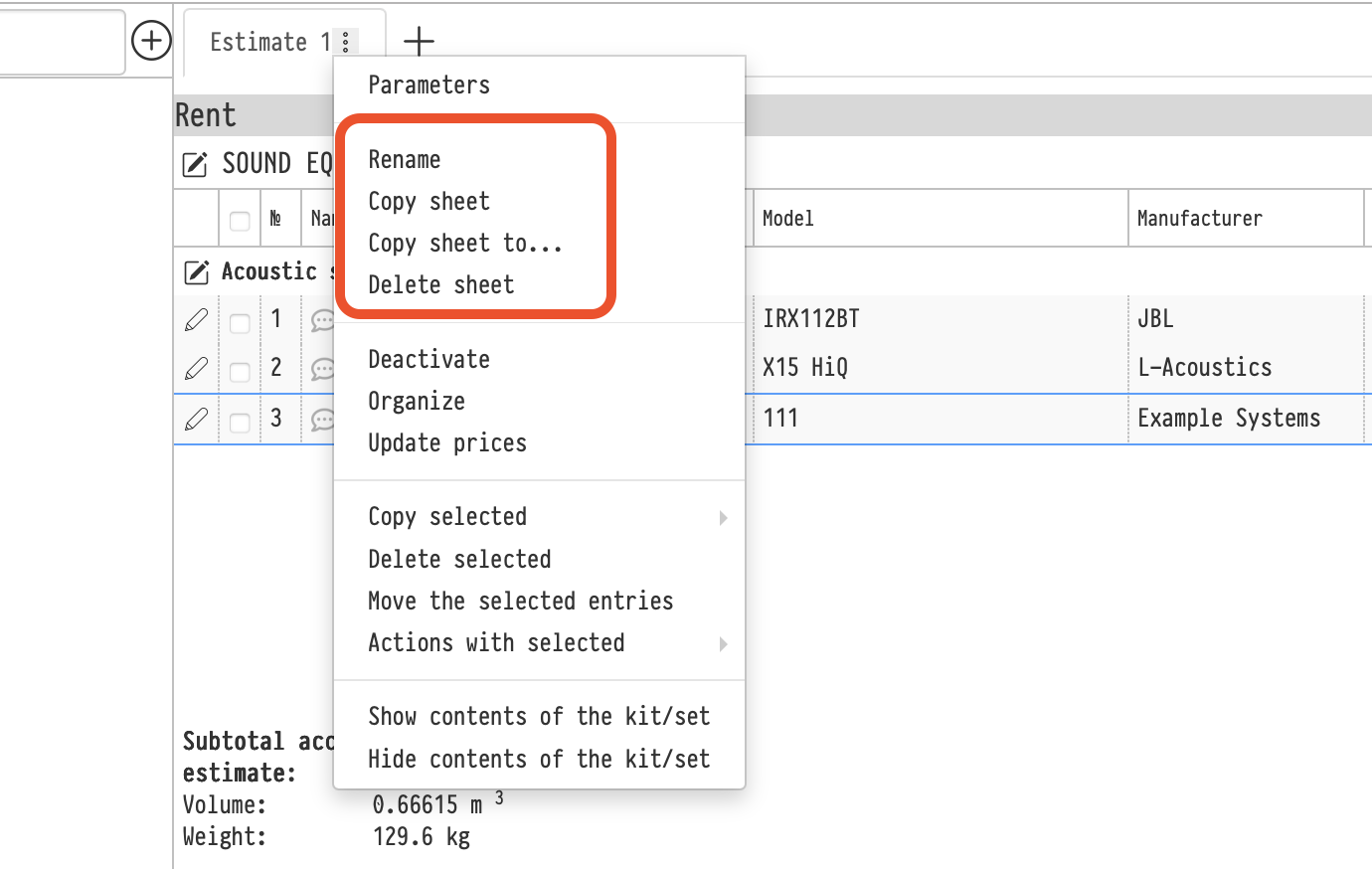
The "Copy sheet to..." item copies the sheet you are working with to another project.
How the estimate sheet is linked to the specification
An estimate sheet can have a paired specification sheet with the same name. While the specification is in a status before disconnection, the pair is created automatically: a new estimate sheet appears in the specification right away.
Once the specification reaches a status with Disconnection enabled, the automatic link stops — the warehouse works with its own version of the composition. A warning appears at the top of the estimate: "Attention! Work has begun in the Specification", and new sheets need to be moved to the specification manually.
That is why the sheet menu shows one of two items:
a sheet without a pair — "Copy to specification";
a sheet with a pair — "Update from specification".
These items appear only when the "Specification" tab is already open in the project. It becomes active when the estimate reaches a status marked with the "Specification" flag: the "Settings" gear → "System" → "Statuses", the estimate statuses block. See Estimate statuses.
Please note. On a deactivated sheet, the items for exchange with the specification are visible but inactive: such sheets are not moved to the specification. Activate the sheet first.
Copy to specification
The action creates a sheet in the specification with the same name and the same entries.
After copying, the sheets become a pair and the menu item changes to "Update from specification".
The reverse move, from the specification to the estimate, is done from the specification sheet menu with the "Copy to estimate" item. See Actions with a specification sheet.
Update from specification
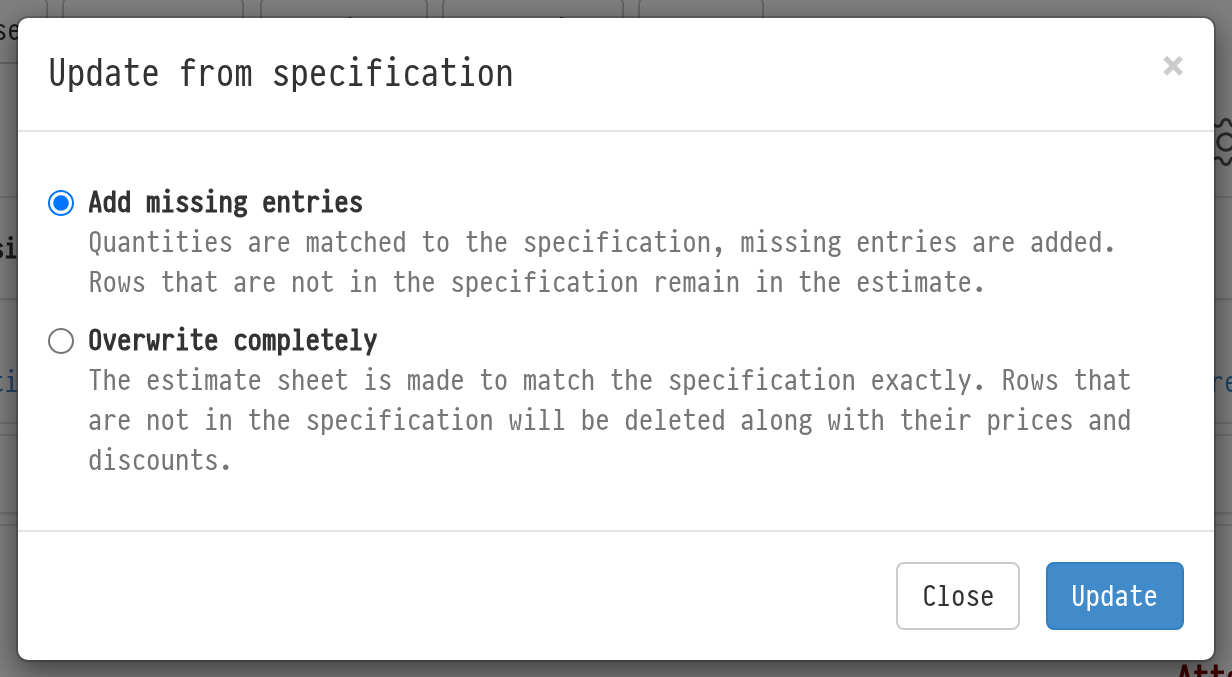
The action pulls the composition of the paired specification sheet into the estimate sheet. In the window that opens, choose one of two modes and click "Update".
Add missing entries. Quantities are matched to the specification, missing entries are added. Rows that are not in the specification remain in the estimate.
Overwrite completely. The estimate sheet is made to match the specification exactly. Rows that are not in the specification will be deleted along with their prices and discounts.
Please note. "Overwrite completely" deletes rows irreversibly, together with the prices and discounts set for them. To keep what was added to the estimate on top of the specification, choose "Add missing entries".
Renaming a sheet
You can rename a sheet without the menu: double-click the sheet tab name, type the new one and press Enter or click outside the field.
Deleting a sheet
"Delete sheet" deletes the sheet together with everything linked to it. Before deleting, the program warns you: "You are deleting the tab, including phases, managers, staff, vehicles, and tasks. Are you sure?". Together with the sheet, the following are deleted:
all entries of the sheet;
phases, staff, vehicles and tasks on the "Planning" tab that were assigned to this sheet (what is assigned "For the entire project" stays);
managers assigned only to this sheet. If an employee is assigned to several sheets, only the link to the deleted sheet is removed.
Please note. You cannot delete the last estimate sheet: a project always has at least one sheet. If you need to exclude a sheet from the calculation for a while, use "Deactivate".
While the estimate and the specification are synchronized, the paired specification sheet is cleared together with the estimate sheet. So the deletion does not go through if something from this sheet has already been shipped to the venue, a lessor is assigned to a sublease entry or production is assigned to an entry: the program shows what is in the way. Deal with these entries in the warehouse or in the "Sublease" block first.
The deletion of a sheet is recorded in the project history.
Key concepts:
estimate sheet, sheet context menu, paired sheets, disconnection, copy sheet, copy sheet to another project, update from specification, delete sheet