How to share a file
You can share any file or folder in Storage: with a colleague, with the whole company or with an external person by link. This is the main reason Storage was made: to send a client an estimate or a document package without emailing files.
Where to open the access settings
Three ways:
the "Share" icon in the file row;
the "More actions" menu (three dots) → "Share";
right-click the file → "Share".
A window opens with four access modes: "Private", "Workspace", "People", "Public link".
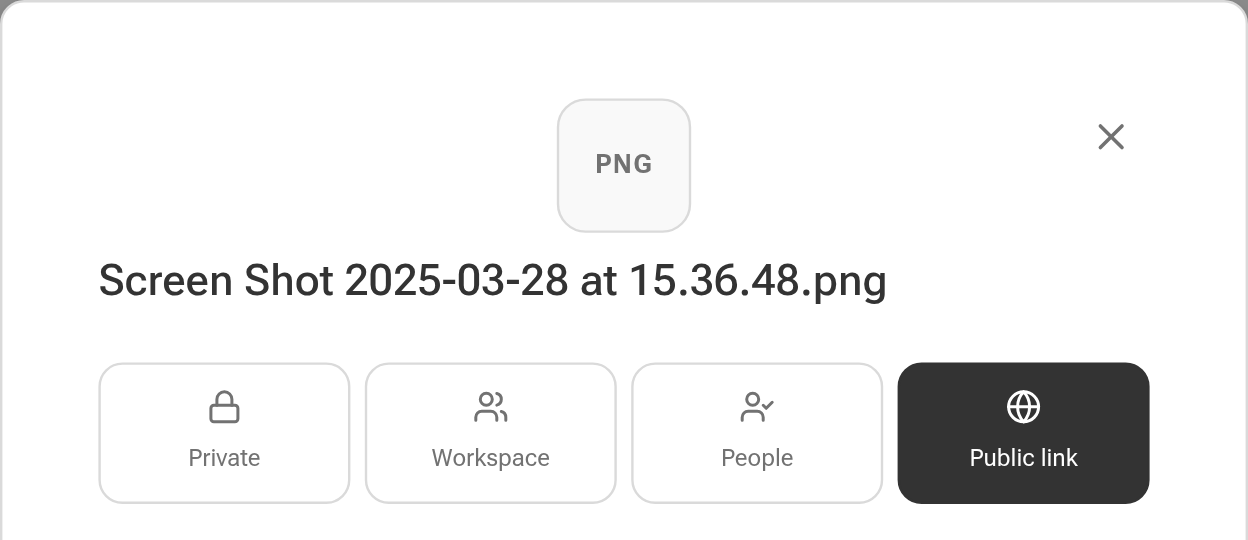
Private
The "Make private" button. Only you can see the file: all access given earlier is removed.
Workspace
The "Share with company" button. The file appears in "Shared with me" for all employees of your company.
People
Access for specific employees.
Find the employee in the search field.
Choose the access level:
"View + Download";
"Full access": the employee can also edit the file.
Click "Grant access".
The file appears for this employee in "Shared with me", where they can see who created it.
Public link
A link for people who have no access to Golova: a client, a contractor, a venue.
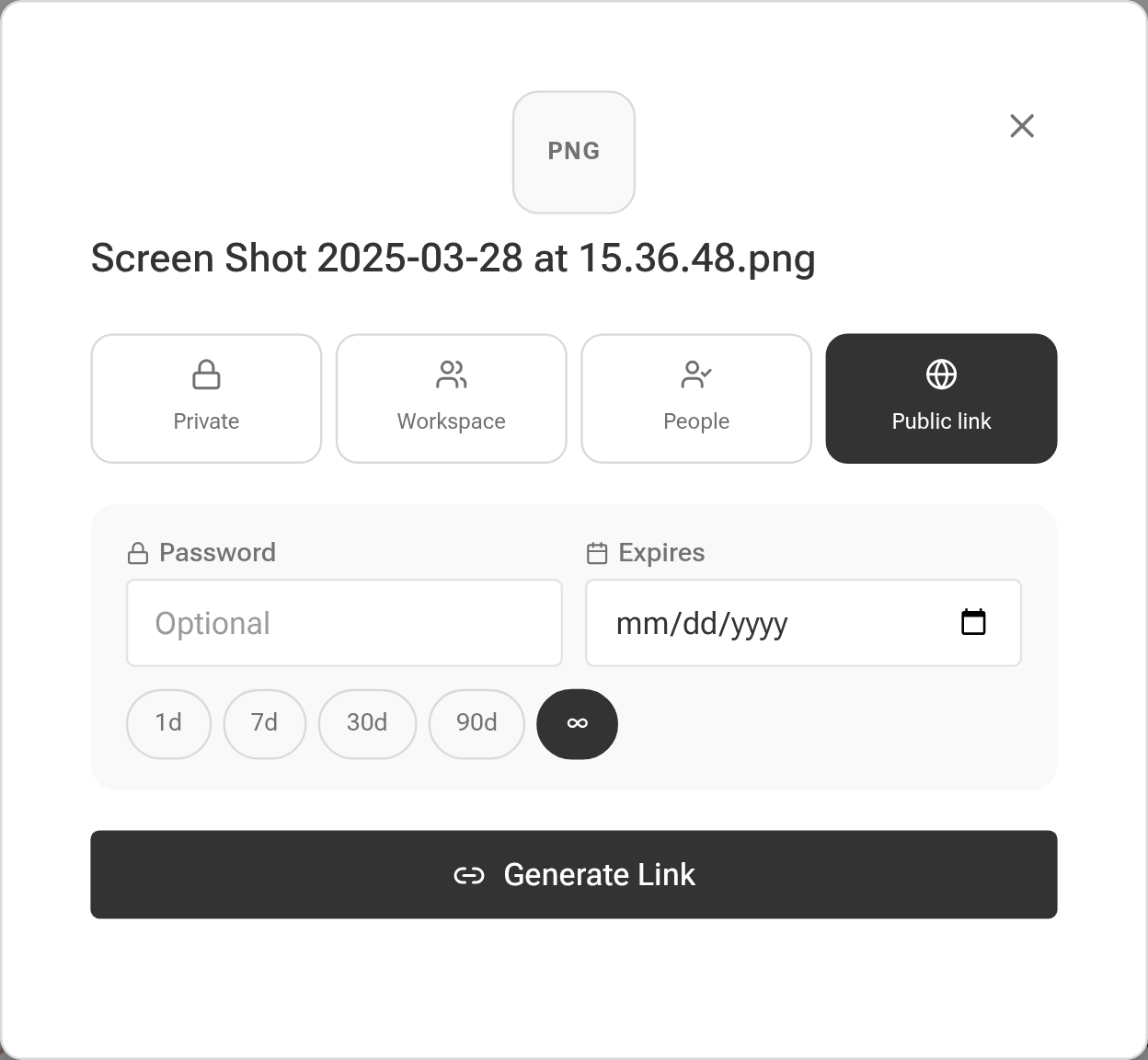
Go to the "Public link" tab.
If needed, set a password: the field is optional.
Set how long the link works: a date or the 1d / 7d / 30d / 90d / ∞ buttons.
Click "Generate Link" and copy it.
The recipient opens the file in the browser: they can view and download it, but not edit it.
You can share not only a single file but a whole folder. A handy trick: share the project's "Documents" folder with the client, and they will also see all the new versions you save there later.
Please note. The system folders of a project ("Commercial proposal", "Documents" and others) can be shared only by public link. The other modes are not available for them.
Who sees what
Rights to Storage files come from the employee's access template and their access to the project:
no access to the project: the employee will not see this project's folder in Storage either;
no access to "Files" in projects: they will not see the folder of the same name;
the employee is dismissed: access to Storage is removed completely;
the project's "Finance" folder is visible only to employees who have access to the "Expense registry".
The "public access" and "only mine" levels in the "Storage" block of the access template are described in Storage.
Related articles: Storage · Saving documents to Storage