Default roles in projects
Roles in a project are the responsible persons of the project: manager, foreman, technical director and so on. They are visible on the "Information" tab of the project, in the "Project management" block on the "Planning" tab, in documents and in calendar and report filters.
Which roles appear in a new project and who is assigned to each of them is set in the global settings: gear "Settings" → "System" → "Project", the "Project roles (default)" card.
Please note. Roles are not created or renamed here. The roles themselves are created in the "Employees" database → "Options" → "Roles". More: Roles, tags, tag categories.
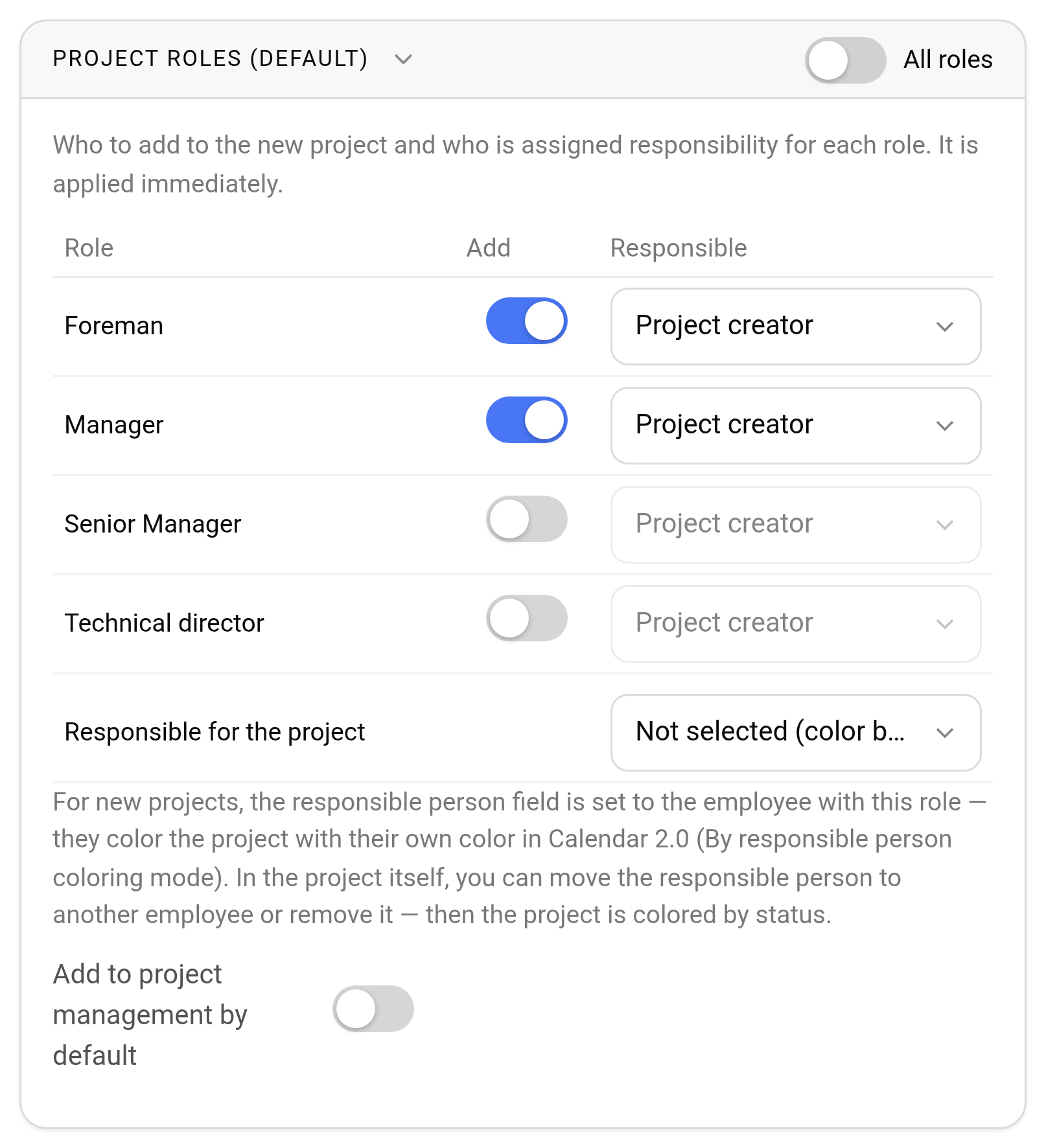
Which roles to add
The card has a row for each role from the "Employees" database. Roles are in alphabetical order. In the "Add" column, use the switch to mark the roles that need to appear in every new project at once.
The "All roles" switch in the card header turns all roles on or off at once. If you turn them all off, new projects are created without responsible persons. A role that is not in the settings can be added to a project manually on the "Information" tab.
Who is assigned to the role
In the "Responsible" column, select a specific employee for the role or the "Project creator" option: then the person who creates the project gets the role. When a project is created, the selected person is assigned to this role at once.
A responsible person can be selected only for a role that is turned on. If you turn a role off, the assignment is reset to "Project creator".
Responsible for the project
In the "Responsible for the project" row, select one of the roles that are turned on. In new projects, the employee in this role gets the responsible person mark: in Calendar 2.0, with the "By responsible person" coloring, the project is colored with their color. In the project itself, you can move the mark to another employee or remove it: then the project is colored by status.
The "Not selected (color by status)" option means no mark is set, and projects are colored by status.
Adding to "Project management" automatically
The "Add to project management by default" switch at the bottom of the card controls the "Project management" block on the "Planning" tab. If it is on:
employees in the roles of a new project get into "Project management" at once;
if a role with a responsible person is added to the project later, it also appears in "Project management".
Only the employee and the role are carried over. The default payment type is "fixed amount"; enter the amount, percentage and other payment terms in the project manually. More: Planning.
When the settings apply
There is no "Save" button: each change is saved by itself and applies to new projects at once. Existing projects do not change.
Key concepts
Roles, Project, Responsible persons, Project management, Planning, Employees, Global settings, Project information, Manager, Foreman