Setting up the "Estimate" statuses
The color of each estimate status is chosen in the global settings: the gear icon “Settings” → “System” → “Calendar”, block “Estimate status settings”. Projects get this color in the calendar when the calendar shows estimate statuses.
How to choose a color
The block lists the estimate statuses: “cancelled”, “calculation”, “reservation”, “confirmed”, “completed”. Click the colored square next to a status and choose a color.
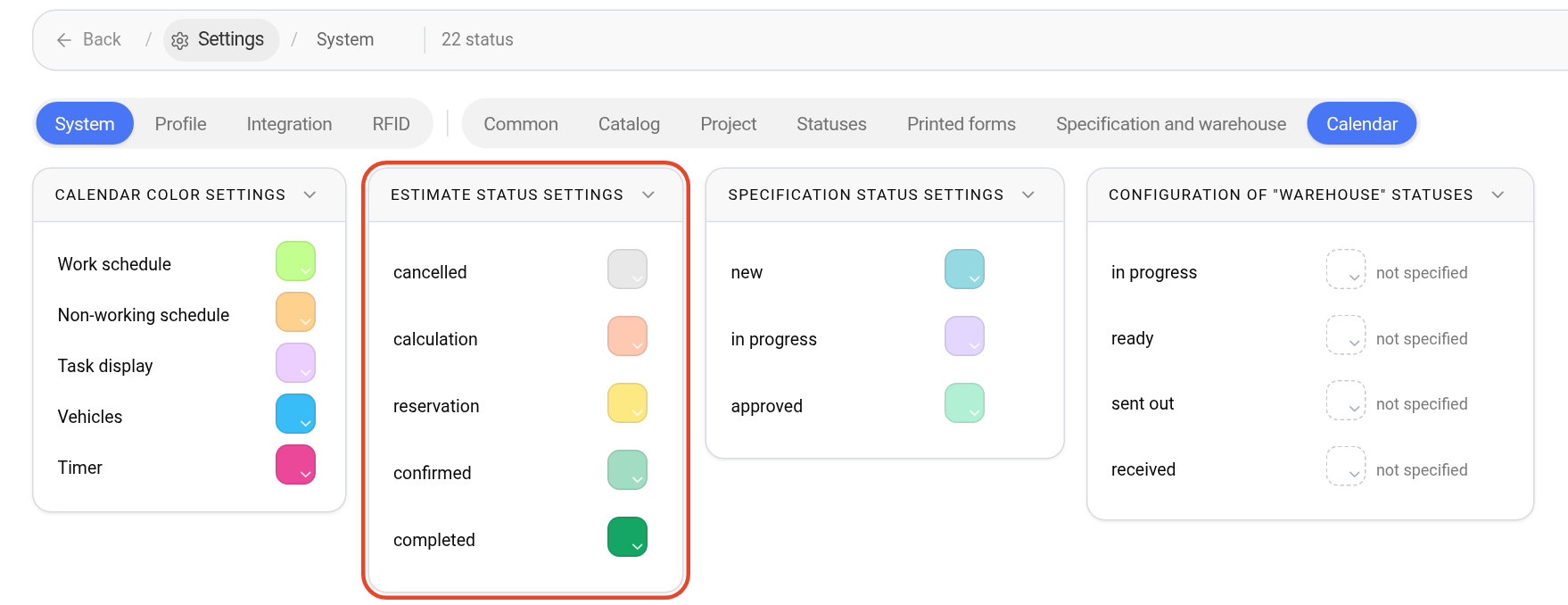
On the same page there are color blocks for specification, warehouse, document and finance statuses, as well as “Calendar color settings” and “Filters setup”.
Where the estimate status colors are shown
Above the calendar there is a switch: “Project”, “Estimate”, “Specification”, “Warehouse”, “Finance”, “Documents”. It defines which statuses are used to color projects:
on “Estimate”, projects are colored by estimate status for all employees;
on “Project”, projects are colored by the color scheme that each employee chooses: “Personal Account” → “Settings” tab → “Calendar - projects” block → “Color scheme” (“Estimate status”, “Specification status” or “Warehouse status”).
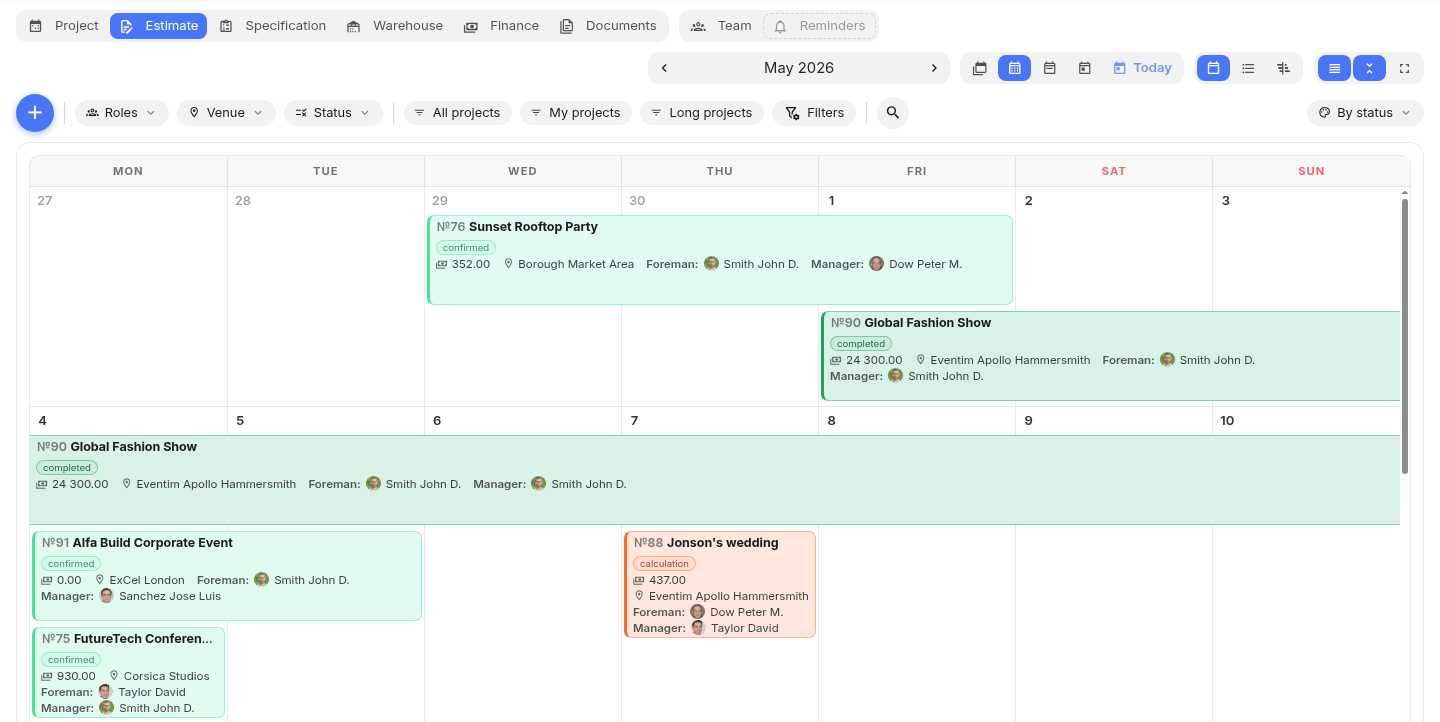
Please note. On the right above the calendar there is the coloring mode: “By status” or “Responsible”. In the “Responsible” mode, a project gets the color of the employee marked as the responsible person in the project.
The colors of specification and warehouse statuses work the same way: see “Setting up the "Specification" statuses” and “Setting up the "Warehouse" statuses”. How the estimate statuses themselves work is described in the article “Estimate statuses”.