Access passes
To get into a venue, you often need a list of people and vehicles with ID details and registration plates. In Golova you can build such a list from the "Employees" database and download it as PDF or Excel, even before there is a project.
If you need access passes for a specific project, it is easier to make them in the project itself: the "Print" tab, row "Access passes". The document then gets the people and vehicles of the project straight away. For details, see the article Print.
Where to find it
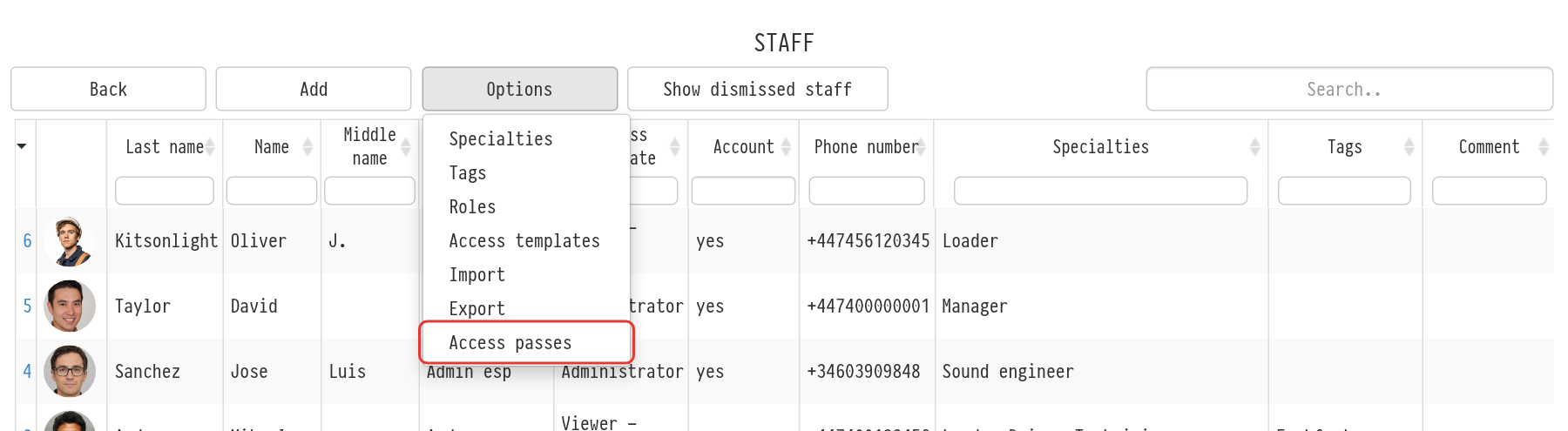
Open "Databases" → "Employees", click "Options" and choose "Access passes". The "Access pass export" page opens.
Please note. The "Options" button is visible to employees who have full access to the "Employees" database in their access template.
Basic parameters
These fields go into the document header:
"My company": the company that submits the list; its header goes into the document;
"Date: from … by": the period the pass is needed for;
"Venue": the venue name and address;
"Client";
"Comment": for example, the entrance number or the arrival time.
All fields are optional: empty ones do not go into the header.
Roles for printing
You can add responsible persons to the header, for example who meets the vehicles or who is in charge at the venue. Click "+" next to "Roles for printing", choose a role and an employee and click "Add". You can change the employee in the row later or delete the row.
If you tick "Contact", the employee's phone numbers are shown next to their name in the header.
Staff
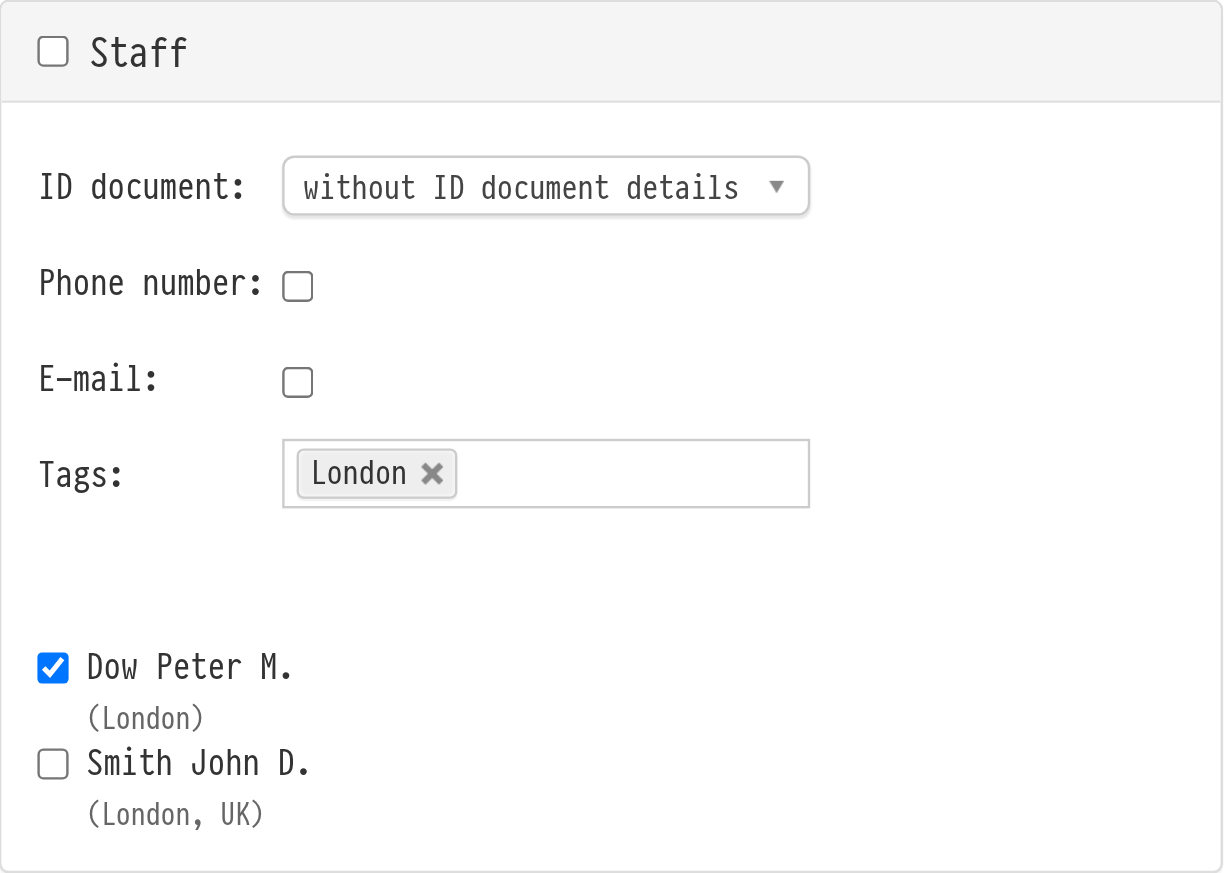
In the "Staff" block, tick the employees who go to the venue. The checkbox in the block header ticks or clears everyone at once. Dismissed employees are not in the list.
"ID document": which details to show: "without ID document details", "ID document" or "passport". The details are taken from the employee cards.
"Phone number" and "E-mail": add the phone number and email to the list.
Selecting by tags
If you have many employees, select the ones you need by tags. In the "Tags" field, choose one or more tags; tags in the list are grouped by category. The list keeps the employees who have at least one of the selected tags, and their tags appear under each name. For example, choose the tag "Sound" to quickly put together passes for the sound crew.
Employees hidden by the selection lose their ticks, so they do not go into the document.
Tags are created in "Employees" → "Options" → "Tags" and assigned in the employee card. For details, see the article Roles, tags, tag categories.
Vehicles
In the "Vehicles" block, tick the vehicles from the "Vehicles" database. The document gets the make, model and registration plate.
Downloading the list
Click "Generate PDF" or "Generate XLSX" at the top of the page. The document has a header with the parameters and roles, followed by the "Staff" and "Vehicles" tables.