Project Management/Penalties
The planned management costs shown in the "Project Managers/Fines" block come automatically from the "Planning" tab.
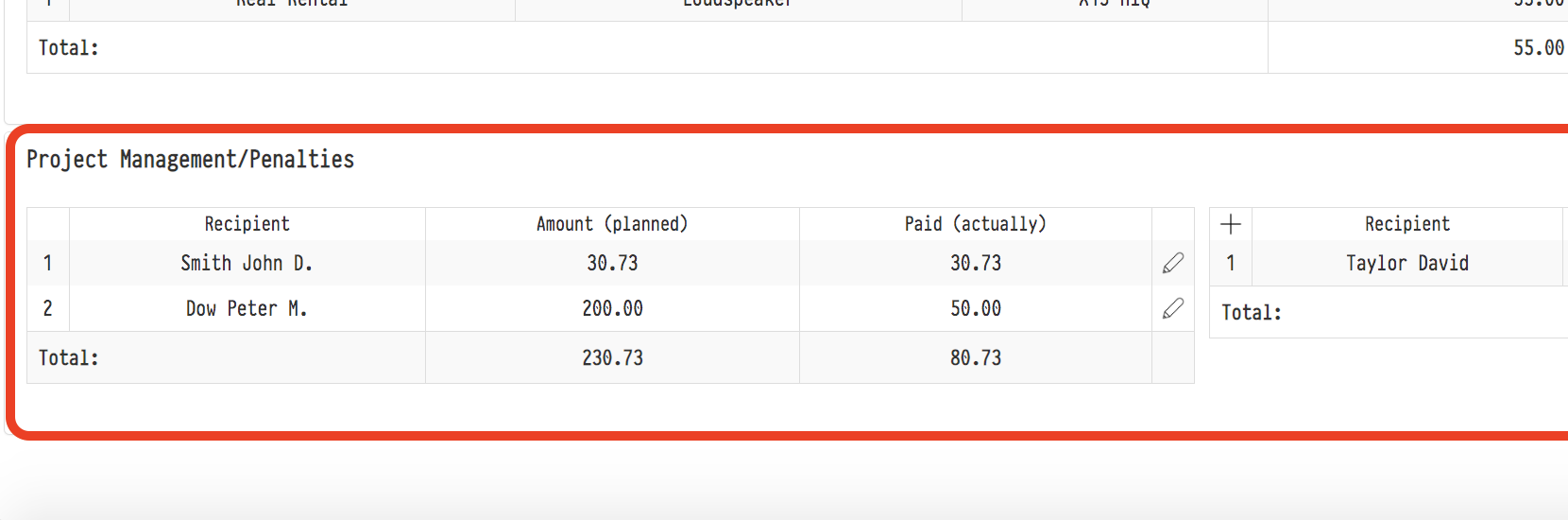
As they are actually paid, click the "Pencil" icon (at the right end of each payment row) and enter the amounts paid.

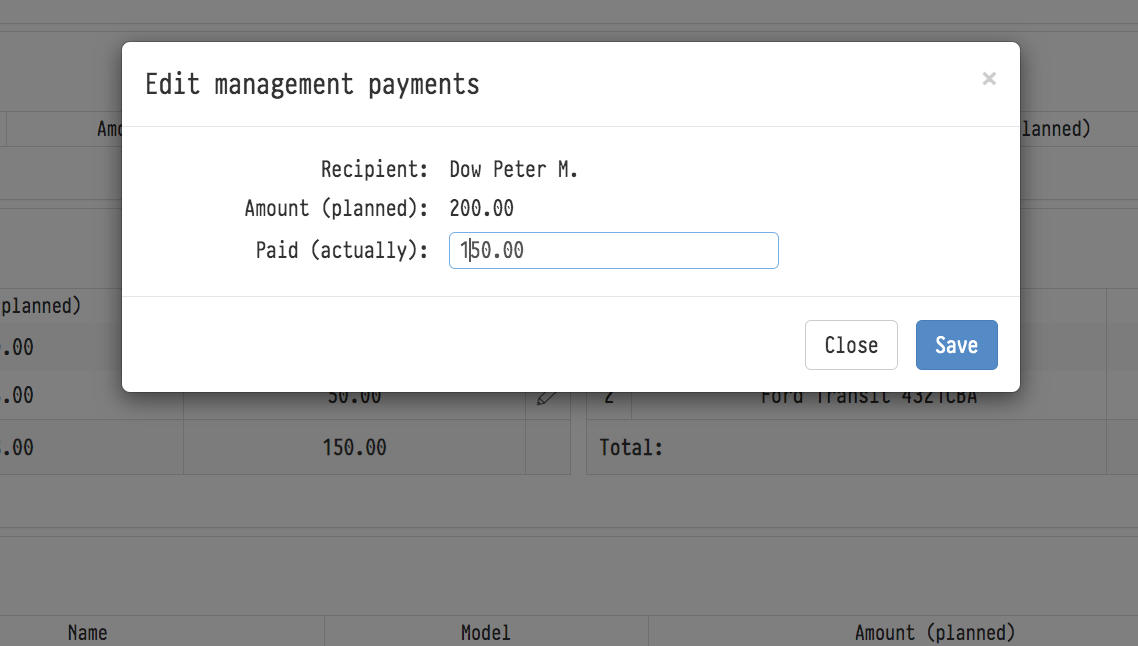
The "Editing management payments" window has the "Paying company" field: choose which of your companies pays. The "My companies" filter of the financial report in "Analytics" selects the expense by this field.
To enter the fines into the system, click "Add Fine" ("+") in this block.

Then fill in the fields in the "Creating a new fine" window that appears.
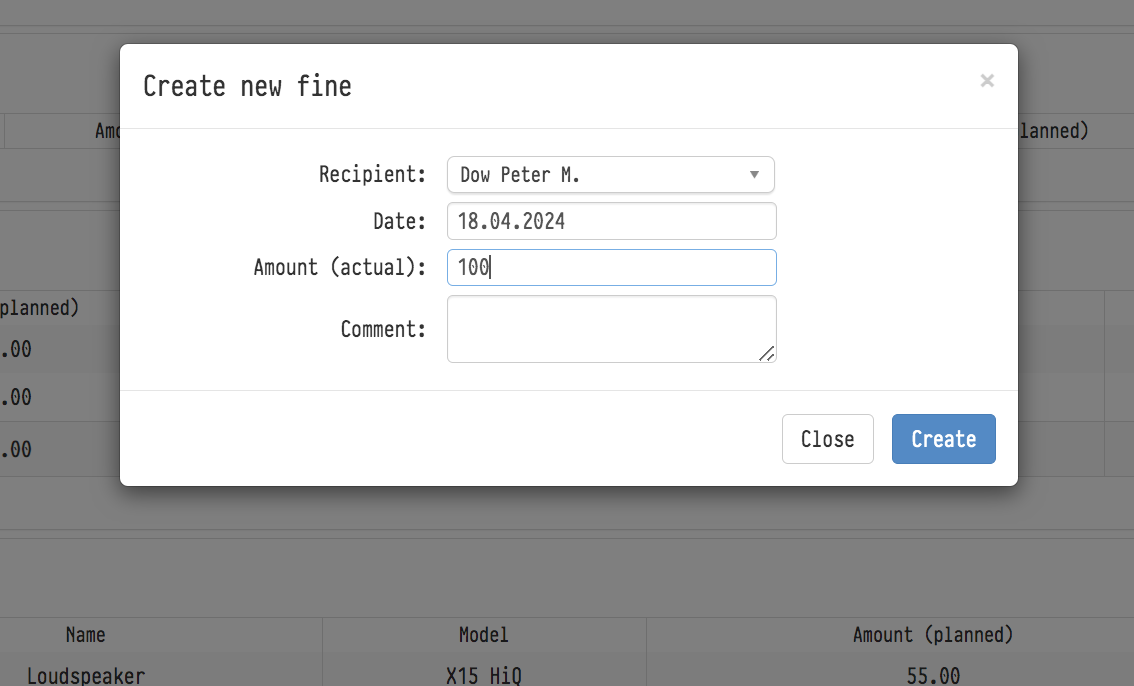
Fines
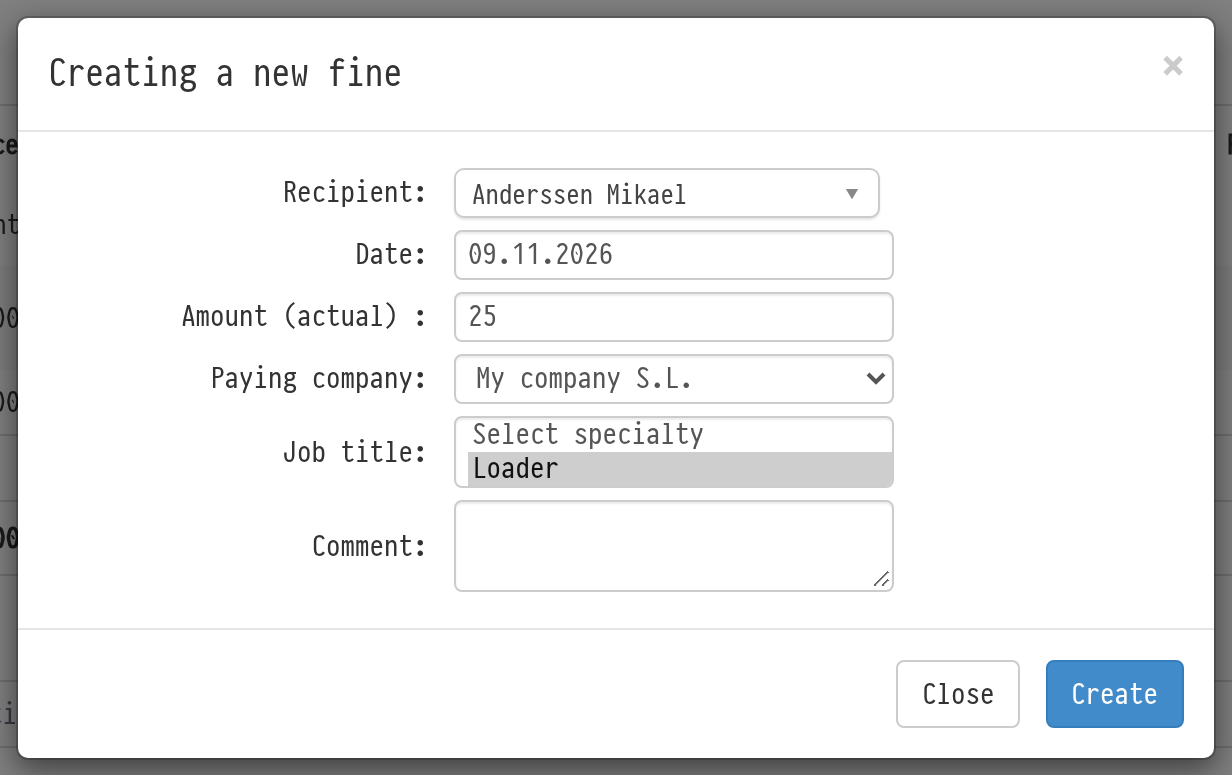
In the "Creating a new fine" window, fill in:
"Recipient": the employee who is fined;
"Job title": the specialty the employee works in on this project. The list contains only their specialties from the "Staff" block of the "Planning" tab. If the employee works in several specialties, the fine is counted for the selected one;
"Date", "Amount (actual)", "Paying company", "Comment".
Fines reduce the expense: you need to pay the employee less by the fine amount.
In "Analytics" → "Financial report" → "Expense" → "Staff", fines are shown in the "Fine" column. The balance to be paid is calculated as the planned expense minus the amount actually paid minus the fine. If the fine is larger than the unpaid part, the balance becomes negative: this is an overspend. See Financial report: expenses.
To process all management payments at once, use "Conduct expenses" → "Managers" in the "Calculator" block. See The "Conduct expenses" button.