Creating a new template
To create a new template, click "Add" in the "Access templates" section.
A page opens where you can enter the name of the new template.
After entering the name, click "Next" to go to the page where access rights are edited.
The rights are arranged by tabs: "Calendar/Table", "Project", "Catalog", "Databases", "Analytics", "System", "Notifications", "Messenger", "Services".
Calendar/Table
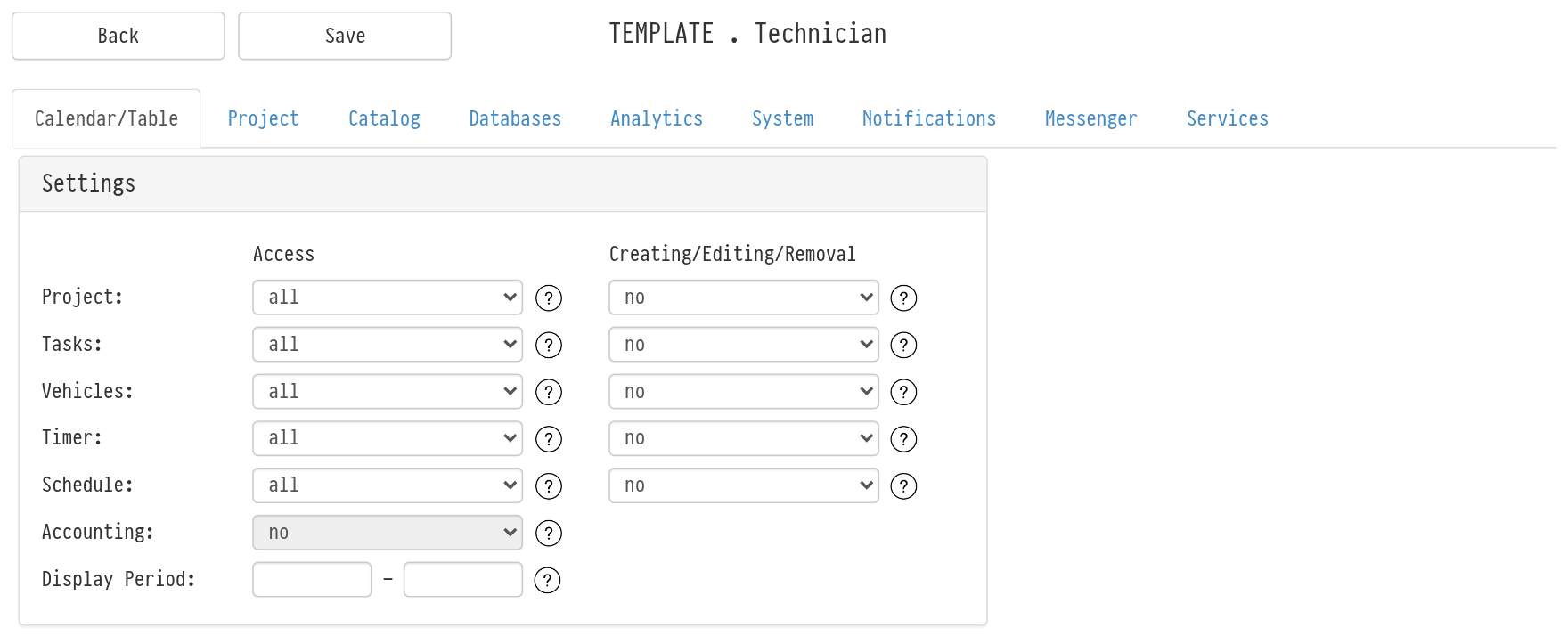
Access rights for the Calendar and the Tables. Here you can give, fully or partly restrict access to such parameters as project, tasks, vehicles, timer, schedule and accounting, and set the "Display Period" for them.
Project
Access rights in the project. The blocks follow the project sections: "Information", "Planning", "Estimate", "Specification", "Warehouse", "Documents", "Finance", "Files/Links", "Print", "Questionnaire", "Logging". Next to the block header there is a selector that hides the section from the employee completely; inside the blocks, you can set the access level in more detail.
Example. In "Planning", you can give access to everything except vehicles, or give partial access to all parameters.
The "Logging" block has the "Project history" parameter. The "show" value opens the "History" tab in the project for the employee: a log of all project changes, including the specification log. By default, the tab is hidden. See Project history.
Catalog
Whether the employee sees the Catalog module, prices, information and the inventory audit.
Databases
Which databases are available to the employee: employees, access templates, clients, venues, vehicles, counterparties, my companies, documents.
Analytics
Which reports from the "Analytics" menu the employee sees: financial analytics by project, salary, "Equipment control", "Consumables control", "Expense registry" and others.
System
Access to the global settings, the ticket system, notifications, the subscription and the system log.
The "Subscription button" parameter in the "Settings" block decides whether the employee sees the subscription badge in the header and what they can do with it:
"full access": the badge and all subscription features: viewing, payment, renewal and changing the plan;
"renewal only": the employee can pay for and renew the subscription, but cannot change the plan;
"read-only": the badge and the "My plan" page are visible, payment and changing the plan are not available;
"hide": the badge and all subscription pages are hidden.
The "System logs" block opens the "Databases" → "System log" section. The switch in the block header ("show" / "hide") shows or hides the section, and the "Catalog" and "Projects" parameters inside the block define which records the employee sees in the table. By default, the section is hidden. See System log.
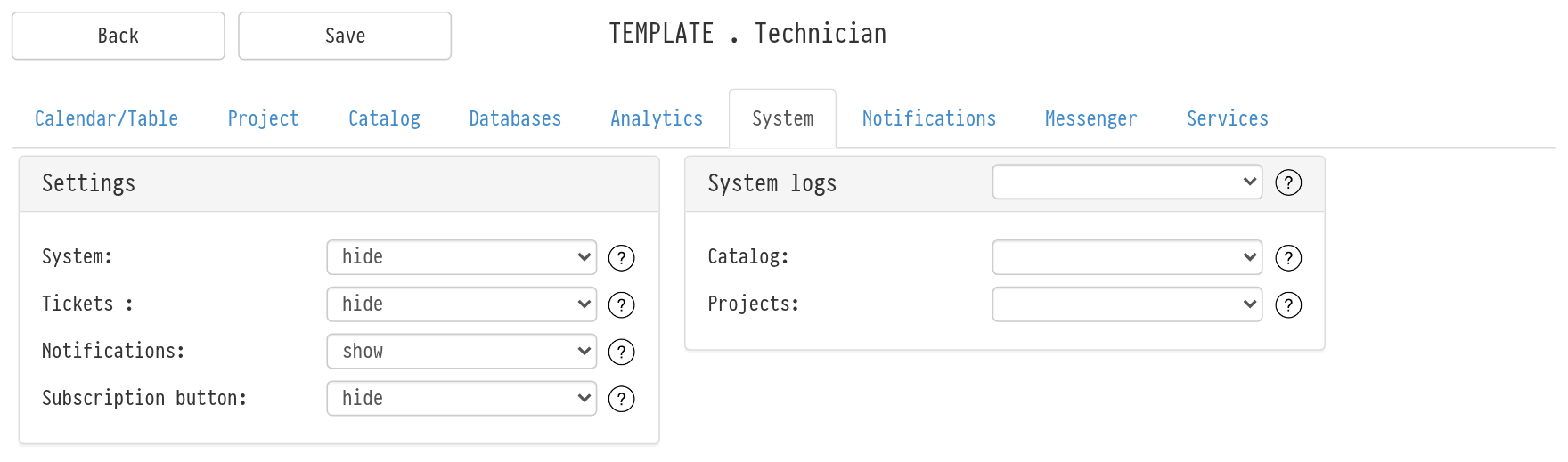
The "Tickets" row on this tab: "full access", "only mine" or "hide".
Notifications
Which project events the employee gets notifications about, by project section.
Messenger
"Messenger": "show" or "hide" the built-in messenger.
"Creating chat rooms": "allow" or "prohibit". Without this right, the employee cannot create rooms and project chats, cannot start a personal chat from the "Employees" list and does not see the members tab.
Services
Access to the services that open from the "Services" menu in the header.
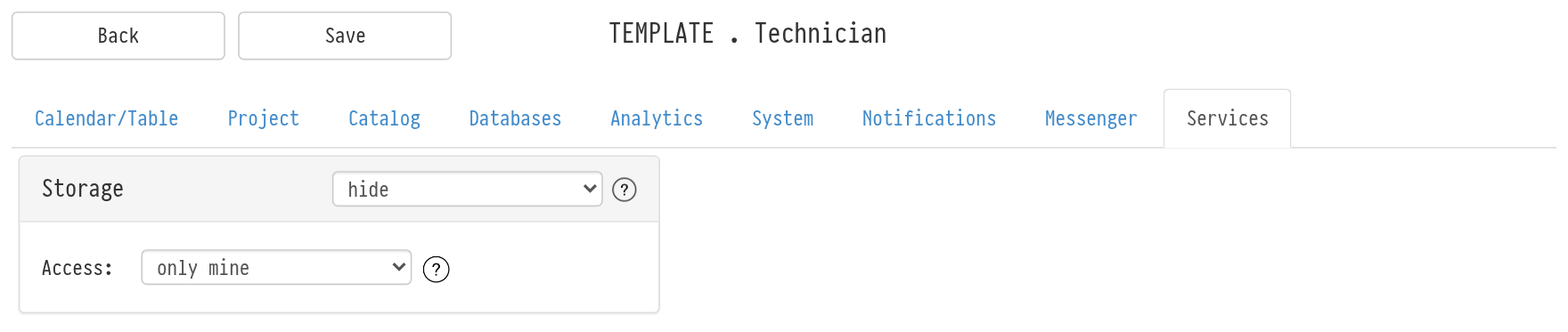
"Storage": the "show" / "hide" switch in the block header and the "Access" list: "public access" (the employee sees all the company's files and folders) or "only mine" (sees their own files, the system folders and what has been shared with them). By default, Storage is hidden. See Storage.