Projects table
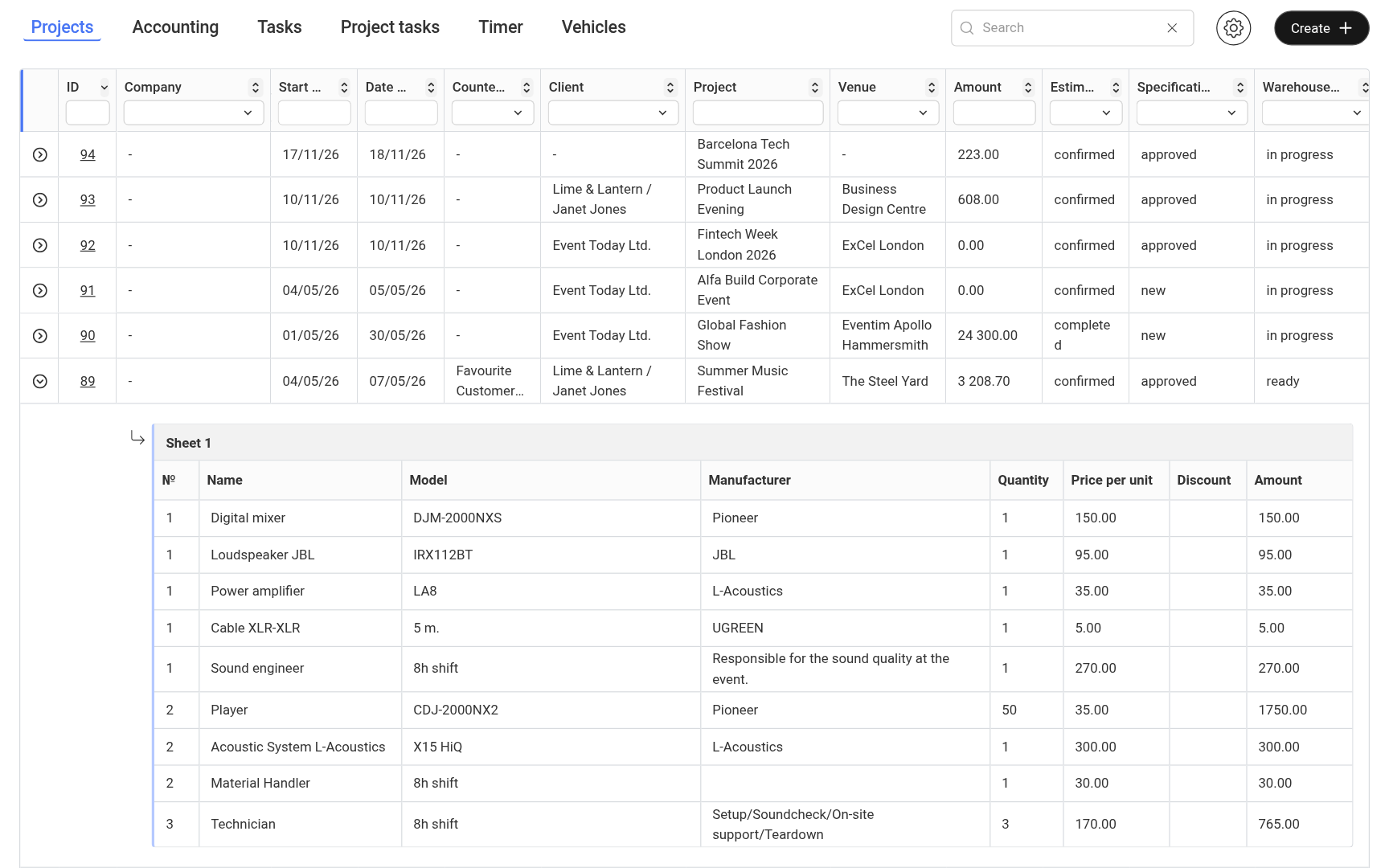
The Projects tab in the “Table” section shows all projects of the company in one table. It is used to quickly review projects, find the one you need and go to it. Next to it are the “Accounting”, “Tasks”, “Project tasks”, “Timer” and “Vehicles” tabs.
What is displayed
By default, the table has these columns:
“ID” — the project number;
“Company” — your company that runs the project;
“Start date” and “Date of expiry” — the start and end dates of the project;
“Counterparty” and “Client”;
“Project” — the project name;
“Venue”;
“Amount”;
“Estimate status”, “Specification status” and “Warehouse status”;
“Foreman”, “Manager”, “Senior Manager” and “Technical director” — the people assigned to the project.
The set of columns can be changed. Click the gear icon to the right of the search field: the “Table settings” window opens. Tick the columns you need and click “Save”.
The “Document Status” and “Financial Status” columns are off by default. Turn them on in “Table settings”. Each status column has a filter, so you can, for example, quickly find all projects for which the original documents have not been received yet. Read more: “Statuses: how they work”.
Project preview
In the leftmost column there is an expand button. It opens the estimate of the project right in the table, sheet by sheet: the name, model and manufacturer of each item, the quantity, the price per unit, the discount and the amount.
This is convenient for a quick look without opening the project.
What you can do
The table allows you to:
find projects by date, client, status and other parameters;
monitor project statuses;
track amounts;
filter by the people assigned to the project;
quickly go to the project for detailed work;
create a project with the “Create” button in the upper right corner.
Working with the table
Click the project ID to open the project.
The table supports filters, sorting and search.
You can set up the columns for your tasks. The settings are saved for each user.
At the bottom of the table you choose how many rows to show on a page (“Lines per page”) and switch pages.
Please note. The data in the table cannot be edited. The table is used for viewing and navigation.
When to use
The “Projects” table is convenient when you need to:
get a general list of projects;
quickly find the right project;
view the estimate of a project without opening it;
filter projects by parameters.