The "Conduct expenses" button
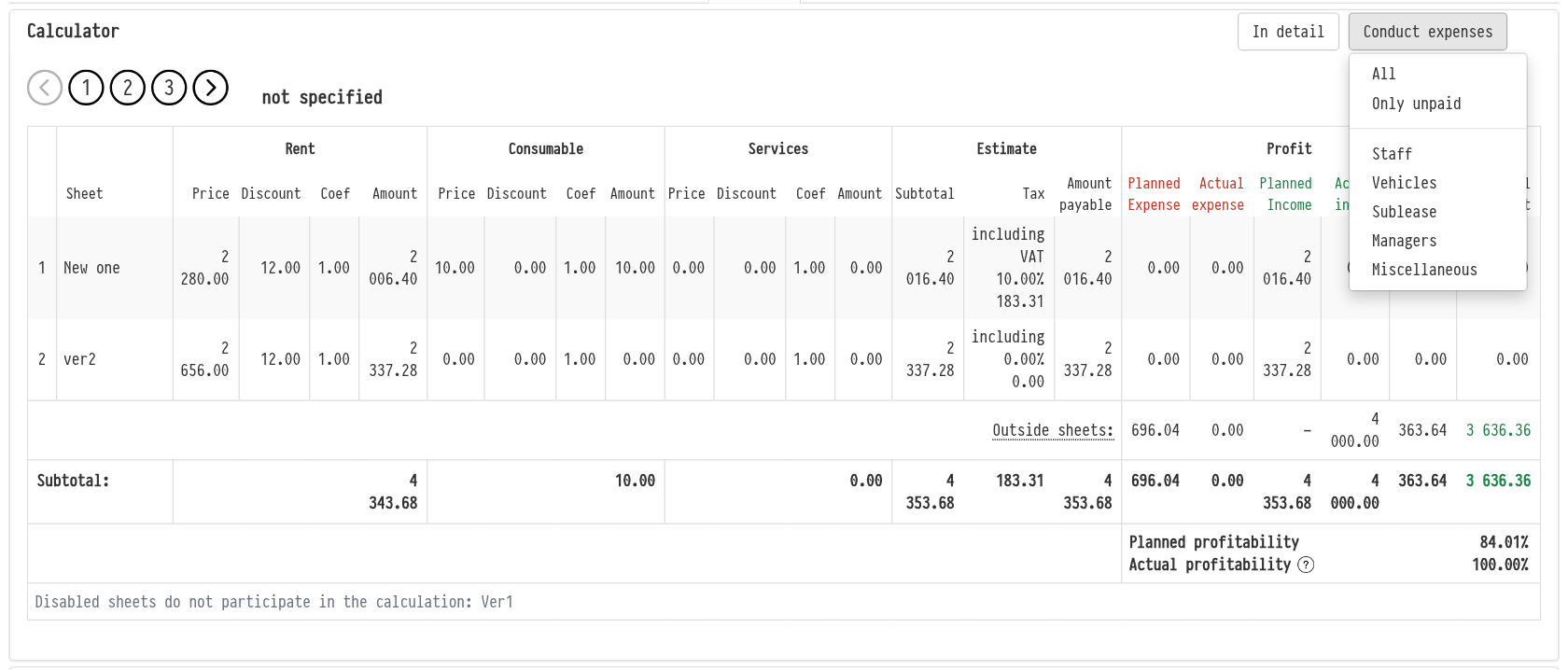
The "Conduct expenses" button is located on the project "Finance" tab, on the right in the title of the "Calculator" block.
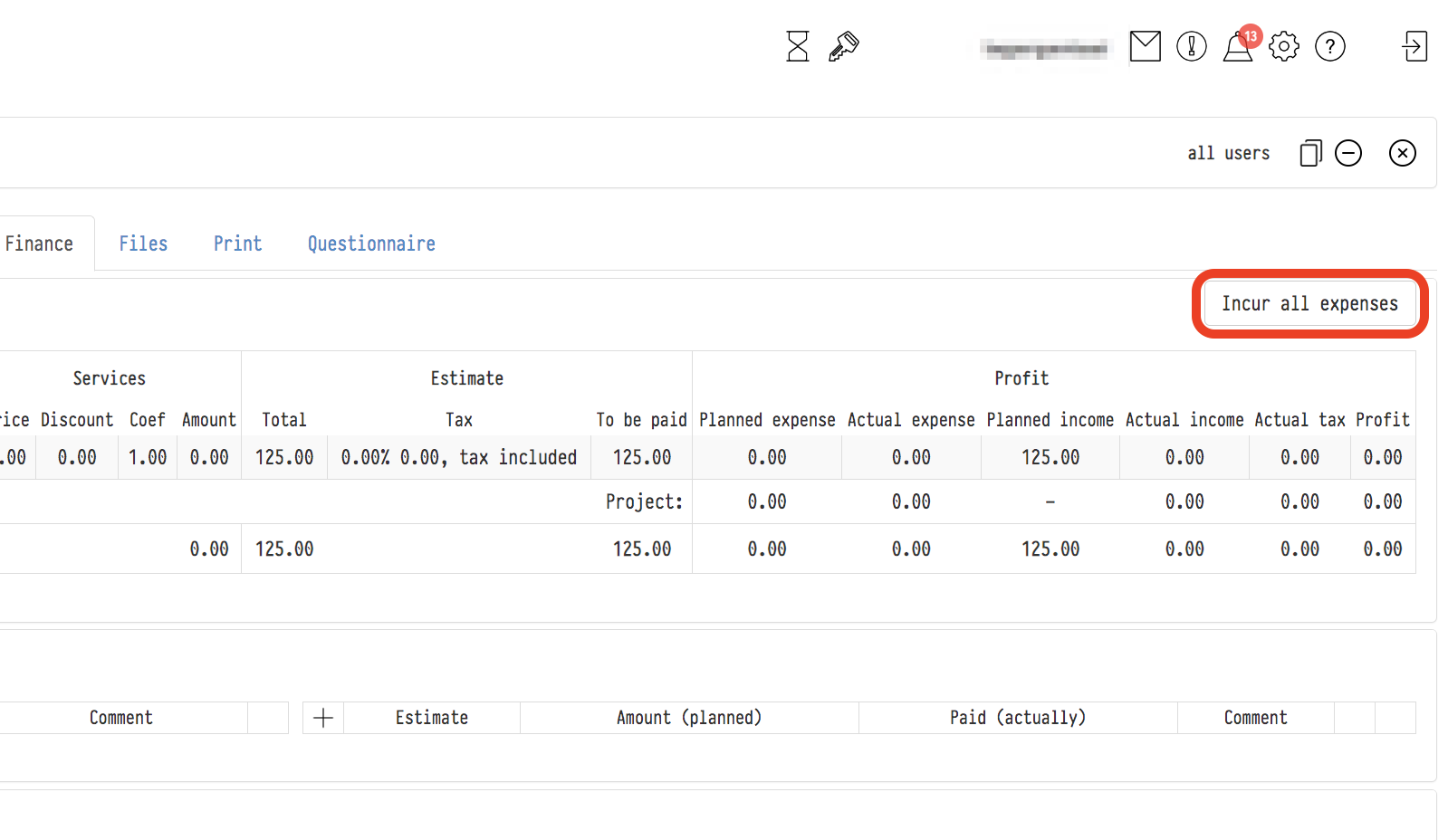
Use the button when the planned payments for the project have already been made and you need to show this in the calculations. For example, your accountant has paid the staff, the sublease and other expenses and has informed you about it. Processing copies the planned amount of each expense row to the "Paid (actually)" field. The figures in the calculator and in the blocks of the "Finance" tab are updated right away.
What you can process
Click "Conduct expenses" and choose in the list which expenses to process:
"All": all project expenses. The actual amount in each row becomes equal to the planned one, even if a different payment has already been entered in the row;
"Only unpaid": only rows where no actual payment has been entered yet. Rows that already have an amount are not changed.
Choose "Only unpaid" if you have already processed some expenses manually, for example paid an employee more than planned. Then these amounts stay as they are, and only the other rows are processed.
Lower in the same list you can process the expenses of one block only:
"Staff": employee payments from the "Staff/Vehicles" block;
"Vehicles": vehicle expenses from the "Staff/Vehicles" block;
"Sublease": payments to lessors from the "Sublease" block;
"Managers": management payments from the "Project Managers/Fines" block;
"Miscellaneous": expenses entered manually in the "Income/Expense" block.
This helps when payments are made at different times: for example, the sublease was paid right after the event, and the staff salaries at the end of the month.
After you choose an item, the system asks you to confirm the action. When processing is finished, a message appears, for example "All expenses have been successfully processed".
Please note. Processing cannot be undone with one button. If you have processed too much, correct the actual amount in the expense row with the "Pencil" icon.
Employees whose staff or management payments have been processed receive a payment notification (if they have such notifications turned on).
The button is shown together with the "Calculator" block: if the calculator is hidden in the access template, the button is not shown either.
To process expenses for many projects at once, go to "Analytics": the "Process all" button in the expense report. See Financial report: expenses.