Guest user
Technicians, riggers, sound engineers and drivers usually do not need to change anything in the system. It is enough for them to see the projects they work on: dates, venue, tasks, equipment list. For such employees Golova has guest access.
A guest logs in with their own login, including in the mobile app, but sees only their own projects and does not change anything in them.
What a guest sees
A guest sees only the projects they take part in:
added to the project staff;
assigned as the performer of a task in the project;
assigned to a vehicle that goes to the project.
A guest does not see the other projects of the company, neither in the calendar nor in the tables. In their projects they see only the sections opened in the guest template, and only for reading. A guest cannot edit the specification, change warehouse statuses or work with the sublease, even if the section is open.
How to make an employee a guest
Open "Databases" → "Employees" and the card of the employee.
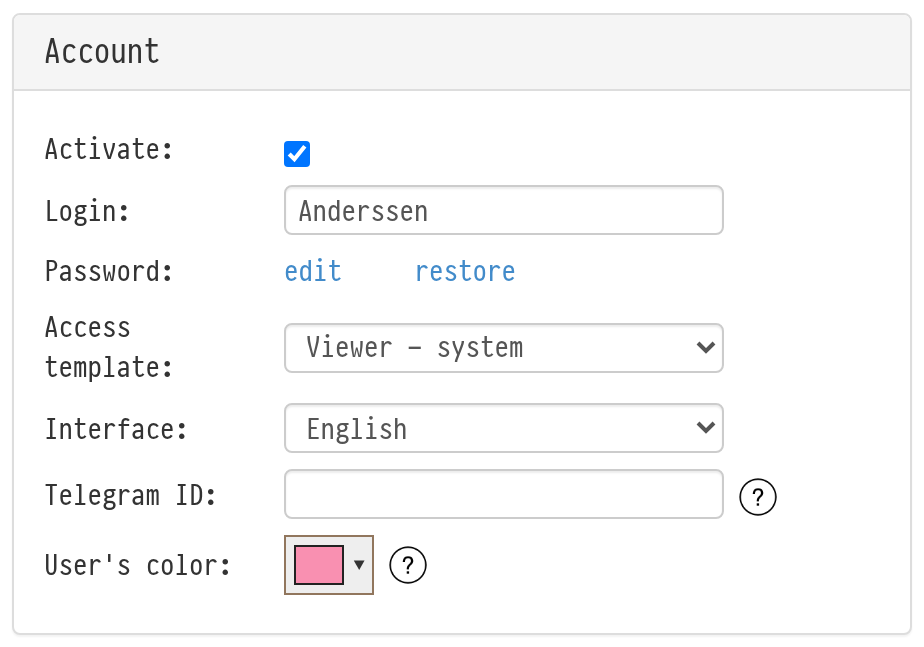
In the "Account" block, select "Activate" and set the login and password.
In the "Access template" field, choose "Viewer - system".
Save the card.
More about logins: Adding Users.
The guest access template
The guest template is already in the "Access templates" list ("Employees" → "Options" → "Access templates") under the name "Viewer - system". It cannot be renamed, copied or deleted. You can only set which project sections the guest sees: click the access icon in its row.
The project sections you can set:
"Information", "Planning", "Estimate", "Warehouse", "Files/Links", "Messenger": "show" or "hide";
"Staff", "Vehicles", "Project Managers": "read-only without prices", "read only (own prices)" or "hide". With "own prices" the employee sees only their own payment, and the amounts of colleagues are hidden.
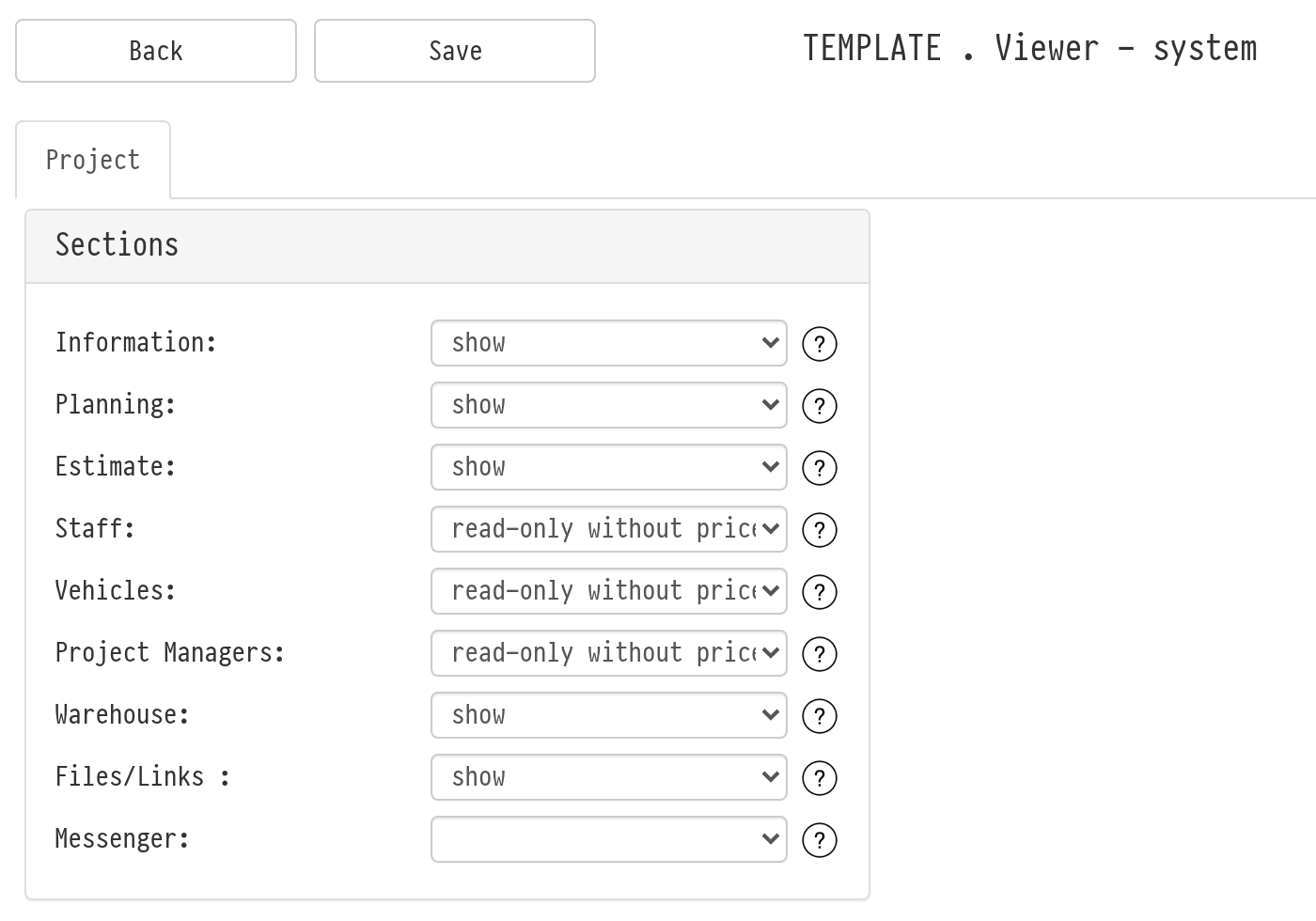
The settings apply right away to all guests of the company.
How many guests you can add
Guest users are not available on all service plans. Guests are counted separately from regular users and do not take their places in the plan. The number of guests allowed is shown on the "My plan" page, the "Guest" row. If the limit has been reached, the message "Guest has not been added." appears when you save the card. To free a place, clear "Activate" for a guest who no longer needs access.
Please note. If a guest needs to change something, for example to mark shipping in the warehouse, guest access is not suitable. Create a regular template with the rights needed. See Creating a new template.