"Project tasks" table
The "Project tasks" tab collects in one list the tasks that are set inside projects in the "Planning" section. Before, such a task was visible only in its own project. Now you can see at once what employees have been asked to do across all projects, and filter the list, for example, by performer or by status.
Tasks outside of projects, that is, general team tasks, stay on the neighbouring tab. See Tasks table.
Where to find it
Open "Table" and go to the "Project tasks" tab. It comes right after the "Tasks" tab.
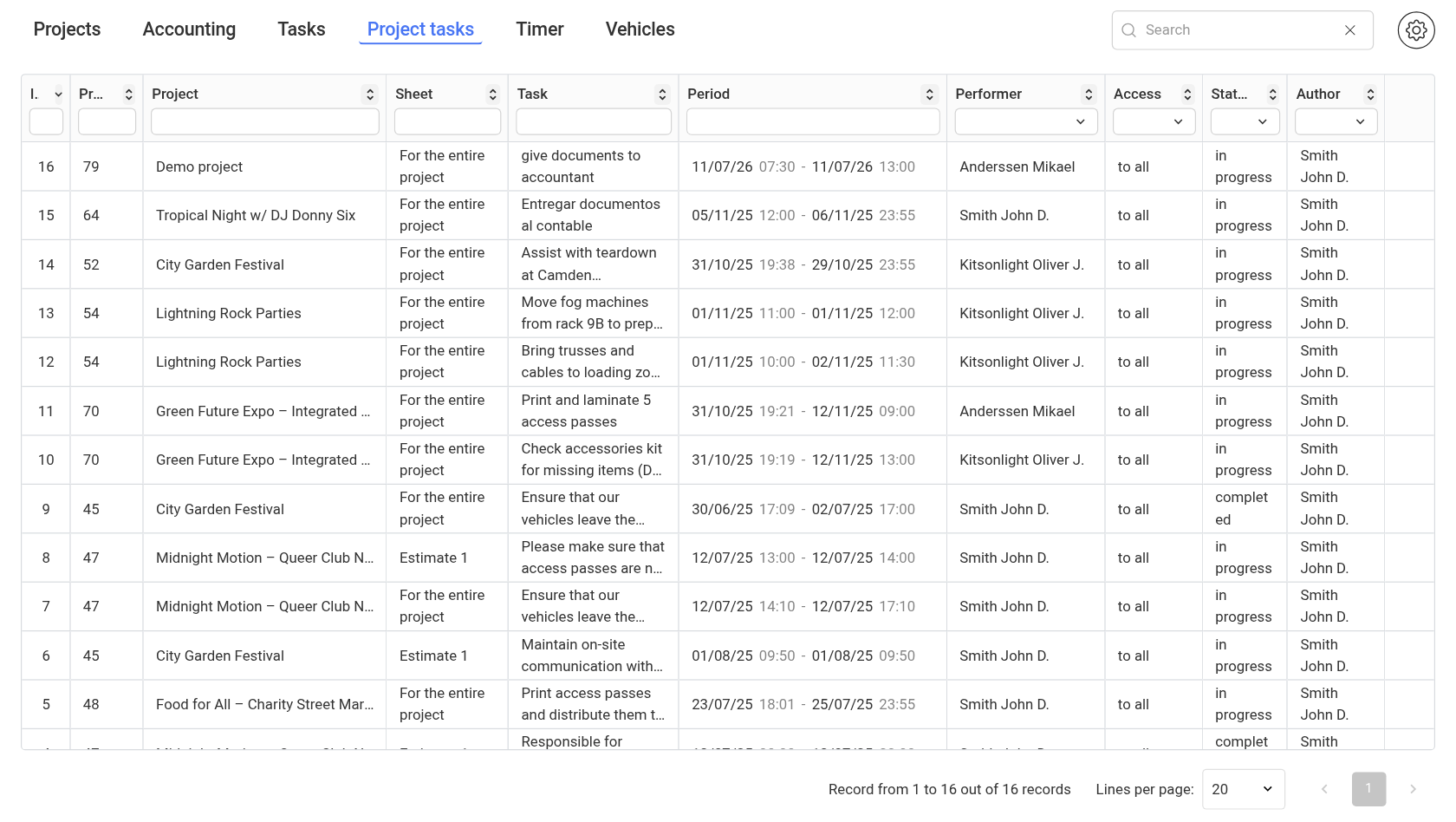
What the table shows
Each row is one task from a project. Columns:
"ID": the task number;
"Project No." and "Project": the number and name of the project. Clicking it opens the project in a new browser tab;
"Sheet": the project sheet the task belongs to. If the task was set for the whole project, you will see "For the entire project";
"Task": the task text;
"Period": the date and time when the task starts and ends;
"Performer": who the task is assigned to;
"Access": who can see the task inside the project: "to all" or "for the performer only";
"Status": "in progress", "completed" or "not completed";
"Author": who set the task.
If files are attached to a task, a folder icon appears at the end of the row. Click it to open the list of the task's files.
Search and filters
The "Search" field above the table searches by task number and text, project name, sheet, performer and author.
There is a filter under the heading of each column. In the "Performer", "Access", "Status" and "Author" columns you choose values from a list, and you can select several at once. In the "Period" column you choose a date range: the list shows tasks that run on at least one of the selected days. In the other columns the filter searches by the text you type.
The arrows next to a heading sort the table by that column.
At the bottom you can move between pages and choose how many rows to show per page ("Lines per page").
Column setup
Click the gear to the right of the search field. In the "Table settings" window you can:
hide or show a column with a checkbox;
drag columns into the order you need;
pin a column with the pin icon;
rename a column with the pencil icon.
You can change the width of the columns and of the whole table with the mouse by dragging the edge of a heading. The settings are saved in your browser.
How to change a task
The table only shows tasks. To change a task, its performer or its status, open the project from the link in the row and work in the "Planning" section. See Planning.
Which tasks are visible
The table shows tasks only from the projects available to you under your access template.
If a "Display Period" is set in the access template, the table shows tasks that start within this period.
The tab is hidden if, in the access template, on the "Project" tab, in the "Planning" block, the "Tasks" item is set to "hide". How to set up a template: Creating a new template.
Please note. The "Access" column only shows how the task is set up in the project. The combined table includes all tasks of the projects available to you, including tasks with "for the performer only" access.