Catalog Navigation and Search
The catalog in Golova has a tree structure. The tree of sections and subsections is on the left, and their contents are shown in the central part (the workspace). You can navigate by clicking the tree on the left or by double-clicking folders in the workspace. At the top there is a navigation bar ("breadcrumbs") that shows the current level and lets you go back to any previous level with one click.
The catalog remembers where you stopped
The catalog remembers the expanded tree sections, the selected section and the selected row in the workspace. If you refresh the page or open the catalog again, you return to the same place. The text in the search bar is not saved.
The position is stored in your browser: on another computer or in another browser the catalog opens from the start.
Smart search for equipment and SKUs
To find an entry or a specific device (SKU) quickly, use the "Search..." bar. In the desktop version it is above the catalog tree, in the upper left part of the screen. The search starts when you have typed three or more characters. It works as follows:
Keyboard layout correction: the system recognises text typed with the wrong keyboard layout and still finds the equipment you need.
Search by serial numbers and tags: you can find SKUs not only by their internal number or name, but also by the manufacturer's serial number and by the RFID tag number.
Result highlighting: all matching items are highlighted in red in the workspace.
Instant card opening: when you click an SKU in the search results, its card opens on the right side of the screen and the SKU is highlighted in the central table.
One-click clearing: click the cross icon to clear the search bar instead of deleting the text by hand. When you clear the search, the catalog stays in the section where you were.
Opening the catalog from other sections
You can go to the catalog straight to the entry or SKU you need:
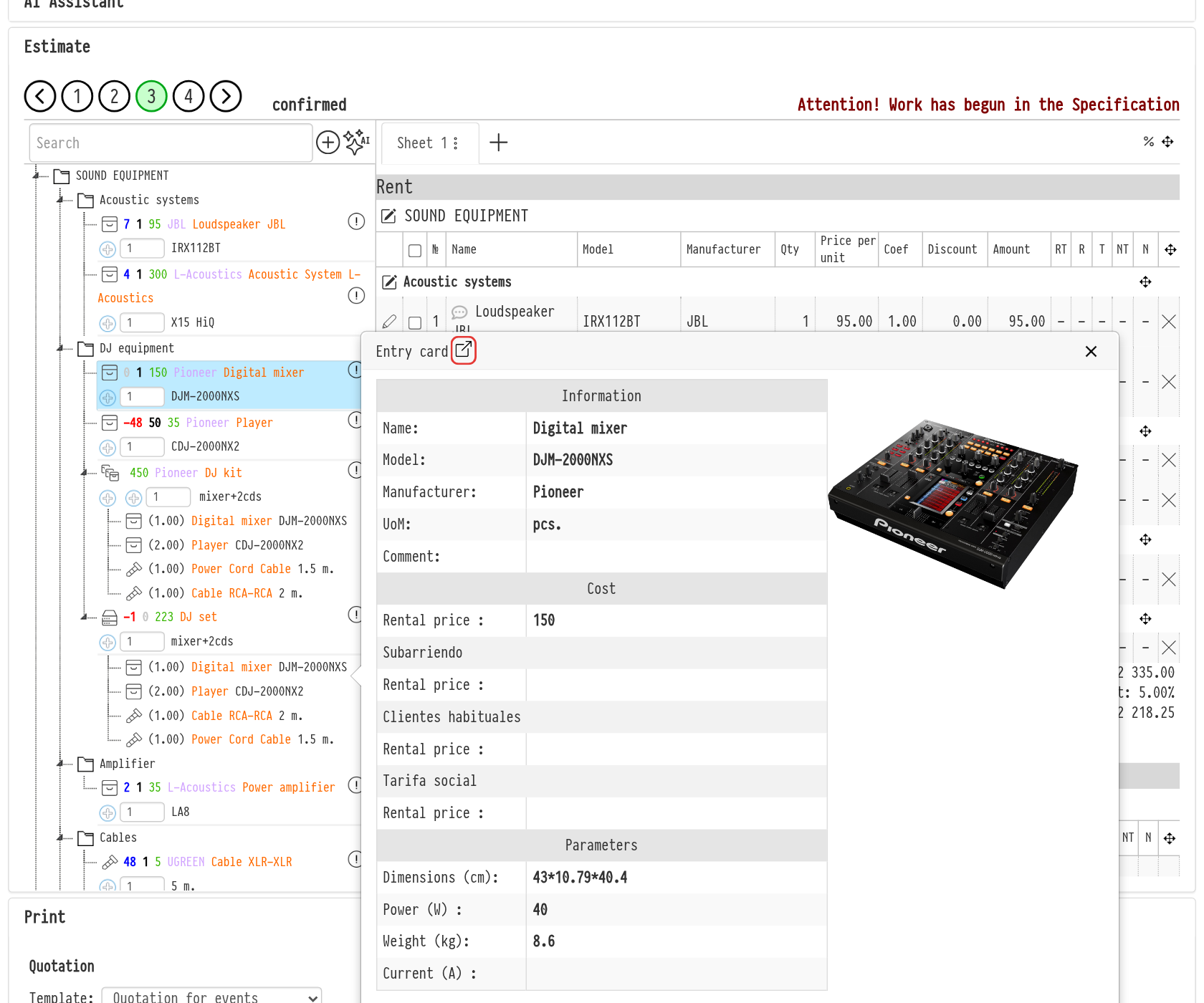
from the estimate and specification of a project: in the catalog tree on the left, an entry has a card icon. It opens the "Entry card" window, and the arrow icon "Open in Catalog" in the window header opens this entry in the catalog in a new browser tab;
from the Purchases report: the SKU number in the report leads to this SKU in the catalog.
The catalog opens in the right section, with the entry or SKU selected and its card open on the right. Only employees who have access to the "Catalog" section see these links.
More conveniences in the list
Protection against accidental moves: so that you do not drag a folder or entry into another section by mistake (especially on mobile devices), the catalog has a padlock icon. Drag-and-drop is locked by default. To move objects freely, open the padlock first.
Column width: you can change the width of the columns in the workspace to read long names more comfortably.
catalog, navigation, workspace, catalog tree, breadcrumbs, smart search, SKU, serial number, RFID tag, entry card, padlock, movement lock, column width, opening the catalog