Documents
At the top of the "Documents" tab there is a row of numbered circles and arrows. Click a circle to mark which step the project's documents are at; the status name is shown next to it. The status is set immediately and does not depend on the documents you have created. Read more: Document and finance statuses.
In the "Documents" section, you can quickly create a package of standard documents for the project (an equipment handover note, an equipment return note, a bill, etc.). To do this:
- Click the plus sign on the far left of the section
- Select the template that the document package will be generated from
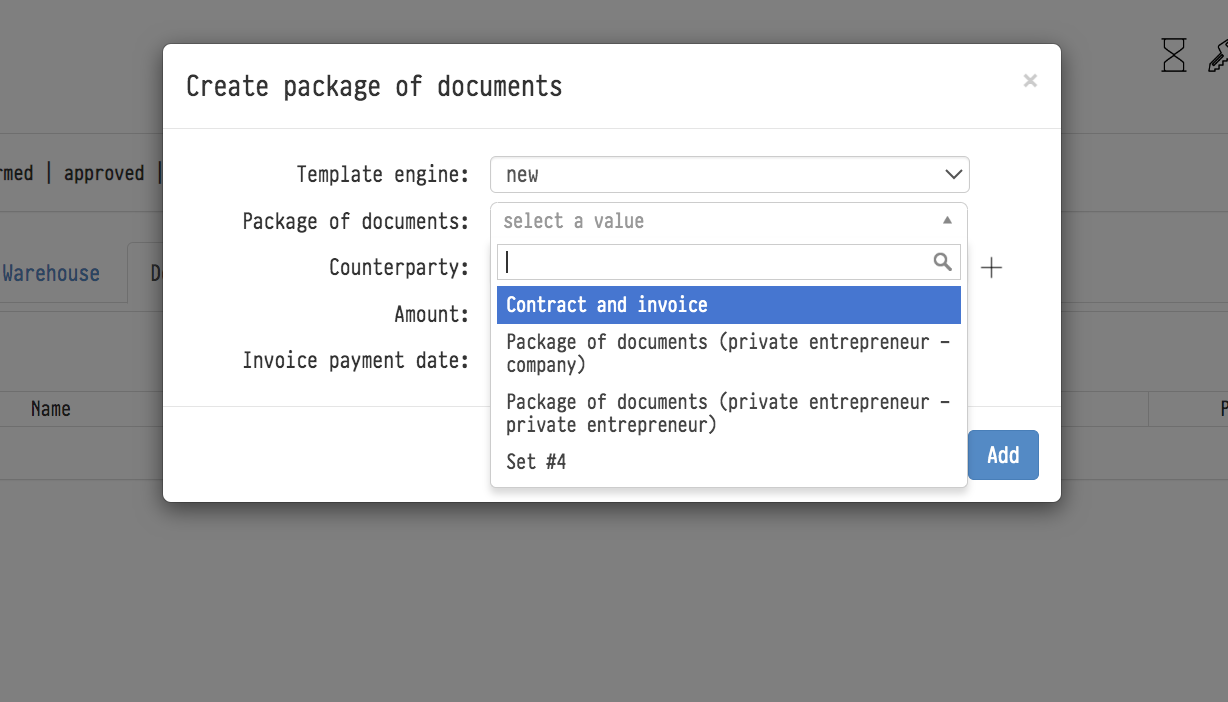
- Choose a counterparty
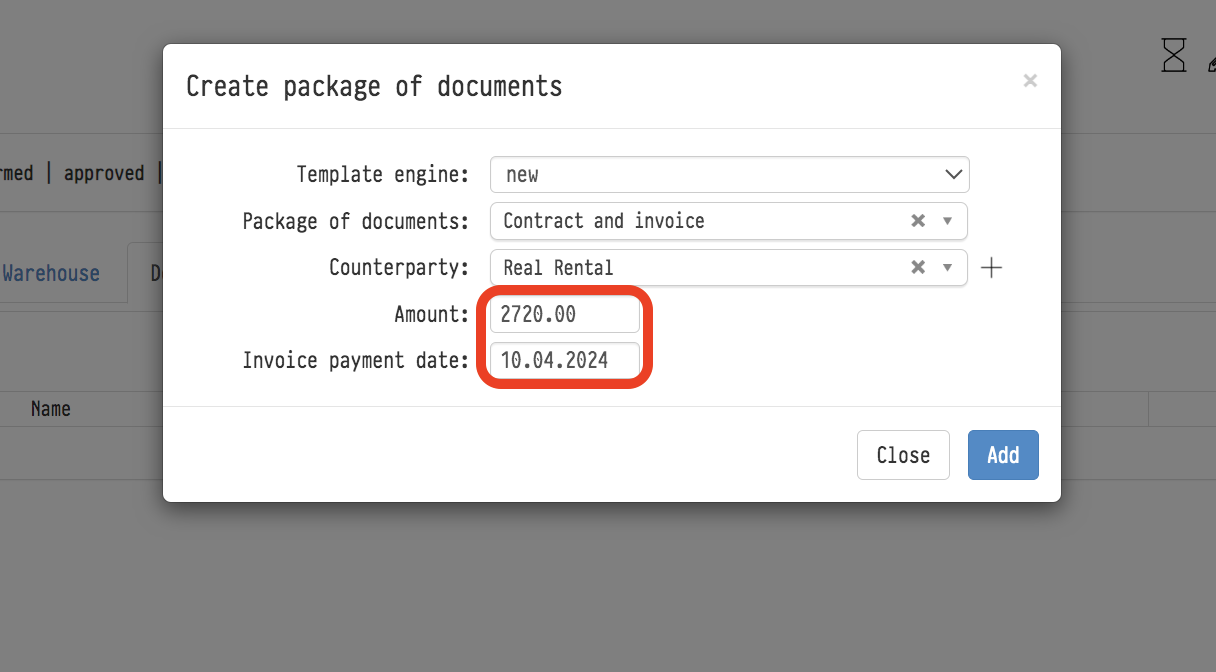
- Enter the contract amount and the bill payment date
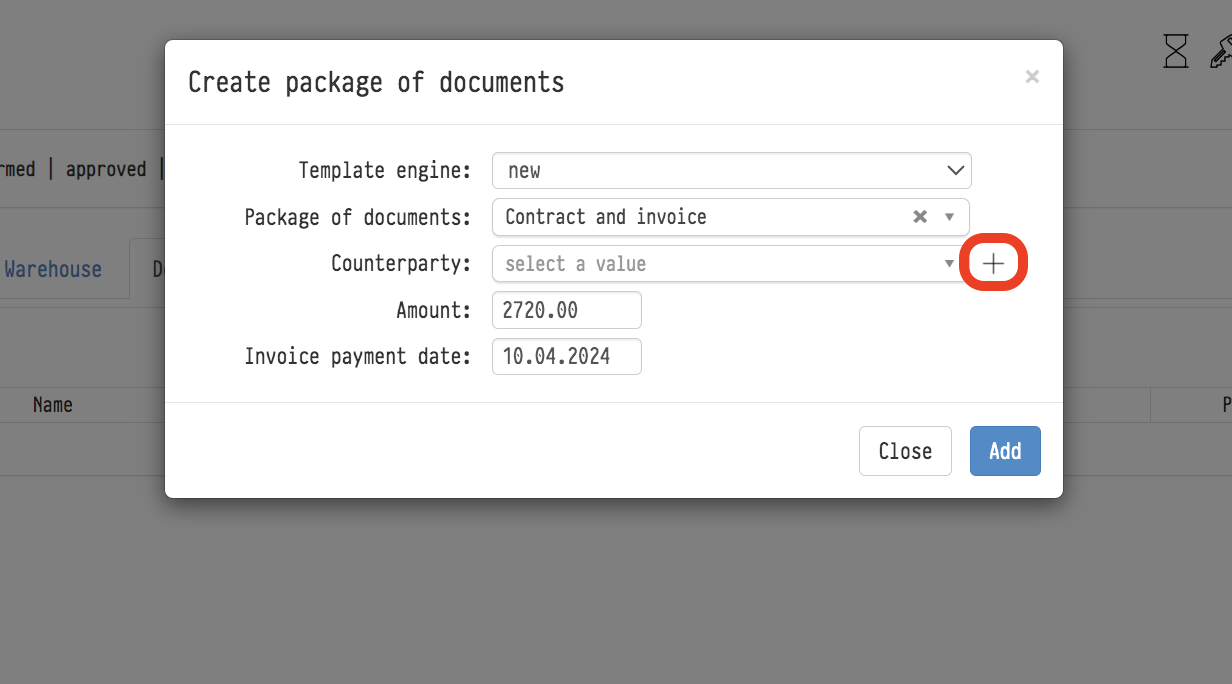
The "plus" icon next to the counterparty field lets you add a new counterparty while you are in the "Documents" section, without going back to "Databases" → "Counterparties".
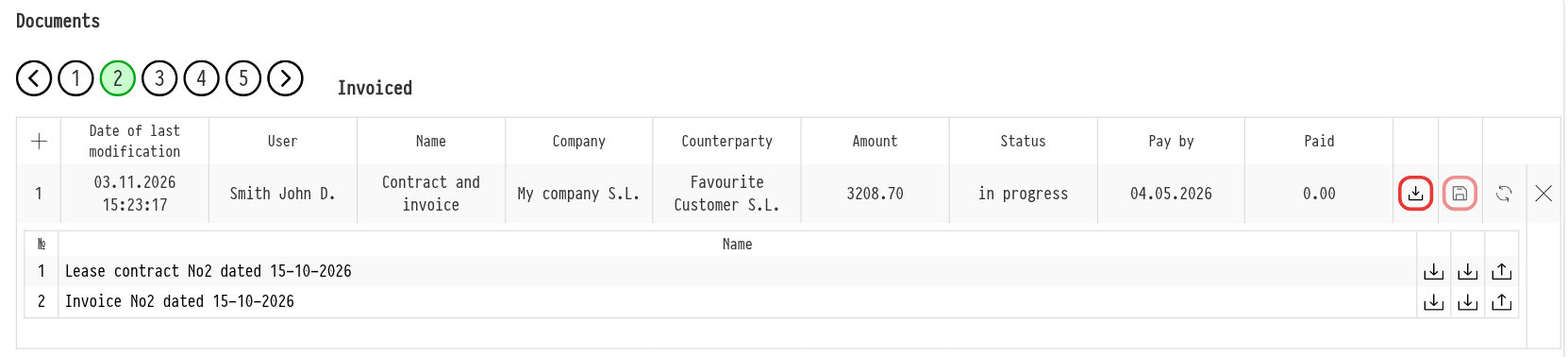
Saving a package to Storage
In the row of a generated package, next to the "download all" icon, there is the "Save to Drive" icon (a floppy disk). It saves all the documents of the package to the project folder in Storage: "Documents" → a subfolder named after the package. Each save is a new version with the date and time.
The icon is visible to employees with full access to the project documents, if they have access to Storage (access template, "Services" tab). See Saving documents to Storage.
When you create a package, there is the "Template engine" field ("new" or "old"): it defines which set of variables is filled in the documents. Please use "new": custom variables work only with it. If another currency is selected in the project, it goes into all the documents of the package, not only into the quotation.