Setting up the (main) columns of the pick list
The main columns of the warehouse pick list describe the equipment itself: what the device is, so that it can be found quickly in the warehouse, picked and then received back. You decide how many such columns there are, what they are called and what they show.
Where to find it: gear "Settings" → "System" → "Specification and warehouse", the "Setup of the (main) columns of the pick list" block. The block is available on the extended service plan.
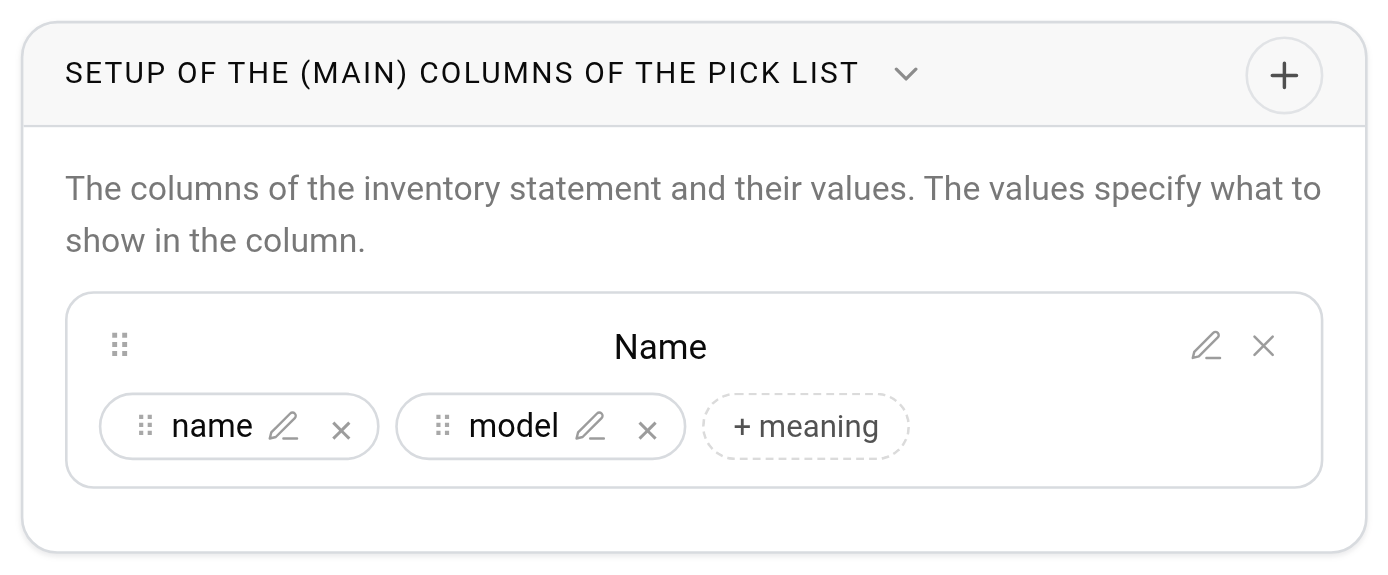
How to add a column
Click the "+" icon in the block header. In the "Adding (main) columns" window, enter the "Name": this is how the column will be labelled in the pick list, for example "Equipment name". Click "Save".
What to show in the column
A column without values stays empty in the pick list. To fill it, click the add value button under the column name. In the "Adding values to a column" window, select what to take from the catalog entry card:
"name";
"model";
"manufacturer".
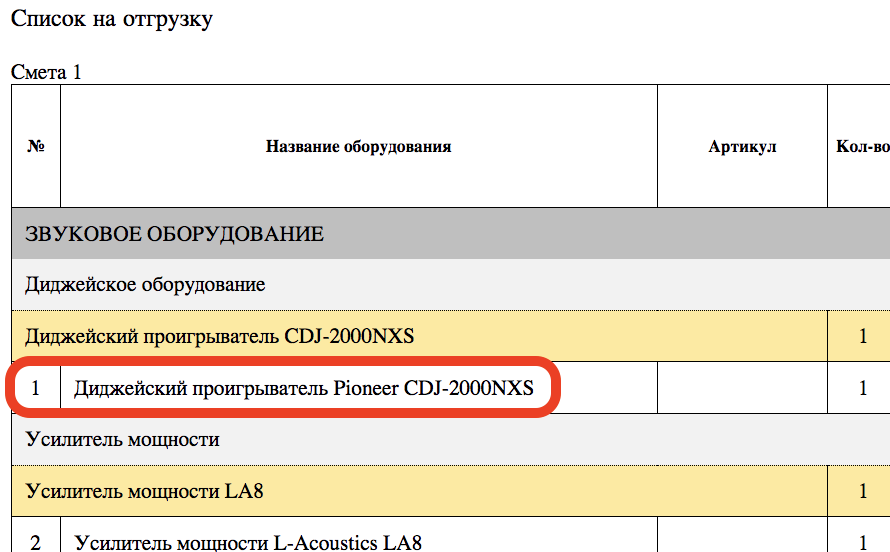
You can put several values in one column: they are shown one after another separated by a space. For example, "name", "manufacturer" and "model" give the line "DJ player Pioneer CDJ-2000NXS". Or you can make three separate columns with one value each.
How to change or delete
Each column and each value has two icons: the pencil opens the editing window, the cross deletes. The system asks for confirmation before deleting.
The order is changed by dragging: take the "⠿" icon to the left of the name and drag the column up or down. Values inside a column are rearranged the same way, by the "⠿" of the value itself.
The block has no "Save" button: each change is saved at once.
How to check the result
Open any project, the "Specification" tab, the "Print" block, and download the pick list with "Download (pdf)" or "Download (xlsx)". The main columns come in the table right after the row number, in the order you have set. How the whole pick list is arranged is described in Print.
Please note. The columns are common to the whole company: a change is visible at once in the pick lists of all projects.