Calculator
At the top of the “Finance” tab, above the calculator, there is a row of circles for the project’s finance status. It is set manually: income and expenses do not change this status. Payment of issued invoices is calculated separately and automatically when you enter income against an invoice. Read more: “Document and finance statuses”.
This block automatically summarizes the financial components of the project in order to show the final profit.
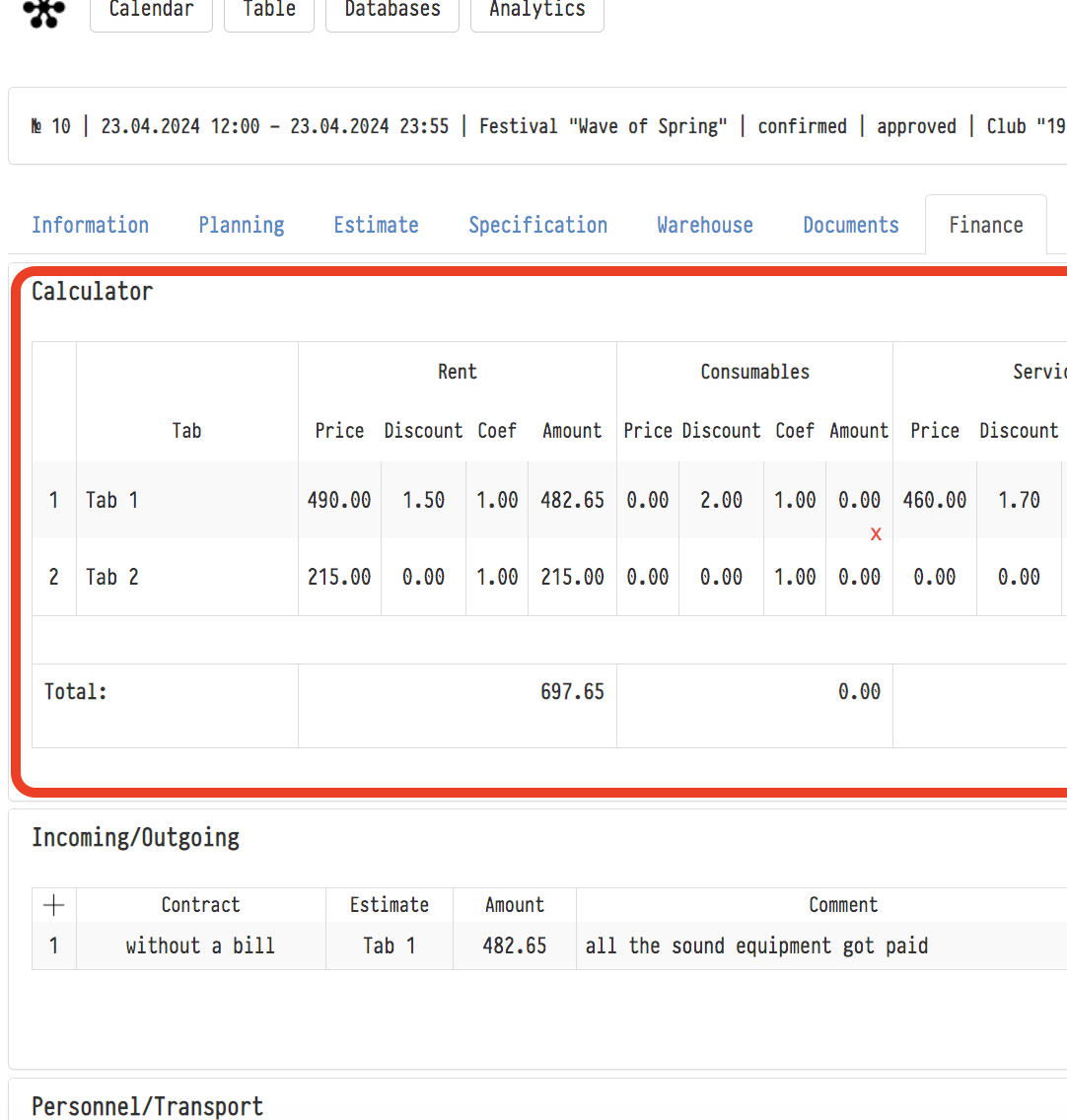
Rent, Consumables, Services, Estimate
In these four areas of the calculator, figures from the corresponding subsections of the estimate are collected (let's clarify that the part of the calculator called "Estimate" contains data on general calculations for the estimate - "Total", "Tax", "Payable"). For greater clarity, the information here is divided into lines, each of which corresponds to a separate estimate sheet ("Estimate", "Estimate 1", "Estimate 2", etc.).
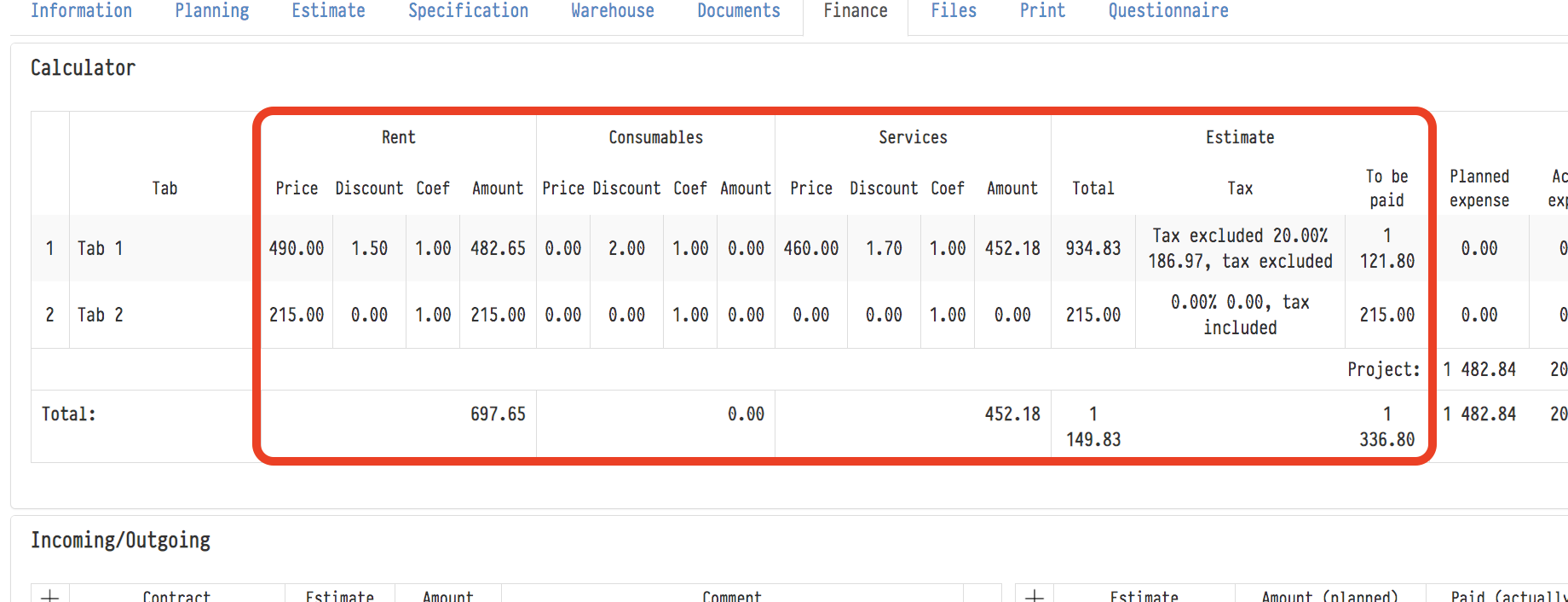
Profit
In this section of the calculator, the final comparison of expenses, taxes and income – expected and actual - takes place. On the basis of this comparison, in fact, the profit volumes are calculated.
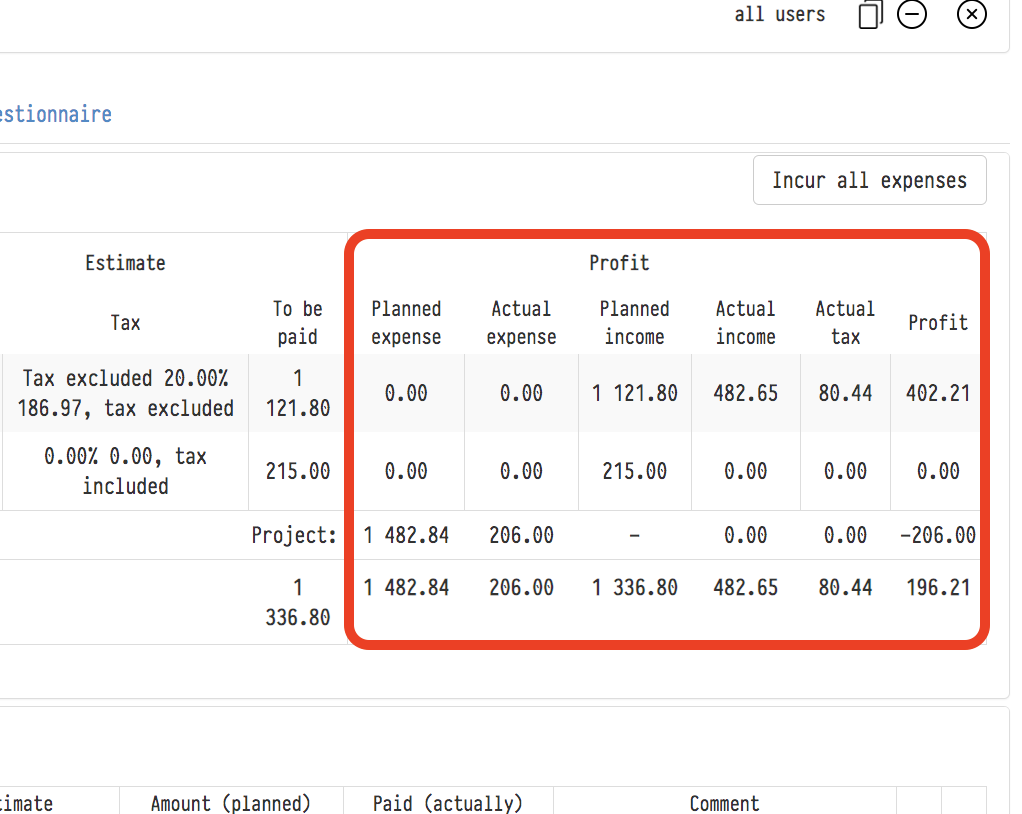
This includes the following columns:
The column "Planned expense"
The expected expenses for different elements of the project are shown here.
We suggest that you focus on each row of this column in more detail:
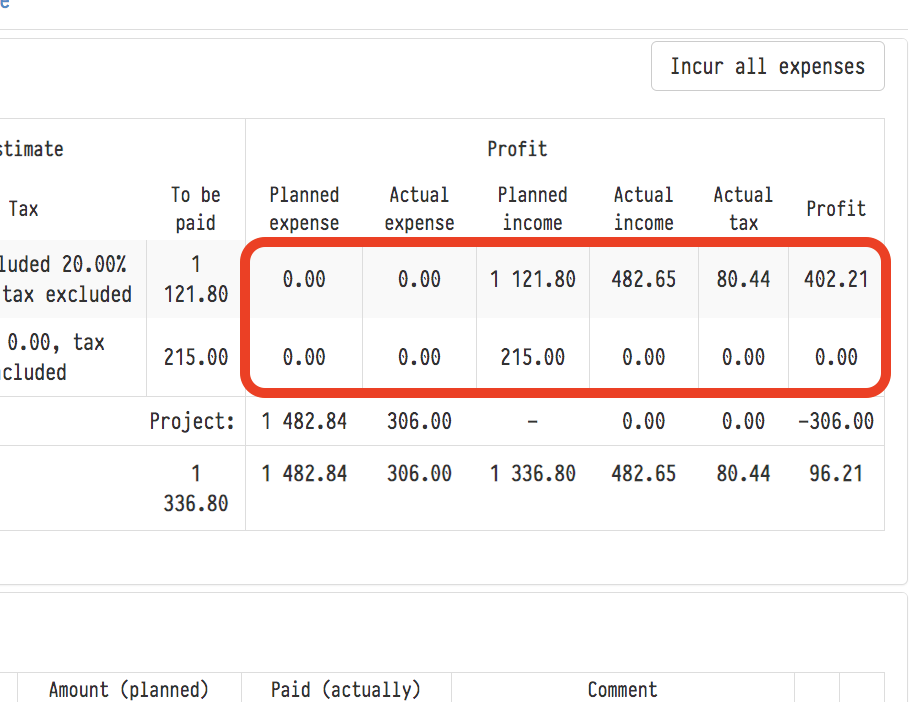
1) A line with the name of the estimate tab ("Sheet 1", "Sheet 2", etc.)
This line displays the figures for a certain part of the expected project costs. We are talking about any financial costs that you face, except for the costs of staff, vehicles, sublease, management and fines. This may be, for example, payment for staff meals, some additional materials, or third-party vehicles that you attract during the project, etc. These figures are entered manually using the functionality of the "Income/Expense" block (please note that all other payments are pulled up from other sections of the project automatically). Note also that these amounts cannot be included directly in the estimate, because it contains only what the client will pay you (in other words, only your expected income), and your expenses are in the column of the calculator in question;
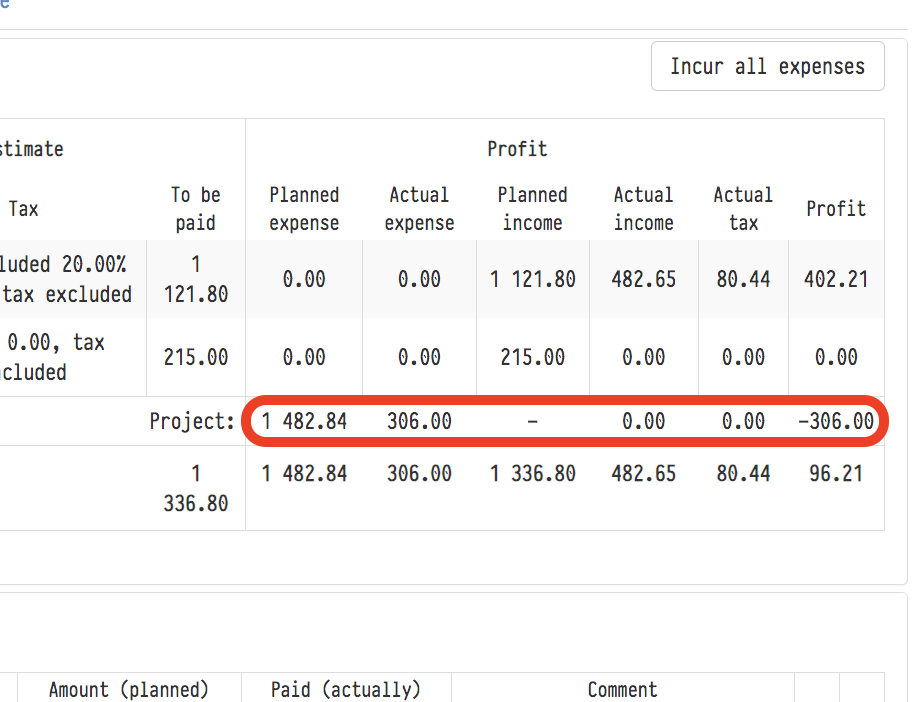
2) The "Project" line
This line shows the amount of planned costs in four directions: staff, vehicles, sublease and management. You previously entered these figures in the "Planning" and "Specification" sections. Each of the numbers that make up this sum can also be seen separately – in one of the corresponding blocks of the Finance section ("Staff/Vehicles", "Project Managers/Fines", "Sublease");
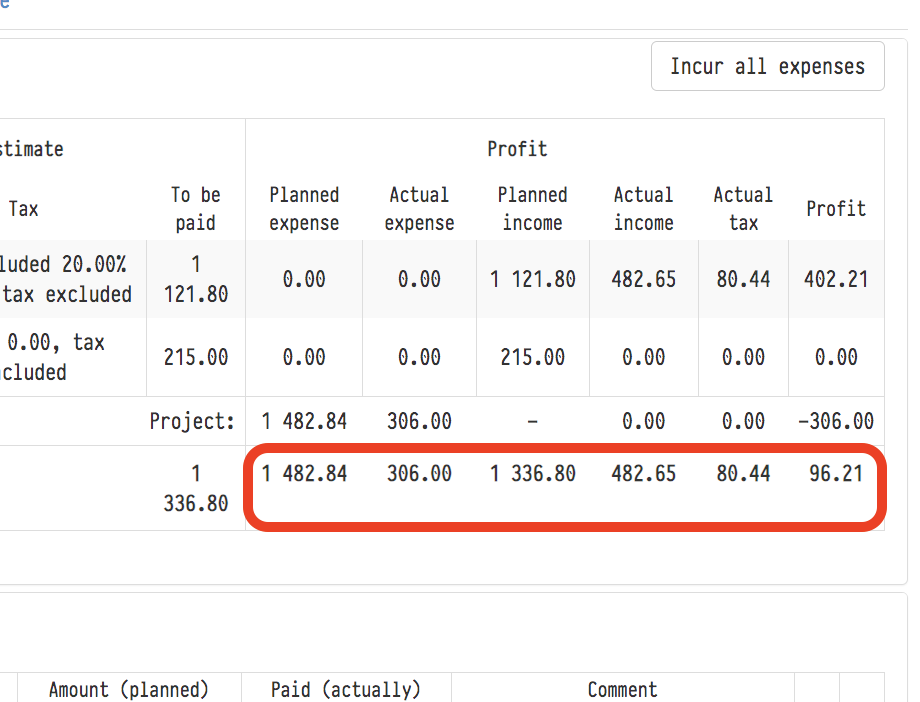
3) The "Total" line
This line summarizes what is in the calculator area directly above it – the figures from the lines with planned expenses for each estimate sheet, and the contents of the "Project" line.
But let's return to the description of the remaining columns of the "Profit" subsection.
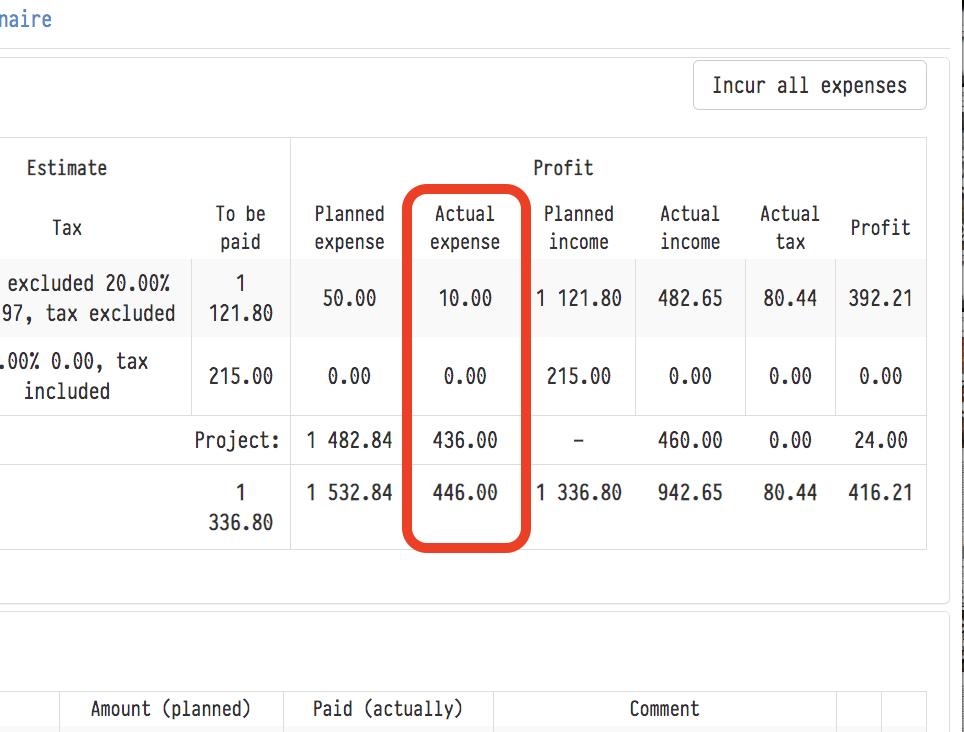
The "Actual expense" column
The amounts that you have already paid are shown here. By clicking on the pencil icon, which is available in most blocks of the Finance section, you can open a window in which you can specify which part of the planned expense has already been paid. After entering this data, you will immediately see how the numbers in the column of the calculator in question have changed.
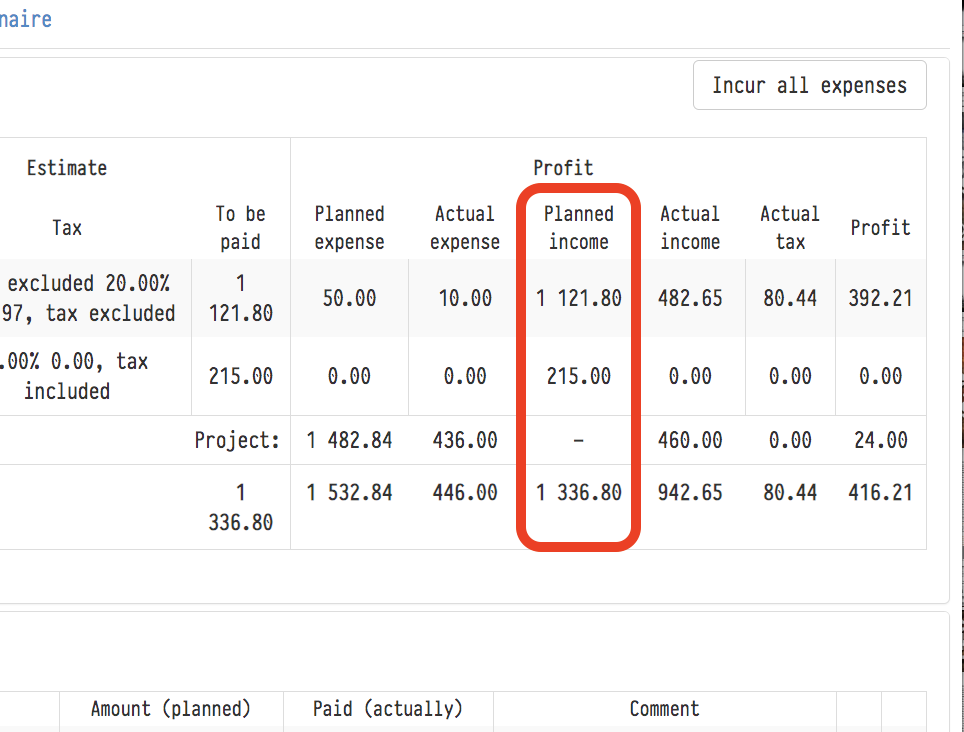
The "Planned income" column
The data in this column are figures taken from the "Total payable" items on each estimate sheet. Note that there is a dash in the "Project" line in this column, because our system does not provide for planned revenues, except for those indicated in the estimates.
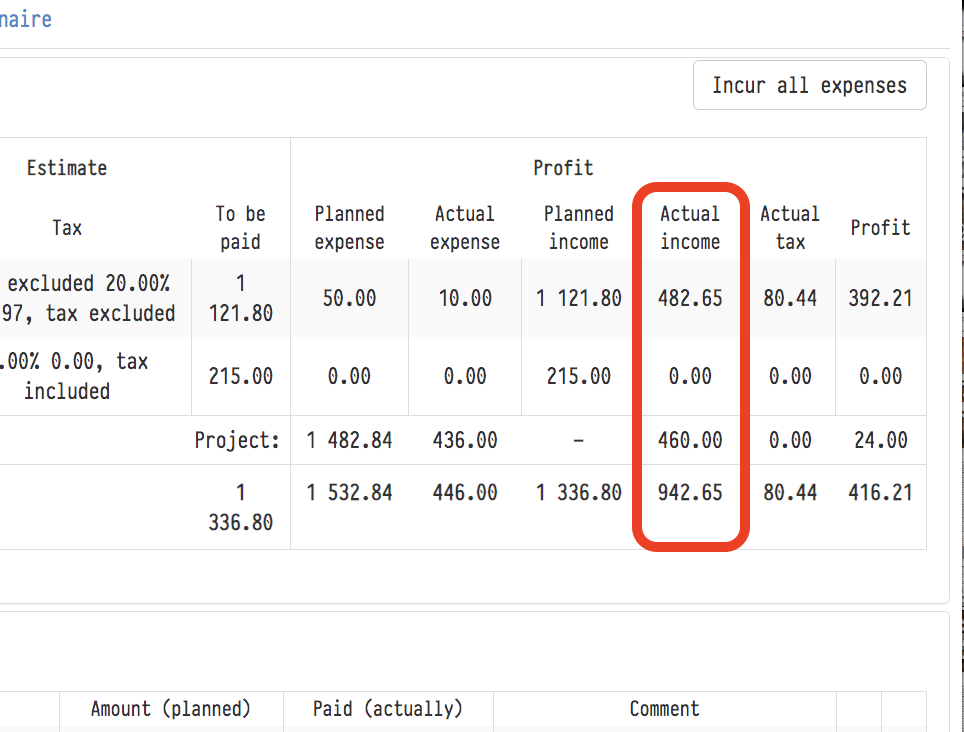
The "Actual income" column
The amounts in this column appear as they are entered in the "Income/Expense" section here, in the "Finance" section.
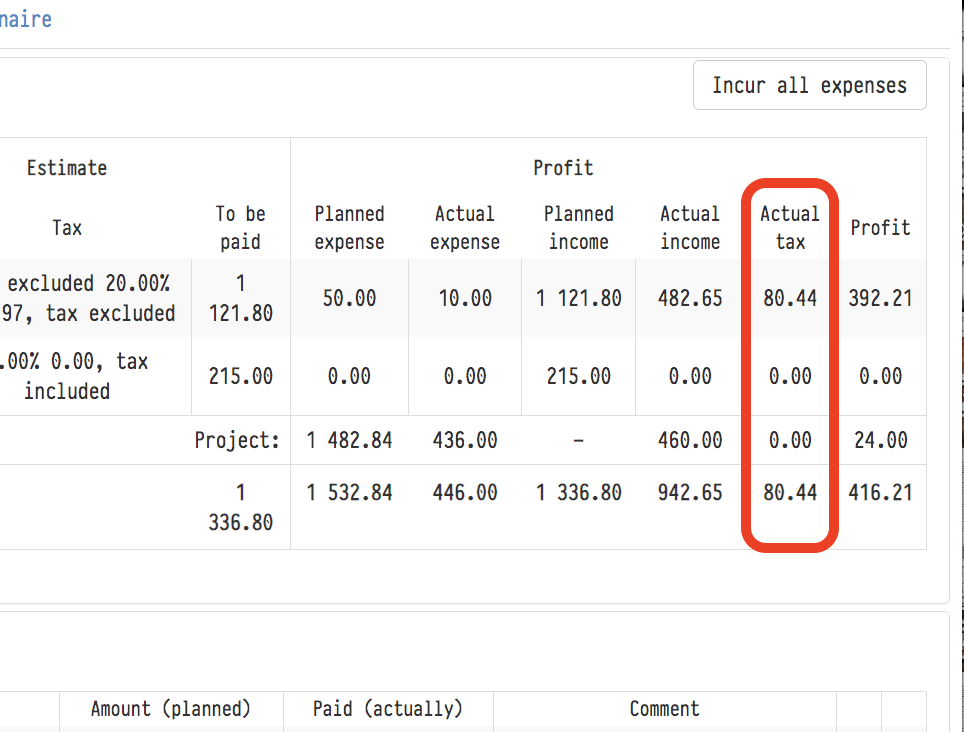
The "Actual tax" column
The content of the rows in this column is calculated using the standard formula for allocating tax from the amount: actual income X tax rate / (tax rate + 100).
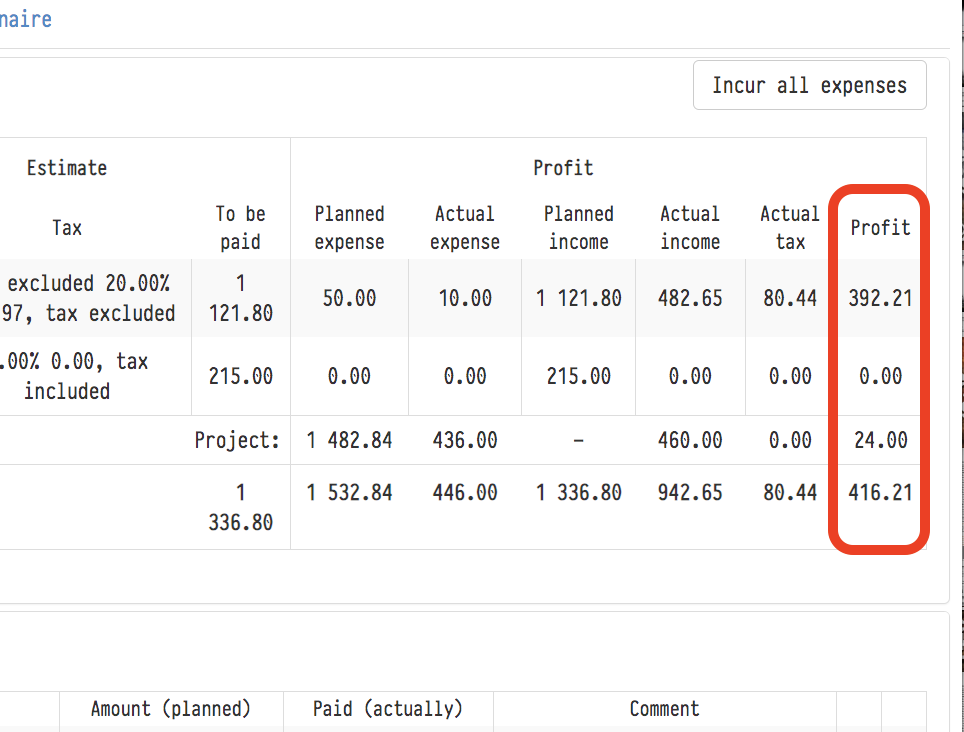
The "Profit" column
Each number in the "Profit" column is the actual income minus the actual expense and minus the actual tax for one of the calculation lines ("Sheet 1", "Sheet 2", "Project", etc.).
Profitability
Under the total row of the calculator, on the right, the project profitability is shown: the share of income that remains after expenses. It is calculated as (income − expense) / income, in percent, before tax.
"Planned profitability": by planned income and expenses. Income here is the "Amount payable" of the estimate sheets. While the estimate has no amounts, "no estimate" is shown instead of the percentage.
"Actual profitability": by the amounts already received and paid: the actual income from the "Income" block and the actual expense. While the project has no income entries, "no payments" is shown instead of the percentage.
Planned profitability shows how profitable the project is by calculation, actual profitability shows how it turns out in practice. If the actual figure is much lower than the planned one, check for unplanned expenses and whether all client payments have been entered.
Please note. Profitability is calculated before tax, while the "Profit" column deducts tax. So with zero profitability the profit in the table can be negative. A hint with the formula opens with the icon next to "Actual profitability".
Only active estimate sheets are included in the calculation. If some sheets are disabled, the row "Disabled sheets do not participate in the calculation" with their names appears under the calculator totals.
