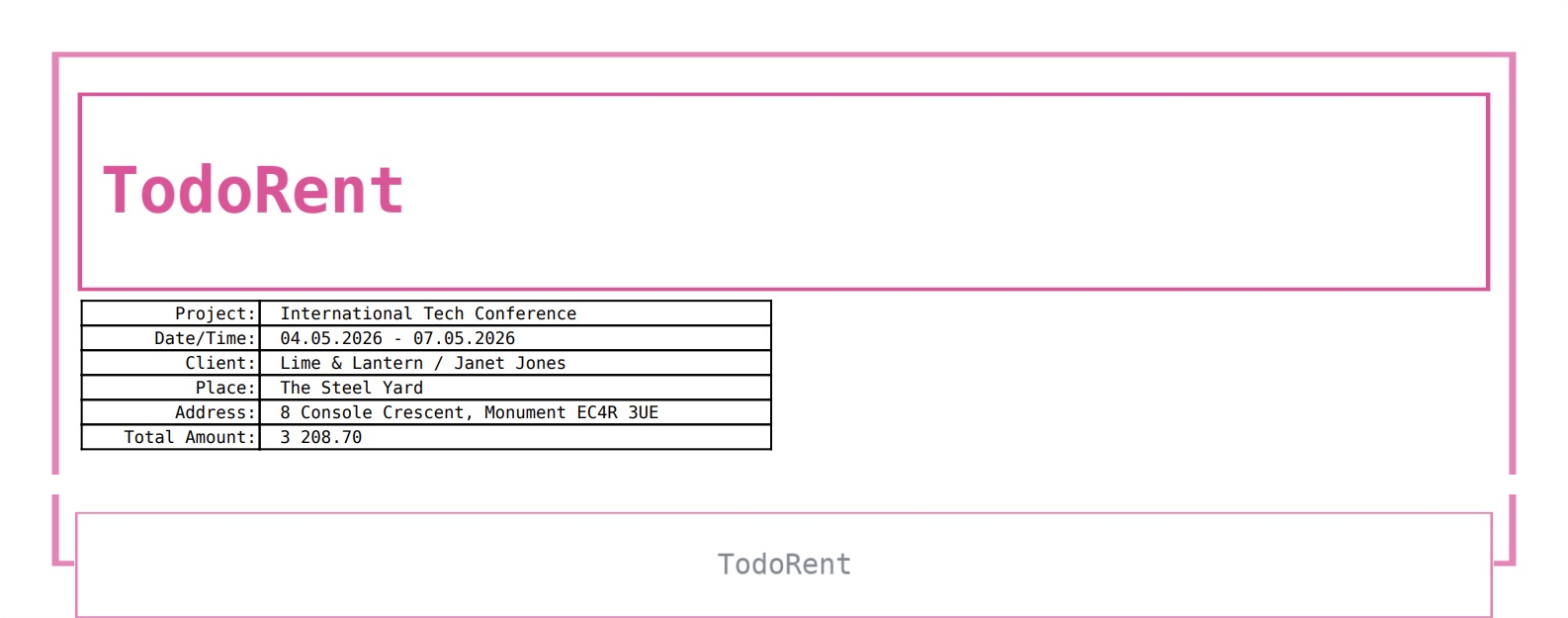
Files
The Files tab holds the pictures for the company letterhead and extra files: the header, the background, the footer, the header above the estimate sheet, the title page photo and PDF appendices.
Pictures
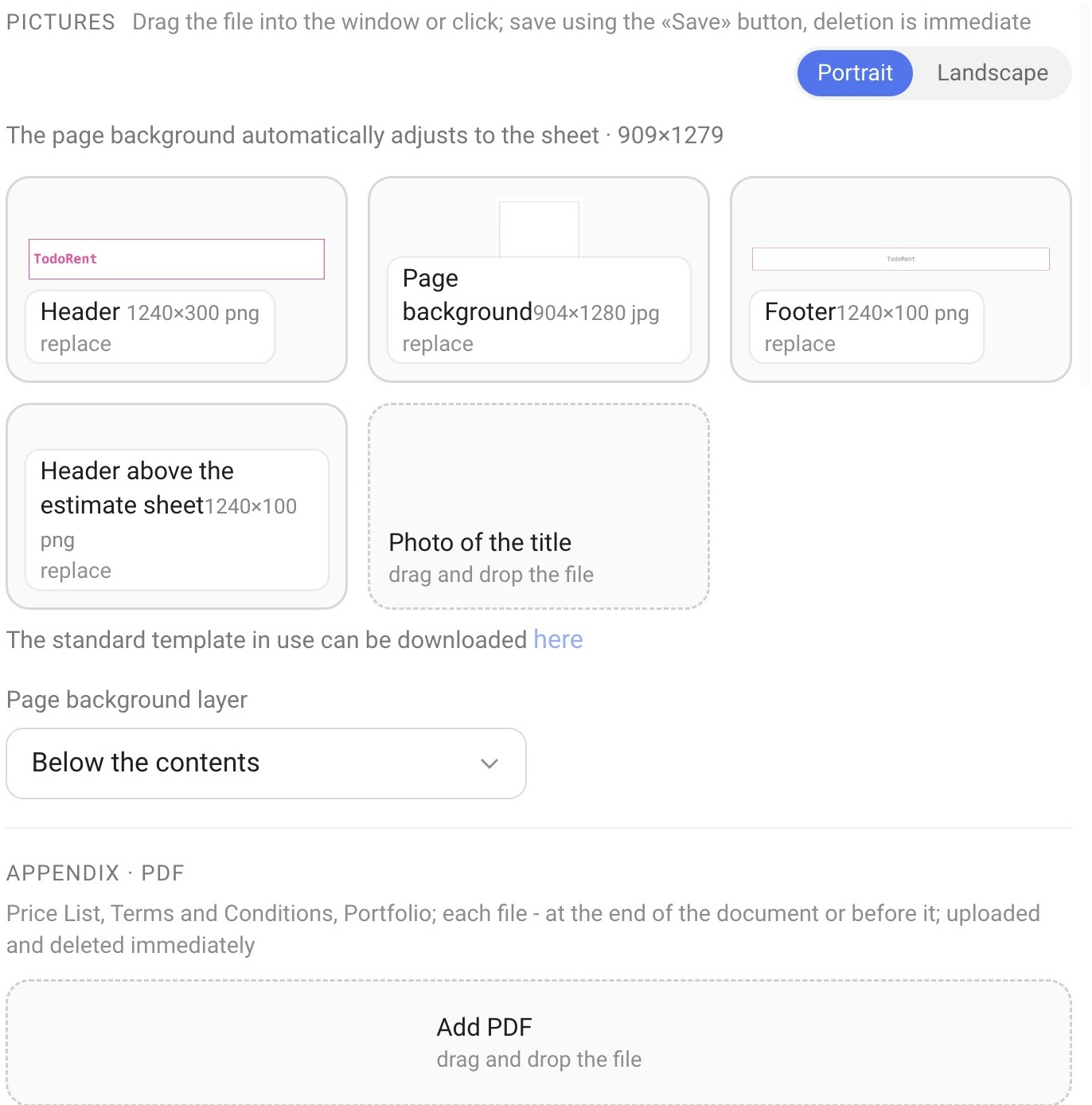
You can drag a picture into a slot or click the slot and choose a file. Uploaded pictures are saved with the “Save” button, while deleting happens immediately. Pictures for the portrait and landscape orientations are uploaded separately: the “Portrait” / “Landscape” switch is at the top of the block. If no picture is uploaded for the landscape orientation, the portrait one is printed.
Header — PNG, 1240×300 pixels;
Page background — JPG, 904×1280 pixels; it is fitted to the page size automatically;
Footer — PNG, 1240×100 pixels;
Header above the estimate sheet — PNG, 1240×100 pixels. This is a header that is printed below the page header but above the table with the list of equipment and services;
Title page photo — the image for the title page (it is needed when “Title page with photo” is chosen in the “Title page” list).
Next to the block there is a link to the standard layout template, which you can download and adapt.
Please note. A ready-made design immediately replaces the header and background pictures in the form (see the article “Appearance”). If you have your own pictures, make a copy of the form before applying a new design.
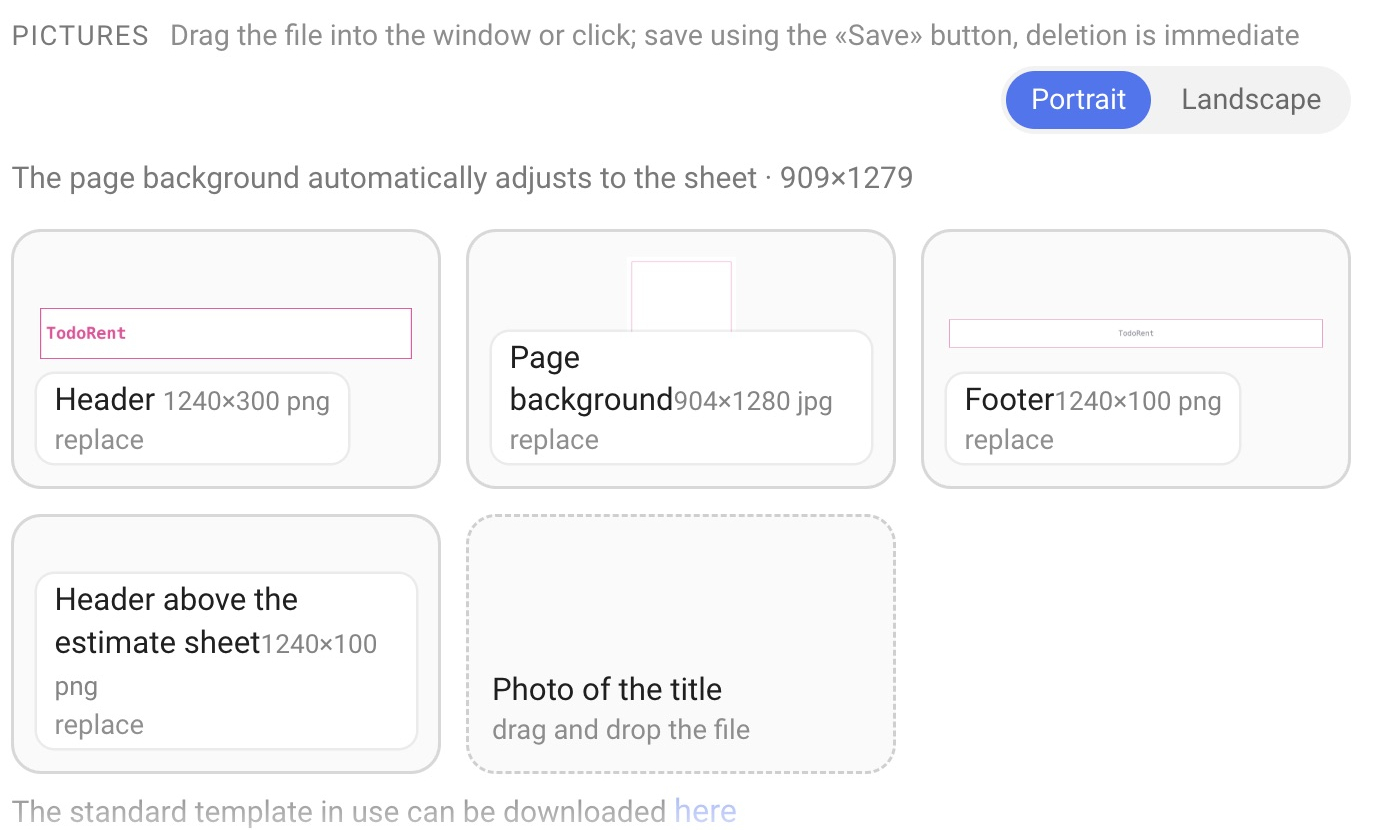
Page background layer
This setting defines where the background picture lies relative to the content: “Below the contents” (default) or “On top of the contents”. On top of the contents, use only PNG with transparency: an opaque picture will cover the text.
PDF appendices
You can attach PDF files to the document: a price list, terms, a portfolio. Each file is added at the end of the document or before it. Click “Add PDF” or drag a file into the window. Appendices are uploaded and deleted immediately, without clicking “Save”.
How to prepare a company letterhead
For the document to reflect your company style, it is better to order the letterhead parts from a designer: the header, the page background, the footer and, if needed, the header above the estimate sheet.
Ask the designer to prepare each part in the right format and with the sizes shown next to the slot name: PNG for the header, the footer and the header above the estimate sheet, JPG for the background.
Upload the pictures to their slots: drag a file into the slot or click the slot and choose a file.
Click “Save” so the changes take effect.
Open any project, choose this form in the “Template” list on the Estimate tab and look at the document: it will contain the uploaded parts of the letterhead.