Setting up (additional) columns of the pick list
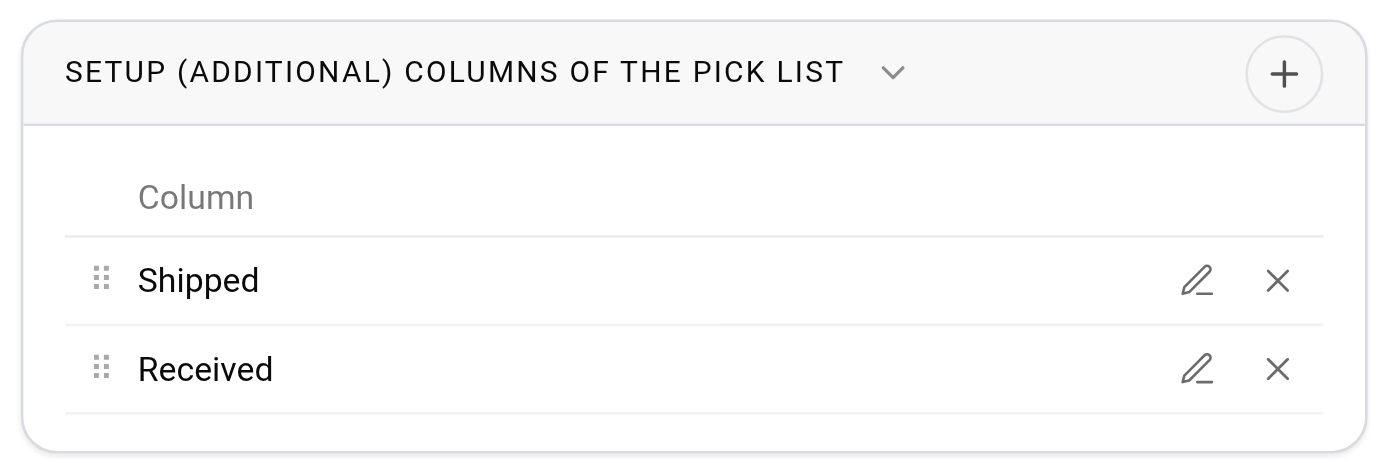
Warehouse staff often find it handy to mark things right in the printed pick list, on the go: for example, that a device has been picked or checked. For this you can add empty additional columns with your own names to the pick list: "Picked", "Checked", "Shipped", "Received" and so on.
Where to find it: gear "Settings" → "System" → "Specification and warehouse", the "Setup (additional) columns of the pick list" block. The block is available on the extended service plan.
How to add a column
Click the "+" icon in the block header. In the "Adding (additional) columns" window, enter the "Name" (this is how the column will be labelled in the pick list) and click "Save". The column appears in the list. If you need several columns, repeat as many times as needed.
Please note. The pick list is printed on A4, so many additional columns make the table crowded. If they do not fit, choose the landscape orientation in the print options.
How to change, delete or reorder
The pencil in the column row opens the editing window, the cross deletes the column. The order is changed by dragging by the "⠿" icon to the left of the name. The block has no "Save" button: changes are saved at once.
How the columns get into the pick list
Additional columns are shown on the right of the table, in the order you have set, and stay empty for notes by hand.
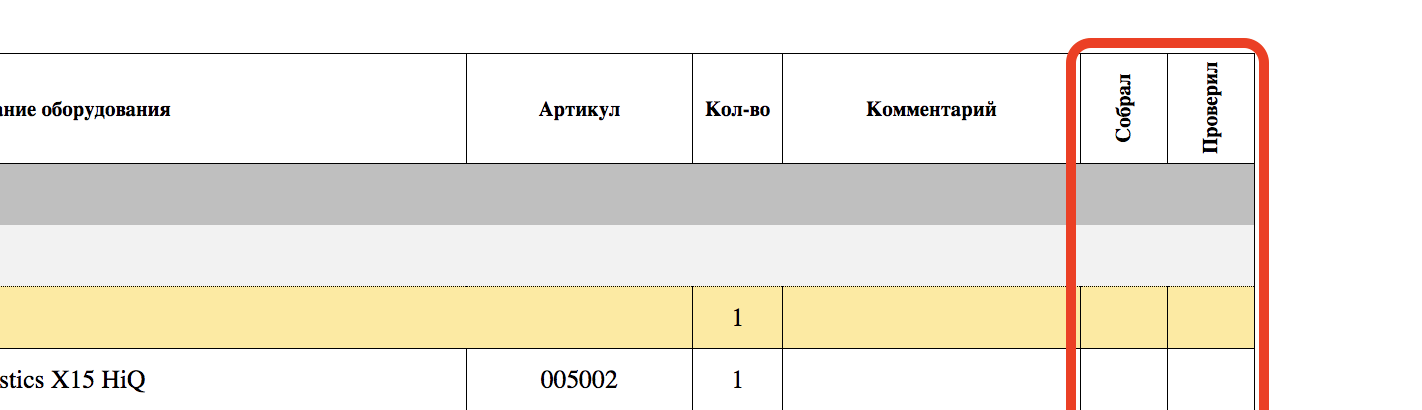
Whether they are shown is decided by the "Show additional columns" checkbox.
For all new projects: in the global settings, on the same "Specification and warehouse" subtab, the "Print. Default display settings: Table" card. More: Print. Default Display Setting.
For one project: on the "Specification" tab, in the "Print" block, click "Show print options" and tick or clear the checkbox in the "Table" column. More: Print.
This way you can keep the columns off by default and turn them on only in the projects where they are needed.
You can check the result by downloading the pick list with "Download (pdf)" or "Download (xlsx)" in the "Print" block of the project.
Please note. The set and names of the columns are common to the whole company. If you change them here, the pick lists of all projects with the "Show additional columns" checkbox on change too.